Navigate Studio
Itential Studio provides an all-in-one interface to quickly design and build workflows for network operations and configurations. It also allows you to view workflow visualizations and modify automations, forms, and various templates.
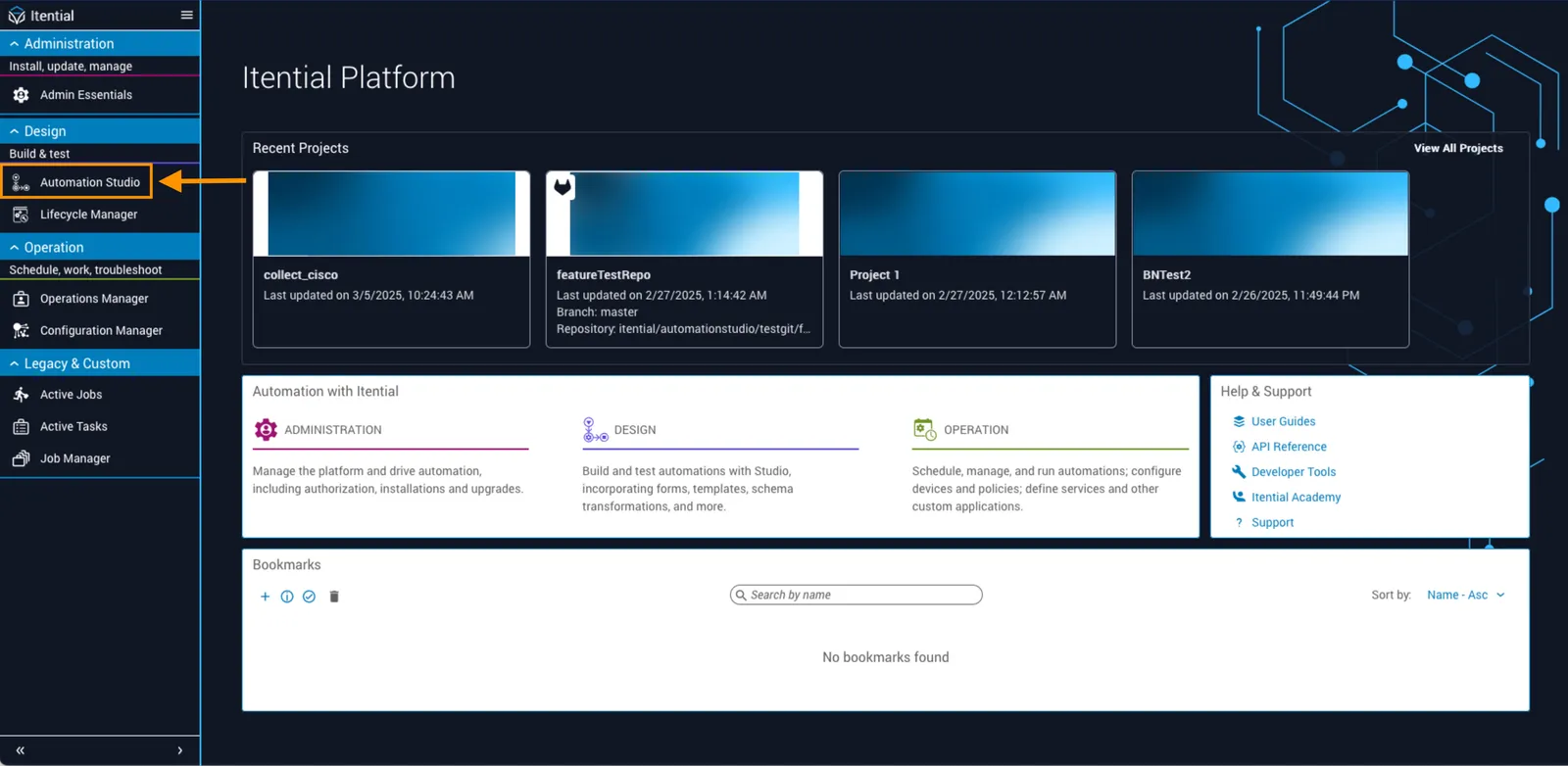
To access Studio, select Studio in the left navigation bar from the Itential Platform homepage.
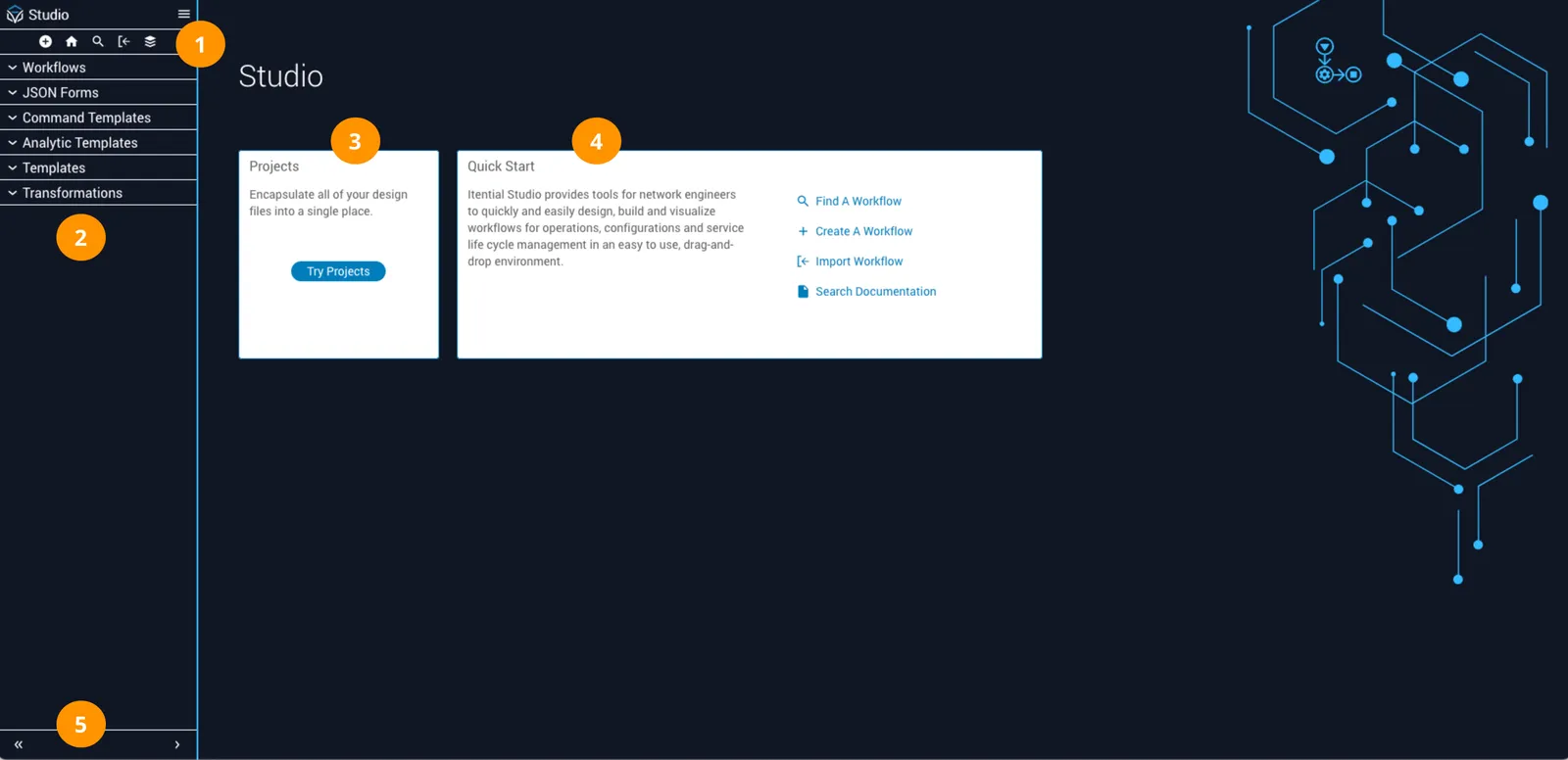
From Studio you can access the Projects design space and, from the Quick Start card, search for an existing workflow, create a new workflow, or import a workflow. The left toolbar and menu controls provide access to collections of workflows, forms, templates, and transformations.
Components
Studio is part of Itential Platform’s orchestration capabilities and provides a cohesive set of components for building workflows and associated assets.
- Workflows (
app-workflow_builder) is used to design and manage automated workflows within the platform. - Projects serves as a structured design space for organizing assets and collaborating on automation use cases. It also integrates with version control systems such as GitLab or GitHub.
- JSON Forms (
app-json_forms) is used to manually build forms for collecting the data inputs needed to initiate and execute workflows. - Templates (
app-template_builder) automate repetitive configuration tasks to ensure devices are configured consistently. There are two types: Command Templates and Analytic Templates. Command Templates automate tasks using predefined CLI commands and support variable substitution for device-specific customization. Analytic Templates analyze network infrastructure, performance, and security using tools like Jinja2 and TextFSM. - Transformations (
app-jst) handle complex data transformation operations.
Collection view
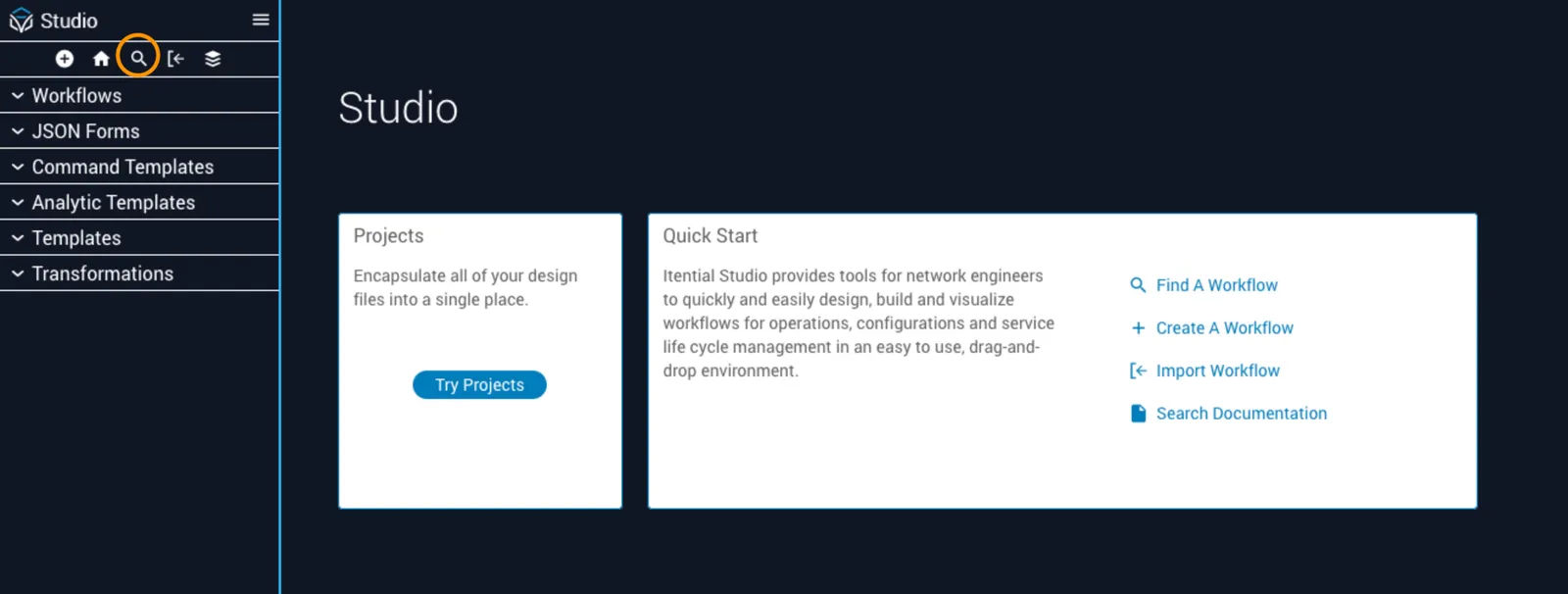
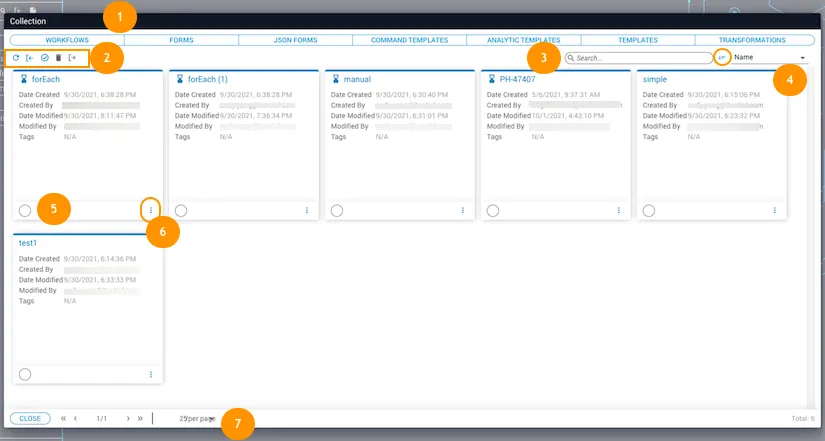
The Collection view displays lists of workflows, forms, templates, and transformations deployed across the system. Open any accordion menu in the sidebar to see the corresponding collection list. To access the full Collection card view, click the search icon (magnifying glass) in the top toolbar.
Card view
The Collection dialog displays all items as cards, with timestamp and user information shown within each card.
Card options
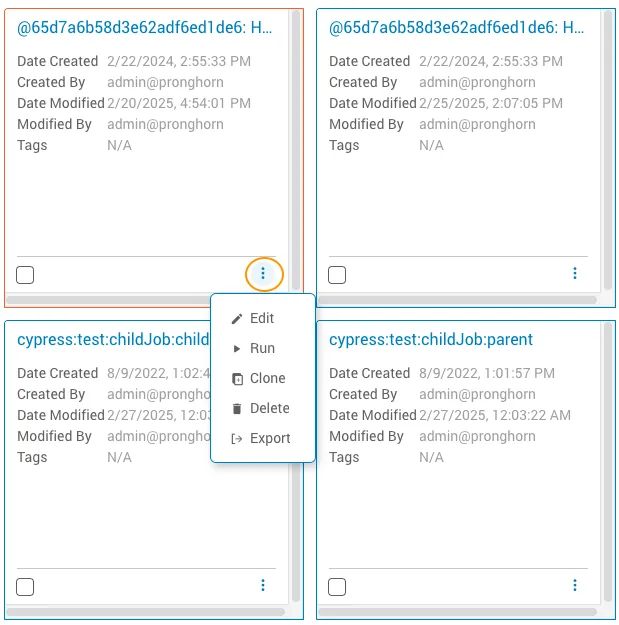
Click the ellipsis icon in the lower-right corner of a card to edit metadata, run an item, clone it, delete it, or export it.