

Actionable tasks
In Operations Manager, you can view and work with tasks that require manual intervention from the Actionable Tasks tab on the main dashboard.
Considerations
Keep the following in mind:
- Work items that a FlowAI agent invokes during a session appear only in Work Center, not Operations Manager.
- Workable tasks that predate Platform 6.5.0 appear only in Operations Manager, not Work Center.
- Quick Form tasks on a workflow appear in Operations Manager, but they show as a blank task. They should be completed in Work Center.
Actionable tasks
Tasks displayed in the Actionable Tasks view are classified as one of the following:
- A workable task that must be completed manually.
- A retryable task (defined as retryable in the workflow) that failed or errored and requires manual intervention.
Visibility in the Actionable Tasks view is limited to a list of running tasks you are authorized to claim. From this view, you can search for actionable tasks by:
- Task ID or Task Iteration ID: Task Summary is displayed by default. Use the arrow buttons to the right of the column header to cycle through the options.
- Job Name, Job Description, or Job ID: Job Name is displayed by default. Use the arrow buttons to the right of the column header to cycle through the options.
- Assignee
- Start Date/Time
To clear any filters applied to a search, select the Clear Selected Filters button in the upper-left corner of the Actionable Tasks view.
You can adjust the visibility of the Job Data, Assignee, and Start Date / Time columns by selecting the Toggle Column Visibility button in the upper-right corner of the Actionable Tasks view.
Tasks in the Actionable Tasks view are listed in a table. To interact with a task, click the Work or Retry button at the end of the row. This assigns the task to you and opens the Task Details modal. Click the dropdown arrow on the far right of the modal to display task details, including Job Name, Job ID, and Task Description. To resize the modal, use the size control button in the upper-right corner.
Workable task details
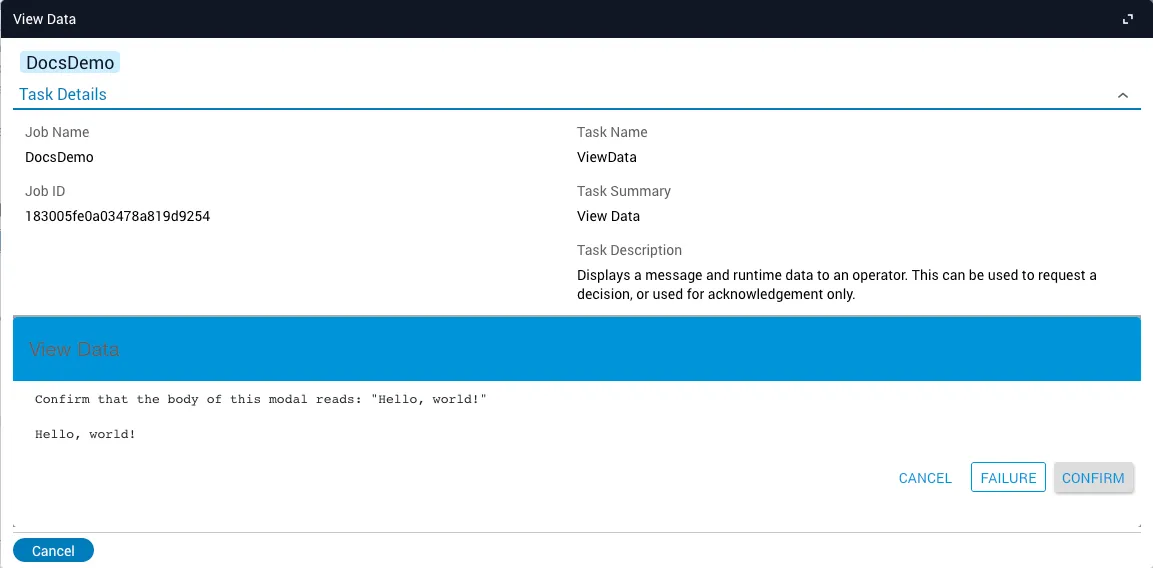
From the Task Details modal of a workable task, you must acknowledge the task before it is marked complete and the workflow continues.
Retryable task details
The Task Details modal of a retryable task displays a list of Inputs. The available input fields depend on the task’s inputs. To retry the task without changing any values, click Retry Same Inputs.
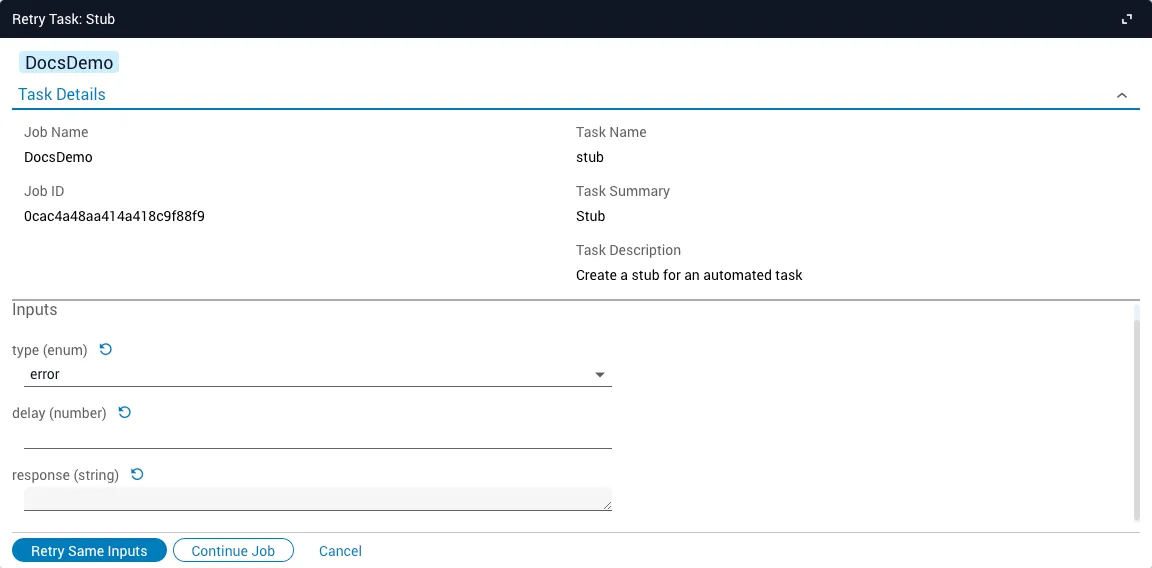
If you change the value of an input field, the button automatically changes to Retry New Inputs. After entering new values in all relevant fields, click Retry New Inputs to retry the task. To undo changes to a field, click the Reset Value button to the right of the field name.
Click Continue Job to continue the workflow without retrying the task, or click Cancel to close the modal.
Work with actionable tasks in jobs
You can work with the actionable tasks of a job from its Job Details view:
The options presented when clicking the Menu button of a task differ depending on the type of task, the status of that task, and the overall status of the associated job.
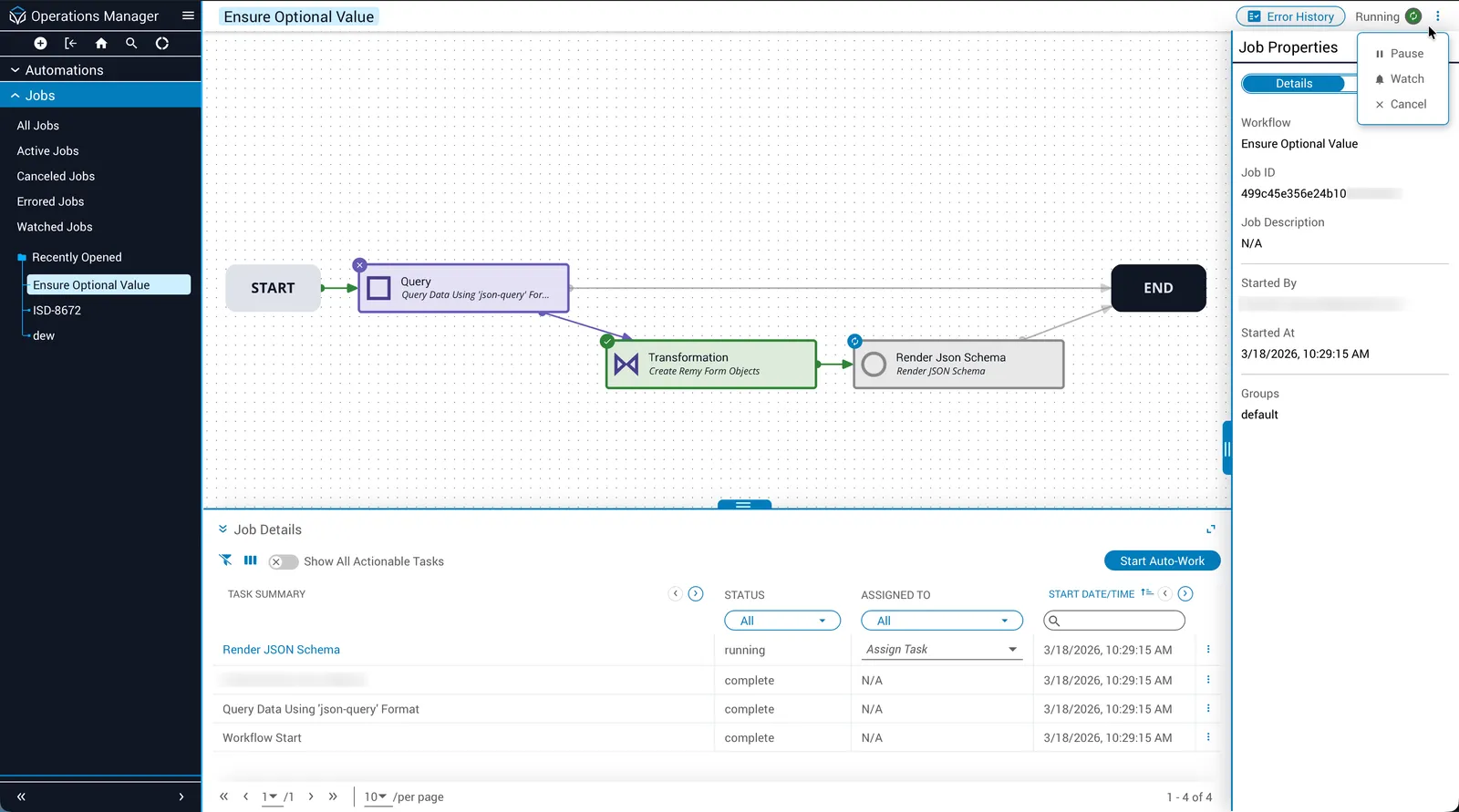
Alternatively, you can view detailed information about a task by selecting the View menu option. A slider panel appears in the Job Properties pane with the following tabs:
- Actions: displays a menu of actions available for the task, such as Work or Retry.
- Variables: displays the incoming and outgoing variables of the task.
- Details: displays the basic properties of the task, such as status, name, and summary.
Actionable tasks are directly related to the tasks in the associated workflow. For more information, such as how a task can be marked as retryable, see the Workflows documentation.