

Configure LDAP authentication
The LDAP adapter establishes a connection with Active Directory and OpenLDAP servers running LDAP version 3. Use this procedure to configure LDAP-based authentication in Itential Platform.
Before you begin
When using LDAP-based RBAC, understanding group membership is essential for the authorization process. LDAP supports reverse membership mapping when user and group objects use certain object classes. By default, an OpenLDAP system uses the memberOf overlay; however, this default can be overridden by the userMembershipAttribute property.
Enable the memberOf module
If using LDAP in a VM or bare-metal (not a container) environment, you must include the memberof module in your LDAP config file, otherwise admin permissions will not be granted in Itential Platform.
Every group created before enabling this module must be deleted and re-created for the change to take effect in prior releases.
Delete existing groups:
Include only the DN for each group to remove inside the LDIF file:
Then re-add the groups:
Define LDAP groups
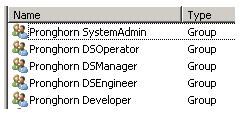
Define the groups that will be associated with Itential Platform applications on your authentication server:
SystemAdminDSOperatorDSManagerDSEngineerDeveloper
Create an LDAP user for Itential Platform
Create an LDAP user in your authentication database for Itential Platform to use when connecting to the LDAP server to run queries. This user does not need to be a member of any of the defined groups — the user only needs to be able to access the LDAP server.
Verify the LDAP server connection
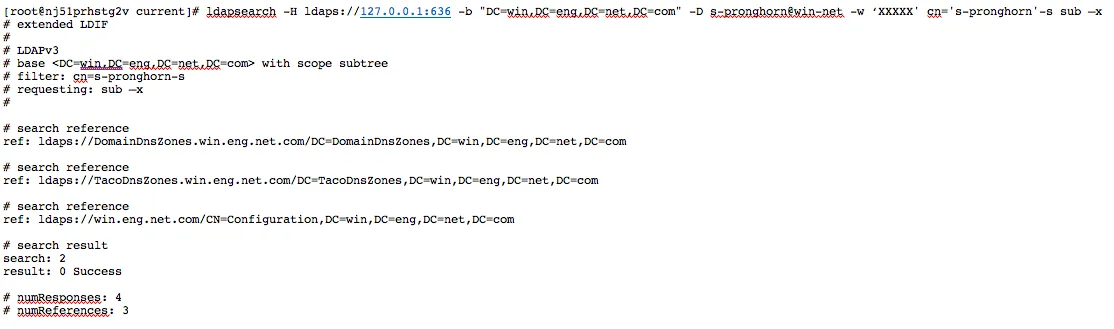
Before proceeding, verify the LDAP user can connect to the LDAP server. This step also provides values needed later in the configuration.
Install the ldapsearch tool on the Itential Platform server, then run the following commands.
Ignore certificate key (run only once per SSH session, and only when connecting via SSL):
Connect using LDAP search:
Install the LDAP adapter
The LDAP and Local-AAA adapters can both be installed at the same time, but only one adapter may be active at any given time.
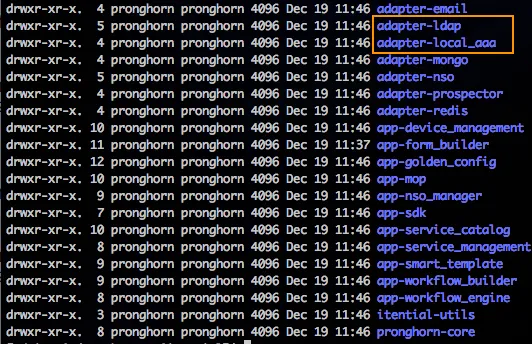
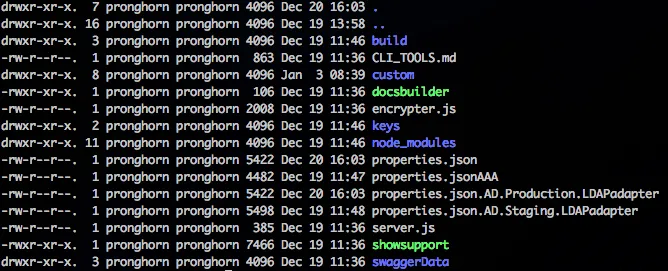
Use multiple service config documents for switching between adapters (recommended). The example below shows three adapter configurations: one for the AAA authentication connection, one for the production LDAP server, and one for the staging LDAP server. To change the connection method, exchange the AAA adapter in the active Itential Platform profile and restart the platform. This is only necessary if you expect to switch between authentication methods.
Install the root certificate
If your LDAP server uses TLS/SSL, the authentication server administrator must provide a certificate for Itential Platform to use.
Configure the LDAP adapter
Encrypt the bindPassword
Encrypt the bindPassword for the LDAP server using the Itential Platform encryption tool:
Select the LDAP adapter
In the side navigation menu, expand the Adapters collection and select your LDAP adapter. The details view of the adapter opens.
Define adapter properties
From the Configuration tab, define the adapter properties according to your environment. You can also reference the DOCUMENTATION.md file included with the adapter:
See Adapter configuration templates for sample configurations.
Adapter configuration templates
Active Directory
OpenLDAP
The hostname in the URL must match the common name of the LDAP server certificate.
Configure the Itential Platform profile
Select the active profile
In the side navigation menu, expand the Profiles collection and select the active profile. The details view opens.
Open authentication properties
On the Configure tab, select authenticationProps from the Edit Profile Properties menu. The authentication properties of the profile display.
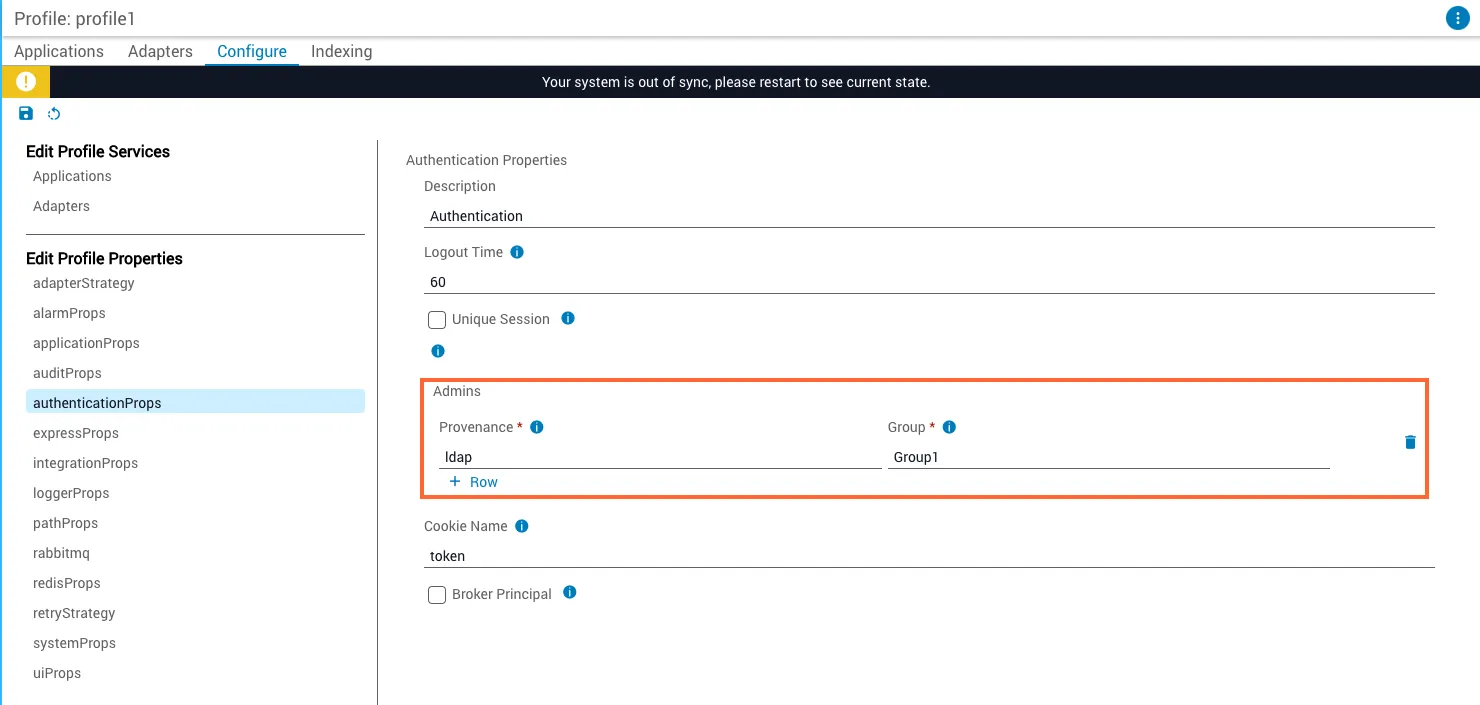
Verify the LDAP adapter is registered as the AAA broker
Verify the LDAP adapter is registered as the AAA broker in your service config.
LDAP:
OpenLDAP:
Verify the LDAP adapter is registered in provenance
Restart Itential Platform
Restart Itential Platform and verify a user can log in as the admin@pronghorn user:
Verify the connection in Itential Platform
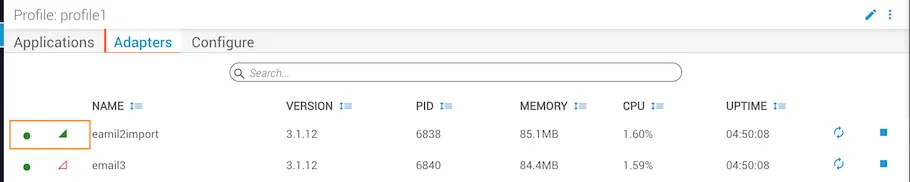
Troubleshoot connection issues
If you are unable to connect:
- Run
journalctl -fu itential-platformto display all output to STDOUT. - Try to log in to Itential Platform using the browser — all errors will be displayed.
Manage access through user groups
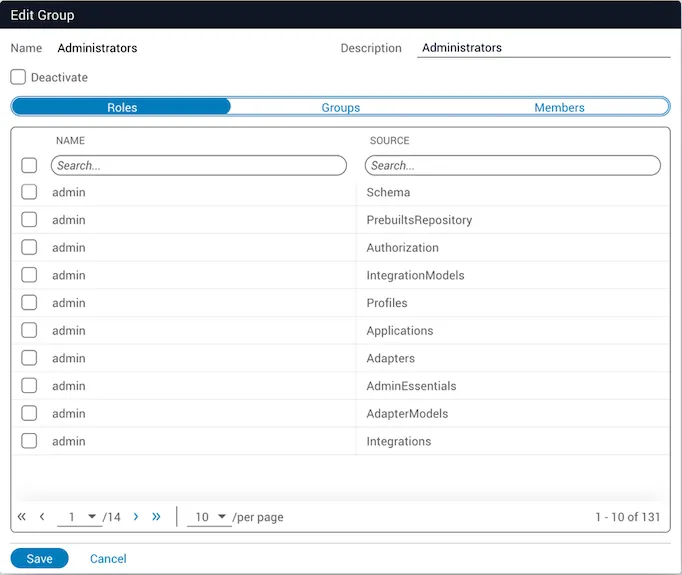
After setting up the LDAP adapter, associate your user groups with each Itential Platform application and determine the roles each group will have. This is done through the Groups dialog in Authorization.
Navigate to Admin Essentials > Authorization > Groups. A list of all defined roles and groups displays. From this screen, you can assign groups to roles.
Configure OpenLDAP
Use the following to set up OpenLDAP with adapter-ldap for Itential Platform.
The following steps were executed from a CentOS 7 install.
Install OpenLDAP
Modify the attributes
Replace the value for olcRootPW with the encrypted value from the slappasswd command.
Validate the configuration
Checksum errors on the two files modified in the previous steps are expected.
Add the memberof OpenLDAP schema
For any steps that create an LDIF file, you may need to break the commands down into smaller chunks as illustrated below.
Create groups and users in OpenLDAP
Each group object should be created as a groupOfUniqueNames with its common name (cn) containing the name of the group.
If the group object is a different class (for example, groupOfNames), the groupSearchFilter in the LDAP adapter properties must match that class (for example, objectClass=groupOfNames).
OpenLDAP configuration example
The hostname in the URL must match the common name of the LDAP server certificate.