

Use field dependencies in JSON Forms
A field dependency links one form field’s value to the API request of another field. When the source field changes, the dependent field automatically re-fetches its options using the new value as a parameter. This lets you build forms where one selection meaningfully constrains or filters what the next field shows.
A common pattern is a cascading dropdown: a first dropdown selects an entity such as a device, and a second dropdown automatically populates with data specific to that entity such as that device’s interfaces. Another pattern is a constrained search: a number input controls a maxResults parameter, so the form operator directly determines how many results a dropdown retrieves.
Without field dependencies, you would need a separate form submission and page reload to achieve the same effect—or hardcode parameters that the form operator can never change.
Field dependencies are configured on the dependent field’s dynamic dropdown, under Variables (Field Dependency). The source field is referenced by its JSON schema path (for example, /device). When using GET requests, the dependency replaces a route parameter. When using POST requests, it replaces a property in the request body.
The following examples demonstrate both patterns.
Example 1: Retrieve device interfaces (GET request)
A Device dropdown populates from Configuration Manager. Selecting a device causes an Interface dropdown to fetch and display only that device’s interfaces (GET request with a route parameter dependency).
Step 1: Build the form structure
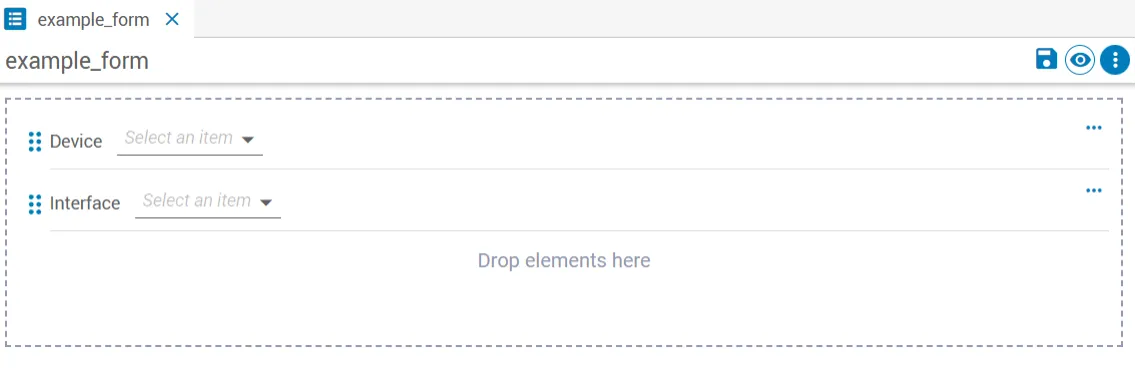
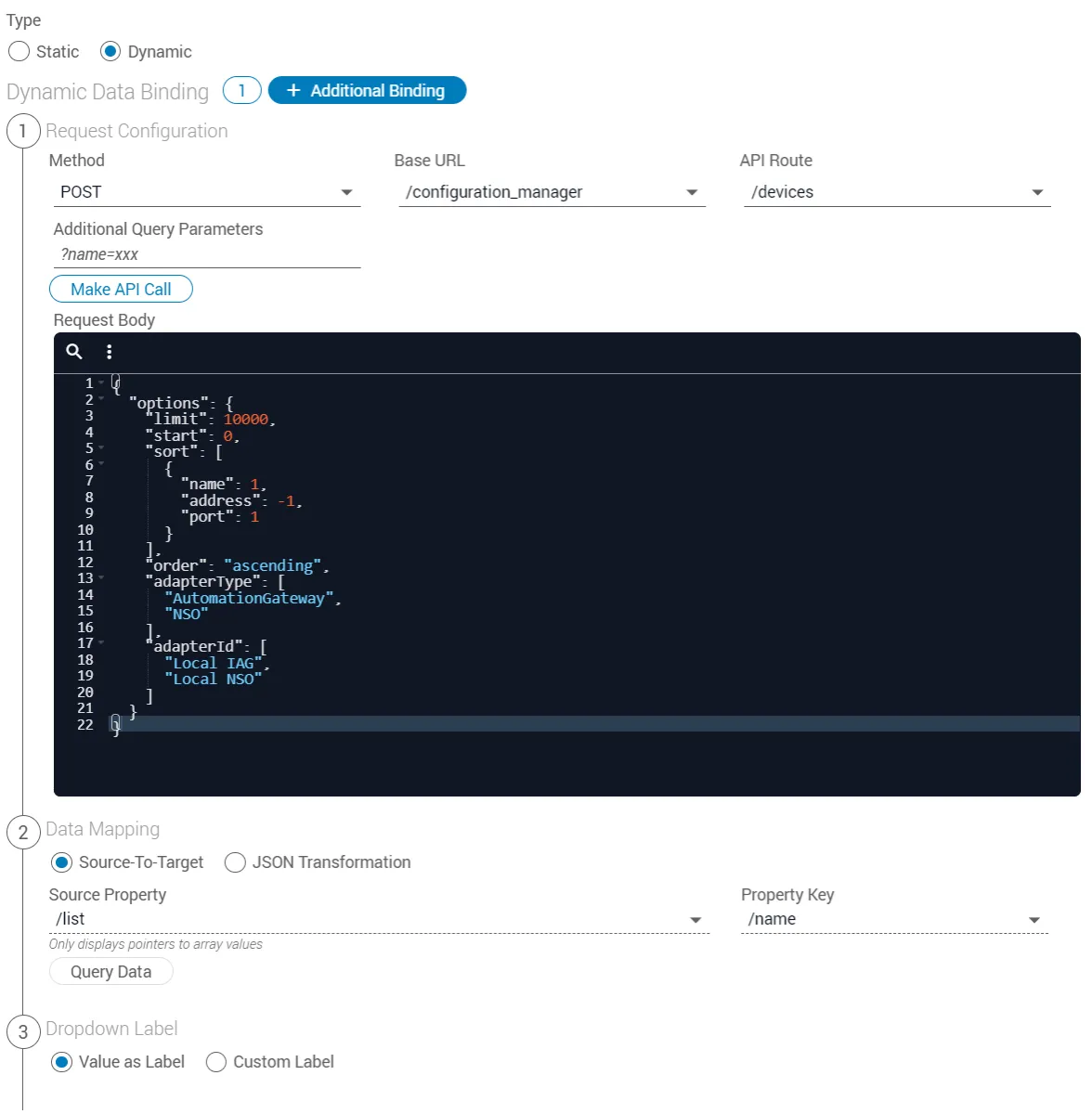
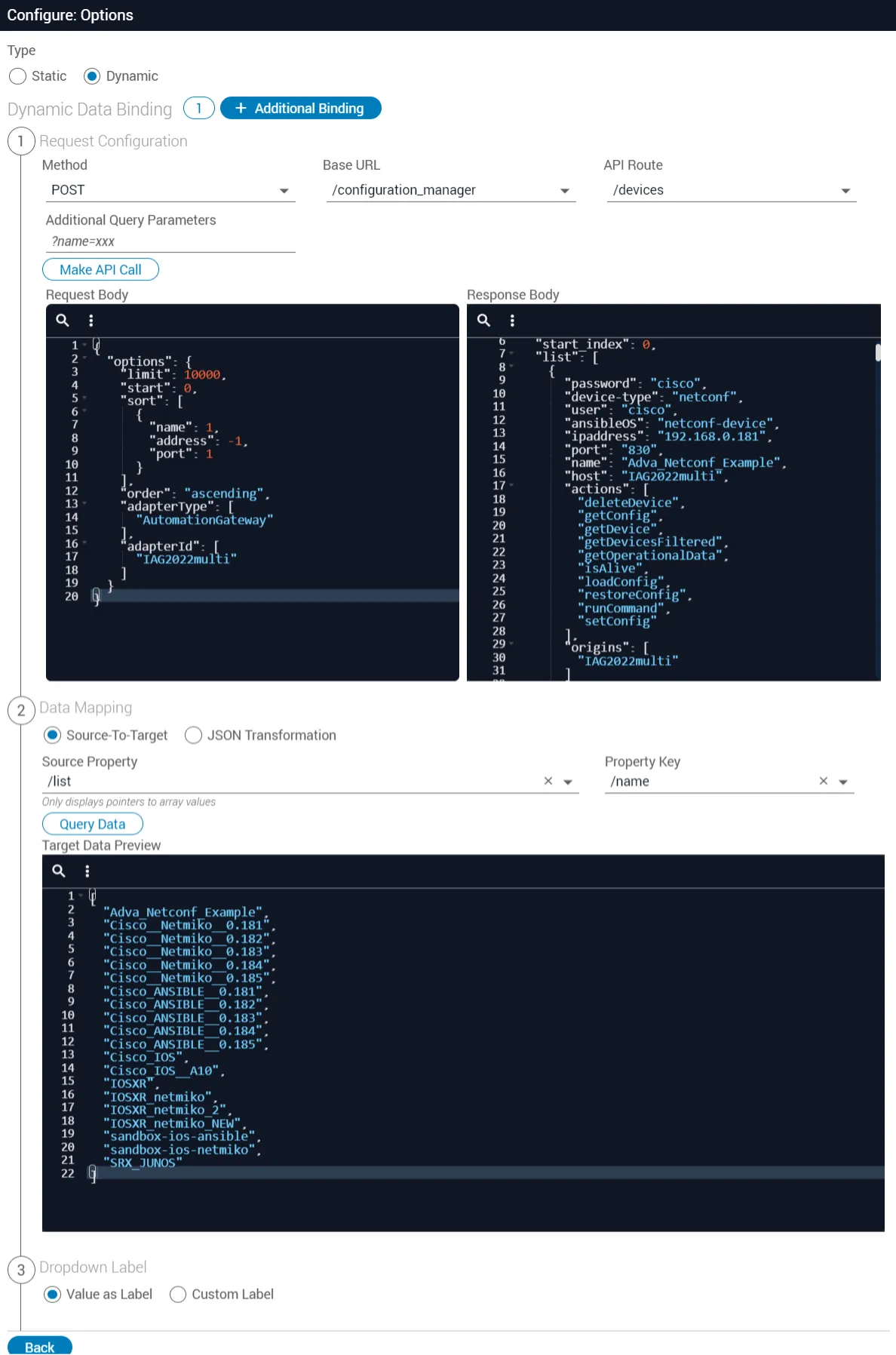
Step 2: Configure dynamic data binding for the Device dropdown
Generate the response body
Click Make API Call.
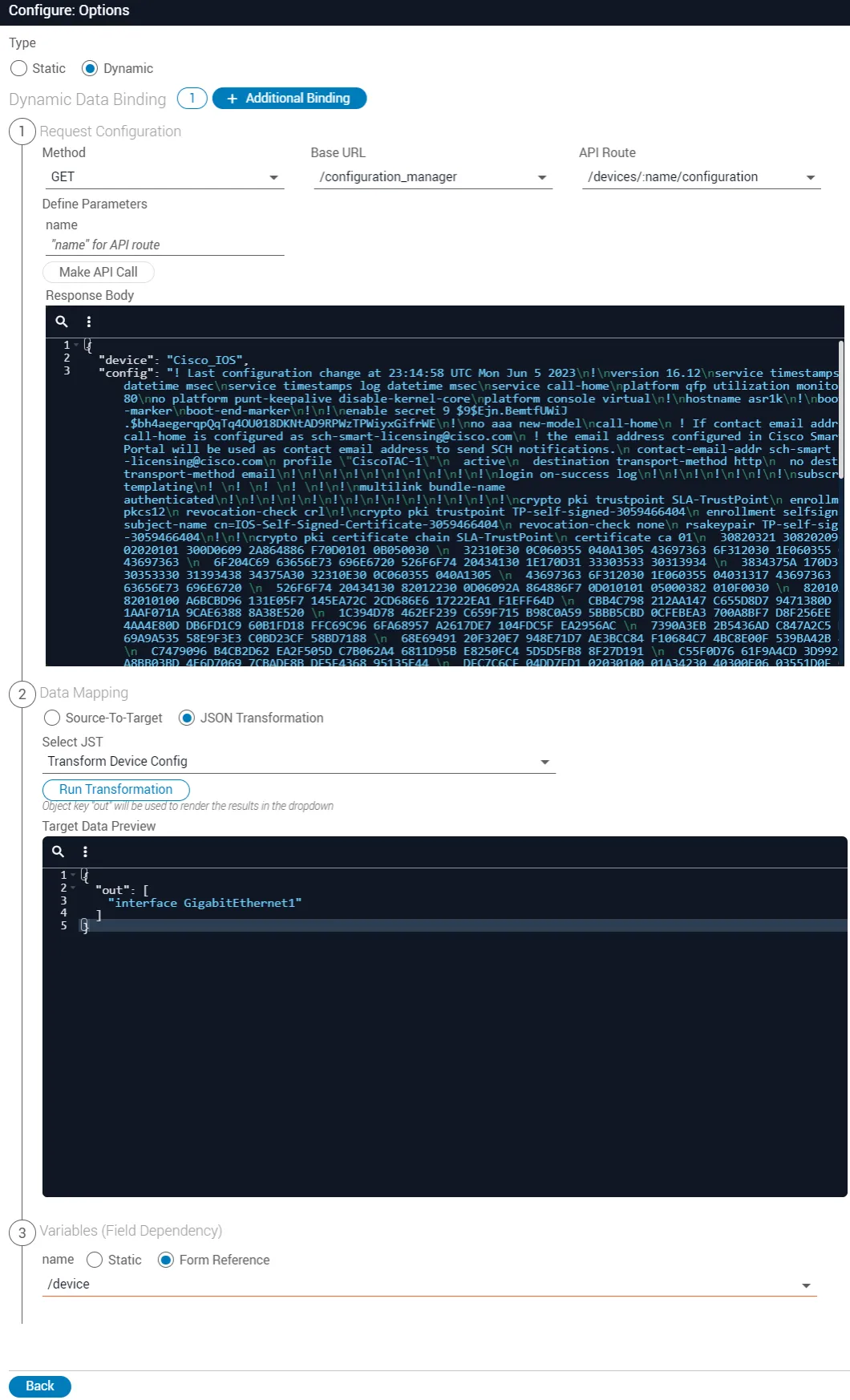
Step 3: Configure field dependencies for the Interface dropdown
Set the device name parameter
In the Define Parameters name field, enter an active device name from Configuration Manager.
Generate the device configuration
Click Make API Call to retrieve the device configuration in the Response Body.
Configure data mapping
Under Data Mapping, select JSON Transformation and enter the “Transform Device Config” JST file provided below. Click Run Transformation. The Target Data Preview displays the interface name.
Step 4: Validate the form
Open the form
Go to Studio > JSON Forms, expand the JSON Forms menu in the left nav, and select the form.
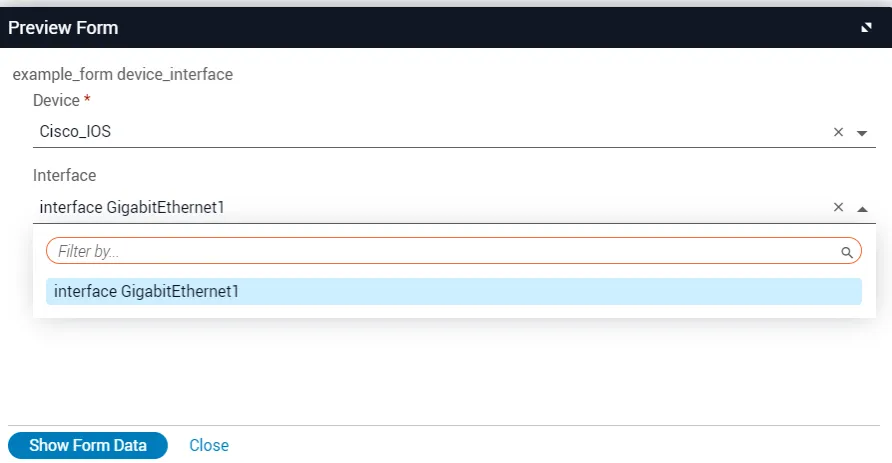
Data in Preview Form comes from a live device and may take a few seconds to appear depending on device configuration size and network conditions.
JSON transformation file for device config
Copy the JSON below into a .txt file and save it as Transform Device Config.jst.json. Then import the file into your transformation library in Studio.
Example 2: Limit a form search (POST request)
A Form Limit number input controls the maxResults parameter of a Forms dropdown search (POST request with a request body dependency).
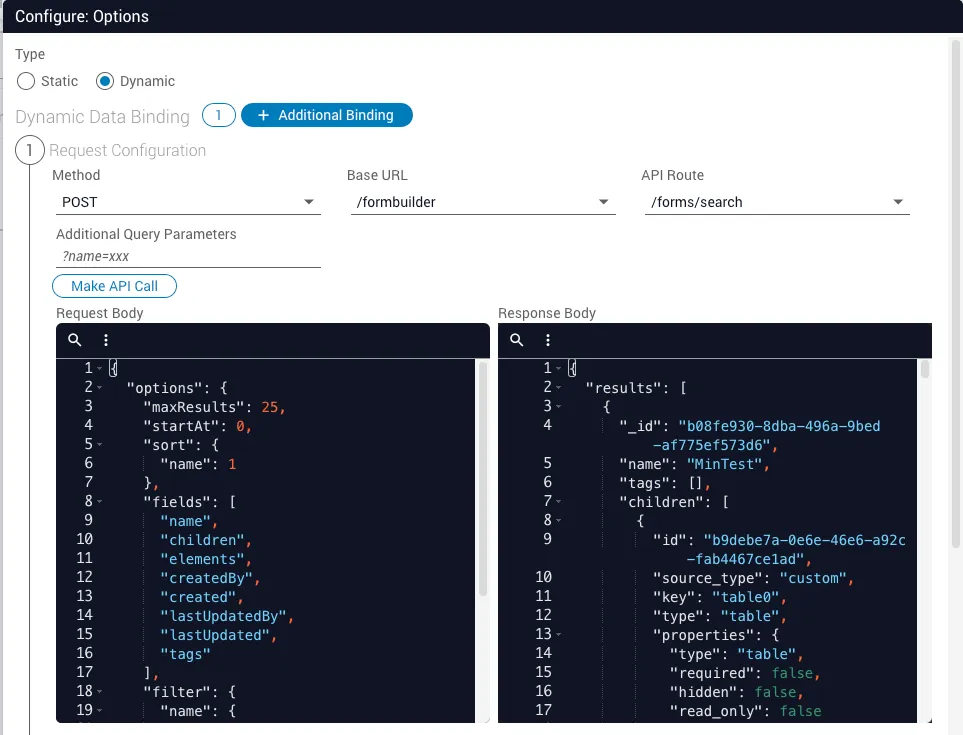
A Forms dropdown makes a POST request to /formbuilder/forms/search. The request body property /options/maxResults limits how many forms are returned. A Form Limit number input is added to the form and set as the field dependency for /options/maxResults, so the form operator controls the result cap directly.
Step 1: Build the form structure
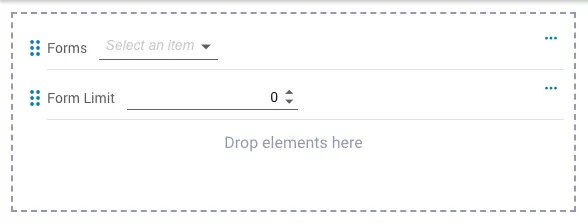
Step 2: Configure dynamic data binding for the Forms dropdown
Add dynamic data binding
Click + Options and select Dynamic. The Dynamic Data Binding options appear.
Generate the response body
Click Make API Call. A list of forms appears in the Response Body.
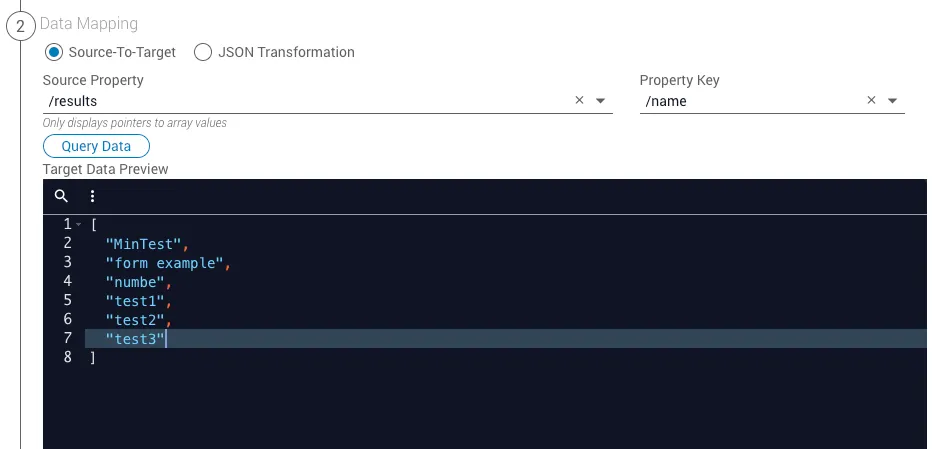

Step 3: Test the form
API calls and dynamic data binding
Adapter calls do not always map directly to the underlying system-level API call. This mainly affects system-level GET calls.
GET calls translated to POST
All system-level GET calls with defined query parameters in the adapter’s OpenAPI/Swagger specification are translated to adapter POST calls.
For example, consider the F5 BIG-IP API:
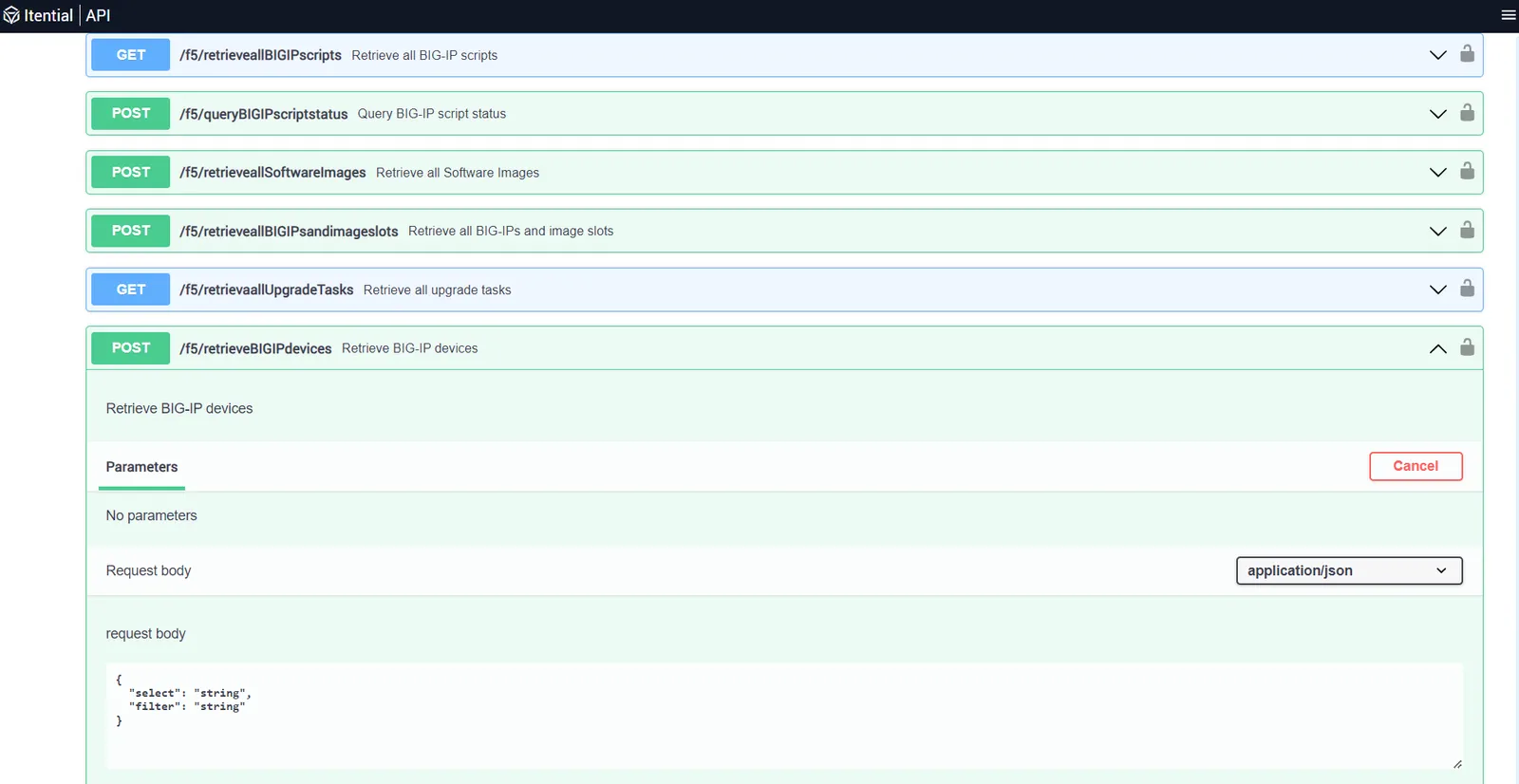
At the system level this is a GET call, but as an adapter call it must be a POST request with the listed object keys in the request body. Without those parameters, the adapter call returns no output. The keys can be provided as empty strings:
Find required parameters
For system-level GET calls that must be translated to POST, find the required parameters at:
If an adapter GET call is not listed there, confirm that:
- An adapter
POSTcall for that system does not already exist. - The developer has authorization to make the adapter call.