

SAML SSO overview
Supported providers
Beginning with the 2023.2 release, Itential Platform has expanded its user management capabilities to include Single Sign-On (SSO) through SAML. The following providers are supported:
- Okta
- Azure/EntraID
- Active Directory Federation Service (AD FS)
- PingID.
Enable SSO
To enable SSO, an Identity Provider (IDP) Config must be created under Admin Essentials → Authorization → Identity Providers.
To access and configure Identity Providers, users must have both “SSO” and “SSOGroupMappings” permissions assigned to their role.
Along with enabling an Identity Provider, a successful authentication test is required. Upon successful test, a single provider can be enabled at a time. Once an Identity Provider is enabled, all Itential Platform authentication is done via SSO SAML using that config immediately without restart of Itential Platform. Authentication via AAA broker is still supported, but it is disabled when an Identity Provider is enabled. All IDP Configs must be disabled to continue AAA broker authentication usage.
Note that in the Itential Platform, an Identity Provider is linked as an SSO Config.
Create an Identity Provider
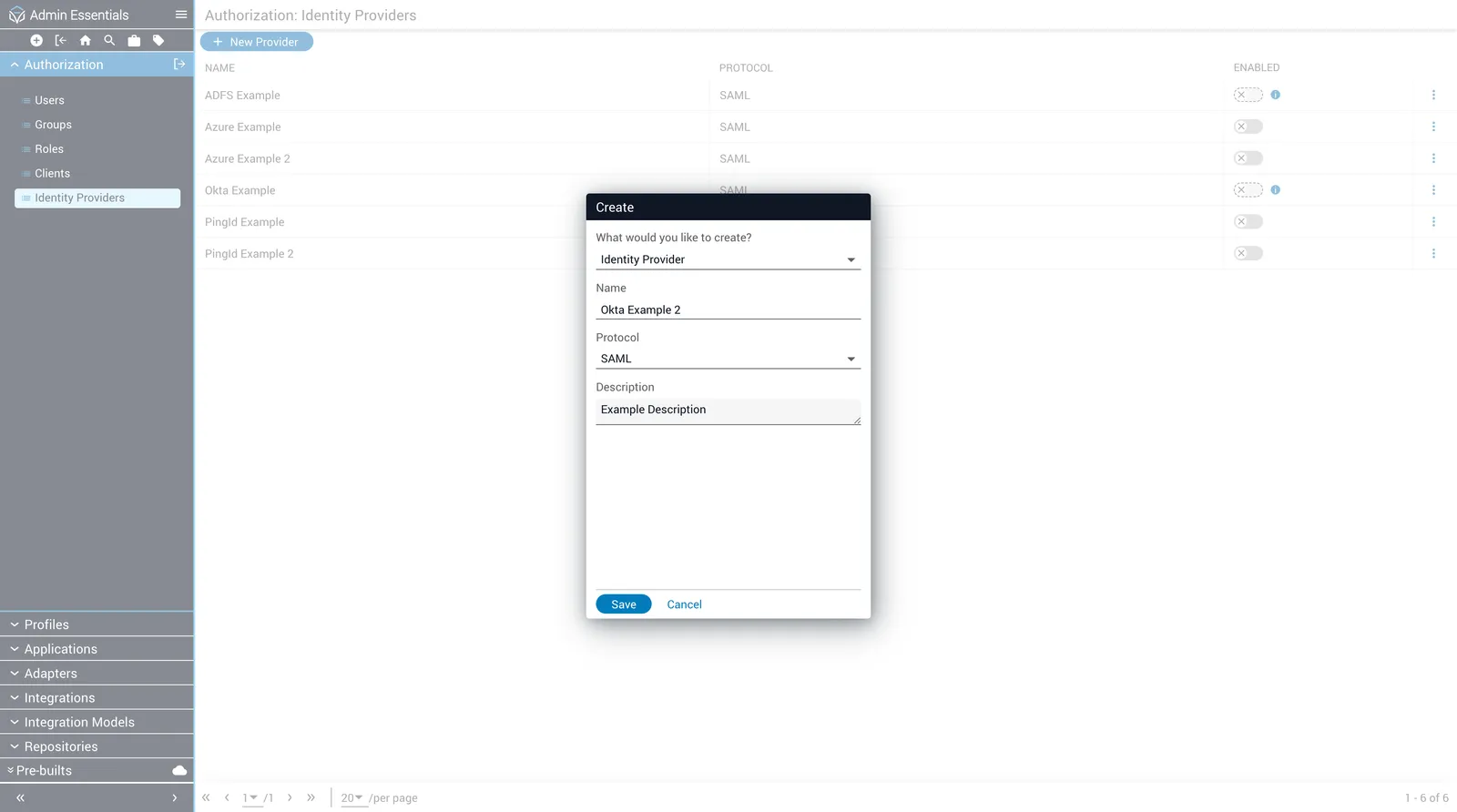
To create an Identity Provider, first navigate to Admin Essentials → Authorization → Identity Providers. Then, click the New Provider button. This will prompt you for the name and optional description of the Identity Provider. All providers must use SAML in 2023.2, so that cannot be changed.
Any number of IDP Configs can be created for a single IDP (Identity Provider). For instance, if two (2) IDP Configs are created for an Okta provider with Login URL https://exampleapp.oktapreview.com/app/examplesaml/7Y374u1d7/sso/saml, separate Itential Platform users will be created for each IDP upon successful authentication, and each will have provenance corresponding to the name of the IDP. Accordingly, a user authenticated from Okta using two (2) separate IDP Configs with username example@email creates two separate Itential Platform users with the same username, but a different provenance.
Figure 1: Identity Providers Home Page
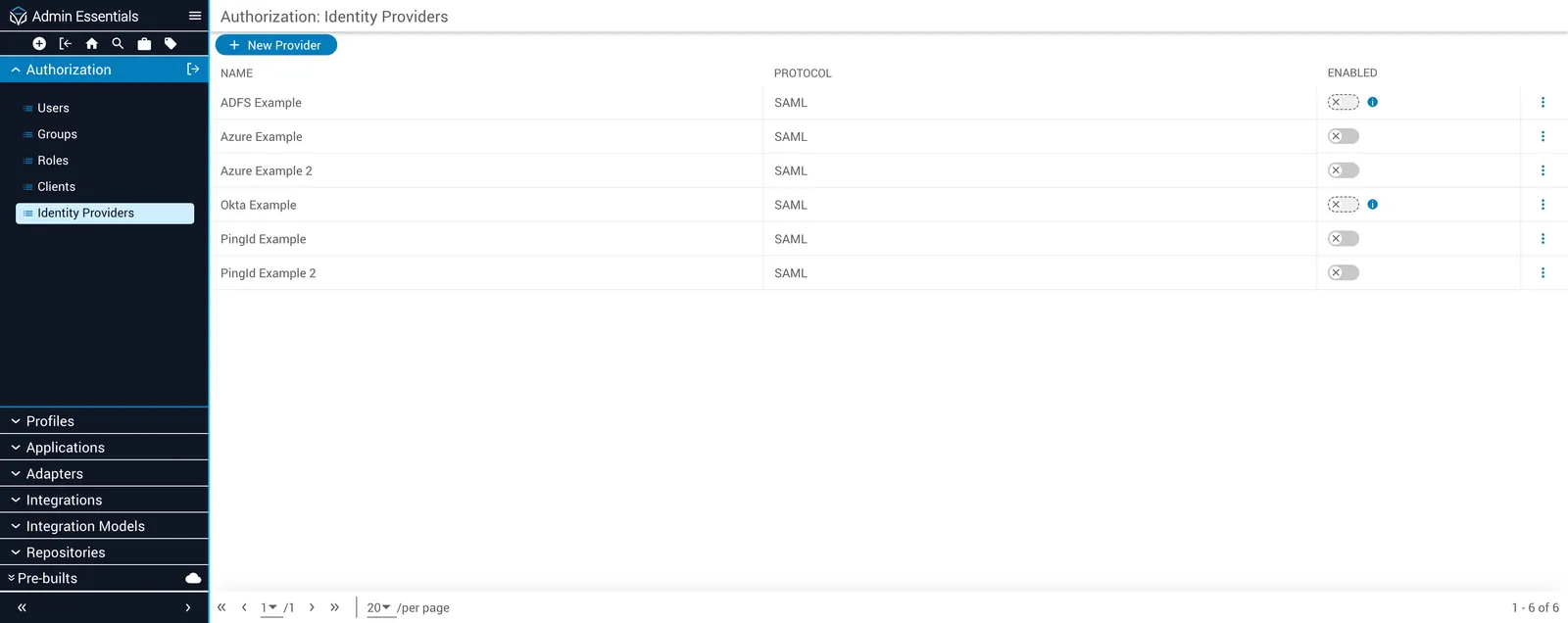
Figure 2: Identity Providers Create Dialog
Newly created Identity Providers are disabled by default and include empty text fields for the required Issuer, Login URL, Username Attribute, and Groups Attribute fields. The Login URL is the entry point by which SSO authentication is initiated. The Issuer maps to the Entity Identifier from the provider. Identity Providers also require a public signing certificate, which can be retrieved from the IDP and uploaded to Itential Platform. This certificate is used to validate signatures of incoming SAML responses. Below shows the newly created IDP from the above example. These fields are provider spe