Common upgrade errors

This guide covers errors you may encounter during a software upgrade, along with troubleshooting solutions.

Deprecated app not loading

When loading Itential Platform you may see this error in the logs, indicating a deprecated method (app-number) is loaded but does not exist:

Error: ENOENT: no such file or directory, open '/opt/pronghorn/itential-bundle-5-20193_2019.3.6/node_modules/@itential/app-number/pronghorn.json'
at Object.openSync (fs.js:443:3)
at Object.readFileSync (fs.js:343:35)
...

Solution

Remove the entry from the service_configs collection:
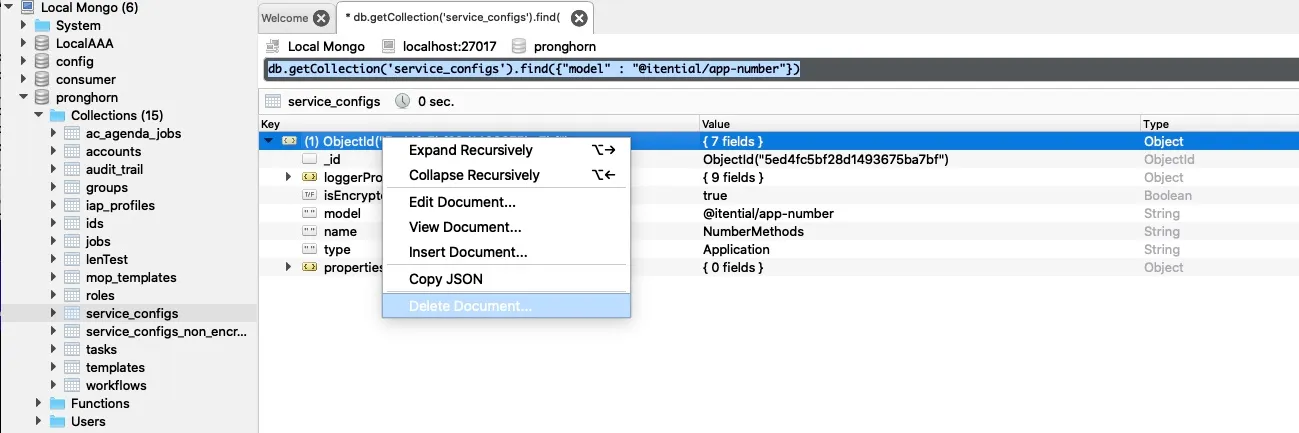
1

Find the service config document

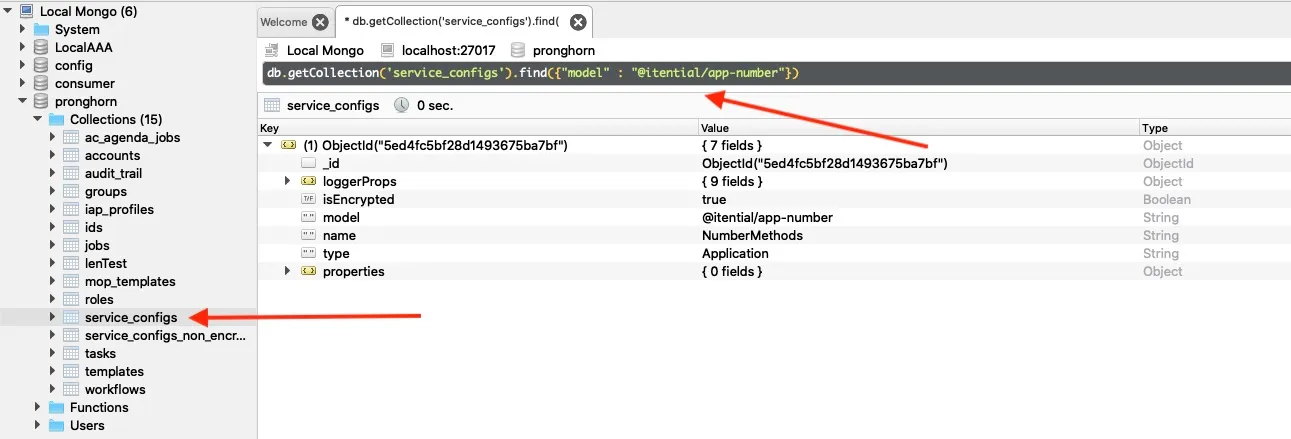
Select the service_configs collection in your Itential Platform database. Search for the model shown in the error:

$db.getCollection('service_configs').find({"model" : "@itential/app-number"})
service_configs collection search results
2

Delete the document

Right-click the service config document and delete it.

Delete document from service_configs

Admin group not in proper format

When assigning roles to user groups, the UI does not correctly reflect selected roles as checked and an error box appears at the bottom of the screen.
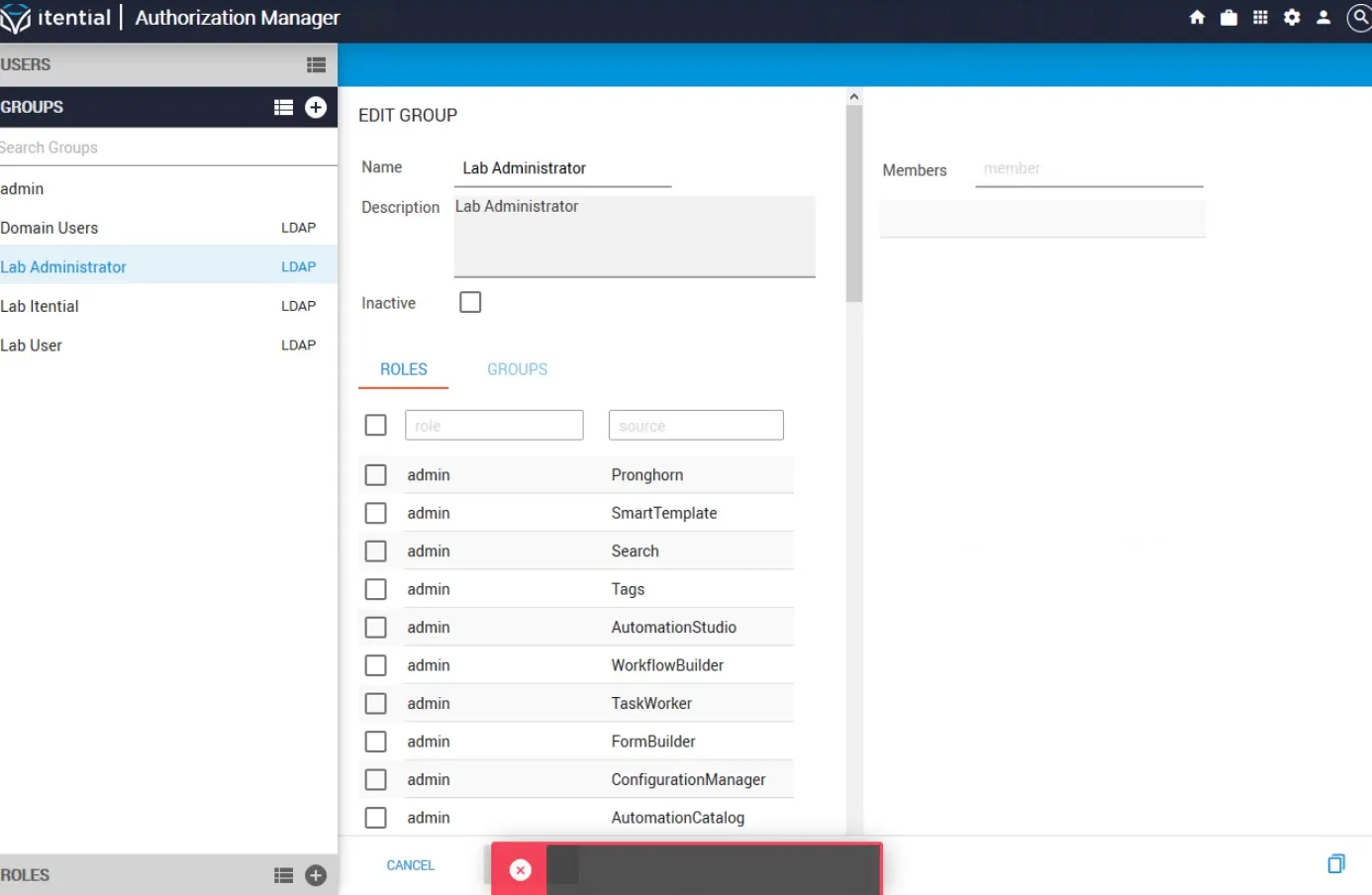

Invalid admin group error
Console error

After running journalctl -fu pronghorn, the following error returns:

$message=[ 'Error in web handler: TypeError: kg._id.equals is not a function' ]

Solution

This issue is caused by the “admin” group having an _id that is a string rather than an ObjectID. Delete the group to fix it.

1

Back up the database

Back up the database using mongodump. Then use a GUI MongoDB client or the MongoDB shell to run the following commands:

$mongo --host localhost --authenticationDatabase <authdb> -u admin -p <password> use pronghorn
$db.groups.find({name: "admin"}).pretty()

A single document should return matching the admin user.

2

Remove the admin group

$db.groups.remove({name: "admin"})

This should reflect 1 record removed.

3

Refresh the UI

Return to the Itential Platform UI and click REFRESH to fully reload the page. The “admin” group should no longer be present and groups should function normally.

Jobs (Operations Manager) not showing updates

The Jobs UI is not showing any updates after running the upgrade.

Solution

The migration scripts have not run. Change to the migration script directory and run the scripts:

$cd <PRONGHORN_HOME>
$cd ./current/node_modules/@itential/pronghorn-core/migration_scripts
$node migratePropertiesToDatabase.js

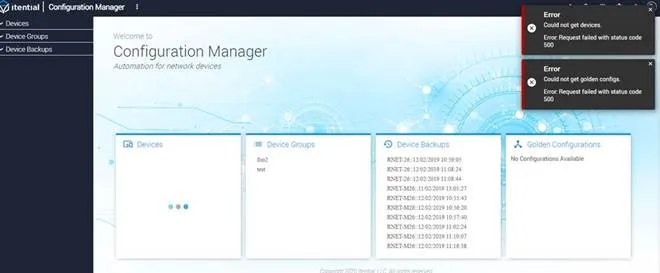
Devices not visible in Configuration Manager

The following error appears in ConfigurationManager.log:
$No group access for [object Object] for action XXXX on entity of type device
Configuration Manager log errors
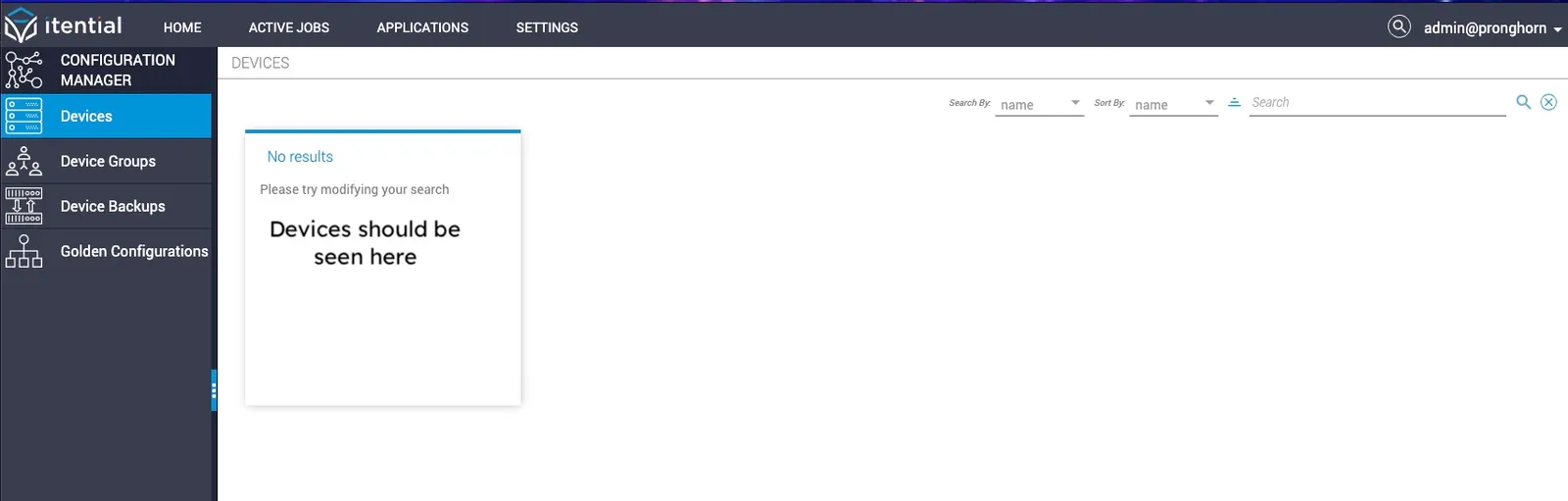
Configuration Manager UI — devices unavailable

Solution

The migration scripts have not run. Change to the migration script directory and run the scripts:

$cd <PRONGHORN_HOME>
$cd ./current/node_modules/@itential/pronghorn-core/migration_scripts
$node migratePropertiesToDatabase.js

Failed to load schema warning

Beginning with the 2019.3 release, Itential Platform includes a built-in schema validation system for pronghorn.json inputs and outputs. This system identifies invalid schema formats and automatically converts them. In some cases the conversion script cannot handle the error, and a warning displays identifying the invalid data.

Valid types for pronghorn.json inputs and outputs:

['*', 'enum', 'object', 'string', 'array', 'boolean', 'integer', 'number']
  • Type 'enum' is not a valid JSON schema type — it will be set to array.
  • Type '*' should only be used when you truly intend for an input/output to accept any type. Using this type limits JSON validation.
  • Common invalid types include: json, json[], str, string[], and other variations.

Example: Valid pronghorn.json

1{
2 "methods": [
3 {
4 "name": "getDevices",
5 "summary": "Get the list of supported devices from Inventory for the siteId",
6 "roles": ["admin"],
7 "route": { "path": "/:siteId/devices", "verb": "GET" },
8 "input": [
9 {
10 "name": "siteId",
11 "type": "string",
12 "description": "Site identifier to get equipment for",
13 "required": "true",
14 "in": "path",
15 "schema": { "title": "devices", "type": "object" }
16 }
17 ],
18 "output": {
19 "name": "devices",
20 "description": "success/failure response object",
21 "type": "object",
22 "schema": { "title": "devices", "type": "object" }
23 },
24 "task": true
25 }
26 ]
27}

Solution

Run the fix-pronghorn_json.js script to fix issues in pronghorn.json.

1

Download the script to your app folder

Download the script to your app folder:

$app-folder_name
2

Execute the script

$node fix-pronghorn_json.js pronghorn.json
3

Review the response

ResponseMessage
Successpronghorn.json has been updated
Success (no updates required)No methods detected in: pronghorn.json, file skipped
Failurepronghorn.json update cancelled due to previous errors

If a failure occurs, an error displays with a hint on how to fix it — typically invalid JSON or invalid types. Fix the issue and repeat step 2.

4

Push the updated file

If the update is successful, push pronghorn.json back to your repository.

5

Run migration scripts

$cd <PRONGHORN_HOME>
$cd ./current/node_modules/@itential/pronghorn-core/migration_scripts
$node migratePropertiesToDatabase.js

Task causing Workflow Engine to stall or crash

When an upgraded workflow is run, Workflow Engine either stalls or crashes at a specific task.

Solution

Delete the task and recreate it.

Error retrieving backups, device groups, and Golden Configurations

Errors occur in Configuration Manager when trying to retrieve backups, device groups, or Golden Configurations.

Solution

1

Confirm MongoDB version

$mongo --version

Confirm the version is 5.0.

2

Run the migration script

Navigate to the Configuration Manager migration scripts folder:

$/node_modules/@itential/app-configuration_manager/migration_scripts
3

Execute the migration

For DEV/STAGING:

$node migrate_to_jinja.js dev

For PROD:

$node migrate_to_jinja.js
4

RestartItential Platform

$sudo systemctl restart pronghorn
5

Verify

Try to retrieve backups, device groups, and Golden Configurations.

This applies toItential Platform 2022.1.x andItential Platform 2023.1.x only.

RabbitMQ not starting

RabbitMQ will not start after being upgraded. Error messages similar to the following appear in the RabbitMQ log:

$[error] <0.237.0> Feature flags: `classic_mirrored_queue_version`: required feature flag not enabled! It must be enabled before upgrading RabbitMQ.
$[error] <0.237.0> Failed to initialize feature flags registry: {disabled_required_feature_flag,
>[error] <0.237.0> classic_mirrored_queue_version}
$[error] <0.237.0> BOOT FAILED

Solution

Enable the feature flag indicated in the error using rabbitmqctl enable_feature_flag. For example:

$rabbitmqctl enable_feature_flag classic_mirrored_queue_version

For more information, see the RabbitMQ feature flags documentation.