

Troubleshoot network performance

Use the following checklists to help identify and resolve performance issues. Every environment and problem is unique — these checklists provide a baseline to guide you. If you are unable to resolve any problem areas or have questions, contact the Itential Product Support Team.

Common performance issues

Performance issues you may encounter include:

  • Itential Platform UI loads slowly.
  • Jobs are running slower than usual.
  • Apps and their functions are unresponsive or working slowly.
  • Pronghorn consumes a lot of resources.

Troubleshooting steps

StepSuggested action
For Itential Platform in HA, review all corrective measures on each applicable server instance. Check journalctl, application, MongoDB, and Redis logs to eliminate any known errors.
Inspect available applications and adapters in the Itential Platform profile and ensure all required apps and adapters are “up” and loaded.
Validate system resources (Memory, CPU) on each application, adapter, Redis, and MongoDB instance. Ensure CPU, Memory, and Disk space are adequately available.
Check if any recent changes to apps, adapters, network, or infrastructure triggered the issue. Validate connectivity and network latency between Itential Platform and its dependencies.
Determine the number of jobs triggered for the entire day compared to previous days, especially when jobs are running slower than usual.
Collect the job documents of slow-running jobs from MongoDB and export for Itential to investigate. See Recovery steps.
If the issue is with custom apps, verify the custom app APIs respond correctly from outside Itential Platform using Postman or curl.
Locate any COLLSCAN in MongoDB logs indicating missing indexes. Add indexes on collections or queries as required.
Inspect network latency issues using mtr. See My Traceroute (MTR) tool.
Inspect the data payload within tasks to determine if the processed data is too large.
Check the size of the Jobs and Tasks collections and archive them if necessary.
Enable debug logs for investigation when required.
Check the size of the Redis DB and clear keys if they have not been refreshed in a long time.
Check tcpdump between two endpoints to identify network-related issues. See Wireshark tcpdump documentation.

My Traceroute (MTR) tool

To inspect network latency and packet loss, use mtr:

$# Install mtr
$sudo yum -y install mtr
$
$# Check packet loss and latency to a destination host
$mtr --report -T -c 20 192.168.33.25
$
$# Run mtr continuously and check each hop
$mtr www.google.com

Example output:

Start: Thu Sep 29 18:43:03 2022
HOST: iap202115 Loss% Snt Last Avg Best Wrst StDev
1.|-- 192.168.33.25 0.0% 20 2072. 1880. 235.2 2072. 446.7

In this report, packet loss is 0%. Average time to reach the destination is 1880ms, best is 235.2ms, worst is 2072ms.

MTR tool output

Recovery steps

For instances where the cause of a performance issue is unknown:

  1. Pause the Task Worker on all Itential Platform instances to ensure in-flight tasks are completed, then restart all instances.
  2. If the issue persists, stop Itential Platform and restart all dependencies (MongoDB and Redis).

Recommendations

StepSuggested action
Ensure sufficient resources (RAM, CPU, Disk space) are available on Itential Platform servers.
Increase the number of Itential Platform instances when the number of jobs has significantly increased.
Add more logging to custom apps to identify where they consume the most time.
Use DB queries to identify potential problems such as jobs running in a loop.
Use the childJob loop feature as an alternative to the forEach task.
Evaluate what the parallel loop type of childJob is doing compared to the hardware — it is highly resource intensive.

Performance database commands

Job counts

Fetch a count for jobs that have run more than 500 times (Job Metrics in Operations Manager is also available for Itential Platform 2021.2 and higher):

$var now = new Date();
$var NumberOfDaysAgo = 1;
$var ReportDuration = 1;
$var epochday = 24 * 60 * 60 * 1000;
$var reportStartDate = new Date(now - NumberOfDaysAgo * epochday) - 1;
$var reportEndDate = new Date(reportStartDate + ReportDuration * epochday) - 1;
$db.jobs.aggregate([
> {"$match": {
> "metrics.start_time": {$gte: reportStartDate, $lte: reportEndDate}
> }},
> {"$group": {
> "_id": "$name",
> "count": {$sum: 1}
> }},
> {"$match": { "count": {$gte: 500} }},
> {"$sort": { "count": -1 }}
>]);

Jobs and tasks collection count

Fetch the jobs and tasks collection count for the full day plus every hour:

$db.getCollection('jobs').find(
> {$and: [
> {"metrics.start_time": {$gte: LOWERBOUNDS}},
> {"metrics.start_time": {$lte: UPPERBOUNDS}}
> ]}
>).count()

Replace UPPERBOUNDS and LOWERBOUNDS with epoch time values (in milliseconds) between two date timestamps.

MongoDB metrics

Export job metrics data for analysis. Replace "JOB-ID-HERE" with the specific job ID:

$mongoexport --db=pronghorn --collection=tasks --fields="_id,metrics,name" --query='{"job._id": "JOB-ID-HERE"}' --out=JOB-ID-HERE.json

Job velocity

Validate job run and completion rates:

$db.getCollection('jobs').find({"status": "complete"}).count()
$
$db.getCollection('jobs').find({"status": "running"}).count()

Check core memory usage

Use Admin Essentials to evaluate core memory usage.
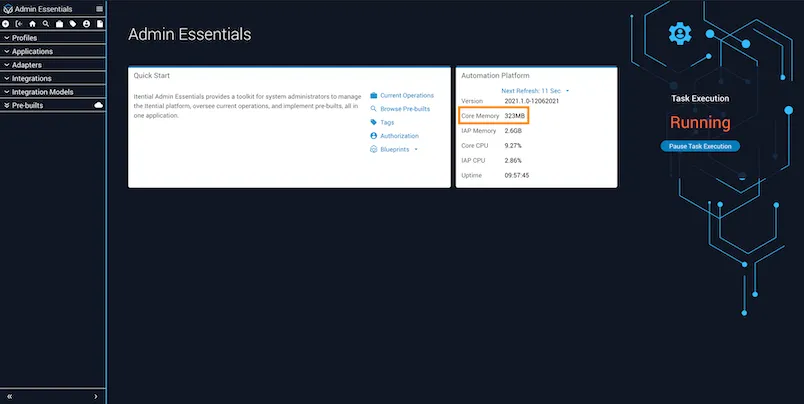
Core Memory usage in Admin Essentials

From the Profile view, you can also check memory usage for both Applications and Adapters, and compare it to the memory being used in your local server controls.
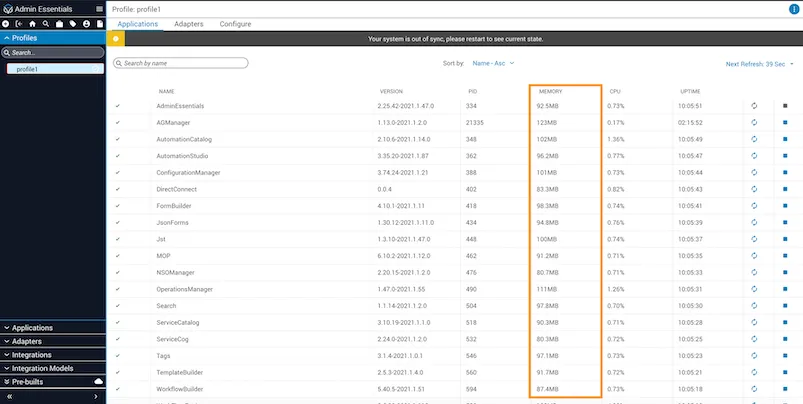
Applications Memory usage

If the memory for an app keeps growing over time without decreasing, there may be a memory leak. Submit an ISD ticket with Itential for any product apps or adapters showing higher than expected memory use.