

Golden Configuration overview
Add-on product: This feature is part of Configuration Manager Enterprise, a separately licensed add-on to Configuration Manager. Learn more.
In Golden Configuration, configurations are organized as a hierarchical, tree-like structure of nodes, each associated with a baseline configuration pattern. Child nodes inherit the configuration of their parent by default, though they can be specialized after creation. Devices or adapter instances are then linked (added) to these nodes, allowing their current state to be graded against the related configuration.
Types of configurations
Two types of Golden Configurations exist:
- CLI Golden Configuration - Measure device compliance
- JSON Golden Configuration - Measure the compliance of services that communicate with Itential Platform via adapters
Create Golden Configurations
Golden Configurations can be created from the Configuration Manager homepage:
Open Create modal
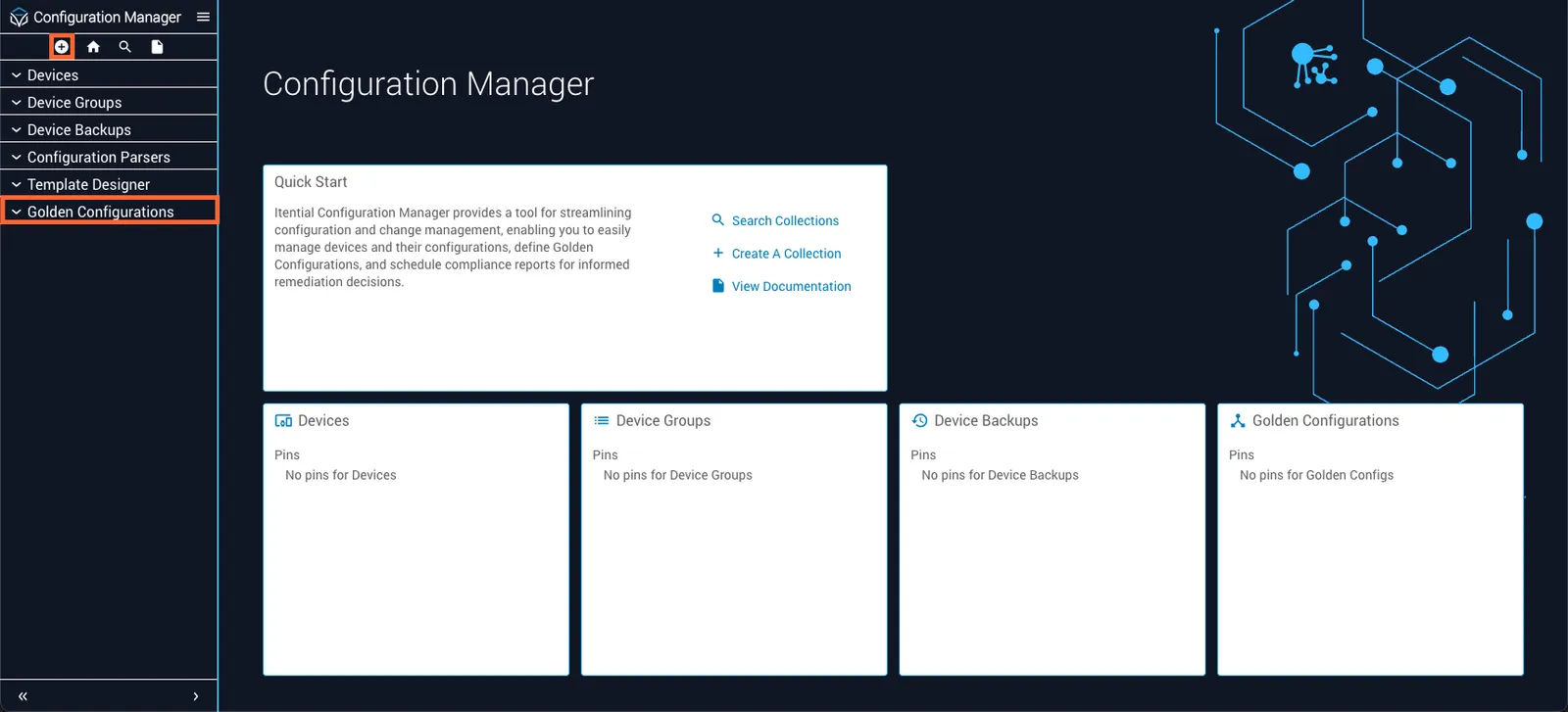
Click the Create (+) button located at the top of the side navigation menu. The Create modal will open.
Select Golden Configuration
Select Golden Configuration from the dropdown. The modal will finish populating.
Name and configure
- Type a name for the Golden Configuration into the Name field
- Select which type of Golden Configuration to create
- If you are creating a CLI Golden Configuration, select an appropriate configuration parser from the dropdown (this determines the syntax that will be used in your node configurations)
For example, if you are using the Golden Configuration to manage Cisco IOS devices, select cisco-ios. For more information, see Configuration Parsers.
Open Golden Configurations
To open a Golden Configuration that already exists, select the Golden Configurations dropdown from the side navigation menu and click the Golden Configuration you would like to open.
Browse using Collection modal
You can also browse Golden Configurations using the card-based Collection modal:
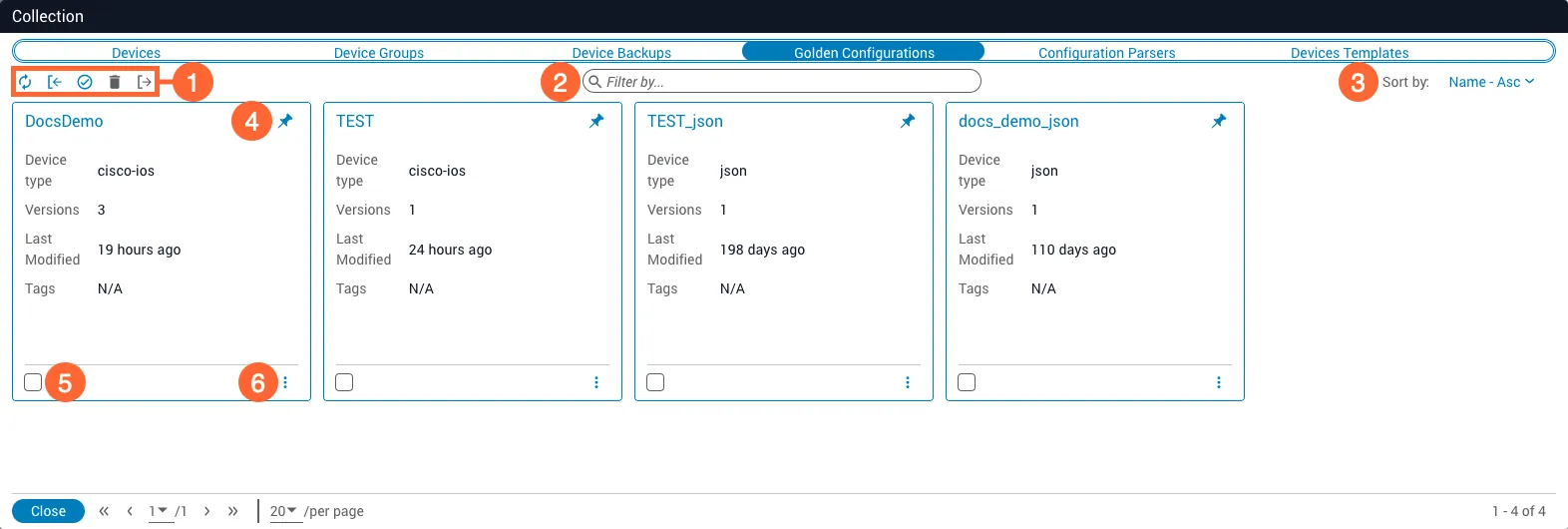
Collection modal elements
Navigate the Golden Configuration UI
Upon creating or opening a configuration, you will be presented with the following interface. In general, actions that affect the Golden Configuration tree are performed on the left side of the UI, while actions that affect the selected node are performed on the right.
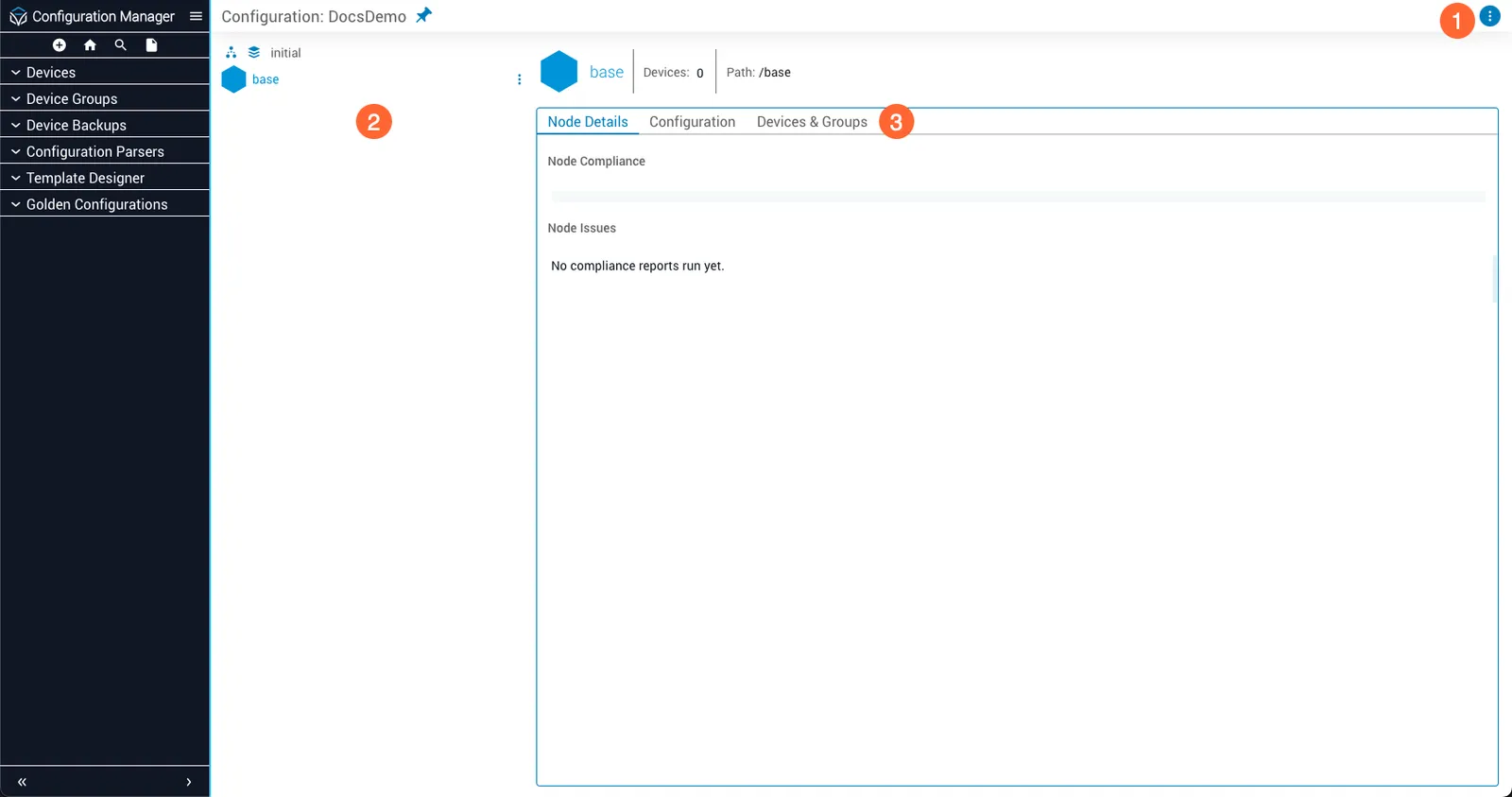
Golden Configuration tree
Newly-created Golden Configurations have a one-node tree, consisting only of the base node (of which any additional nodes will be children). From the tree structure visualization, you can:
- Select a node for editing by clicking it
- Add nodes to, or delete nodes from, the tree
- View compliance statistics for the entire tree or a selected node
- Create new versions of the tree
Add and delete child nodes
To add a child node to the tree:
The process for deleting a child node is nearly identical; just select Delete from the menu instead.
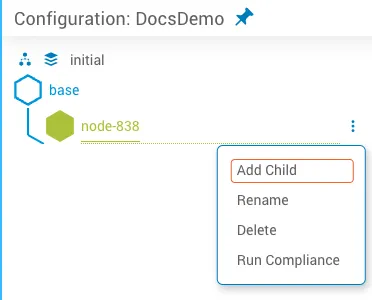
Run compliance against a node
To run a compliance check against all devices or adapter instances assigned to a node:
You can also view compliance details for:
- The entire tree by clicking the Tree Statistics button located at the upper-left of the tree visualization
- The selected node via the Node Details tab
Tree versioning
A Golden Configuration can maintain multiple versions of its tree, allowing you to track changes to the Golden Configuration and revert to previous versions if necessary. The name of the selected tree version is displayed directly above the base node (by default, it is initial).
To create a new version:
Open version selector
Select the Change Version button located to the left of the active version name. A dropdown menu will appear.
If multiple versions of the tree exist, you can switch between them at any time via the Change Version button.