

Manage Golden Configurations
Import a configuration
When importing a configuration, certain characteristics and behaviors occur if you do not pass in an extra property with each tree. These include:
- If the name is a duplicate, a unique index is used, such as
GC Name (1) - If the name is not a duplicate, then the original name is used in the export, such as
GC Name - Devices are not imported
- Task instances are imported
To import a Golden Configuration:
Select Golden Configurations tab
Select the Golden Configurations tab.
ForItential Platform 2023.1 andItential Platform 2023.2 only.
Import file
Click the Import icon in the upper-left of the Collection dialog to open your file manager.
Export a configuration
Use the following steps to export a configuration:
Open Configuration Manager
Log in to Itential Platform to open the home page and click Configuration Manager under Operation in the left navigation menu to open the application.
Open Collection dialog
Select the Search icon (top toolbar) in Configuration Manager to display the Collection dialog.
View Golden Configurations
Select the Golden Configurations tab from the Collection window to display all the card options.
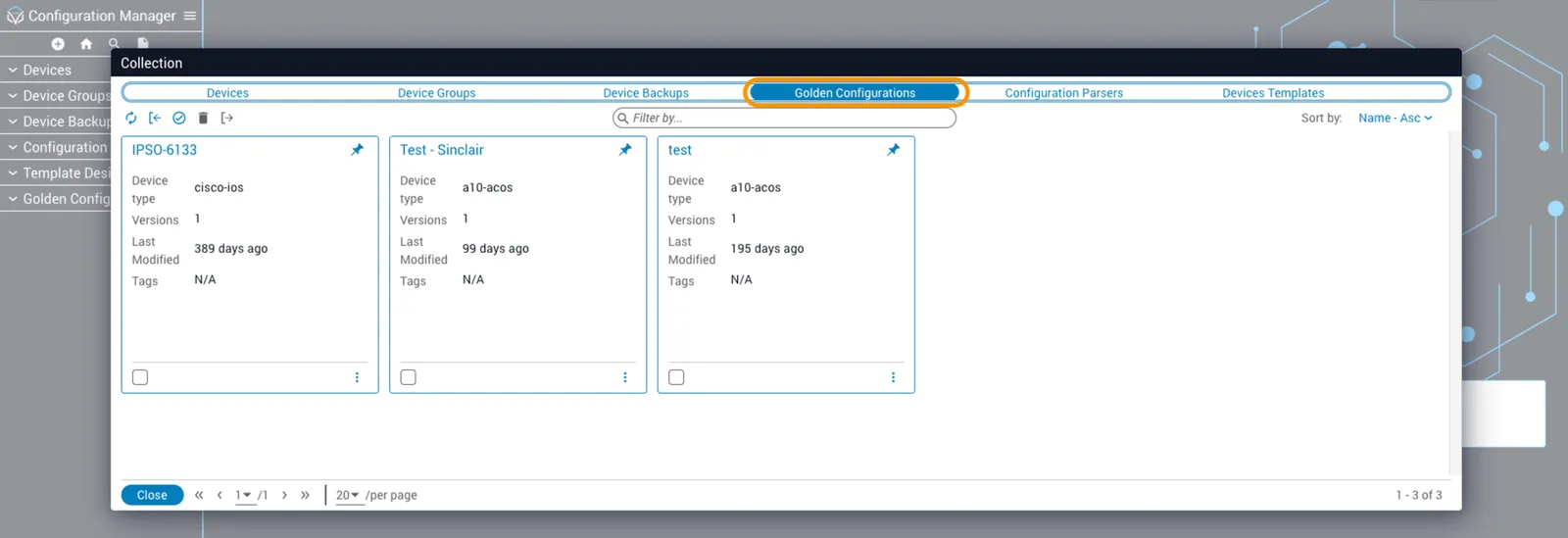
Select and export
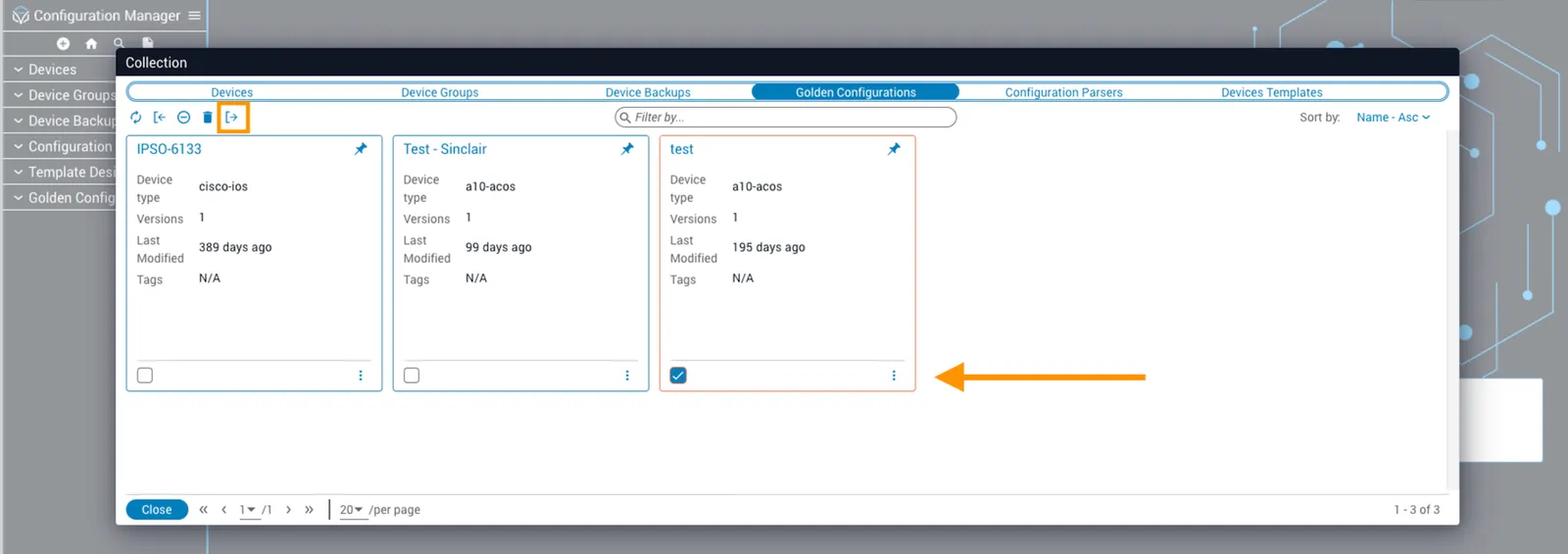
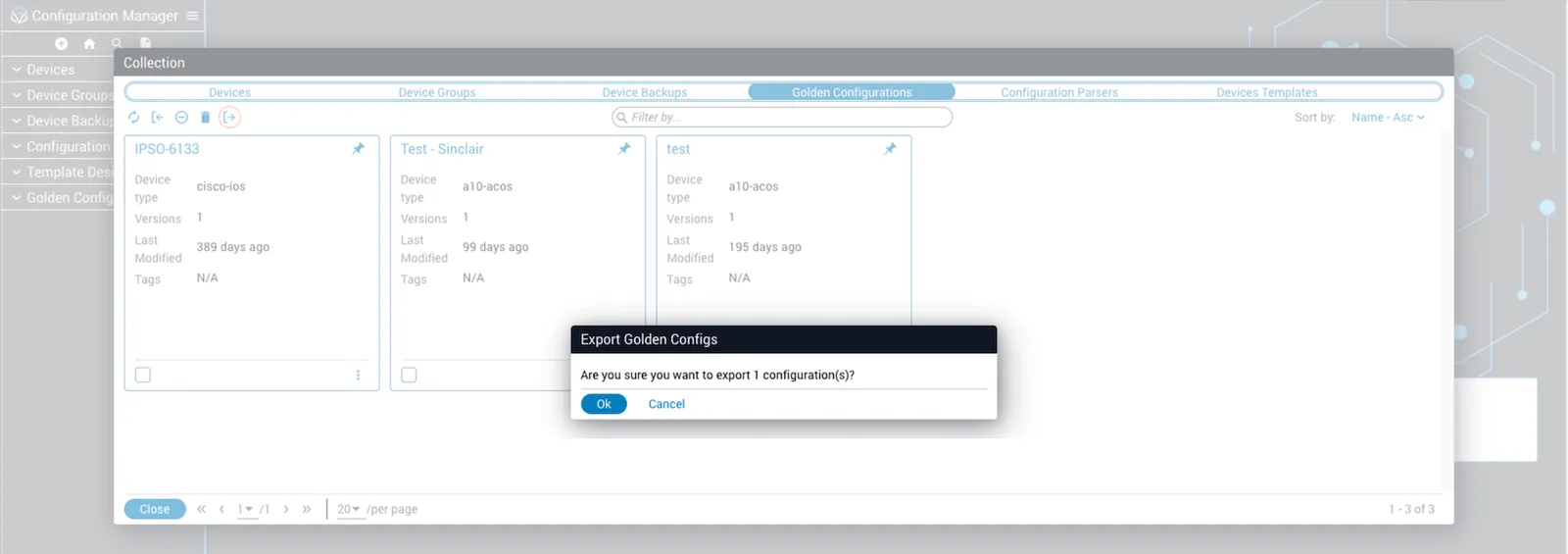
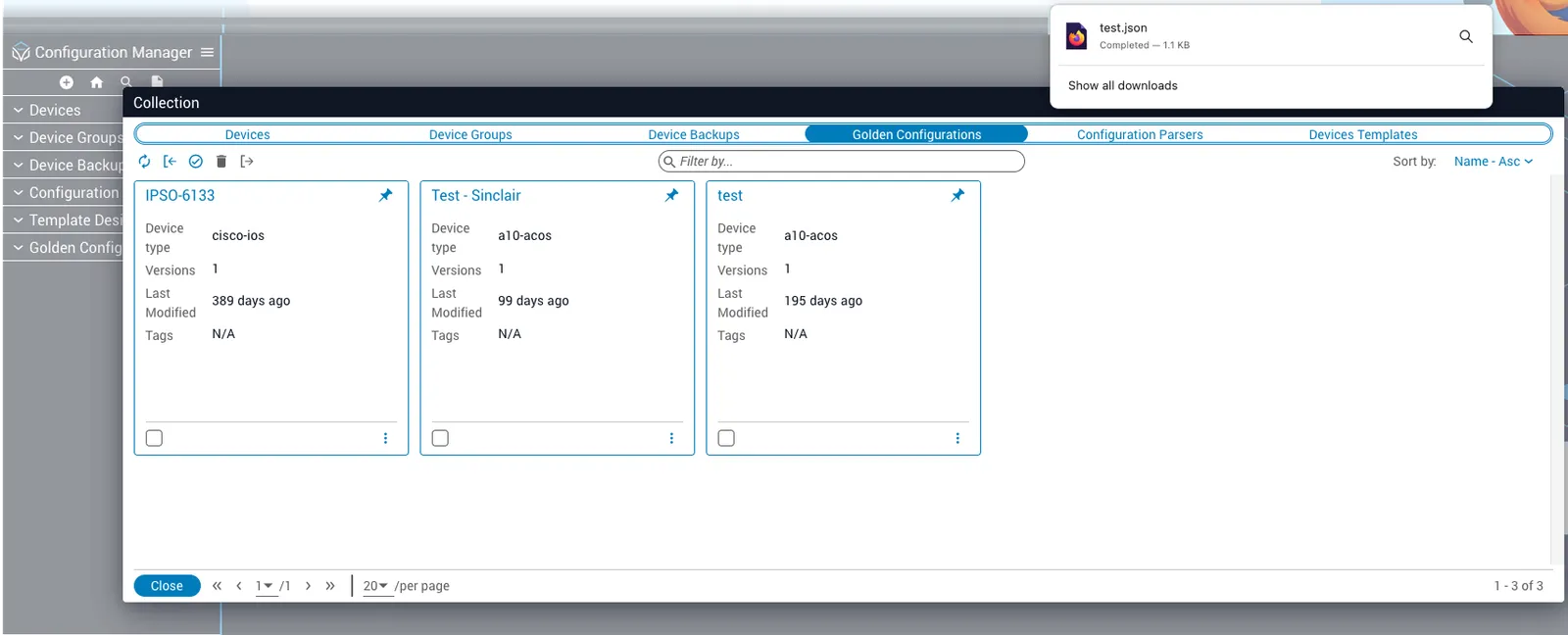
Select the checkbox at the bottom of each Golden Configuration you want to export and then click the Export icon (upper-left).
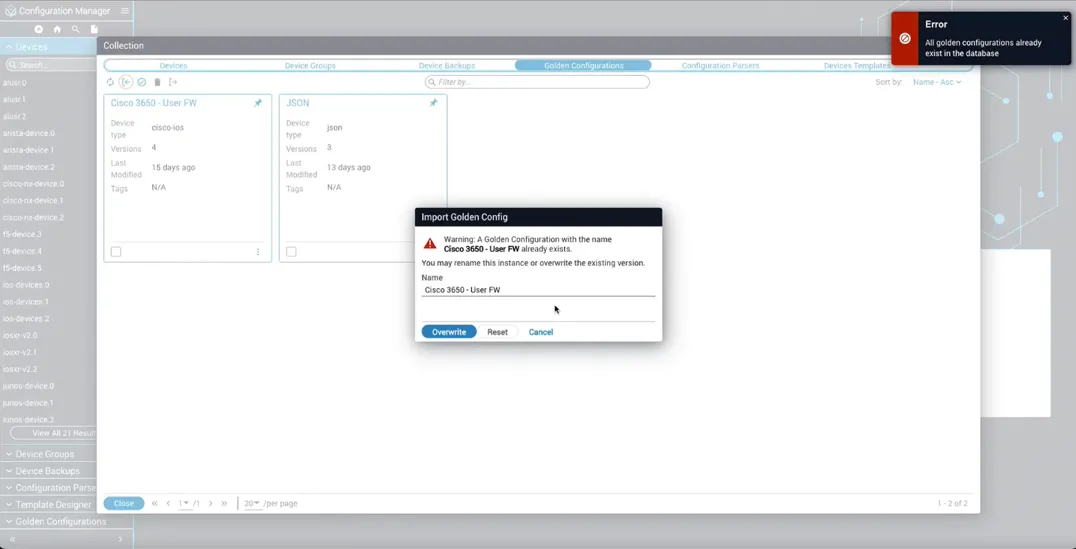
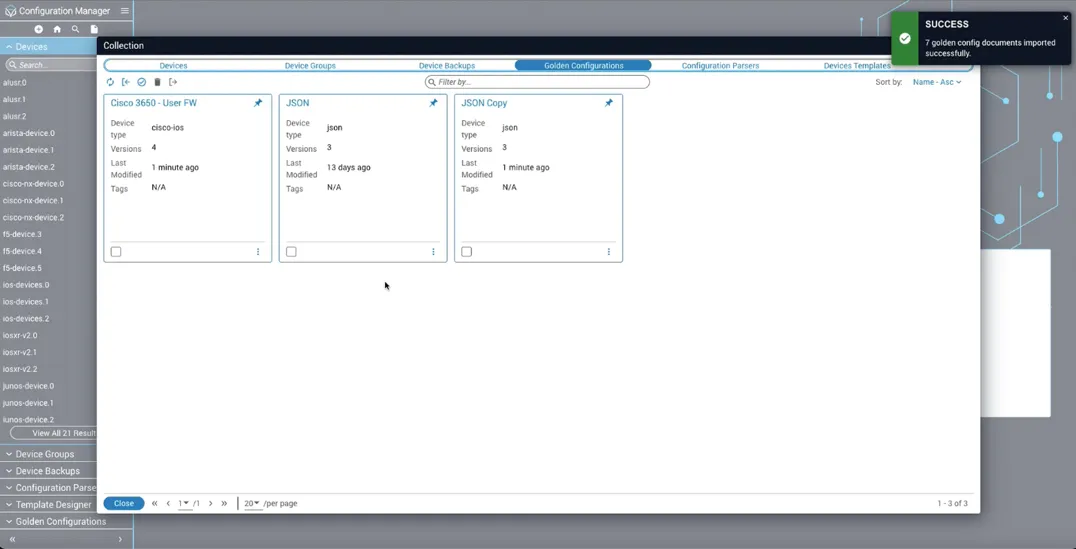
Overwrite Golden Configs
When overwriting Golden Configurations, certain behaviors occur if you pass the overWrite: true property with each tree. These behaviors are as follows:
- The entire Golden Configuration is replaced except for devices and task instances
- Versions in the current Golden Configuration that do not exist in the imported Golden Configuration are deleted
- Versions in the imported Golden Configuration that exist but are not available in the current Golden Configuration are added
To overwrite a Golden Configuration:
Import file
Click the Import icon in the upper-left of the Collection dialog to open your file manager.
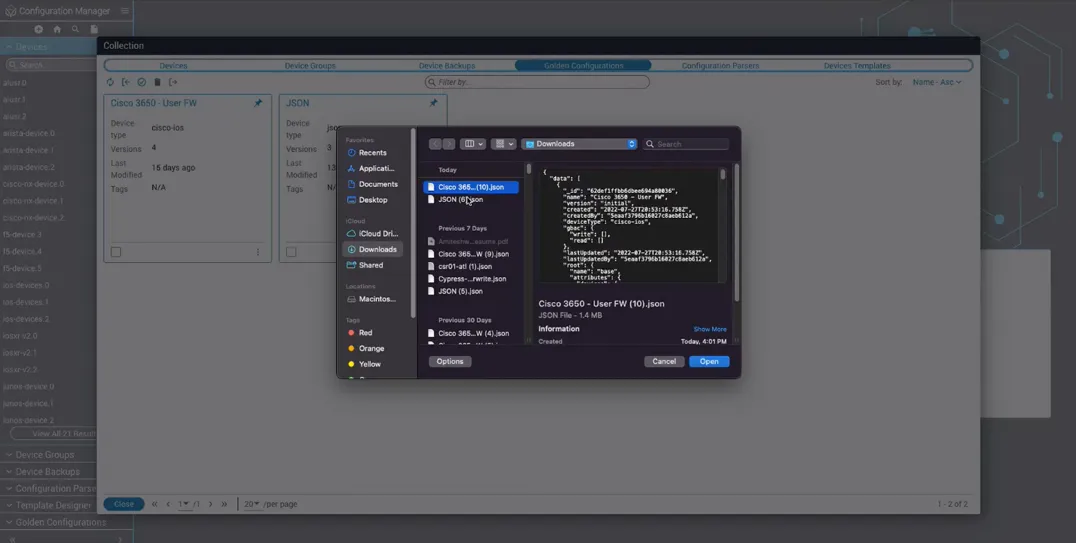
Select file to overwrite
Locate and select the primary file that you want to overwrite with a secondary file of the same name.
- Cisco 3650 - User FW was imported as a primary file
- Cisco 3650 - User FW in the Downloads folder is the secondary file
Rename a Golden Configuration
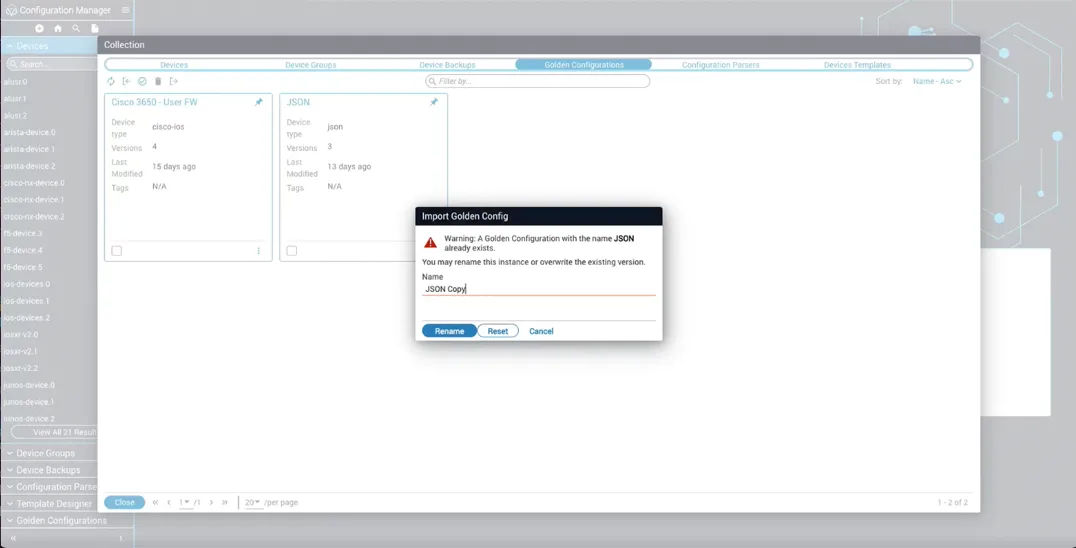
When renaming Golden Configurations, certain behaviors occur if you pass the newName": "some gc name" property. These behaviors are as follows:
- The Golden Configuration is imported with a new name
- If that new name already exists, the new name is indexed as
New GC Name (1) - Devices are not imported
- Task instances are imported
To rename a Golden Configuration:
Import file
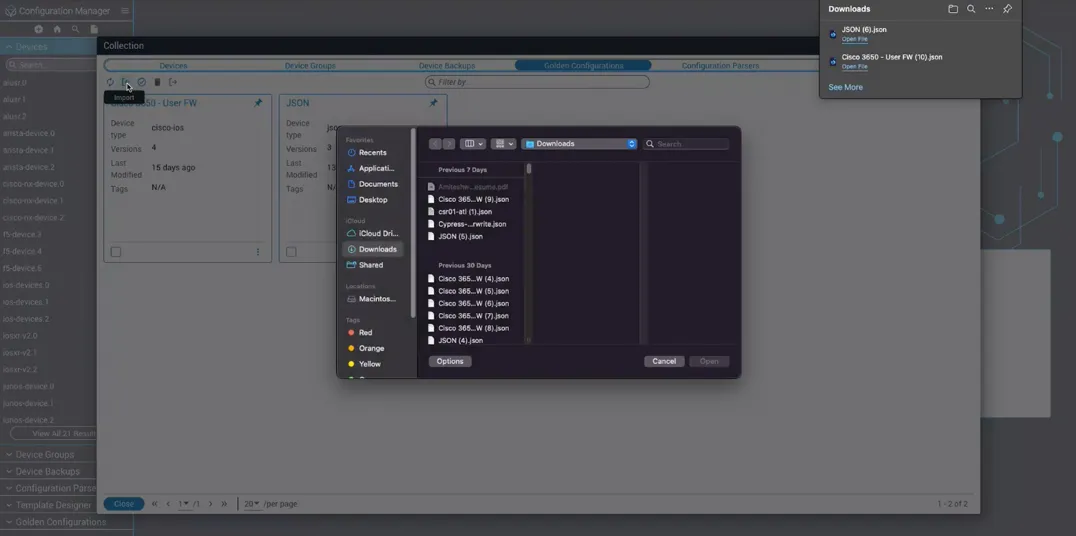
Click the Import icon in the upper-left of the Collection dialog to open your file manager.
Select file to rename
Select the Golden Configuration that you want to rename. In the example, JSON is the file to rename.
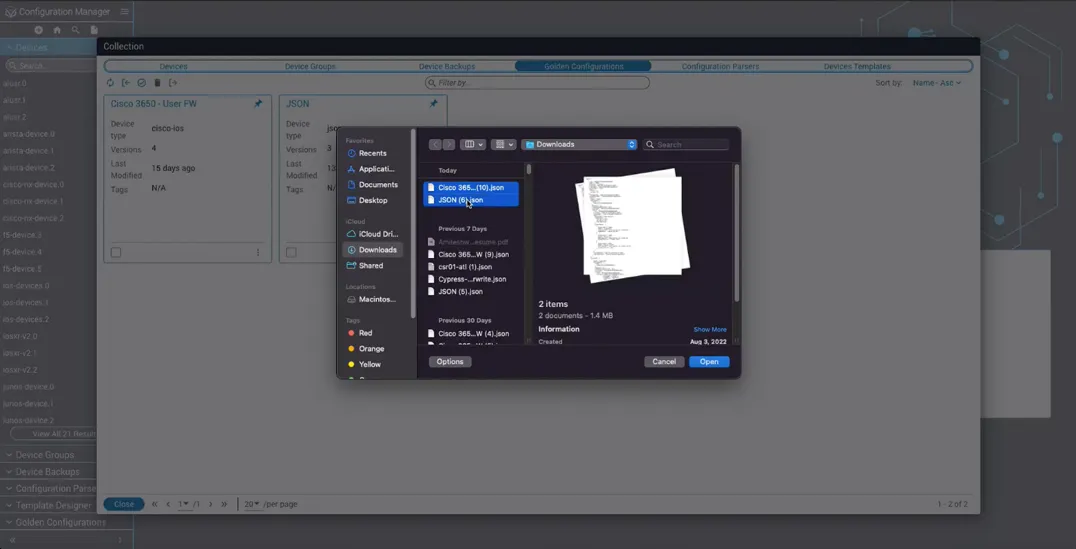
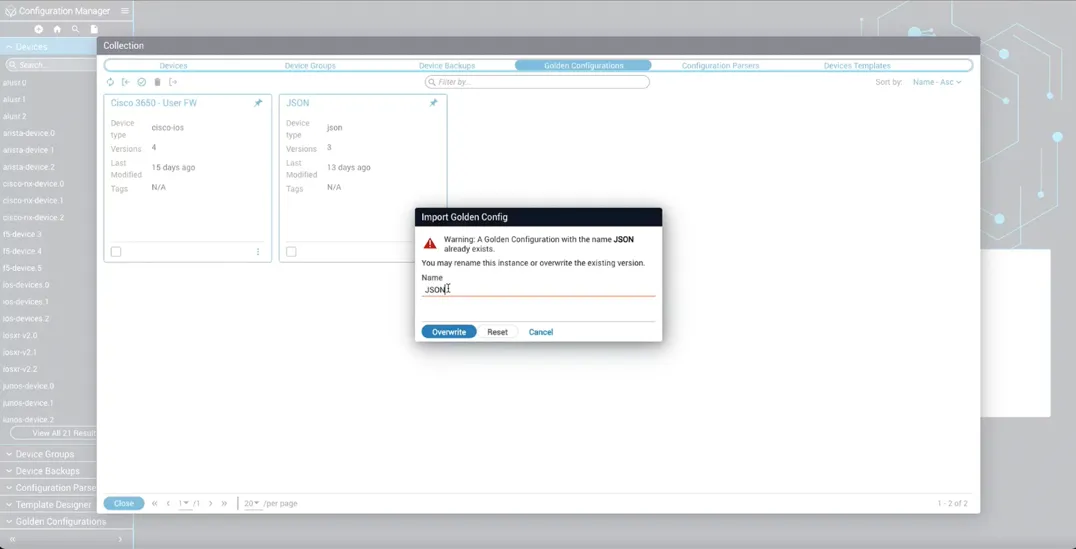
Open warning dialog
Click Open. A warning message appears indicating the file already exists.
Use the import API in Golden Configuration
This section provides backend developer information for importing, overwriting, and renaming Golden Configurations. Here are the parameters for calling the API:
Each element in the trees array represents a Golden Configuration. Within each Golden Configuration, the data array represents each version that belongs to a Golden Configuration. For example, if a Golden Configuration has three versions, then the data array is going to have three objects inside of it for each version. Essentially, the payload is saying to import three Golden Configurations and each of those three Golden Configurations has two versions each.
To import a Golden Configuration, you can just pass in the import data and nothing else. It will:
- Either import the tree normally, assuming it’s not a duplicate
- Index the name if it is a duplicate in which a tree name already exists (for example, if a tree called
IOS Treealready exists then it will import asIOS Tree (1))
Overwrite property
To overwrite for a Golden Configuration, you have to pass the overwrite: true property.
Renaming property
To rename a Golden Configuration, you have to pass in the newName property.