

Accessibility conformance
Making Itential Platform accessible means making it usable by everyone — enabling seamless connection of IT systems with network technologies for end-to-end network configuration, compliance, and automation.
This guide covers accessibility information about Platform UI elements and provides UI/UX checklists to verify that key accessibility requirements are met in the design and implementation of the Platform.
Process and UI framework
Itential has built a set of guidelines for creating user interfaces and designs targeting WCAG 2.1 conformance (as recommended by W3C).
- Compliance with WCAG 2 is managed primarily through the RodeoUI library, which controls color, font properties, and other visual details.
- Rodeo is built on Prime React, which is fully accessible and compliant with Section 508 standards.
- The Itential Style Guide, Flavor, provides an overview of all UI elements and guidelines for building interfaces with the RodeoUI library.
- Specific app designs are based on the Flavor style guide and the Prime React component library.
- Informal accessibility audits of live applications are performed pre-release by the Itential Testing and Verification team.
Visual accessibility
The following standards are met by all UI components and patterns in Figma, the vector graphics and prototyping tool used at Itential.
- The AA level of conformance is the standard for body text compared to background color. Color Review is used for contrast testing.
- Error, warning, and success states use icons along with text and color. Color Oracle is used for colorblind and grayscale testing.
- Text style minimum requirements:
- Font size: at least 14px
- Text enlargement: not to exceed 200% (font magnification, not browser zoom)
- Line height: at least 1.5 times the font size
- Paragraph spacing: at least two times the font size
- Letter spacing: at least 0.12 times the font size
- Word spacing: at least 0.16 times the font size
Functional accessibility
Every functional test requirement references a WCAG 2.1 Success Criterion target.
- A project checklist is used to cover most WCAG requirements for accessibility and compliance.
- Accessibility is tested across four major browsers: IE11, Edge, Chrome, and Firefox.
- Where possible, built-in accessibility checkers are used to inspect a page. In Chrome, select Audit → Accessibility → Generate Report.
- If a page is rendered without CSS, it should still be in a logical order and be navigable.
Keyboard control (no mouse)
Users can navigate and interact with Itential Platform using only the keyboard.
- Any element that can be clicked, selected, or modified must be accessible via keyboard (tabbing).
- For drag-and-drop functionality, a keyboard-based cut-and-paste alternative can be offered, or a separate accessible UI can be enabled.
- No keyboard traps — users must always be able to leave a component using the keyboard.
- Tabbing must follow a logical top-down, left-right order. A tab index is used to enforce tabbing order where needed.
- When a button or link triggers a dialog or modal, the element that had focus when the dialog was launched should regain focus when the dialog is closed.
- Keyboard arrows do not trigger events or functions.
- Elements with focus have clear visible focus indication.
- When an element receives focus, no unexpected action is triggered.
- Selecting or changing a checkbox, radio button, or toggle does not trigger unexpected changes in page context or content.
Screen reader
Screen reader support enables blind and low-vision users to interact with the Platform.
- Users can pause, stop, or hide moving, blinking, or auto-updating content.
- Color is not used as the sole means to convey information — icons and text are also used.
- All form elements have labels using the
<label for>HTML attribute to link a label to an input. - A “skip to main content” button is offered so screen reader users can bypass repeated headers and navigation. This link can be hidden with CSS but must not use
visibility: hiddenordisplay: none. - Each page has a title clearly describing its topic or purpose. The
<title>tag in the page header is compliant and shows the page topic in the browser tab. - Links and buttons without clear text have a
titleattribute that conveys purpose or target. - All symbols and images have alternative text. Decorative images use an empty
altattribute (alt=""). - Page language is specified in HTML markup.
- Validation uses clear and explicit language for input errors.
- Required inputs use a proper
requiredattribute. - Sections use status roles via the
role=""attribute. - ARIA is used where appropriate to identify the purpose of UI elements.
- Tables have header cells describing the column below or the row that follows. Table cells are marked with a
scopeattribute so the screen reader knows how to match headings to data.
React specifications
- In React, the
forattribute is written ashtmlForin JSX. - When
<div>elements are added to JSX to make React code work — especially with lists (<ol>,<ul>,<dl>) and<table>— HTML semantics can break. In these cases, use React Fragments to group multiple elements.
Design examples
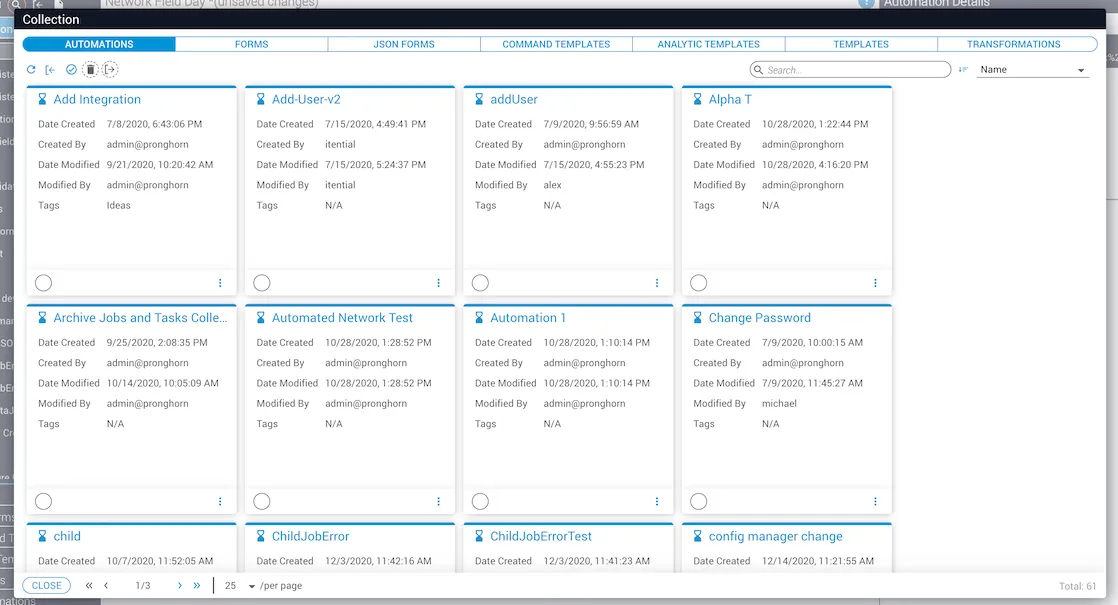
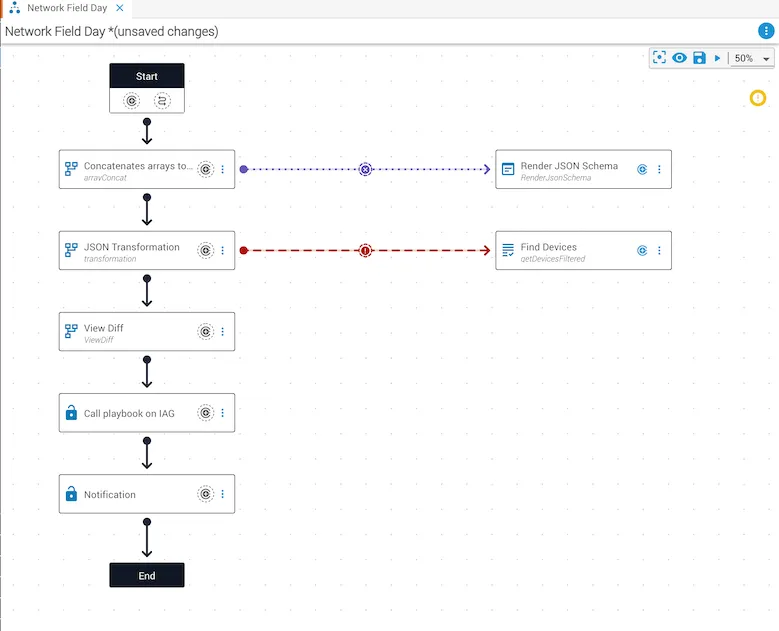
Accessibility at Itential
The most important aspects of any user interface are navigation and consistent use of components. Itential dedicates extra attention to these areas to improve the product experience for all users.
To report accessibility limitations or provide feedback:
Existing customers — use your support portal:
Non-customers and all other inquiries — contact Itential directly:
- Email: info@itential.com
- Phone: 1-800-404-5617
Itential aims to respond to feedback and reported issues within five to seven business days.