Understand JSON form elements
In JSON Forms you can update a form’s name, add and modify elements, reorder elements by drag and drop, and preview the form at any point during editing.
Layout elements
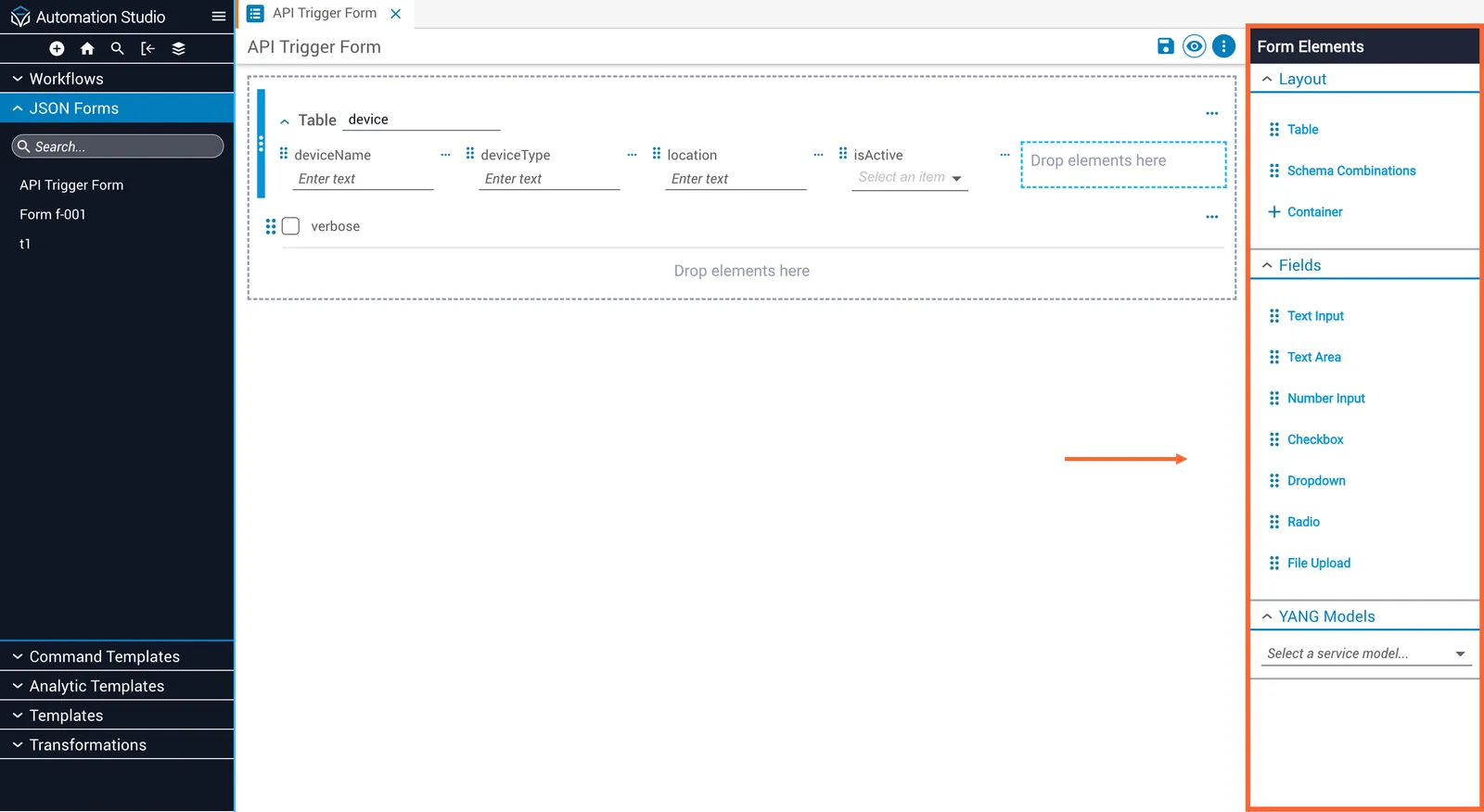
Layout elements group other elements or provide data structures. They do not capture input directly. There are three types:
- Tables — Group elements into repeatable rows. Each element added to a table becomes a column. When the form renders, users can add rows made up of those sub-elements.
- Schema Combinations — Combine schemas and group them into selectable options.
- Containers — Group related elements and render them vertically.
Fields
Fields capture input values. There are seven types:
- Text Input — Captures short string values.
- Text Area — Captures long string values.
- Number Input — Captures integer or decimal values.
- Checkbox — Captures boolean values.
- Dropdown — Captures a string from a set of options. Supports multiple selections.
- Radio — Captures a string from a set of options. Renders as buttons; supports single selection.
- File Upload — Captures a file upload input.
YANG models
The YANG Models tab contains a dropdown listing YANG-based models from NSO. Selecting a model populates a list of its top-level elements, which can be dragged onto the canvas.
Add an element
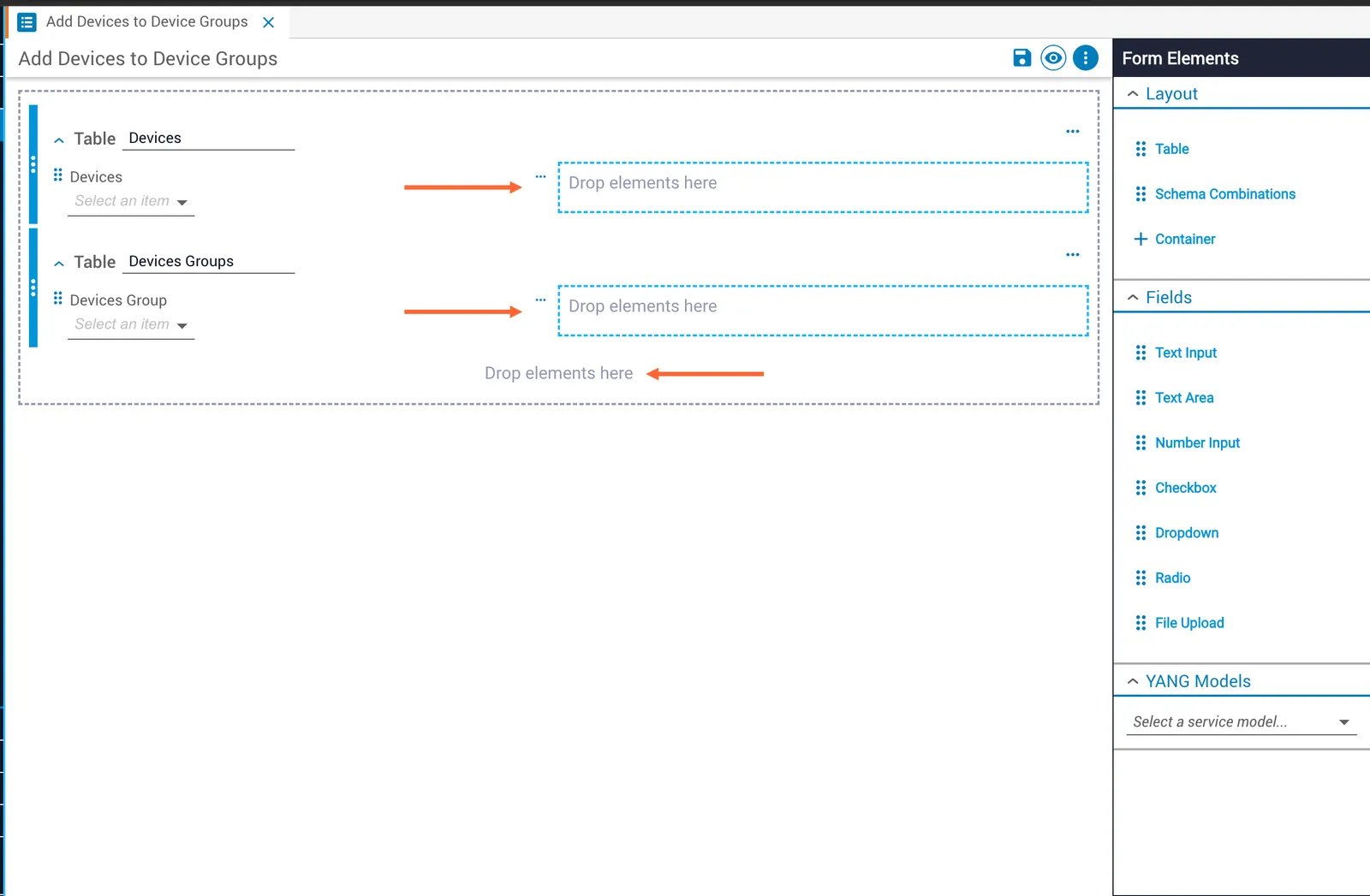
Drag an element from the element bin and drop it onto the Drop elements here zone on the canvas.
Edit element properties
Hover over an element and click the grid icon next to the element name.
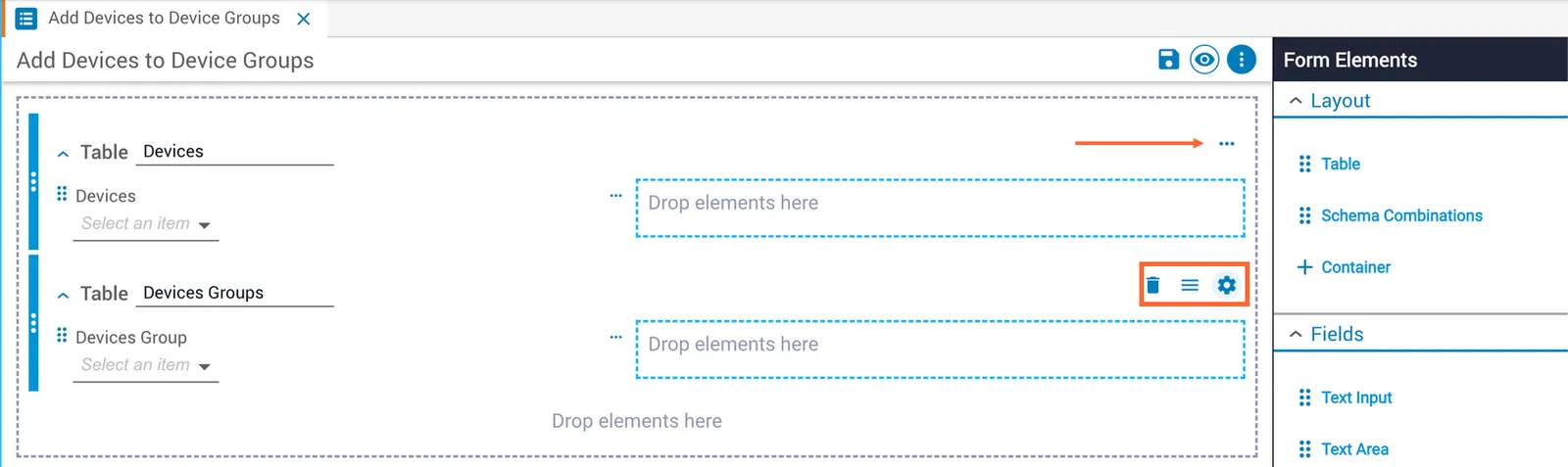
A Configure dialog opens. Click Save to apply your changes.
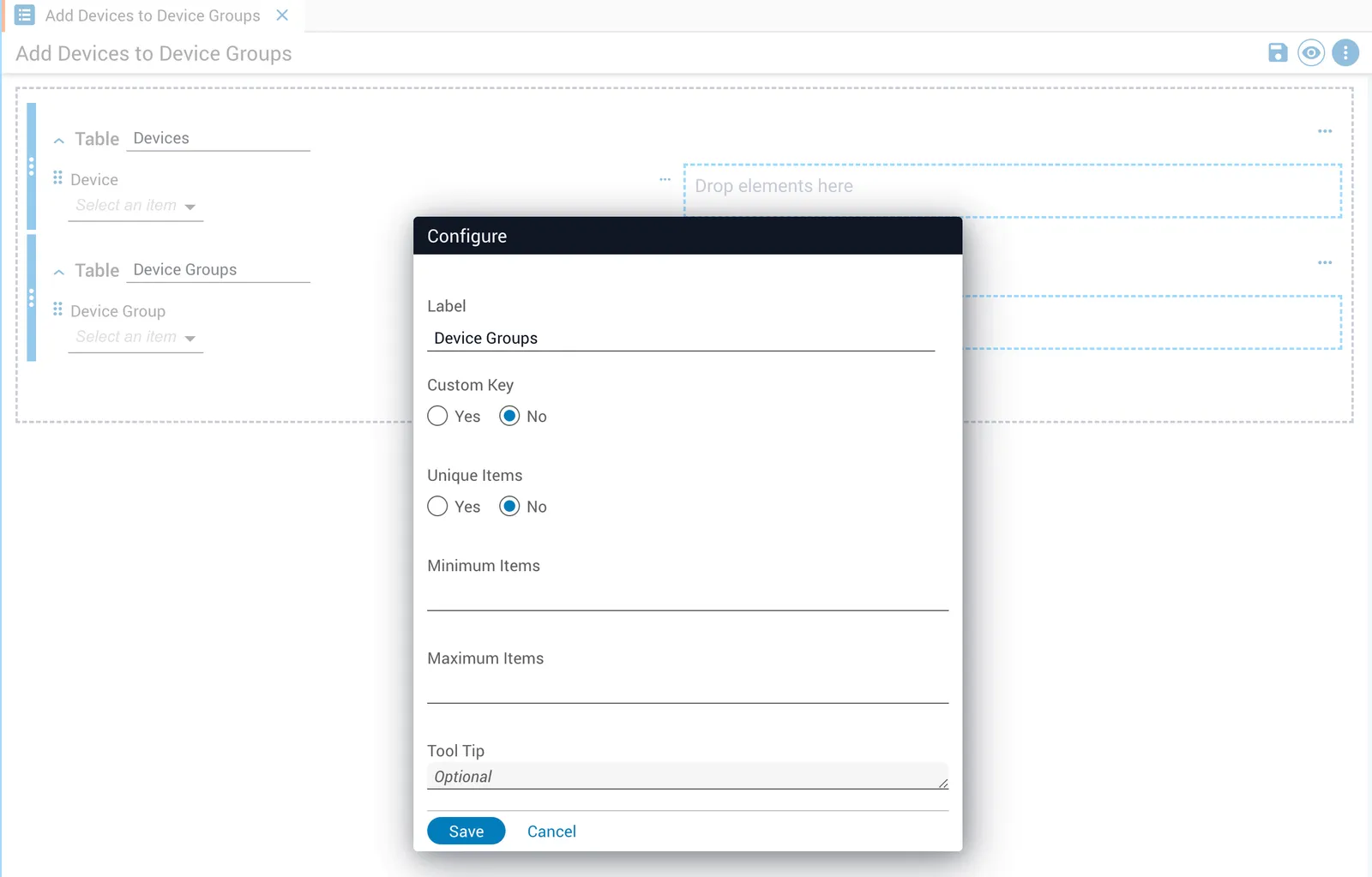
To rename a layout element, edit the Label field. The following tables list the properties available for each element type.
Add dropdown options
Static options
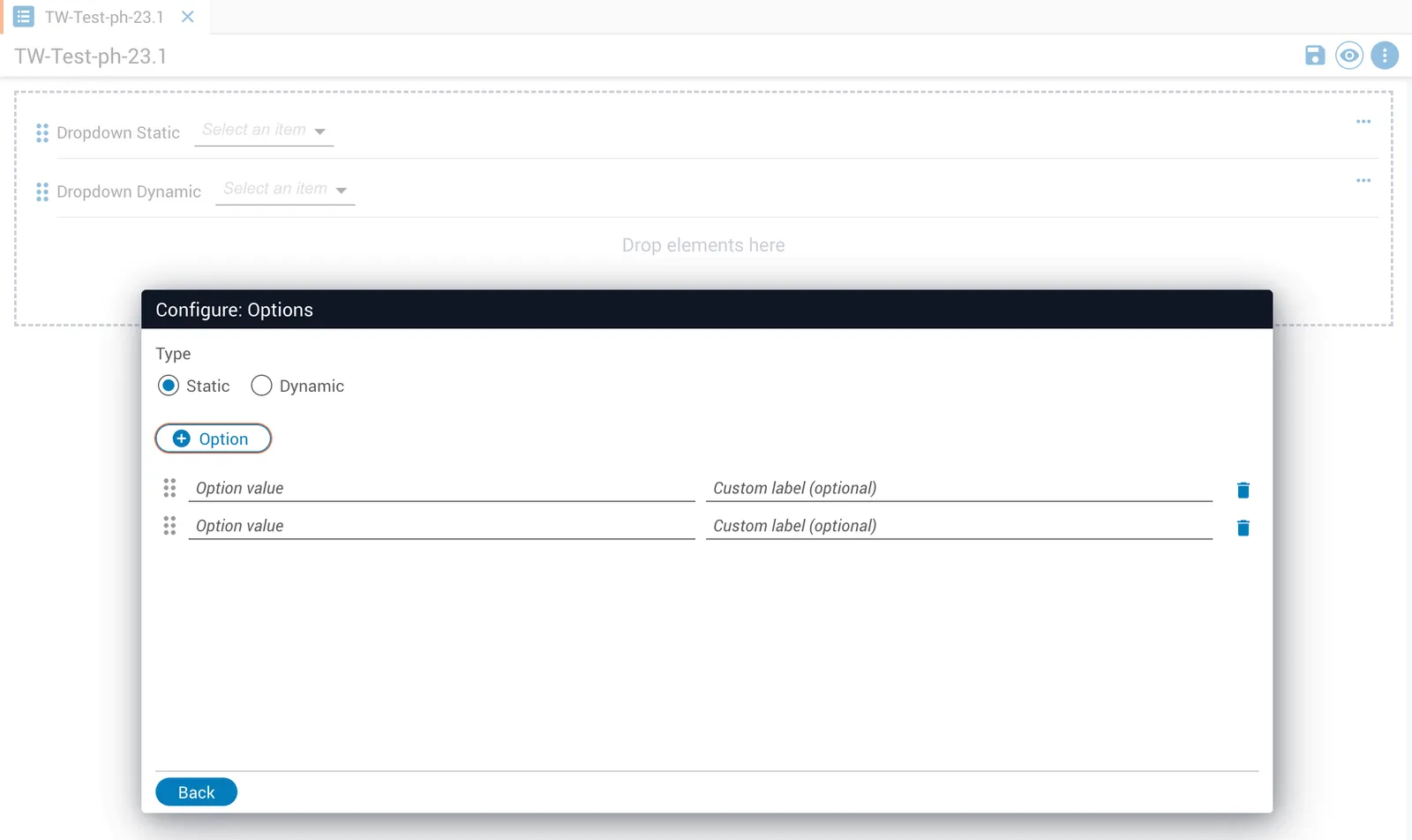
Set the options type to Static. Click + Option to add items, then enter a value for each. Use the drag handle to reorder items and the trashcan icon to remove them.
Dynamic options
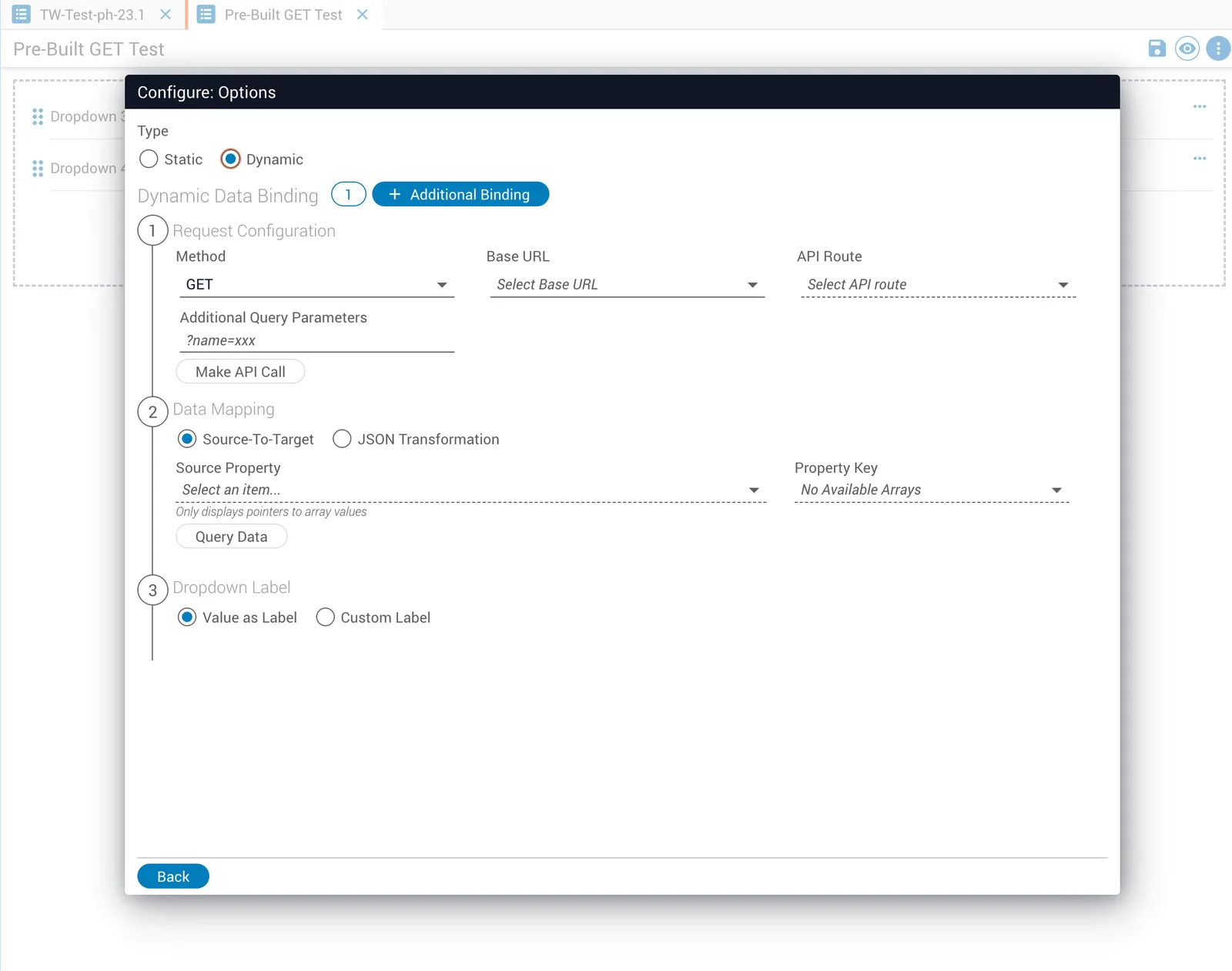
Set the following fields to configure a dynamic dropdown:
Field dependencies
Parts of a dynamic dropdown’s API request can source their values from other fields in the form. These are called field dependencies. Their behavior depends on the request method:
- GET — Field dependencies replace route parameters. For example, in
/json-forms/forms/:id,:idis replaced by the sourced field’s value. - POST — Field dependencies replace request body properties. For example, given
{ "entries": 1 }, if/entriesis parameterized,1is replaced by the sourced field’s value.
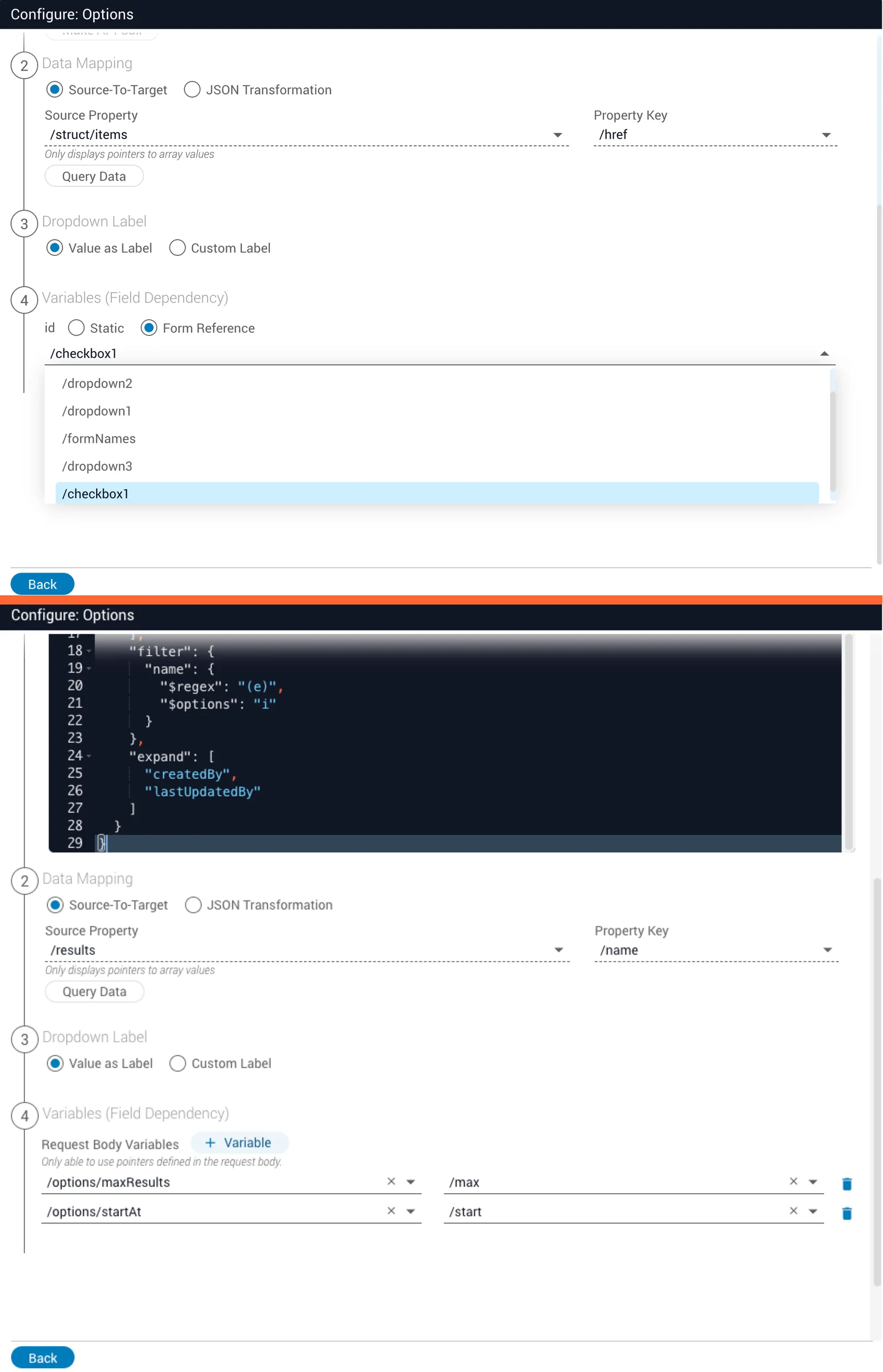
When the form renders, sourced field values are passed to the dropdown’s API request and the options update immediately.
Field dependencies became compatible with POST requests in Platform 6. In earlier versions, they only worked with GET requests.
Add validation
Click + Validation on a form element to add pattern validation, dynamic validation, or both.
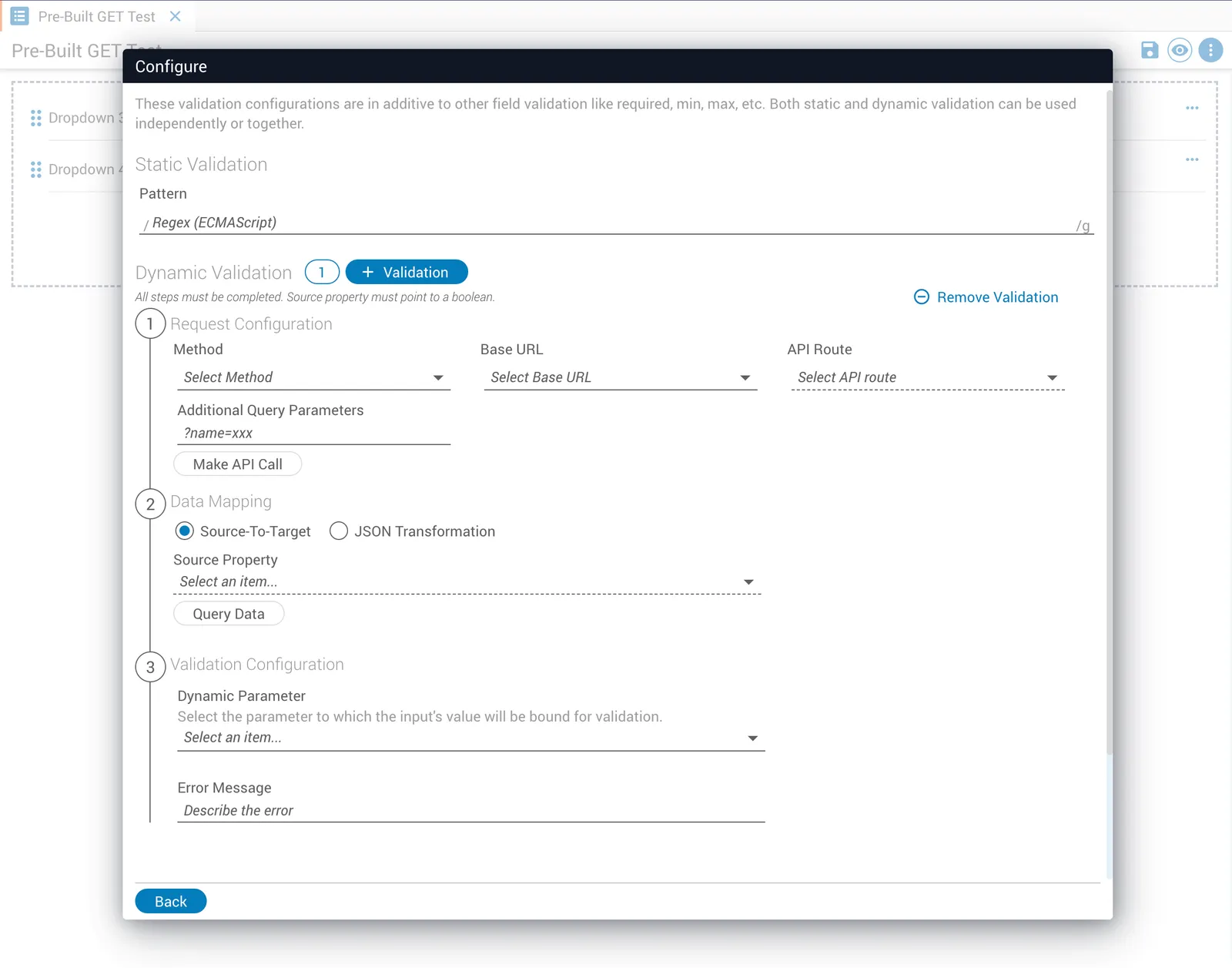
Pattern validation
Enter a regular expression in the Pattern field.
Dynamic validation
Set the following fields to configure dynamic validation:
Add schema combinations
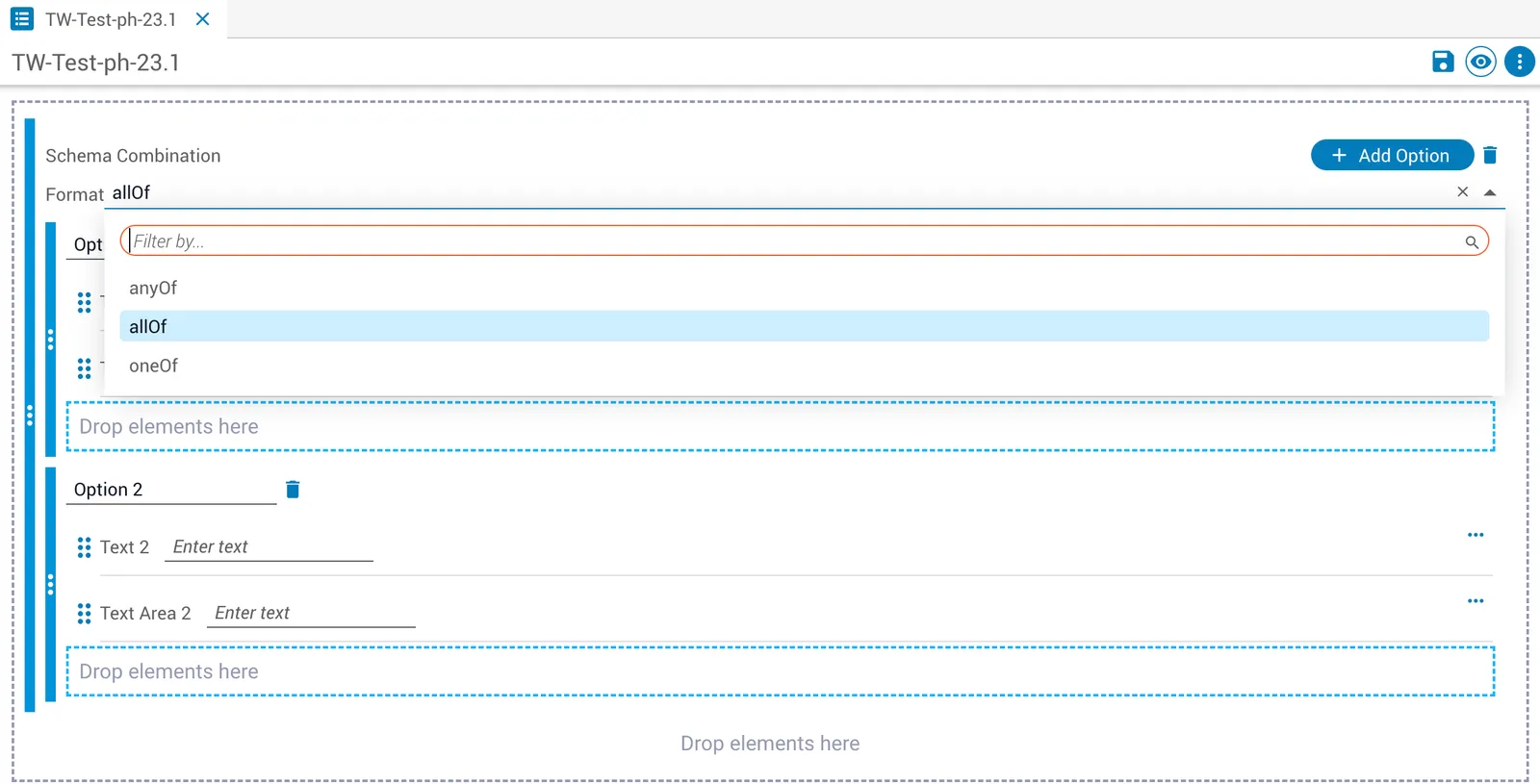
Use the schema combinations element to combine JSON schemas using allOf, oneOf, or anyOf.
Use a unique name for each option within a schema combination. If two options share the same name, only the first is displayed.
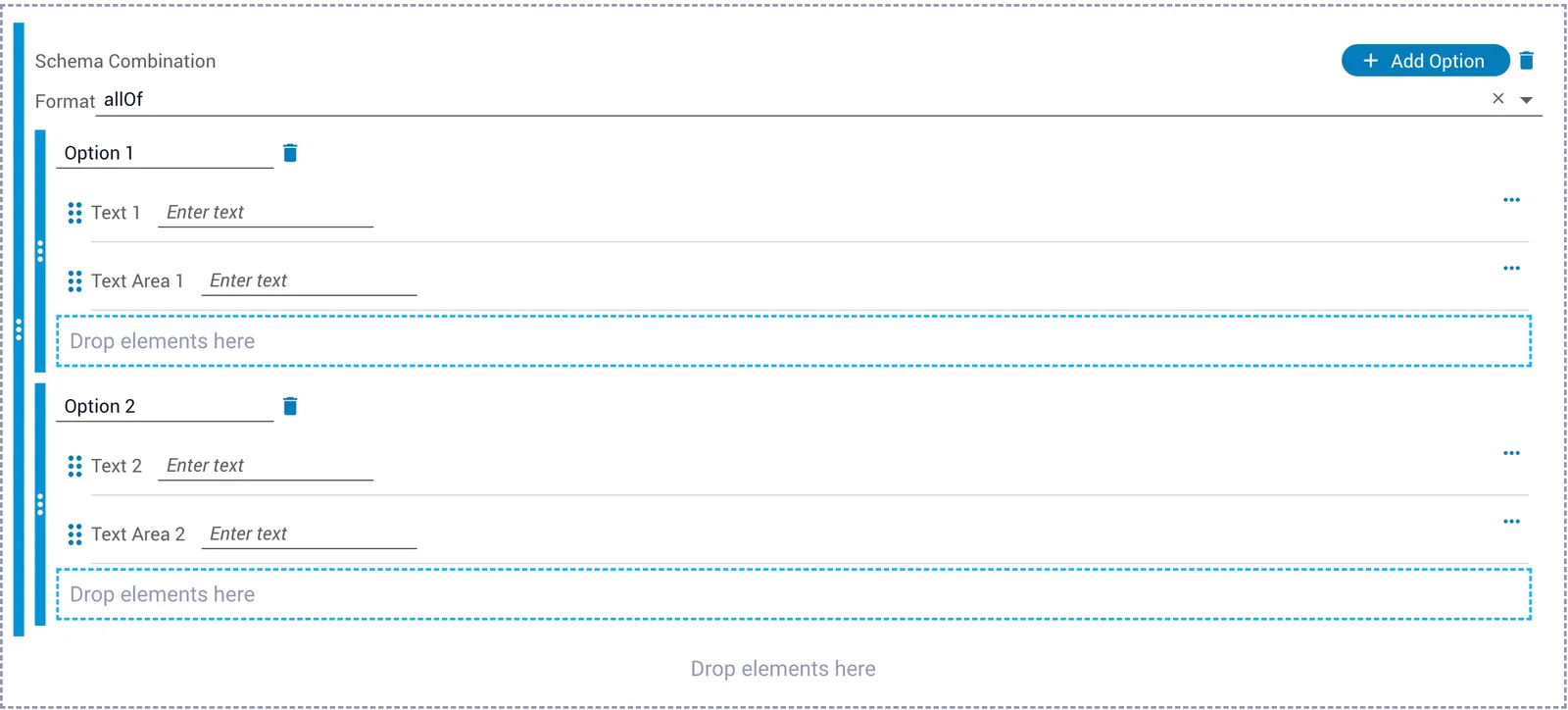
Click the Format dropdown on the element and select a keyword.
When filling out the form, the element renders a dropdown for selecting an option. The corresponding sub-schema is then shown.
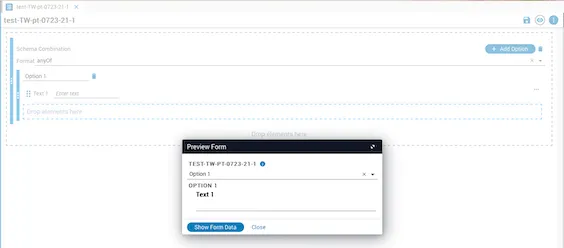
Examples
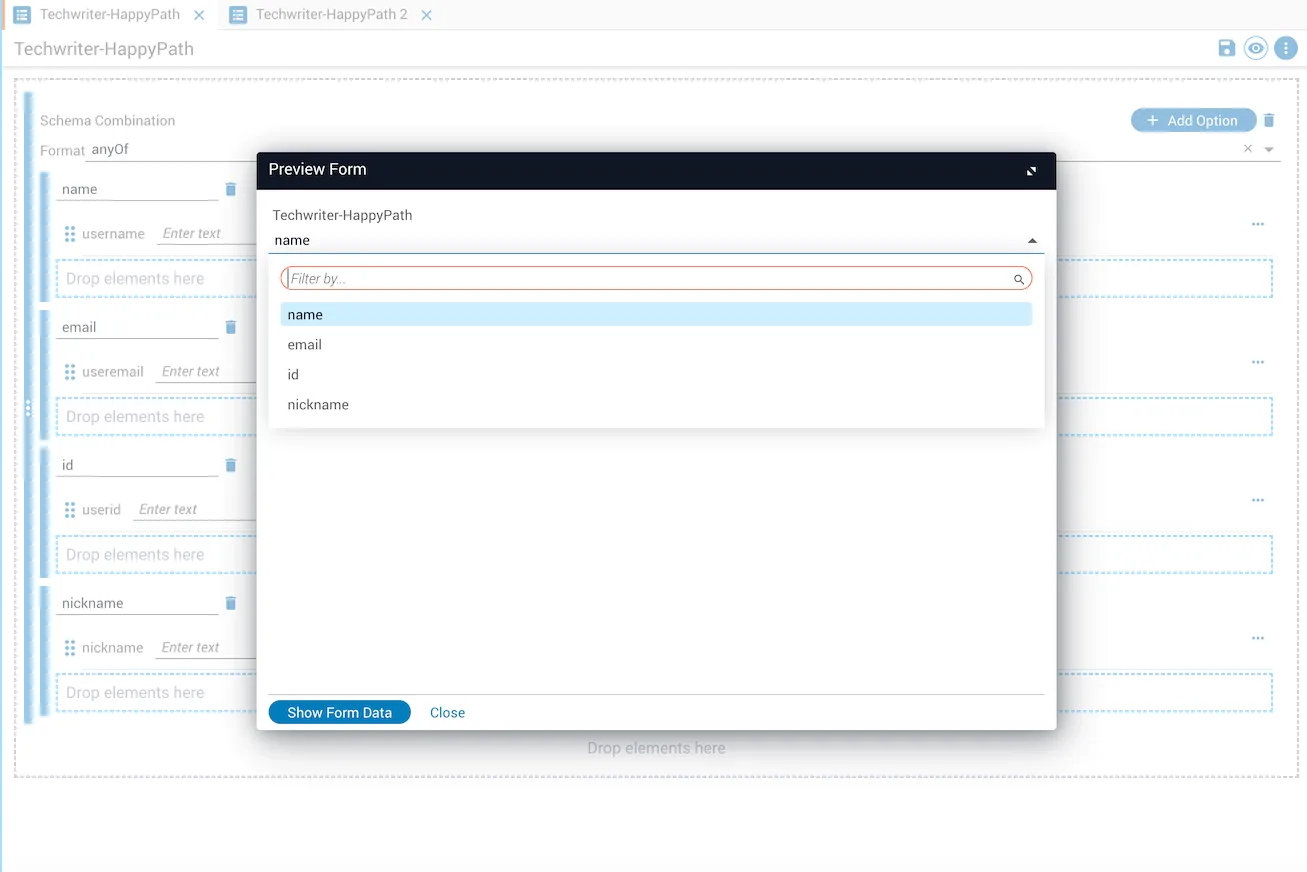
anyOf
The user selects any one option from the dropdown (name, email, id, or nickname) and fills it in. Click Show Form Data to display the result.
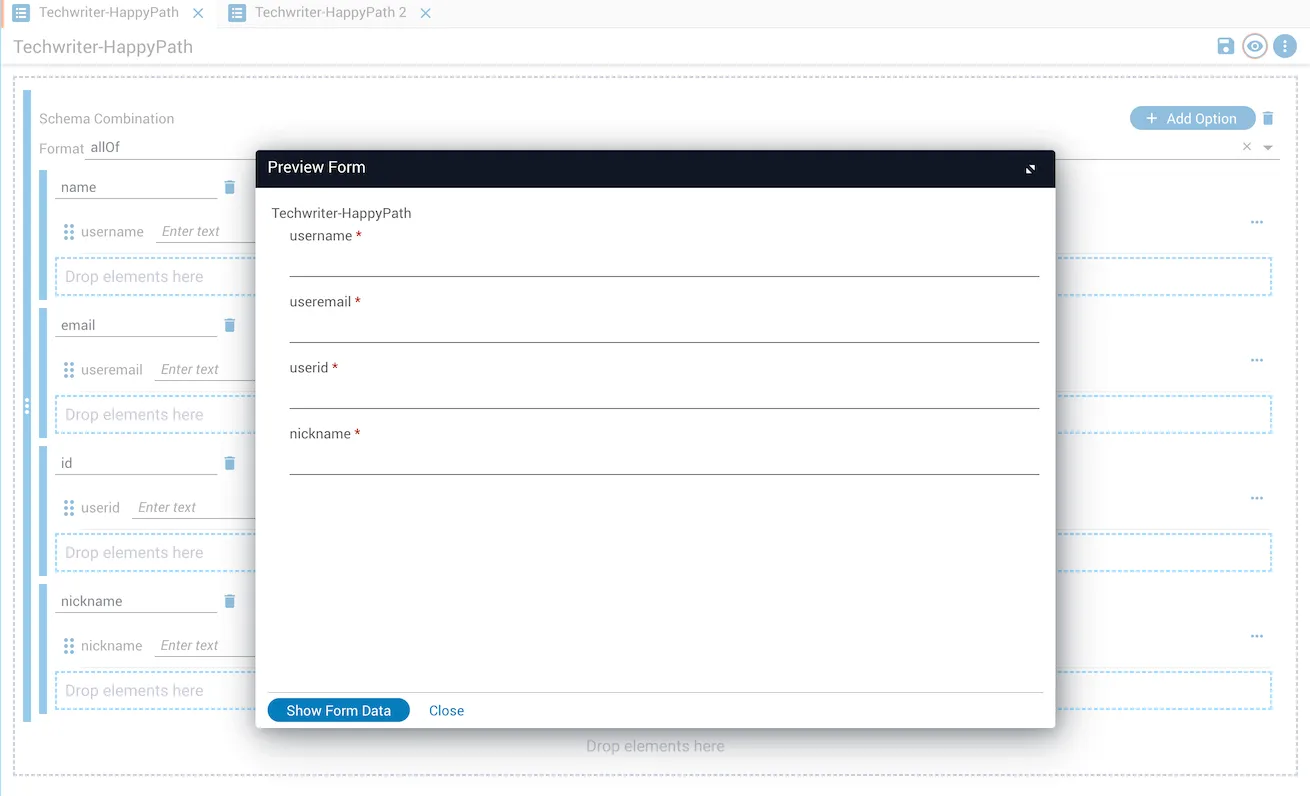
allOf
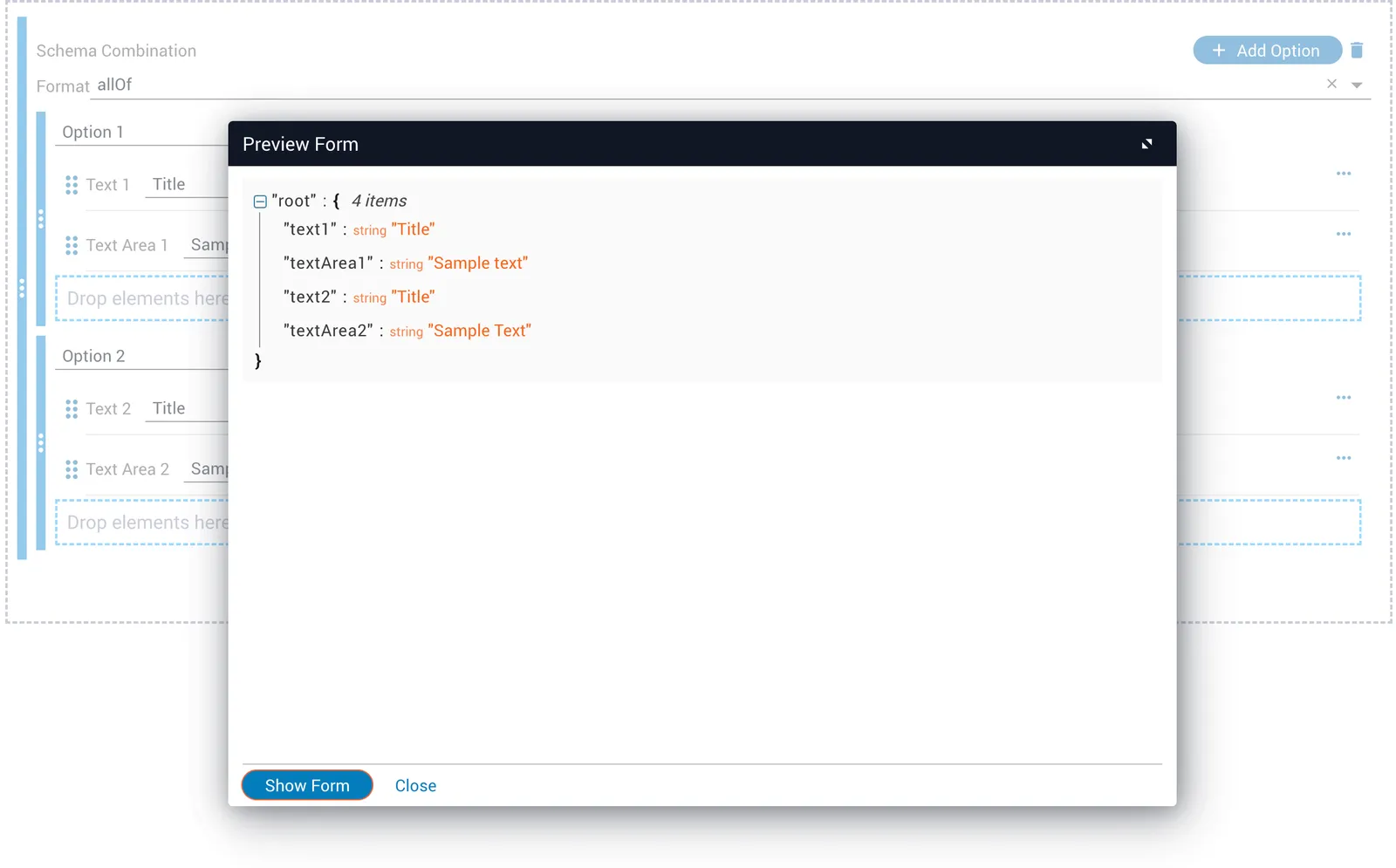
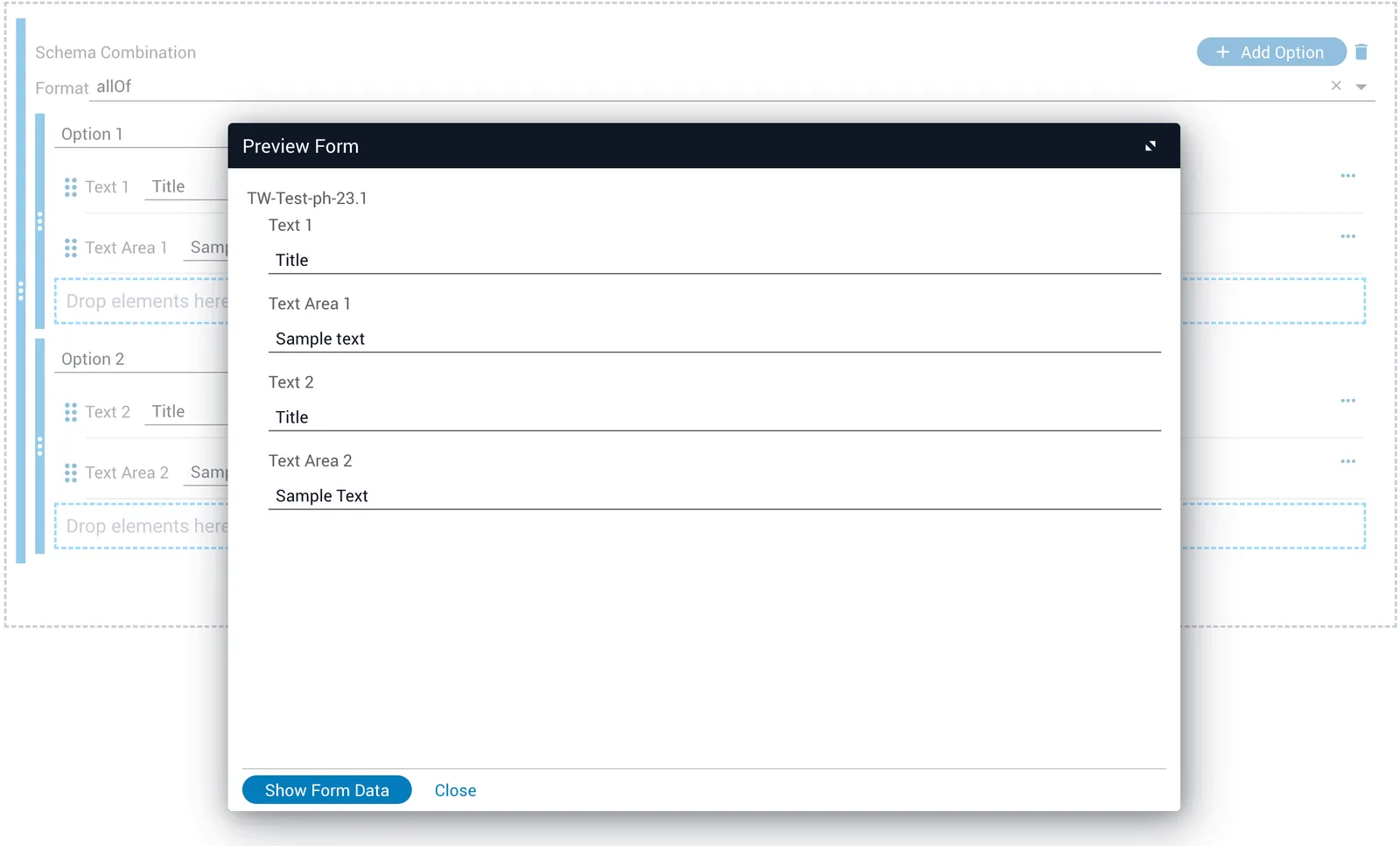
All four options (name, email, id, and nickname) are displayed at once. The user fills in all fields. Click Show Form Data to display the result.
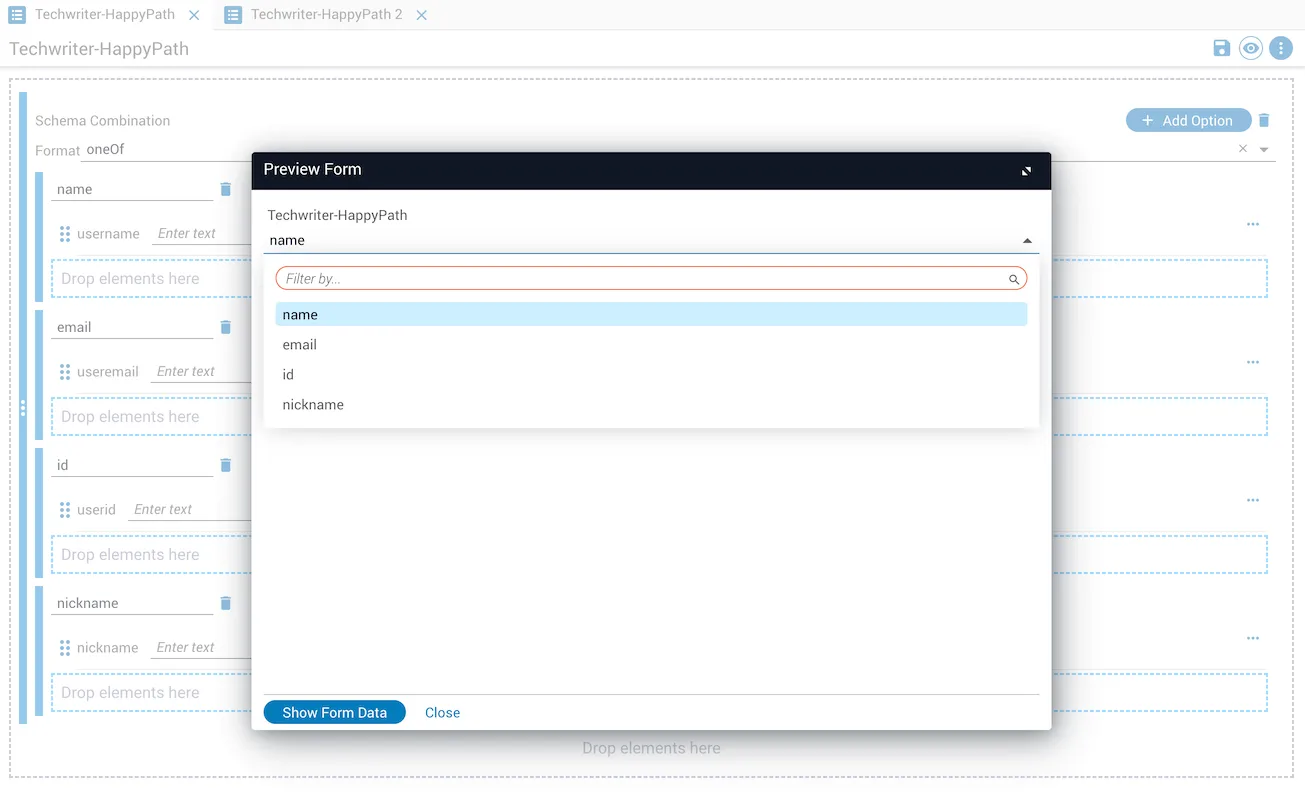
oneOf
The user selects exactly one option from the dropdown (name, email, id, or nickname) and fills it in. Click Show Form Data to display the result.
Add YANG model elements
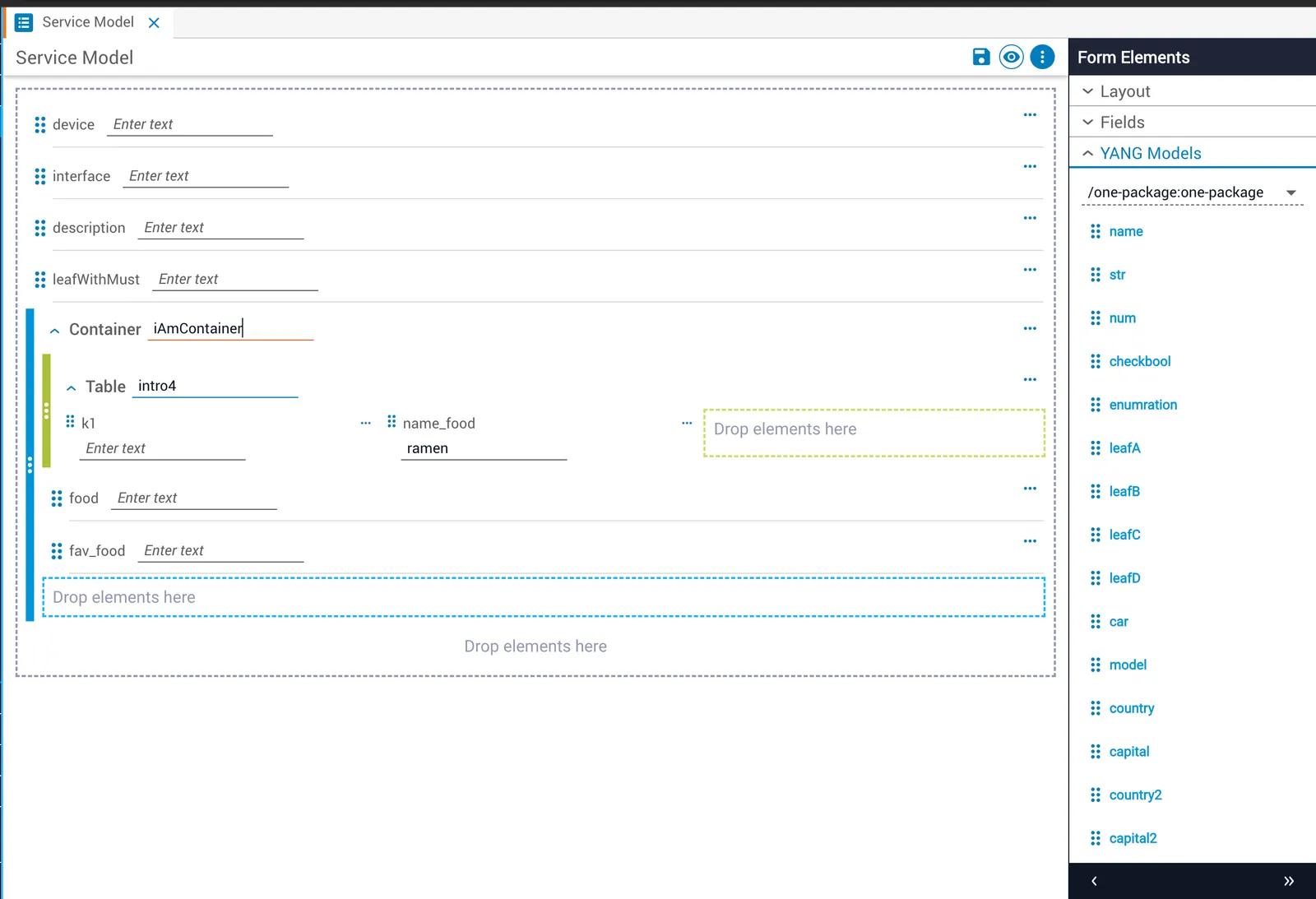
In the YANG Models tab, drag top-level elements from the list onto the canvas. Elements retain their names and properties from the YANG definition.
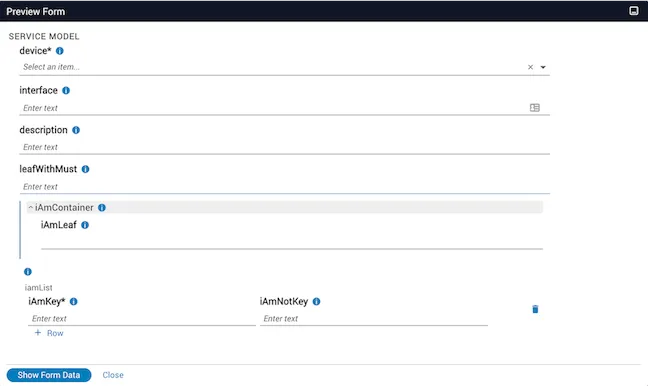
YANG lists become tables in JSON Forms. YANG containers become containers. All child elements are included when the parent is dropped onto the canvas.
Dynamic references in YANG-based forms
JSON Forms replicates YANG xpath-based behavior in the UI. Leafref-defined data references render as dropdowns. when expressions control conditional field rendering. Validations run on form submission.
Reorder elements
Drag an element using its drag handle to move it to a new position.
Delete an element
Click the trashcan icon on the element.
Save changes
Click Save.
Preview the form
Click the eye icon on the canvas to open a live preview of the form as it’s being built.
Inspect generated schemas
In the preview footer, click Show Form Data to display the JSON Schema, UI Schema, Binding Schema, Validation Schema, and other schema inputs. Click Show Form to return to the preview.