For AI agents: a documentation index is available at the root level at /llms.txt and /llms-full.txt. Append /llms.txt to any URL for a page-level index, or .md for the markdown version of any page.
Open sourceSupportFAQsDocs Home
DocumentationAPI referenceRelease notes
  • Platform On-Prem
    • Overview
    • Navigate
    • Search resources
  • Apps
    • FlowAI
      • Overview
      • Navigate
      • Jobs and metrics
      • Actionable tasks
      • Triggers
      • Compliance reports
      • Lifecycle Manager actions
    • Itential Automation Gateway
  • Resources
    • Itential Academy
    • Version lifecycle
    • Itential MCP
    • Accessibility conformance
    • Get support
    • FAQs
LogoLogo
Open sourceSupportFAQsDocs Home
On this page
  • Create a compliance report automation
  • Automations collection
  • Filter by automation type
  • Create automations for specific workflows or reports
AppsOperations Manager

Use compliance reports

Was this page helpful?
Previous

Use Lifecycle Manager actions

Next
Built with

Operations Manager automations trigger compliance plans to run reports the same way they trigger workflows to run jobs.

Automations for compliance plans work nearly the same as automations for workflows, with one exception: Manual and Schedule triggers for compliance plans do not have form data inputs, whereas compliance plans do accept form data.

Create a compliance report automation

1

Open the Create Automation dialog

Click the (+) icon button in the top-left toolbar of Operations Manager. The Create Automation dialog appears.

2

Select the automation type

Select Compliance Report as the automation type and click Create. After creation, you cannot change the automation type.

3

Select a compliance report

Choose which Compliance Report to automate from the Compliance Report dropdown and click Save Changes.

Identify the automation type by the icon to its left in the Automations list. Compliance report automations have a document icon; workflow automations have no icon.

Automations collection

When viewing Automations, both workflow and compliance plan automations appear by default.
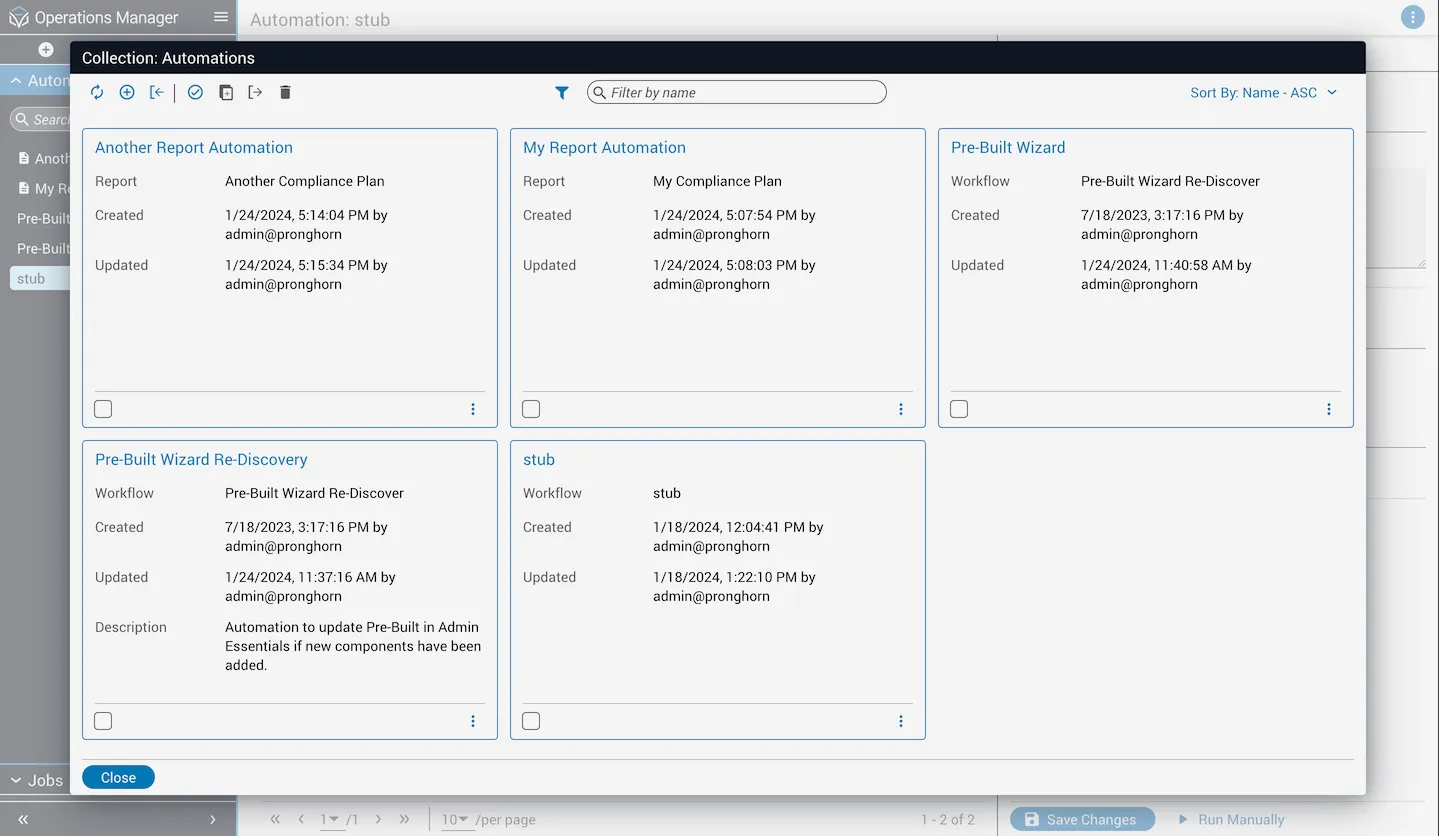
Automations collection in Operations Manager

Filter by automation type

1

Open the filter menu

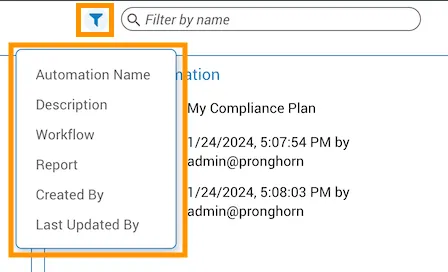
Hover over the Filter icon button to the left of the search field at the top of the collection dialog. A popover menu appears with several filter options.

2

Select a filter type

Choose Workflow or Report to filter the Automations collection by type.

3

Narrow results (optional)

To filter for a specific resource, choose Filter by Report or Filter by Workflow from the dropdown at the top. A list of compliance plans or workflows appears. Use the text box within the dropdown to search if the list is long.

Filtering a collection

Create automations for specific workflows or reports

1

Filter by a specific resource

Filter by a specific workflow or compliance plan. If no automations exist for that resource, a Create Automation button appears in the center of the collections dialog.

2

Open the Create Automation dialog

Click Create Automation. The dialog opens with the previously selected filter options pre-filled.

3

Create the automation

Click Create to go to the newly created automation with the selected compliance report or workflow already associated.