

Use the dynamic dropdown form element with adapters
JSON Forms in Itential Platform can integrate with APIs or adapters to fetch, manipulate, and display data. This guide covers how to configure adapter calls in JSON Forms.
The communication in this flow is between Itential Platform and the adapter — not a direct call to the external system. The HTTP method used depends on whether the call requires input: calls with no parameters use GET; calls that require parameters or data use POST, even if the adapter’s call to the external system is itself a GET.
Configure the adapter call within the form
Add a dropdown element to the canvas
Drag the Dropdown element onto the empty canvas.

Open the Configure dialog
Hover over the three dots in the upper-right corner of the element, then click the gear icon to edit the dropdown. The Configure dialog appears.

Select the Dynamic option
Select Dynamic to enable adapter-backed data fetching.

Configure the request
Complete the Make Request Configuration fields: Method, Base URL, API Route, and Request Body.
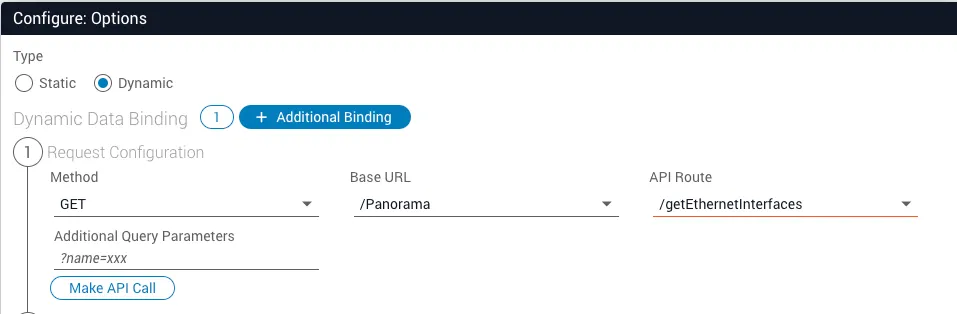
Method — Select based on whether the adapter task requires input:
- POST: Use when the adapter task requires input parameters.
- GET: Use only when the adapter task accepts no input parameters. Confirm this in the adapter’s documentation.
Note that the JSON Form always sends a request to the adapter; the adapter itself may then call the external system using a different HTTP method (GET, PUT, etc.) as required.
Base URL — Select the adapter you need for the integration. The adapter must already be installed and online in your Itential Platform instance.
API Route — Select the route for the adapter task, which follows the structure /{adapter-task-name}. API routes for adapter calls are defined in the adapter’s pronghorn.json file.
Request Body — Define the payload for the adapter call. This payload must match the JSON input expected by the adapter task, not the external system. The adapter handles translating this into the format required by the external API.
Include all fields expected by the adapter task, even optional ones. Leave optional fields that are not needed empty. For example, if the adapter task expects three inputs — id, name, and body — where only id is required, the Request Body would look like:
For response filtering and other dropdown capabilities, see Use the form element dropdown.