

Repositories
Itential Platform supports the configuration of repositories, meaning you can provide configurations to fetch pre-built automations from multiple repository locations and install and manage those pre-builts in a single Itential Platform environment.
This page defines the minimum requirements to have a functioning repository in Itential Platform and provides instructions on how to create, manage, and delete pre-built automation repository configurations.
Repository configuration properties
The configuration properties for the @itentialopensource pre-built automation repository are configured by default on startup of Itential Platform.
The following properties are required for a pre-built automation repository configuration.
Sample repository configuration
Supported repository types
Managing repository configurations
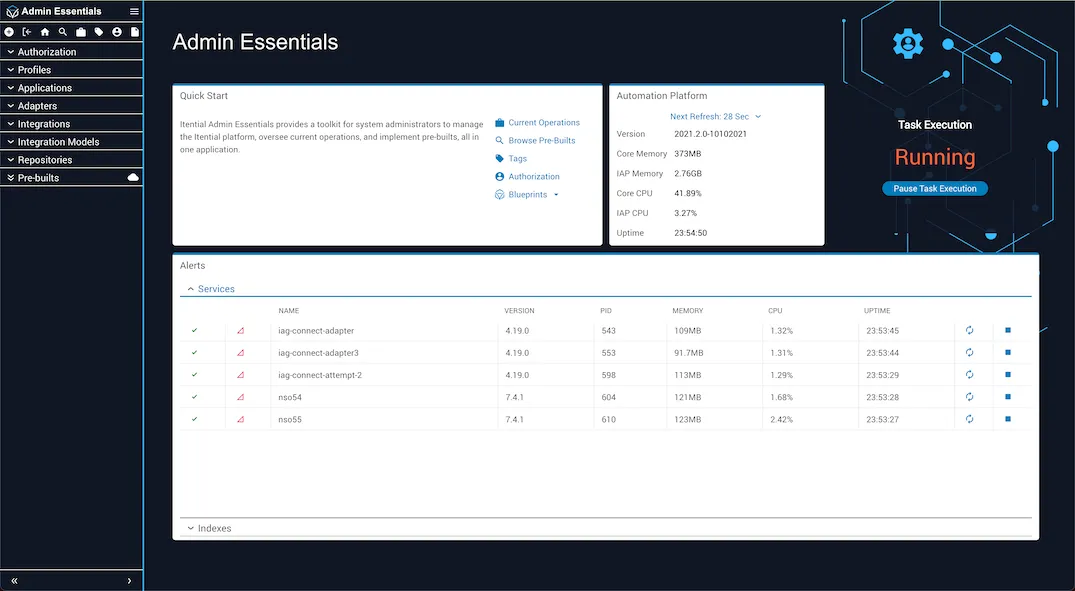
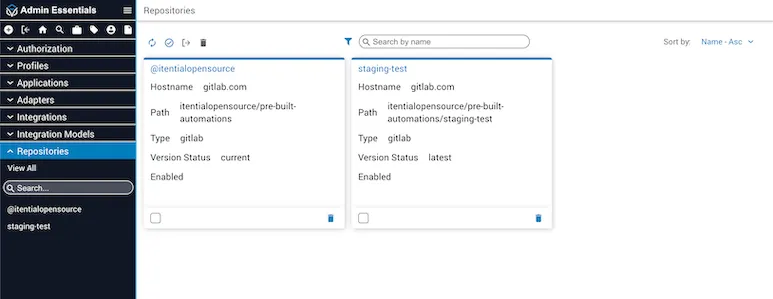
The Repositories sidebar menu in Admin Essentials allows you to manage your repository configurations. You can create, edit, or delete a configuration. You can also select View All to view all of the repository configurations currently on the system.
Adding a new repository
To create a new repository configuration, go to the Repositories menu item of the Pre-built section of Admin Essentials and select the Create button in the upper-left button bar. A dialog will appear prompting you to fill in the configuration properties.
You can also create a new repository configuration without using the UI by sending an API request to POST /prebuilts-repository/configs with the following request body:
Editing a repository
To edit an existing repository configuration, go to the Repositories menu item of the Pre-built section of Admin Essentials and select Edit repository details. A dialog will appear prompting you to modify each property that can be edited.
Connecting or disconnecting a repository
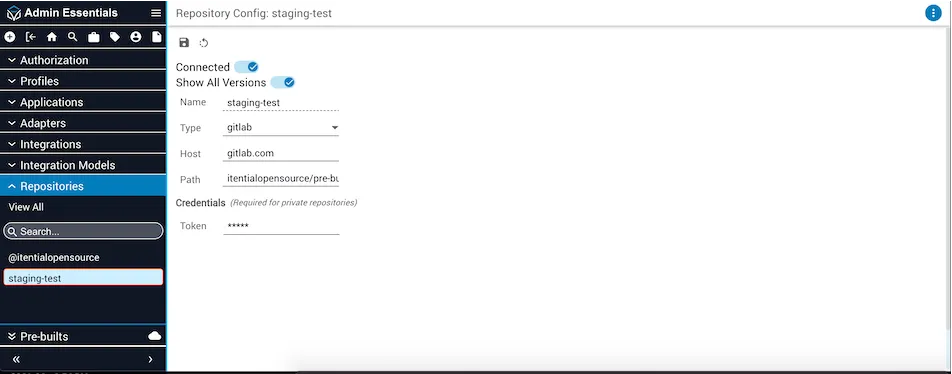
To connect or disconnect an existing repository configuration, go to the Repositories menu item of the Pre-built section of Admin Essentials and select the target configuration. A dialog will appear with all of the existing properties for the selected repository configuration. At the top of the dialog there is a toggle that can be switched on or off, representing the repository configuration being connected or disconnected.
If a repository configuration is disconnected, any associated pre-built automations installed on the system will no longer be able to receive any updates. Once the repository configuration is reconnected, the pre-built automations can resume receiving updates.
Deleting a repository
To delete an existing repository configuration, go to the Repositories menu item of the Pre-built section of Admin Essentials and select the target configuration. Then choose Delete in the more button at the upper right side. A dialog will appear prompting you to confirm the deletion.
If a repository configuration is deleted from Itential Platform and that configuration had associated pre-built automations installed on the system, each of those pre-built automations will be updated to a “local” configuration. This means the pre-built automation is no longer associated with a repository and will not be able to receive updates. Furthermore, if the repository is reconnected and the same pre-built automations are installed, they will conflict with the “local” pre-builts and must be managed accordingly.
Viewing installed pre-builts from different repositories
Installed pre-builts from different repositories will appear under the Pre-builts tab in Admin Essentials. Each repository config will be listed as a collapsible menu, with the pre-builts from that config listed under it. Pre-builts from connected repositories will have update icons if they are out of sync; pre-builts from disconnected repositories will not check the repository for updates. Pre-builts from deleted repositories will not check for updates and will also be moved under a local namespace in the sidebar.
The dropdown menu within the Pre-builts Catalog also allows you to choose which repository to query when getting a list of pre-builts. This interface limits the query to one repository at a time.