Configure Azure AD
The Azure adapter allows SSO (single sign-on) in Azure over the OpenID Connect (OIDC) protocol. Use this guide to configure the Azure AD server and set up adapter-azure_aaa for Itential Platform.
The information provided was developed in a lab environment. Input for various settings and fields should be populated with details specific to your production environment.
This page outlines the process and permissions required for the Azure AAA adapter to communicate with the Azure AD system.
Admin privileges in the Azure AD system are required to perform the initial setup.
Create a new application
Open App Registration
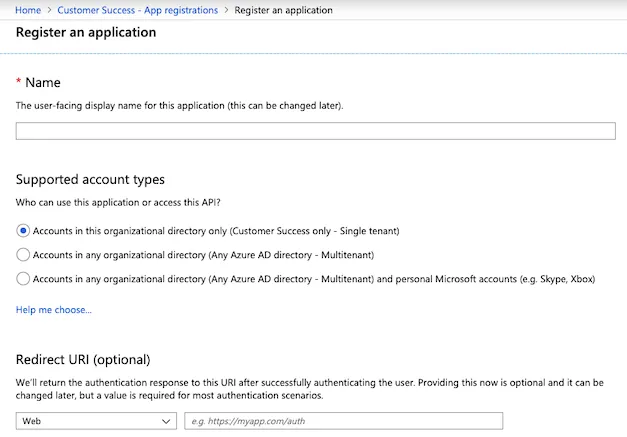
Log in to the Azure AD system and access the Azure AD page. Select the App Registration section and click New registration.
Create a separate application for each environment so that passwords and configurations are unique to each environment.
Configure authentication settings
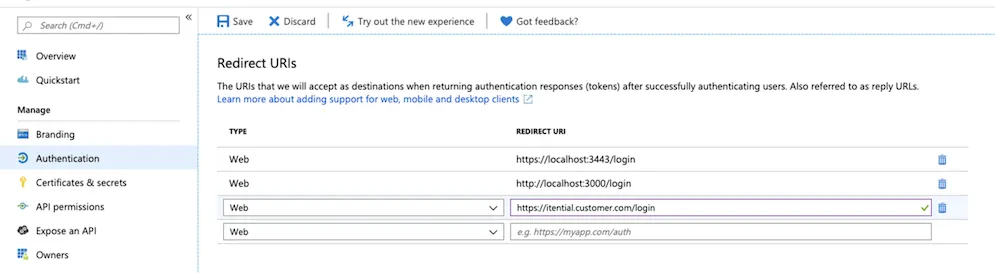
Set redirect URIs
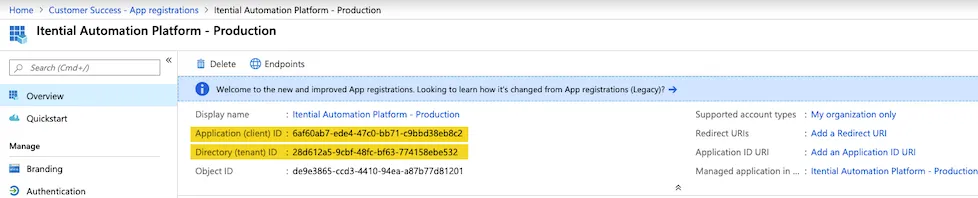
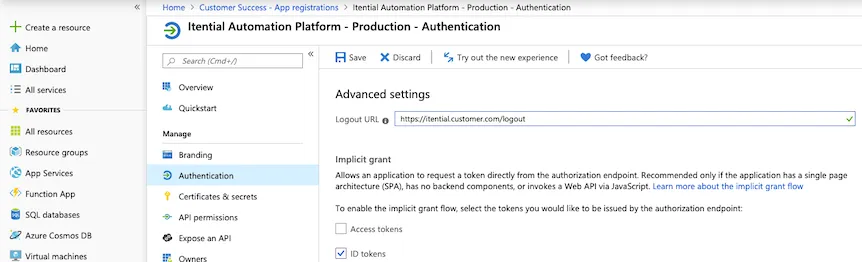
Go to the Authentication section. Verify the Redirect URIs. These are the acceptable return URIs after authentication. If a redirect is attempted to a URI that does not exist here, the redirect will fail. Pay close attention to ports — you must have a URI for each port.
Typically the URL is the same as the sign-on URL, or a sign-on URL with a specific SSO page. For example:
https://itential.customer.com/loginhttps://localhost:3443/login
Set application permissions
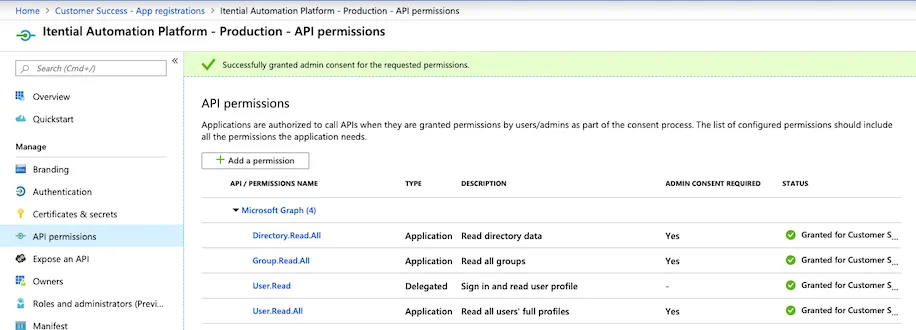
Add API permissions
Go to the API Permissions section. Click + Add a permission. Find and select Microsoft Graph API from the list.
Choose a credential type
The Azure AAA adapter authenticates to Azure AD with a client secret or a certificate:
- Client secret: Supported in all Platform 6 releases. To set it up, see Set the API key.
- Certificate: Supported in Platform 6.6 and later. Certificate-based authentication (CBA) replaces the shared secret with a certificate and private key that stay on your Platform servers. To set it up, see Upload a certificate.
If you configure both, the adapter uses the certificate and ignores the client secret. To switch back to the client secret, remove the certPath and keyPath properties from the adapter’s service configuration.
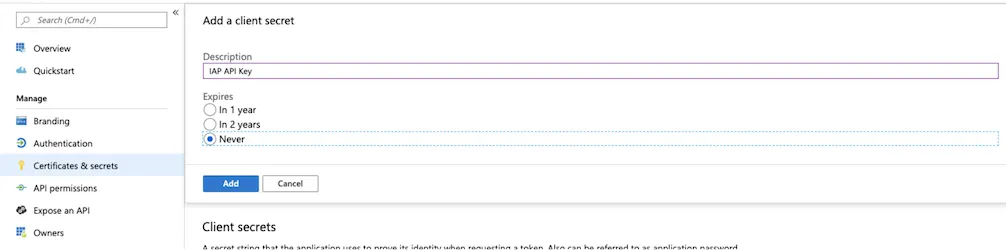
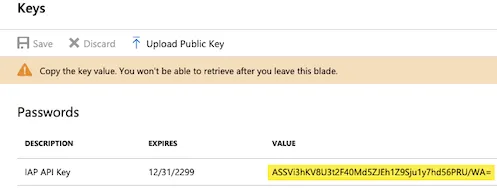
Set the API key
Upload a certificate
Platform 6.6.0+Prepare the certificate and private key
Get a PEM-formatted certificate and its private key. You can use a certificate from a public or internal certificate authority, or a self-signed certificate.
Copy both files to the same location on every Platform server in your environment. The adapter’s service configuration is shared across servers, so each server reads the files from the same paths.
Upload the public certificate
In your registered application, go to Certificates & secrets > Certificates and select Upload certificate. Choose your certificate file (.cer, .pem, or .crt), enter a description, and select Add.
Upload only the public certificate. Never upload the private key to Azure AD. The private key stays on your Platform servers.
Add optional claims (Access Token v2.0)
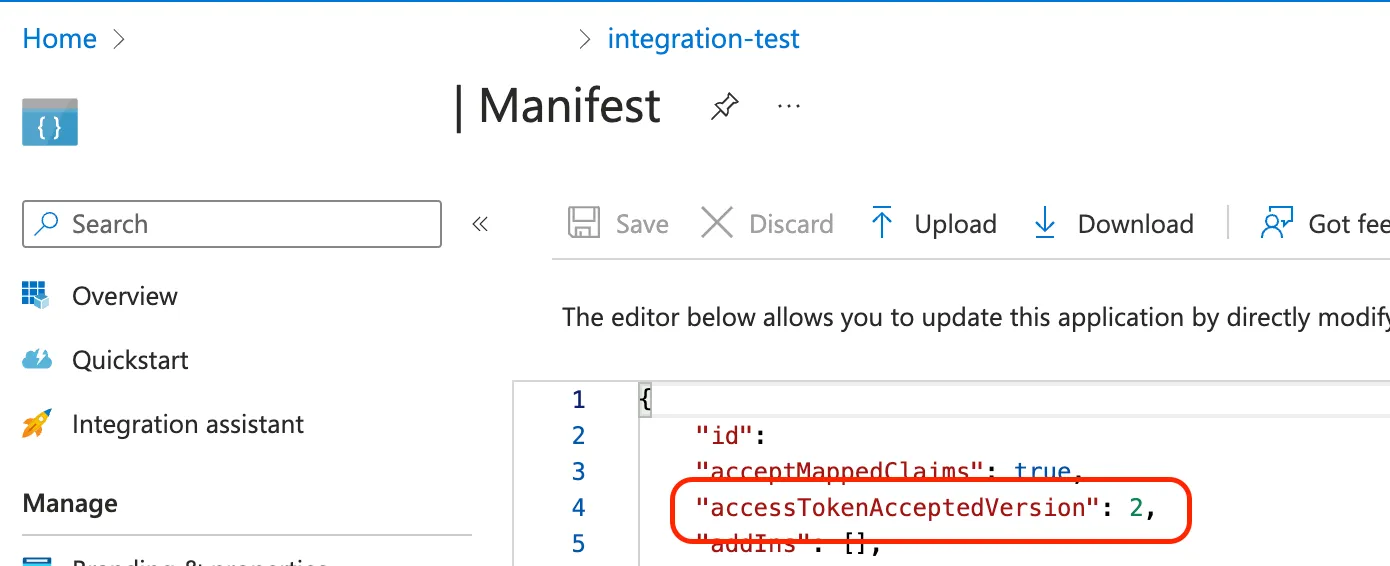
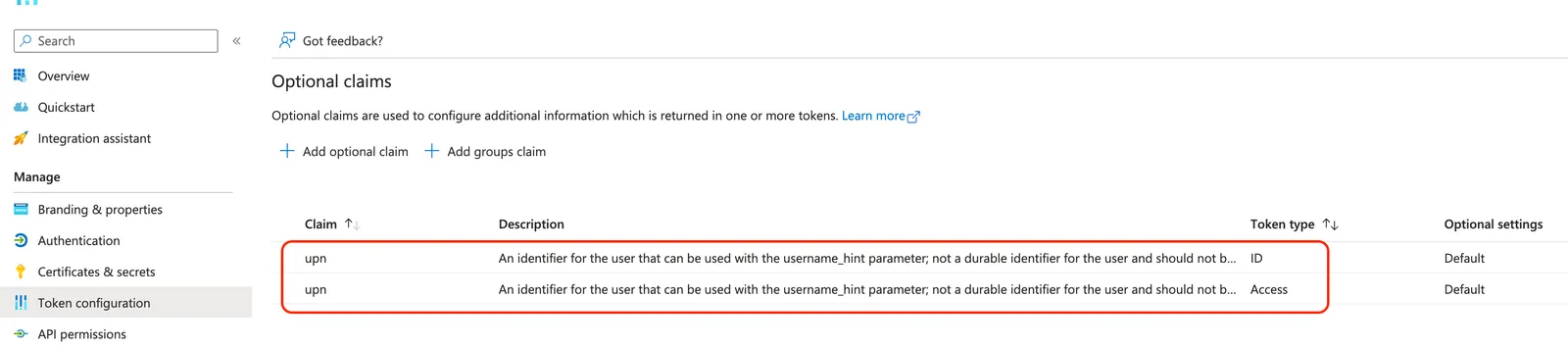
If you have configured your registered application Manifest to use accessAcceptedTokenVersion: 2, you must create an optional claim for upn on your ID tokens and access tokens. The upn claim is used by the Azure adapter internally to handle account routing in Itential Platform and is required.