

For AI agents: a documentation index is available at the root level at /llms.txt and /llms-full.txt. Append /llms.txt to any URL for a page-level index, or .md for the markdown version of any page.
Open sourceSupportFAQsDocs Home
DocumentationAPI referenceRelease notes
  • Platform On-Prem
    • Overview
    • Navigate
    • Search resources
  • Apps
    • FlowAI
      • Overview
      • Navigate
      • Configuration templates
        • Overview
        • Manage
        • Use parsers
    • Itential Automation Gateway
  • Resources
    • Itential Academy
    • Version lifecycle
    • Itential MCP
    • Accessibility conformance
    • Get support
    • FAQs
LogoLogo
Open sourceSupportFAQsDocs Home
On this page
  • Types of configurations
  • Create Golden Configurations
  • Open Golden Configurations
  • Browse using Collection modal
  • Collection modal elements
  • Navigate the Golden Configuration UI
  • Golden Configuration tree
  • Add and delete child nodes
  • Run compliance against a node
  • Tree versioning
  • Next steps
AppsConfiguration ManagerGolden Configurations

Golden Configuration overview

Was this page helpful?
Previous

Manage Golden Configurations

Next
Built with

In Golden Configuration, configuratinos are organized as a hierarchical, tree-like structure of nodes, each associated with a baseline configuration pattern. Child nodes inherit the configuration of their parent by default, though they can be specialized after creation. Devices or adapter instances are then linked (added) to these nodes, allowing their current state to be graded against the related configuration.

Types of configurations

Two types of Golden Configurations exist:

  • CLI Golden Configurations - Measure device compliance
  • JSON Golden Configurations - Measure the compliance of services that communicate with Itential Platform via adapters

For specific information about each type of Golden Configuration, refer to the linked documentation.

Create Golden Configurations

Golden Configurations can be created from the Configuration Manager homepage:

1

Open Create modal

Click the Create (+) button located at the top of the side navigation menu. The Create modal will open.

2

Select Golden Configuration

Select Golden Configuration from the dropdown. The modal will finish populating.

3

Name and configure

  • Type a name for the Golden Configuration into the Name field
  • Select which type of Golden Configuration to create
  • If you are creating a CLI Golden Configuration, select an appropriate configuration parser from the dropdown (this determines the syntax that will be used in your node configurations)
4

Create

Click Create. The newly created Golden Configuration will display.

For example, if you are using the Golden Configuration to manage Cisco IOS devices, select cisco-ios. For more information, see Configuration Parsers.

Open Golden Configurations

To open a Golden Configuration that already exists, select the Golden Configurations dropdown from the side navigation menu and click the Golden Configuration you would like to open.
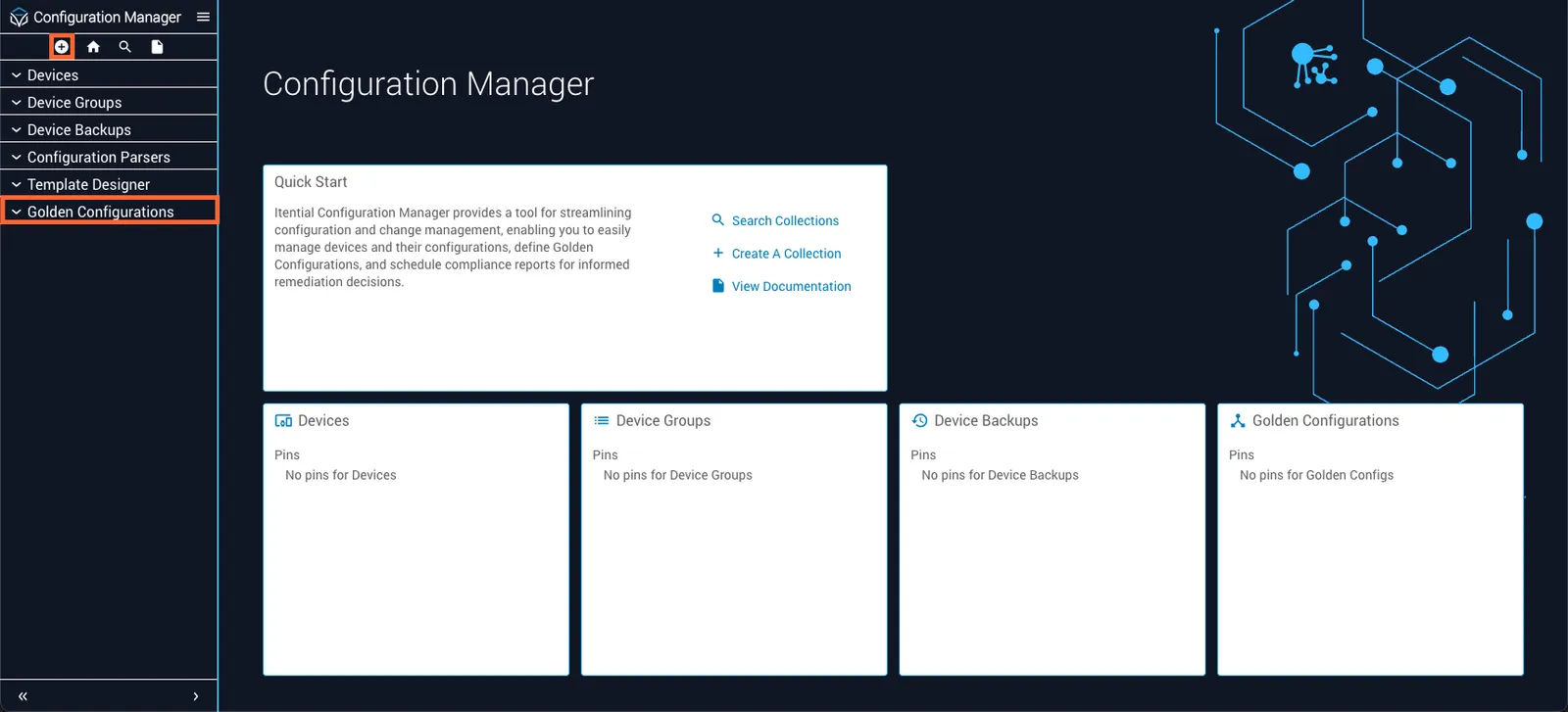
Configuration Manager homepage

Browse using Collection modal

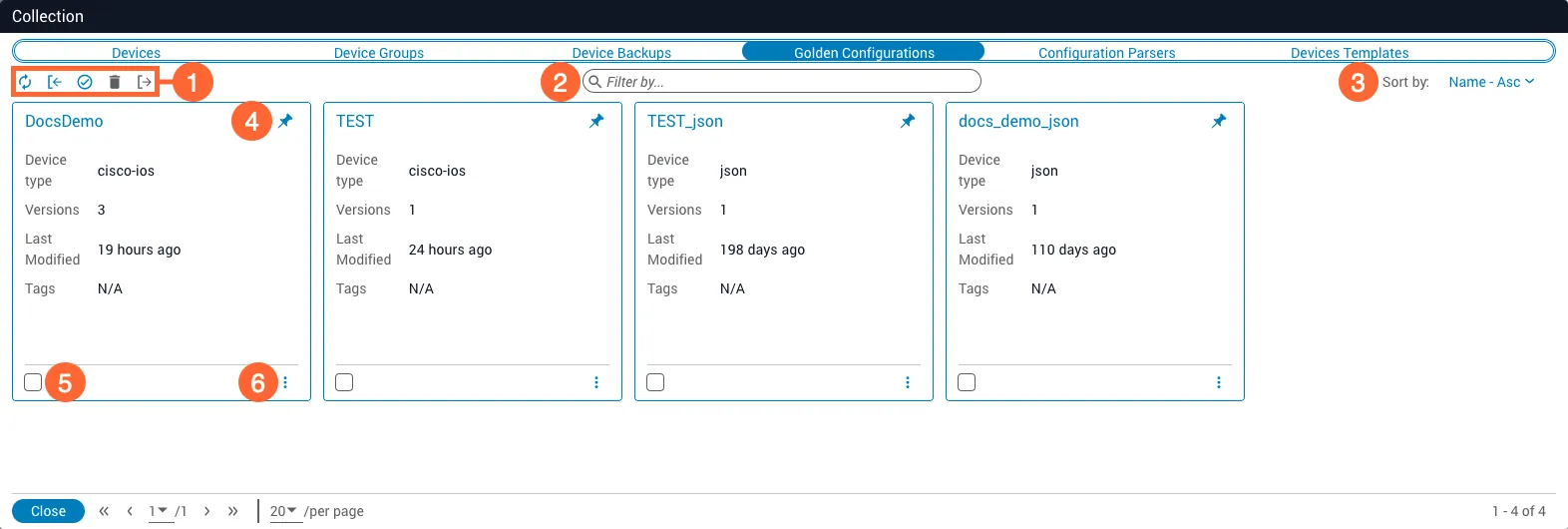
You can also browse Golden Configurations using the card-based Collection modal:
1

Open Collection modal

Click the Search (🔍) button located at the top of the side navigation menu. The Collection modal will open.

2

View Golden Configurations

Click the Golden Configurations tab.

Collection modal

Collection modal elements

LabelUI ElementDescription
1ToolbarAn assortment of buttons used to perform collection management actions (from left to right: Refresh, Import, Select All, Delete, and Export)
2Search BarSearches the collection by Golden Configuration name
3Sort ByDetermines what order the Golden Configurations are displayed in
4PinPins the Golden Configuration to the Configuration Manager homepage
5Selection BoxSelects the Golden Configuration for bulk actions, such as deletion or export
6Menu ButtonOpens a menu that allows you to Edit, Delete, or Export the Golden Configuration

Navigate the Golden Configuration UI

Upon creating or opening a Golden Configuration, you will be presented with the following interface. In general, actions that affect the Golden Configuration tree are performed on the left side of the UI, while actions that affect the selected node are performed on the right.
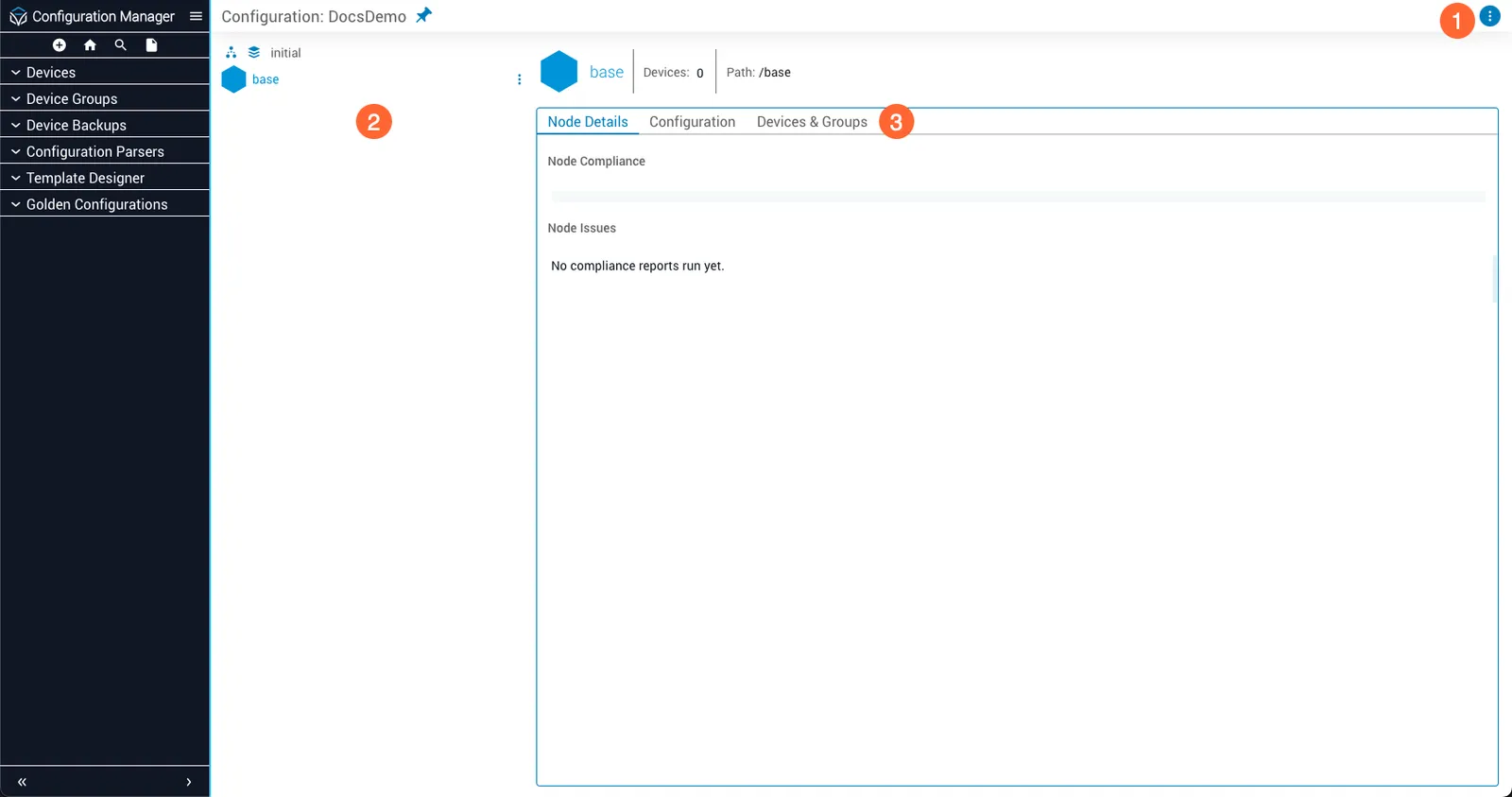
Golden Configuration UI
LabelUI ElementDescription
1MenuOpens a menu that allows you to view the metadata of, delete the current version of, or delete all versions of the Golden Configuration
2Golden Configuration TreeProvides an interface for managing the Golden Configuration’s tree and the individual nodes within it
3Tabs- The Node Details tab displays information about the current state of the selected node
- The Configuration tab allows you to define the node’s baseline configuration
- The Devices & Groups/Manage tabs allow you to associate devices or adapter instances with the selected node, respectively (tab availability is dependent on the Golden Configuration’s OS type)

Golden Configuration tree

Newly-created Golden Configurations have a one-node tree, consisting only of the base node (of which any additional nodes will be children). From the tree structure visualization, you can:

  • Select a node for editing by clicking it
  • Add nodes to, or delete nodes from, the tree
  • View compliance statistics for the entire tree or a selected node
  • Create new versions of the tree

Add and delete child nodes

To add a child node to the tree:

1

Open node menu

Hover over an existing node’s menu (⋮) button. A menu of node management actions will appear.

2

Add child

Select Add Child from the menu. A new node will be created, inheriting its configuration from the parent.

The process for deleting a child node is nearly identical; just select Delete from the menu instead.
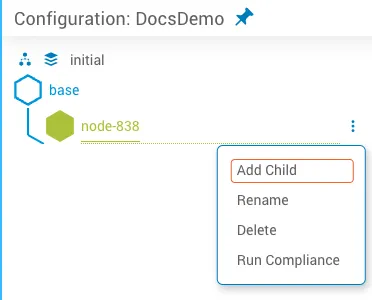
Creating child nodes

Run compliance against a node

To run a compliance check against all devices or adapter instances assigned to a node:

1

Open node menu

Hover over the node’s menu (⋮) button. A menu of node management actions will appear.

2

Run compliance

Select Run Compliance from the menu. A compliance report will be generated for each device or adapter instance.

You can also view compliance details for:

  • The entire tree by clicking the Tree Statistics button located at the upper-left of the tree visualization
  • The selected node via the Node Details tab

Tree versioning

A Golden Configuration can maintain multiple versions of its tree, allowing you to track changes to the Golden Configuration and revert to previous versions if necessary. The name of the selected tree version is displayed directly above the base node (by default, it is initial).

To create a new version:

1

Open version selector

Select the Change Version button located to the left of the active version name. A dropdown menu will appear.

2

Create new version

Click the Create New Version (+) button located next to the dropdown. The dropdown will be replaced by a text input field.

3

Name the version

Enter the name of the new version into the text input field.

4

Save

Click the Save (✔) button. The new version will be created and made active.

If multiple versions of the tree exist, you can switch between them at any time via the Change Version button.

Next steps

CLI Golden Configurations

Manage device compliance

JSON Golden Configurations

Manage service compliance

Configuration Parsers

Configure syntax parsers