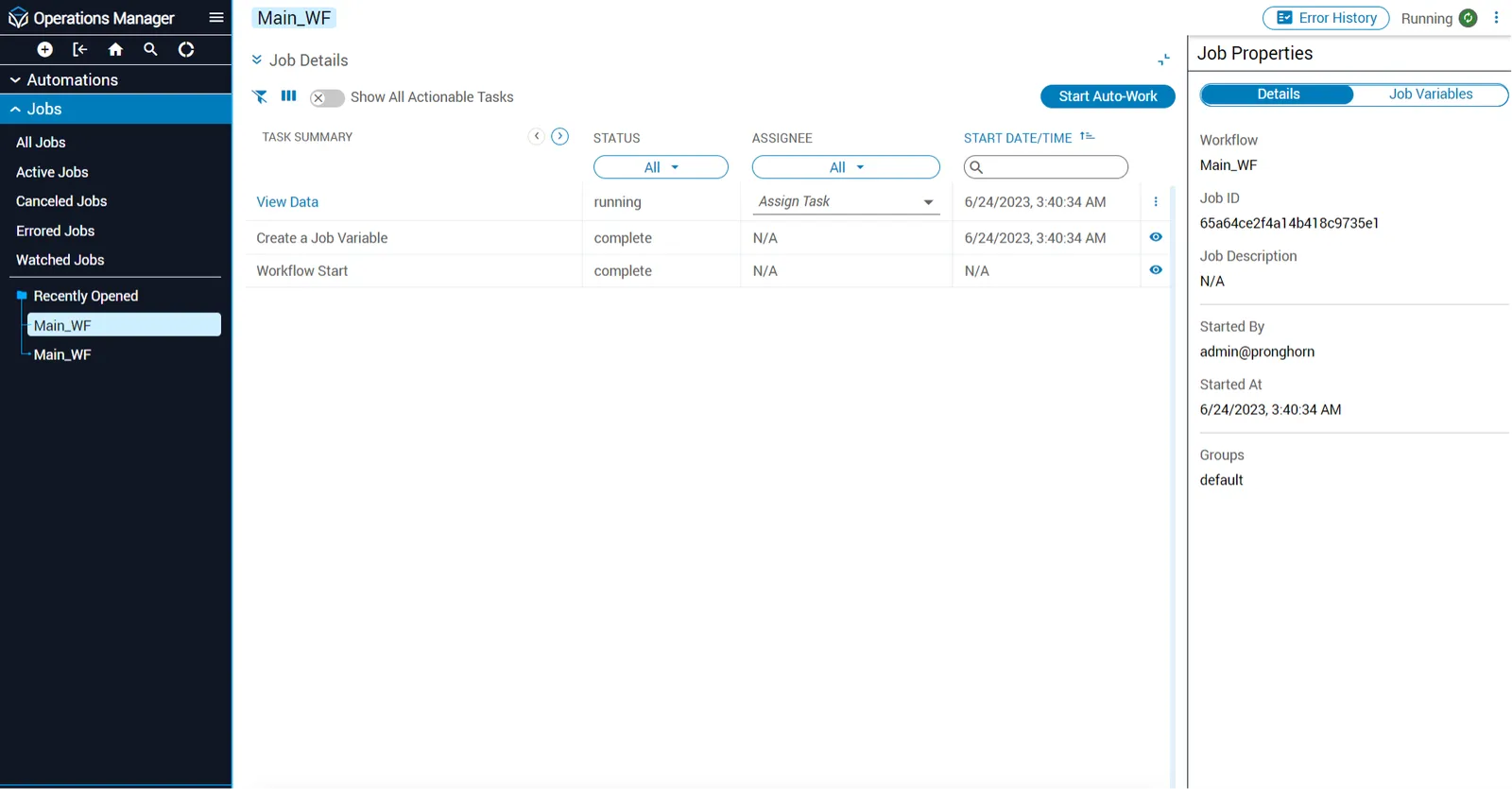
Navigate Operations Manager
Operations Manager (Ops Manager) provides a unified view of all automations in Itential Platform. The automations feature lets you control when, how, and with what data a workflow runs.
Operations Manager UI
The following table describes the main icons and features of the Operations Manager home page.
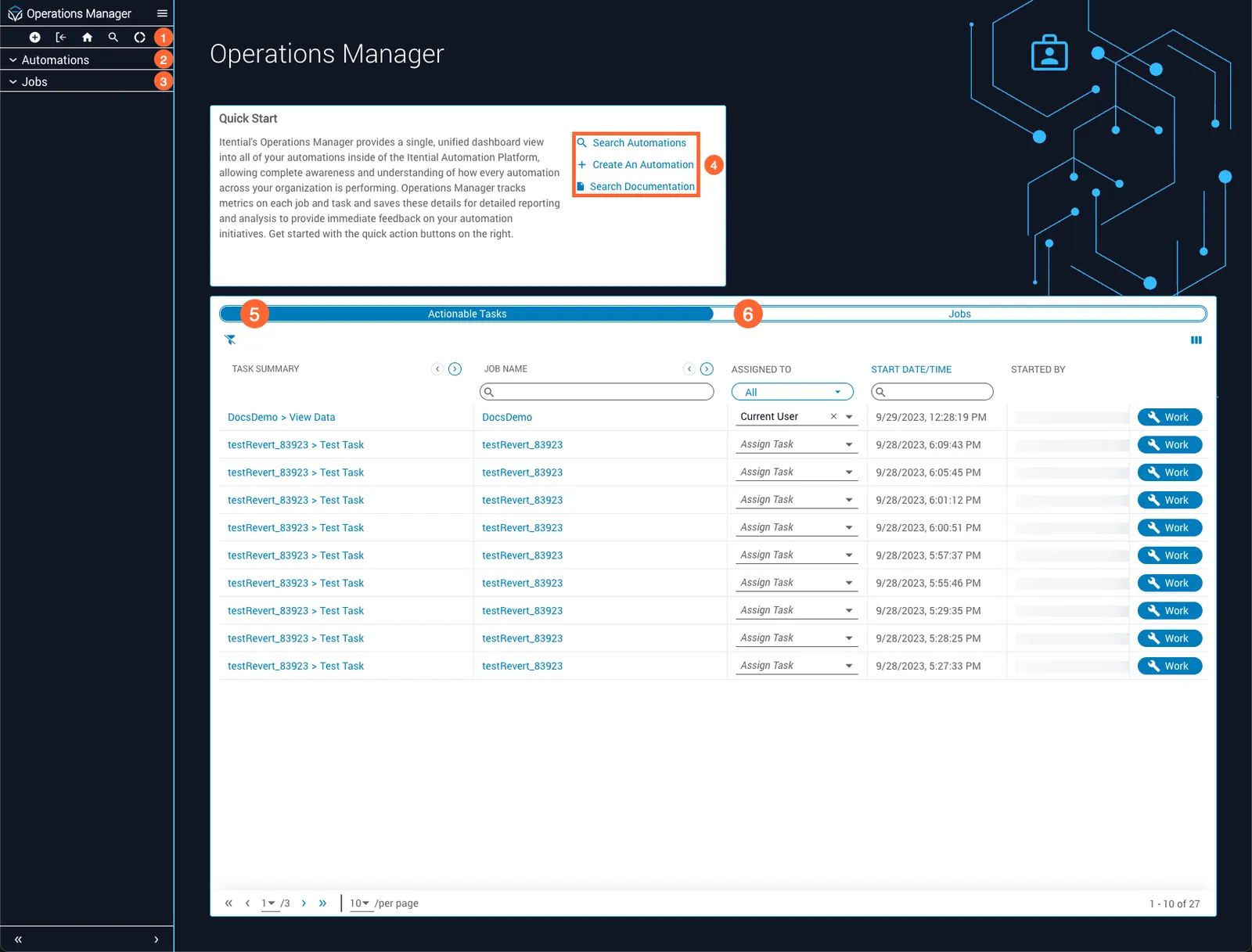
Icon bar
The following table describes the features accessible through the Operations Manager icon bar.
Automations collection view
The Automations Collection view lets you see all your automations, perform bulk actions, and run automations that have manual triggers. To access this view, click the search icon (magnifying glass) in the top-left toolbar of the Operations Manager UI.
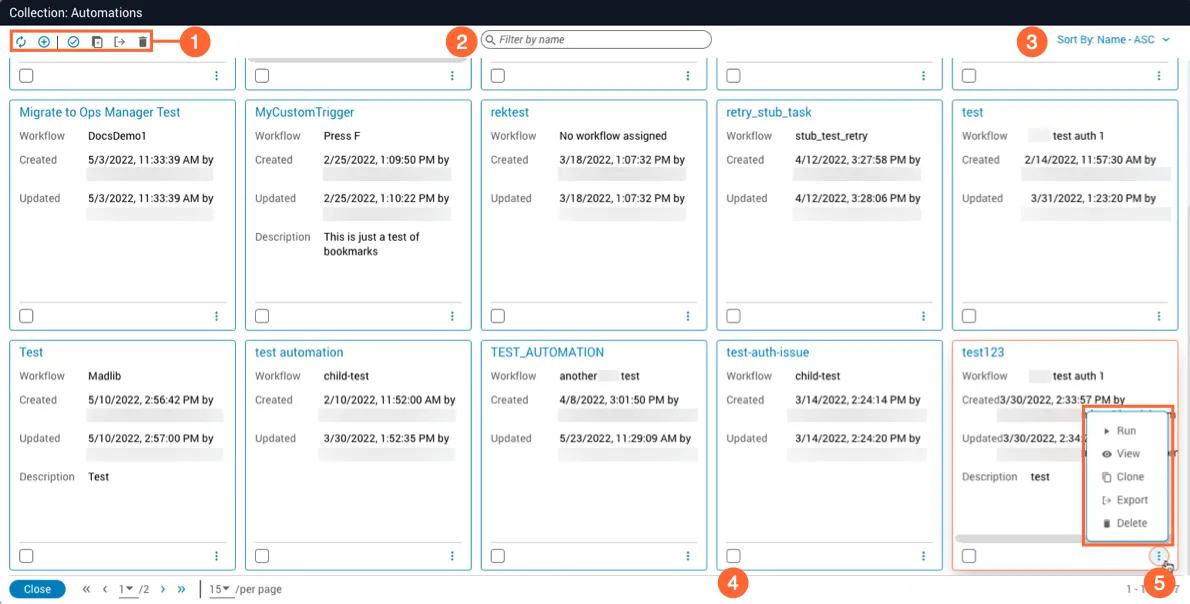
Action icons in Automations Collection
The following table describes the action icons available in the Automations Collection view.
Automation Details in Ops Manager
The Automation Details view in Operations Manager is the hub for managing your automation and its associated triggers. To access this view, select any available automation listed in the Automations menu on the left.
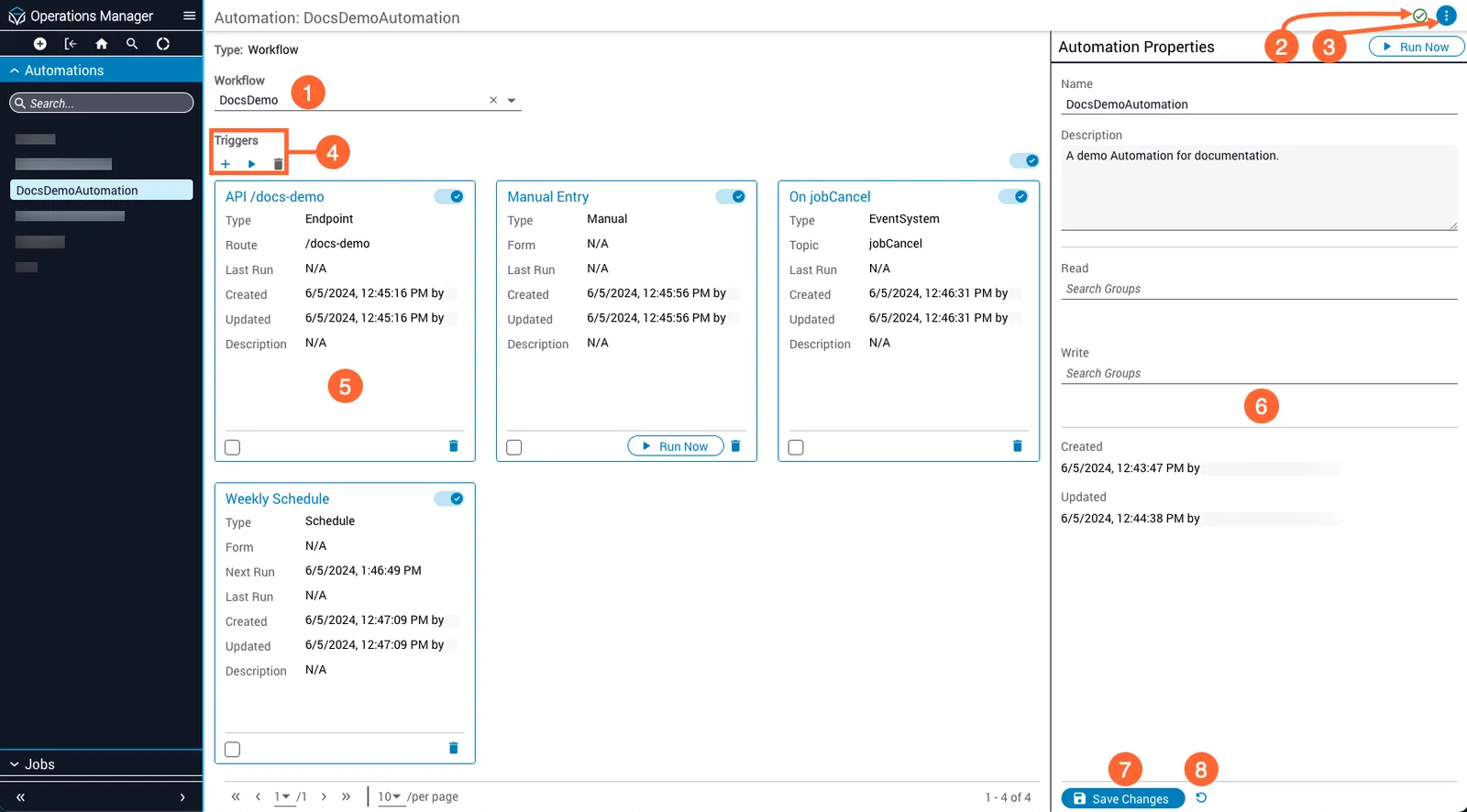
Action icons for Automation Details
The action icons within the Automation Details menu button perform operations on the current automation.
Automation properties
The Automation Properties panel lets you view and edit information about the automation and update its permission groups.
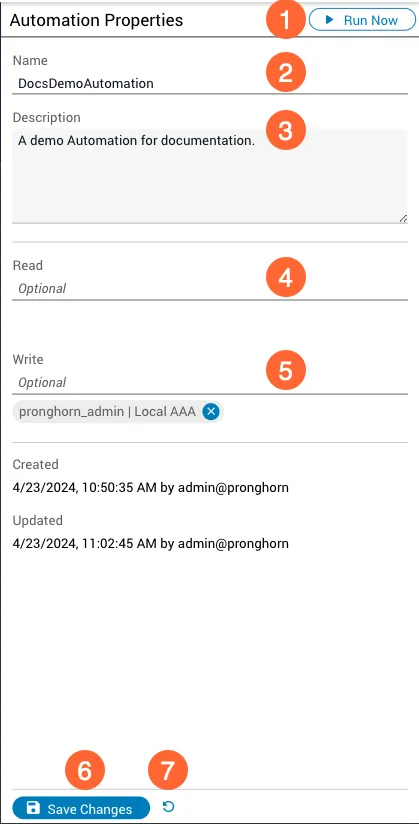
Clone an automation with API triggers
When cloning an automation with API triggers, note that the routeName of each API trigger must be unique among enabled triggers. Because of this requirement, Operations Manager disables all API triggers when cloning. You must assign new route names to the cloned API triggers before you can re-enable them.
Automation error handling
Your automation is continuously evaluated for errors as you work, including references to non-existent access groups, misconfigured triggers, or missing documents such as forms, JSON Schema Transformations (JSTs), and workflows. When no errors are detected, the Passed Validation icon is displayed near the top-right corner of your automation.
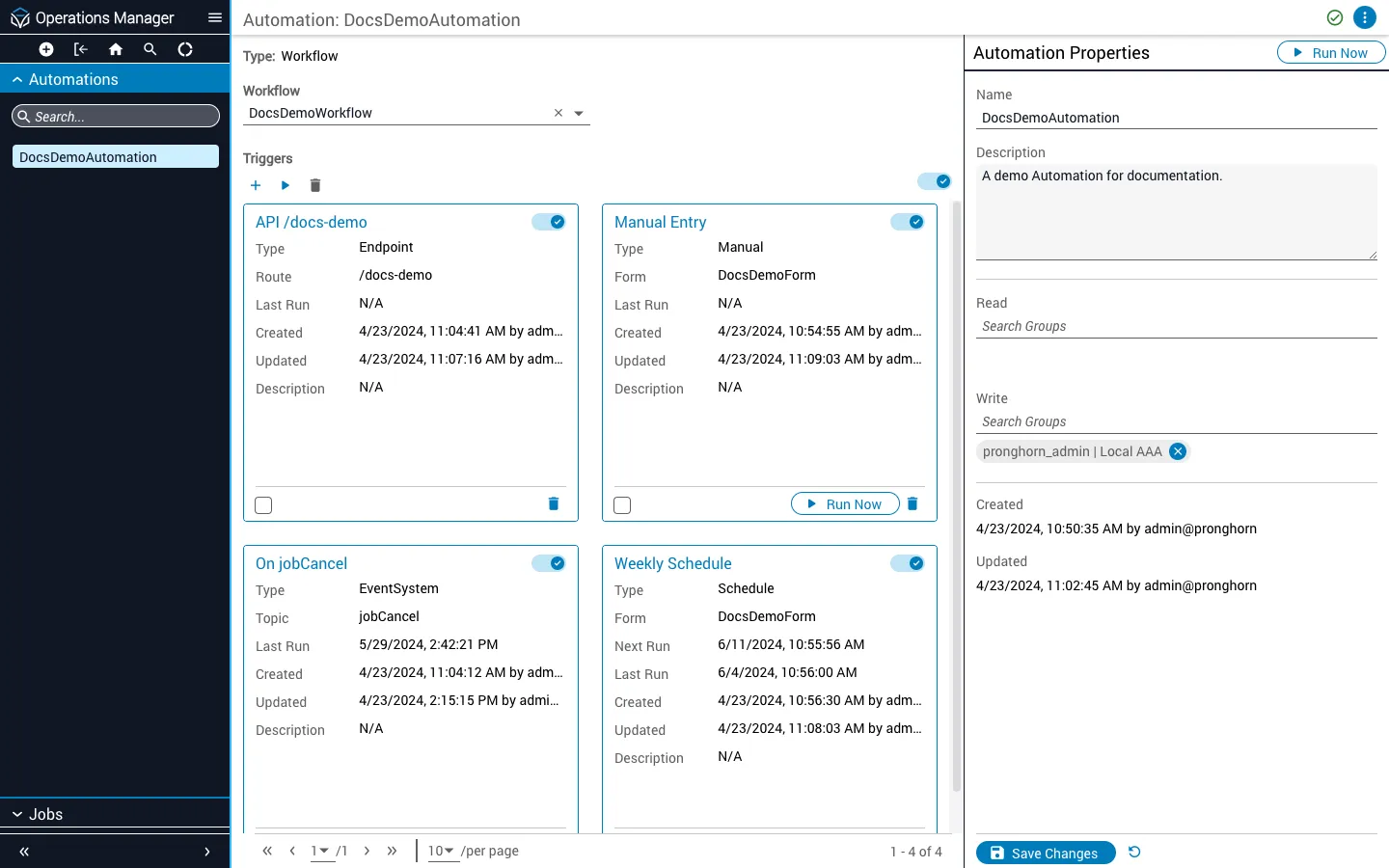
If the automation fails validation, the View Errors icon is displayed instead. Click it to open the Errors Panel, which lists all problems affecting your automation. Where applicable, items link directly to the affected component.
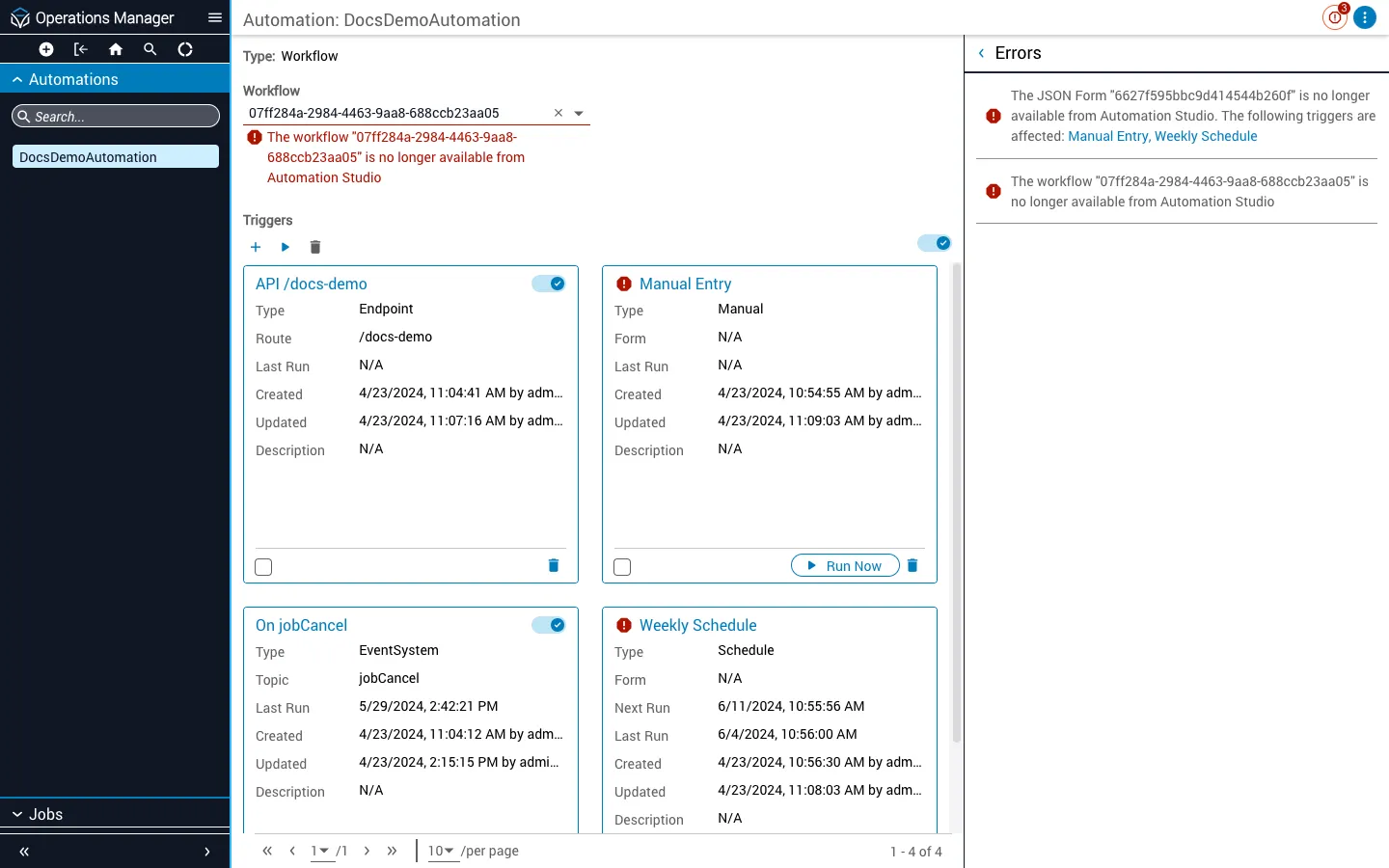
Automation components in an error state are also marked on the UI via the Error icon.
Enable optional features in Ops Manager
To enable or disable optional features for Operations Manager, set the appropriate properties in its service configuration. This section explains how to configure those properties using Admin Essentials and lists the available configurable properties.
Configure properties
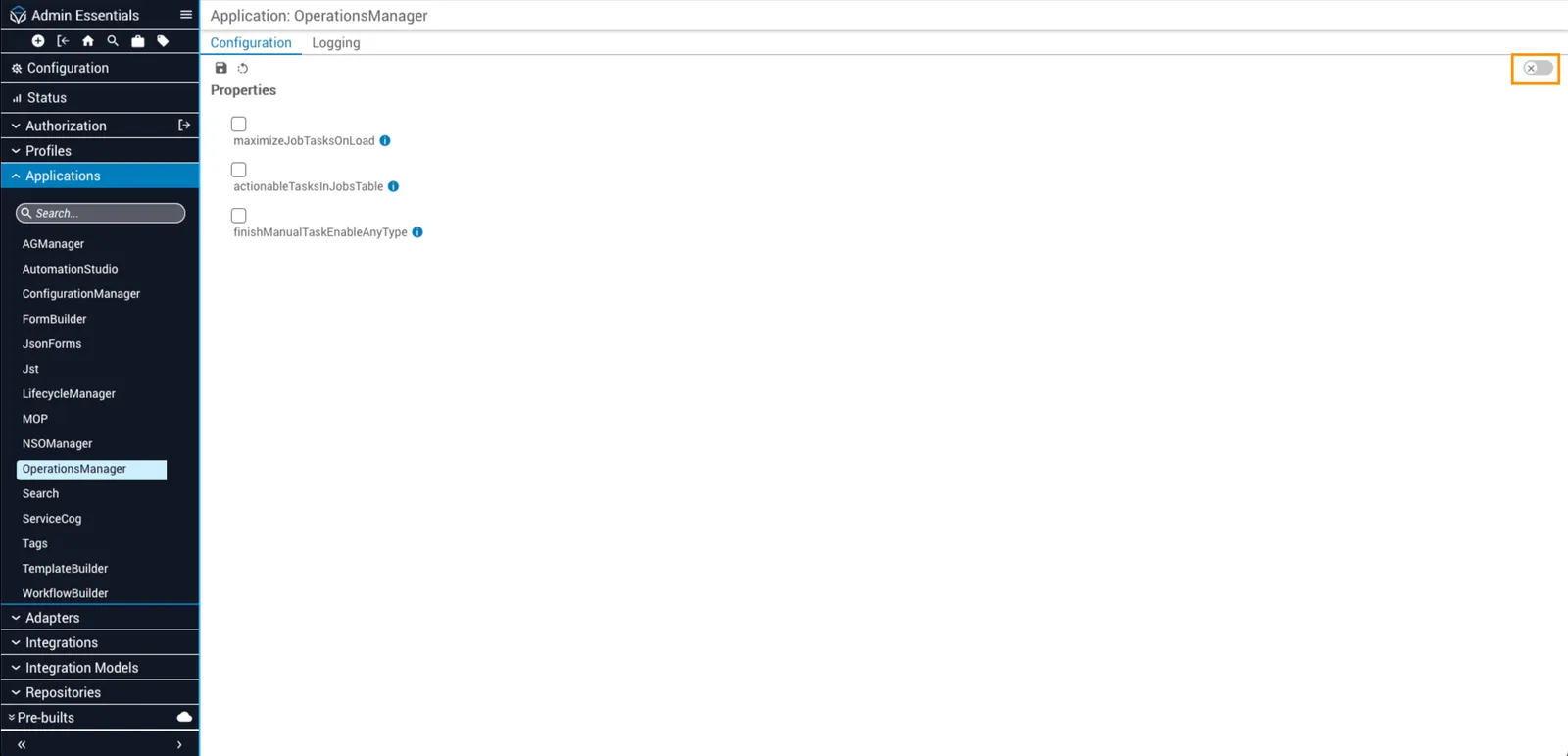
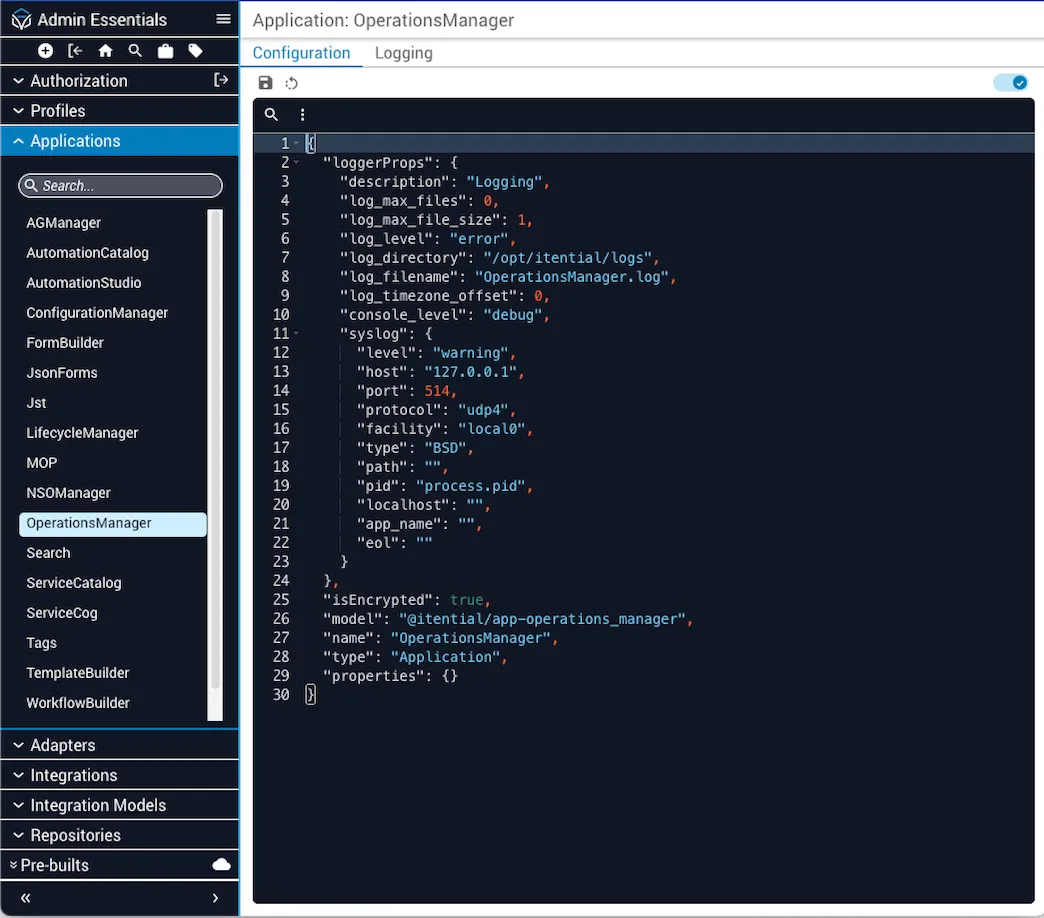
Configurable properties
The following properties can be enabled or disabled for Operations Manager.
Service Config editor
Properties can also be enabled or disabled via the Advanced editing view, which displays the current service configuration in JSON format. For example, to enable the maximizeJobTasksOnLoad property, define it under the properties key as follows:
The maximizeJobTasksOnLoad property displays the workflow within the Job Details view, which is useful for users who prefer to see the workflow canvas while jobs are running. When enabled, users can also enlarge the workflow canvas for better visualization.