

Understand the main table
The main table displays jobs and tasks with the following information:
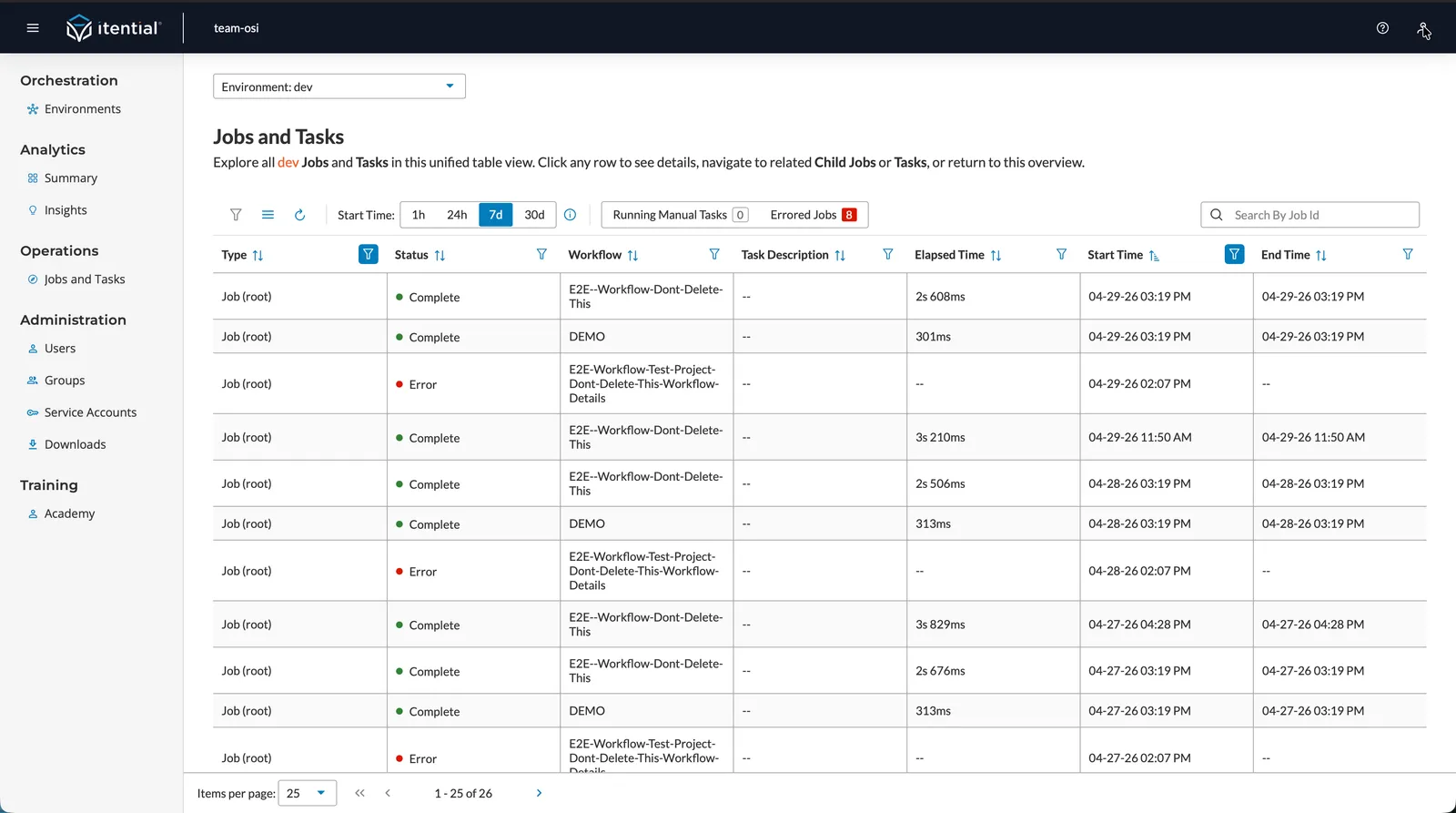
Default columns
Type
- Root Job: The top-level job in a hierarchy. Root jobs are triggered by manual execution, API calls, schedules, or events. A root job can have child jobs and tasks beneath it, but it has no parent job above it.
- Child Job: A job that runs within another job (either a root job or another child job). Child jobs are sub-workflows that execute as part of a larger automation process. A child job can also be a parent job if it has its own child jobs or tasks beneath it in the hierarchy.
- Task: An individual unit of work within a job that performs a specific function. Tasks are the smallest executable units and can be Manual (requiring user intervention), Operation (automated device operations), or Automatic (system-automated processes).
Status
For more information on what each state means, see Status Definitions.
Active States:
- Scheduled (orange dot)
- Running (blue dot)
- Error (red dot)
- Paused (yellow dot)
Finished States:
- Canceled (black dot)
- Complete (green dot)
Workflow
- For jobs: The workflow name
- For tasks: Parent job’s workflow name
Task Description
- For jobs: ”—” (not applicable)
- For tasks: Description of the task’s purpose
Elapsed Time
- Format: “XdYhZmWs” (days, hours, minutes, seconds)
- For running jobs/tasks: Time from start to current moment
- For completed jobs/tasks: Total execution time
Start Time
- Date and time when the job/task began
- Displayed in your browser’s local timezone
End Time
- Date and time when the job/task completed
- Displayed in your browser’s local timezone
- Empty for currently running jobs/tasks
Optional columns
You can add the following columns to the main table display:
Project
- Shows the project containing the workflow
- For tasks, shows parent job’s project
Job ID
- Unique identifier for the job
- For tasks: Shows parent job ID
Task Summary
- Brief summary of the task’s purpose
- Only applicable to tasks
Input/Output
- JSON objects containing job/task data
- Available for download
Identifying task types
Job Viewer displays three types of tasks:
Manual tasks
- Purpose: Require user intervention
- Identification: Type column shows “Task Manual”
- Status: Often “Scheduled” or “Running” awaiting user action
Operation tasks
- Purpose: Automated operations on network devices
- Identification: Type column shows “Task Operation”
- Status: Typically process automatically
Automatic tasks
- Purpose: System-automated processes
- Identification: Type column shows “Task Auto”
- Status: Execute without user intervention