

View and manage devices
Configuration Manager gives you three ways to work with your network devices: viewing individual device details, organizing devices into groups for bulk operations, and managing configuration backups.
Devices
Devices are available from any southbound system registered through Itential Platform, including one or more instances of Cisco NSO and Itential Gateway. Access device details from the left navigation menu.
Device details view
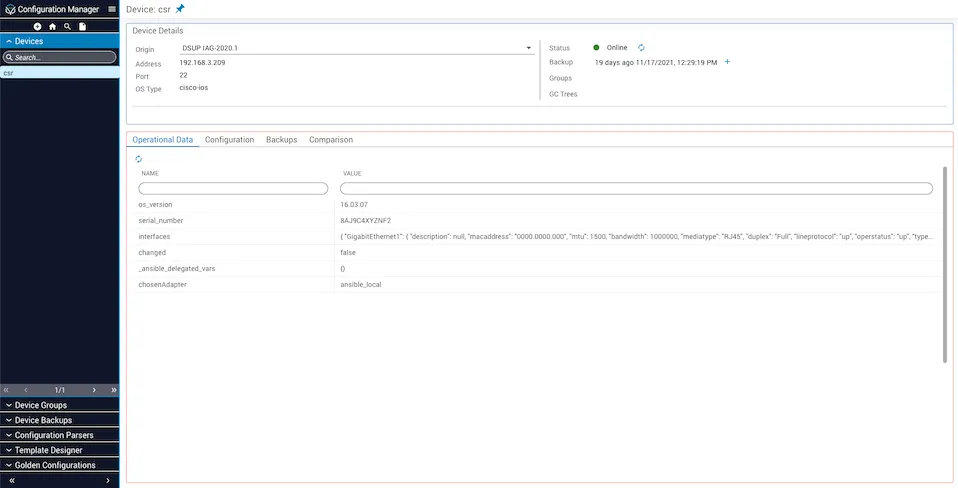
The device details page displays information in two sections:
Upper card (summary):
Lower card (tabs):
Operational Data
Configuration
Backups
Comparison
View current operational state
Device groups
Device groups are a collective association of each device’s id, based on network segmentation or other user-defined criteria. Use them to manage bulk operations, such as workflows that target a group of branch offices or an individual department. Configuration Manager treats a device group as a single unit when applying compliance and remediation policies.
View group details
To open a device group:
Edit device groups
From the group details page, you can:
- Add or remove devices from the group.
- Update the group name and description from the settings menu (vertical dots icon).
- View all devices currently in the group.
Device backups
Device backups provide a point-in-time reference of a device’s configuration, similar to backups in other Itential applications. The details on each backup are unique to that device.
Backup list view
The backups view provides:
- Filtering: Narrow results by device, date, or status.
- Sorting: Order backups chronologically or by other criteria.
- Pagination: Navigate through large backup sets.
- Batch deletion: Remove multiple backups at once.
Backup details view
The backup details page displays information in two sections:
Upper card:
- Backup metadata (device, timestamp, status)
Lower card tabs:
Edit backup metadata
To modify backup properties: