JSON Golden Configurations
Golden Configurations can also be used to evaluate the compliance of services that use adapters to communicate with Itential Platform. To do this, Configuration Manager queries those adapters and grades their responses.
Because adapters communicate in JSON format, they can only be managed by Golden Configurations of the JSON OS type. JSON Golden Configurations follow many of the same conventions as CLI Golden Configurations. As such, this guide will only cover the Golden Configuration elements that differ when working with JSON data.
How JSON Golden Configurations work
Every node in a JSON Golden Configuration also has an associated baseline configuration, though it behaves slightly differently than when working with devices. It consists of:
- Lines of JSON data that mimic the expected adapter response
- Rules that determine how those lines are interpreted (whether the line should be present or absent from the response)
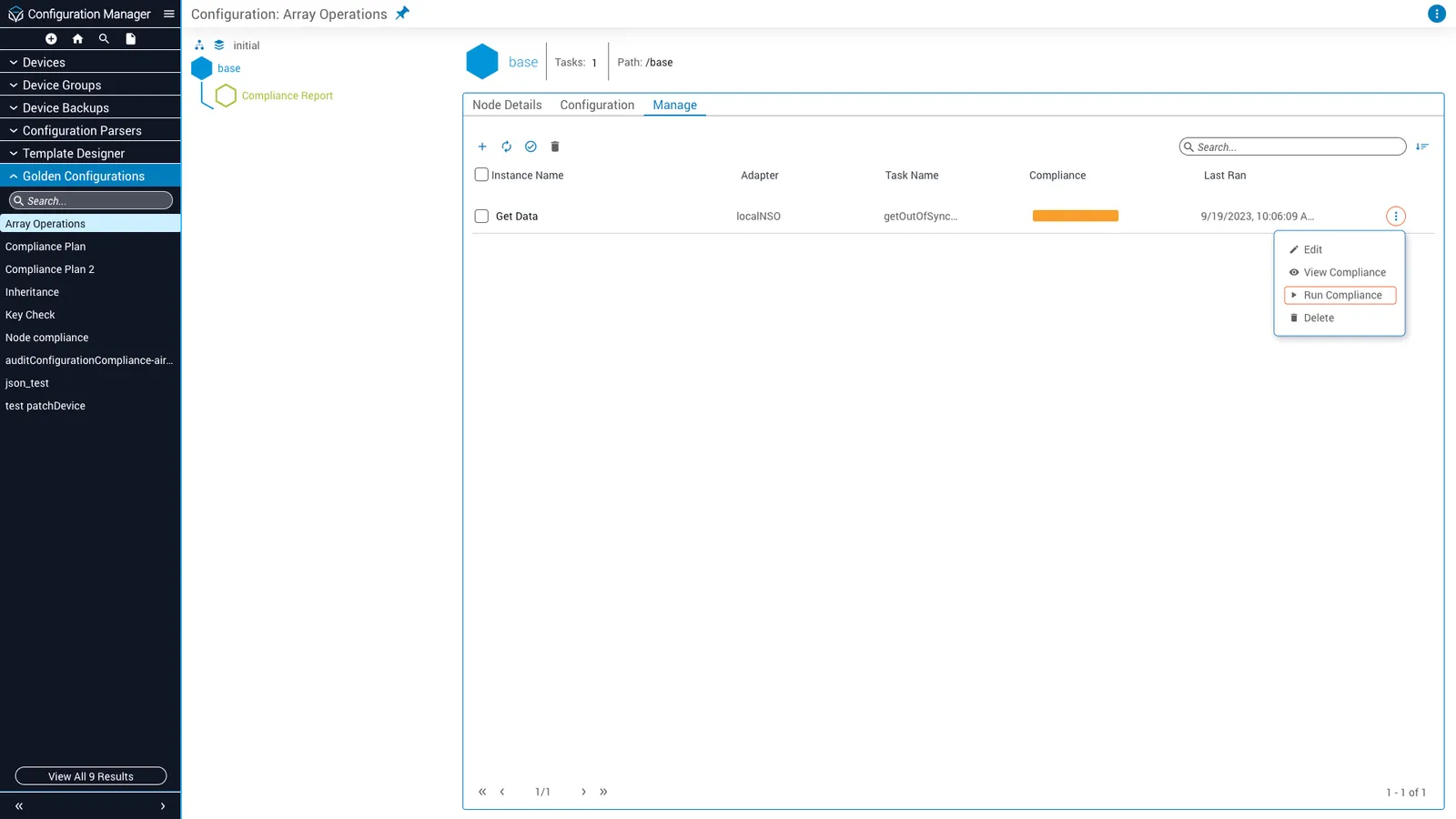
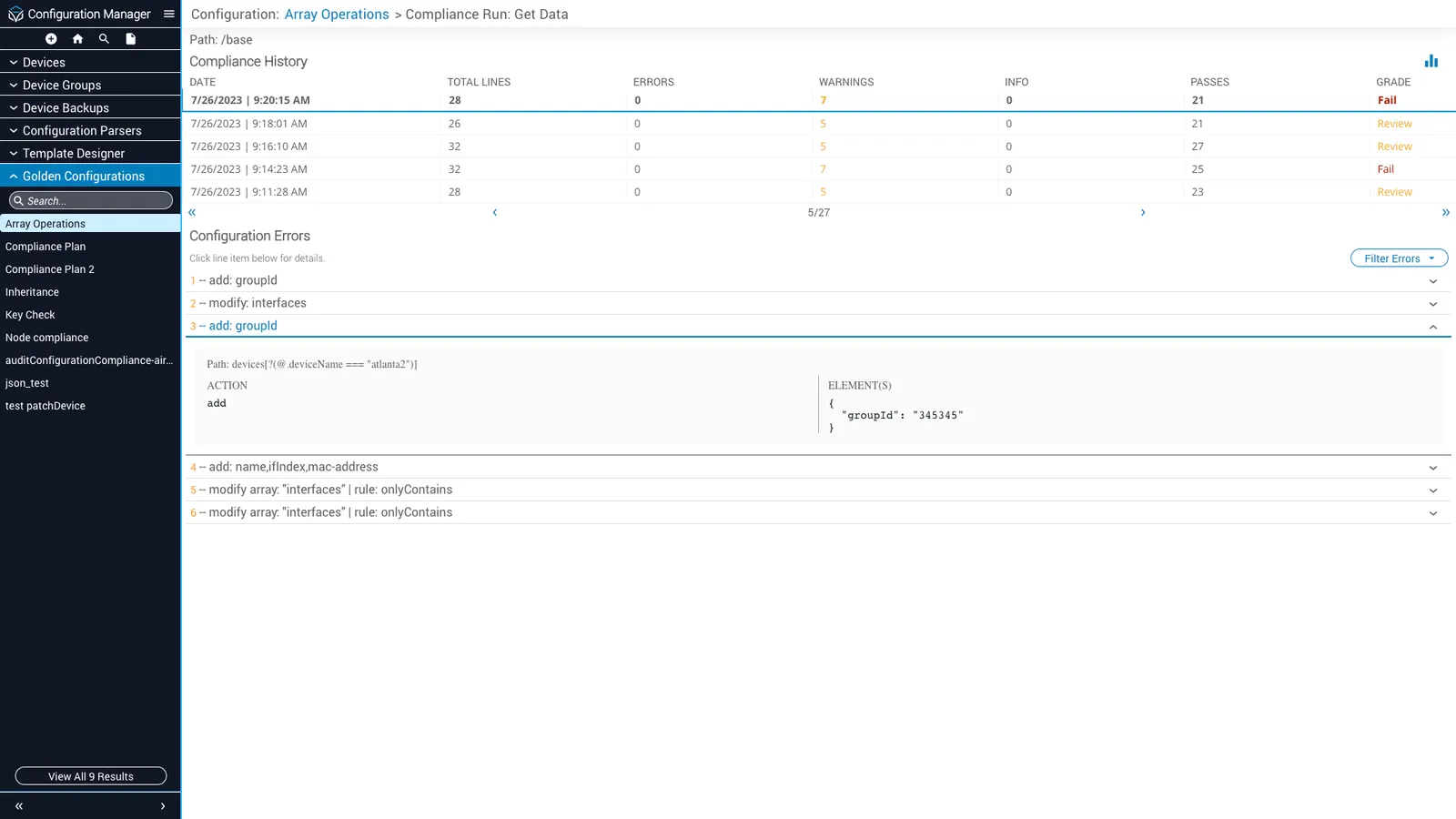
Once an adapter task (represented in JSON Golden Configurations as a task instance) has been added to a node, you can run compliance checks against it. The adapter task is executed, and the response received from it is compared to the node’s baseline configuration. A compliance report is then generated from this comparison.
JSON configuration options
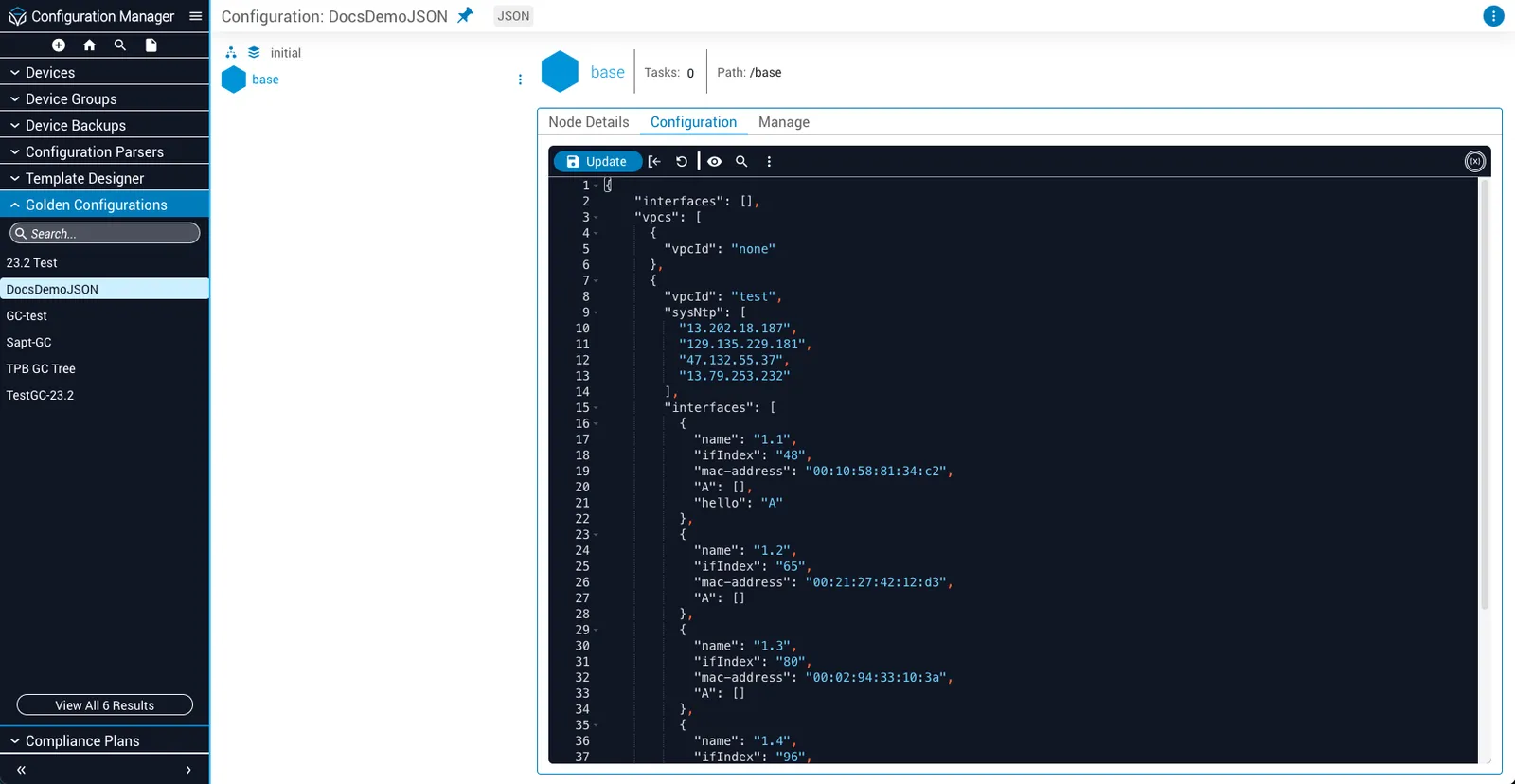
The configuration that task instances must be compliant with is created on the Configuration tab. JSON configurations function similarly to CLI configurations—type the JSON data you would like to verify incoming responses against into the text editor, then define any needed rules. However, there are some key differences.
In JSON configurations, rules are defined on a line-by-line basis using the JSON Configuration Options modal. To open the modal, right-click on the line you would like to edit. The selected line, or path, is displayed at the top of the modal in JSONPath dot notation.
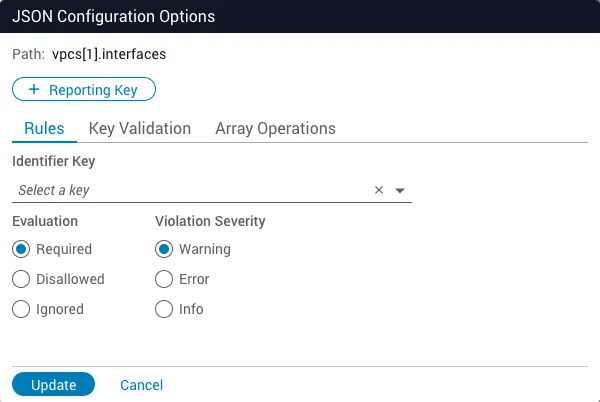
For example, if you selected line 15 from the configuration snippet below, the path would be displayed as vpcs[1].interfaces:
Tabs
Different tabs are made available on the modal depending on the context of the path:
- The Rules tab is always available
- The Key Validation tab is only available if the path references a key-value pair
- The Array Operations tab is only available if the path is at the root of (opens or closes) an array
The rules provided by these tabs are also contextual. For example, even if the Rules tab is currently available, it will not display rules that are irrelevant to the current path.
The JSON Configuration Options modal was introduced in version 2023.1 of Itential Platform. It was much simplified compared to its current iteration, featuring only the functionality of the Rules and Key Validation tabs. In the 2023.2 version, Array Operations were introduced and the modal was split into three tabs.
Rules tab
The Rules tab provides general-purpose rules that can be applied to most paths.
Key Validation tab
The Key Validation tab provides rules that determine how key-value pairs are interpreted in the current path. In practice, these rules are only used when the path is an array of objects. In such scenarios, these rules can evaluate keys that should (or should not) appear in every object of the array.
Array Operations tab
The Array Operations tab provides rules that determine how the array referenced by the current path is interpreted.
If the current path references an array of objects, an identifier key must be set via the Rules tab. All rules defined on the Array Operations tab will only affect the identifier key.
Reporting key
By default, noncompliant objects present in an array are designated by index value. For example, if an object at the second index of an array named vpcs is noncompliant, it will be referred to by the path vpcs[1]. However, because index values are not always static, it can sometimes be challenging to locate the noncompliant object.
To address this issue, you may use the value of an object key as a reporting identifier:
Itential recommends that you use a key that appears in every array object and has a unique value across all array objects.
Variable and regular expression support
To prevent syntax errors, different delimiters are used in JSON configurations to define variables than in CLI configurations.
To utilize variables in a JSON configuration, use the $_ _$ delimiters. In the following example, the value of "vpcName" will be replaced by the variable value:
Regular expressions can be utilized in a similar manner by using the $/ /$ delimiters. For example, to ensure that the value of "deviceName" begins with Itential:
Manage task instances
Once your baseline configuration has been defined, you can use it to measure the compliance of any applicable task instances. All operations related to task instances are performed from the Manage tab.
Create a task instance
Open Add Adapter Task modal
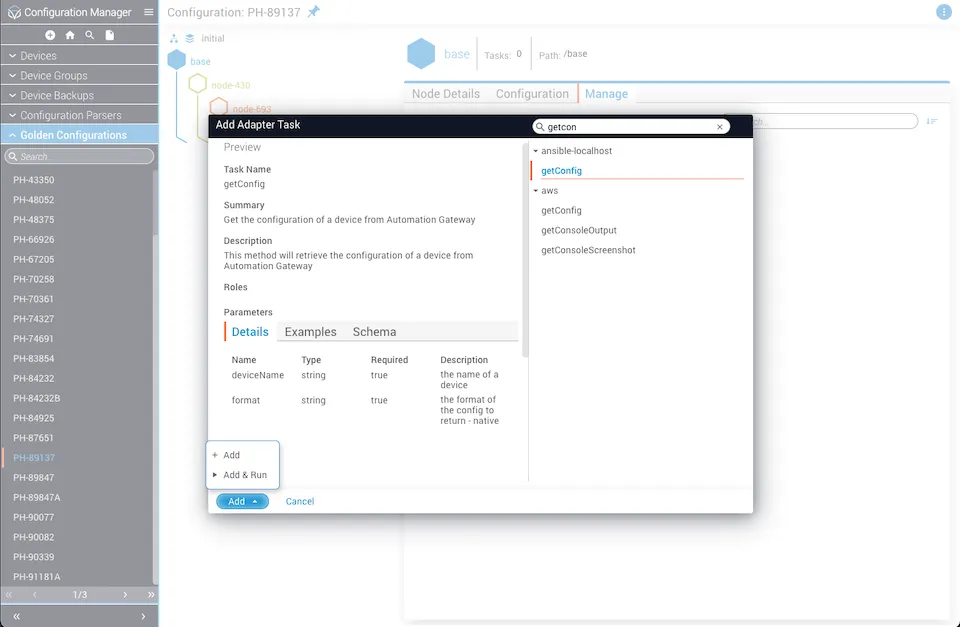
Select the Add Task (+) button from the toolbar at the top of the Manage tab. The Add Adapter Task modal will appear.
Select adapter and task
- Select an adapter from the list on the right side of the modal. All related adapter tasks will be displayed.
- Click the adapter task that you would like to run compliance checks against.
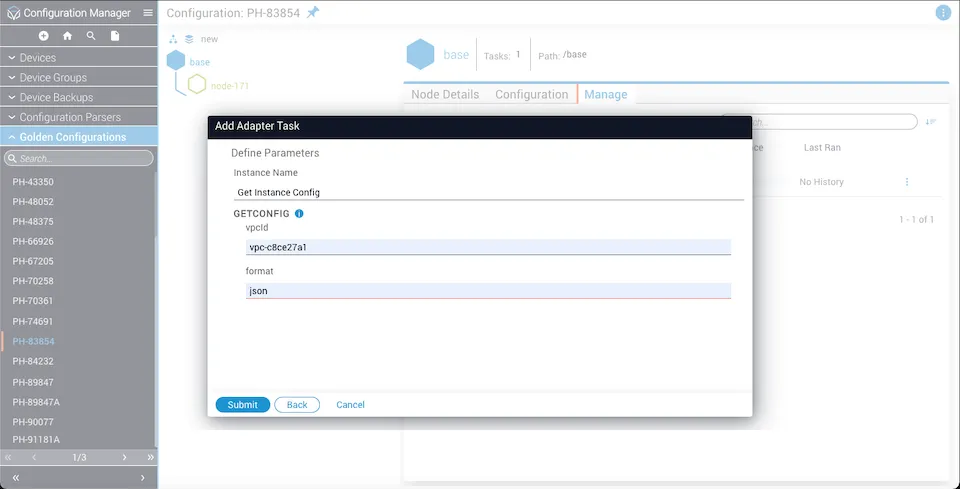
Run compliance
To run a compliance check against a task instance: