

Manage integrations
Integrations connect Itential Platform to external systems using the settings defined in an integration model. This page explains how to create, configure, and troubleshoot integrations in Admin Essentials.
Available actions depend on your user permissions.
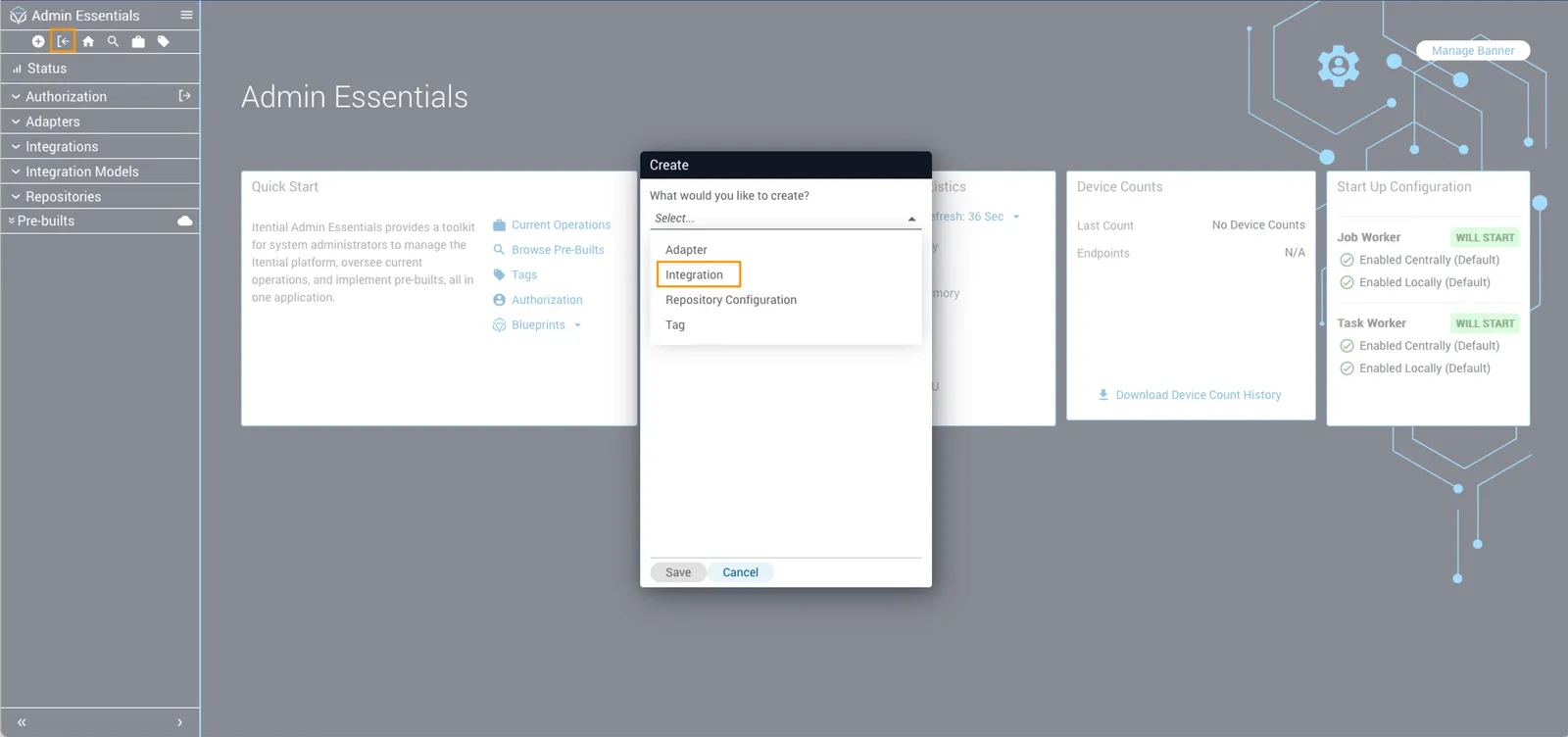
Create an integration
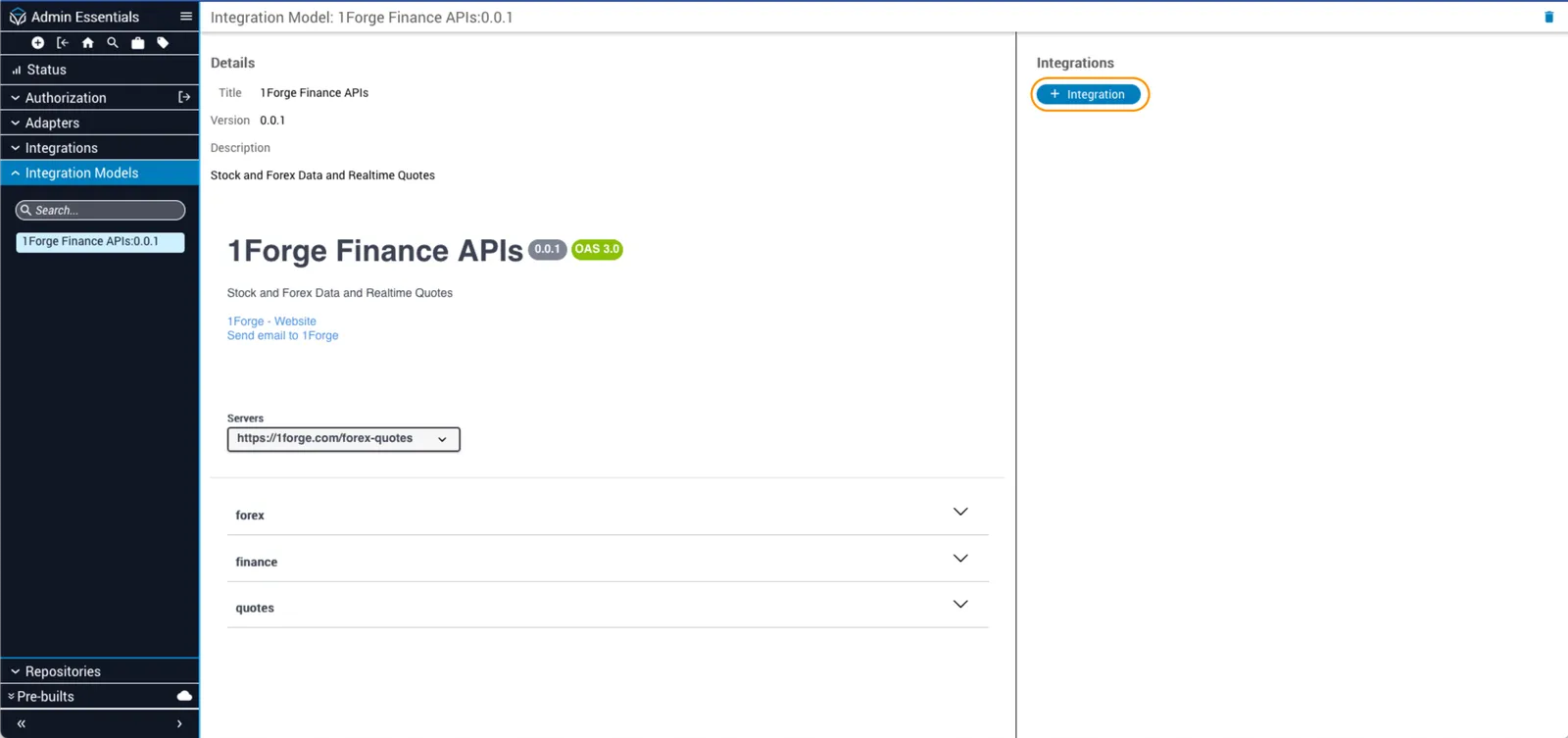
Configure an integration
Open an integration to view its details. The Configuration tab displays the integration’s settings as a form.
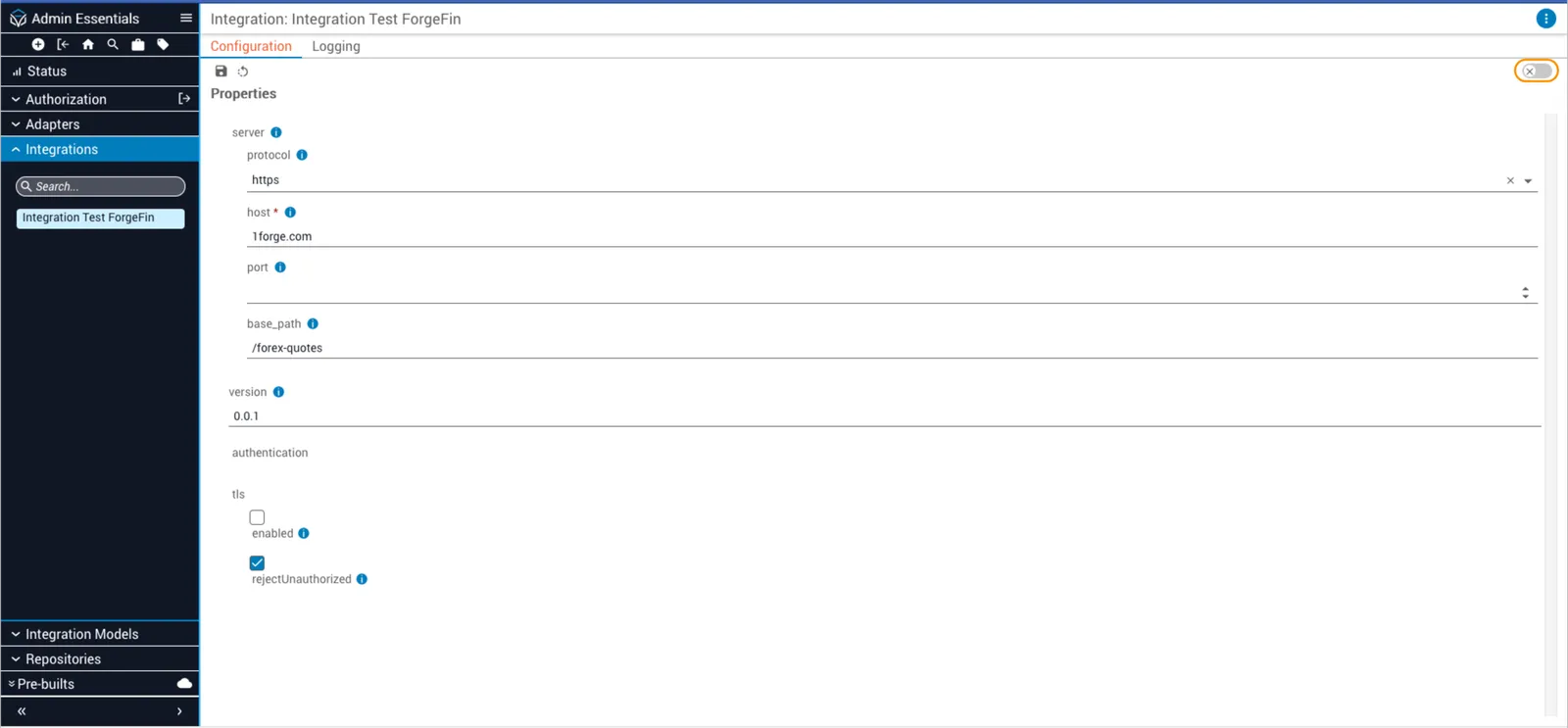
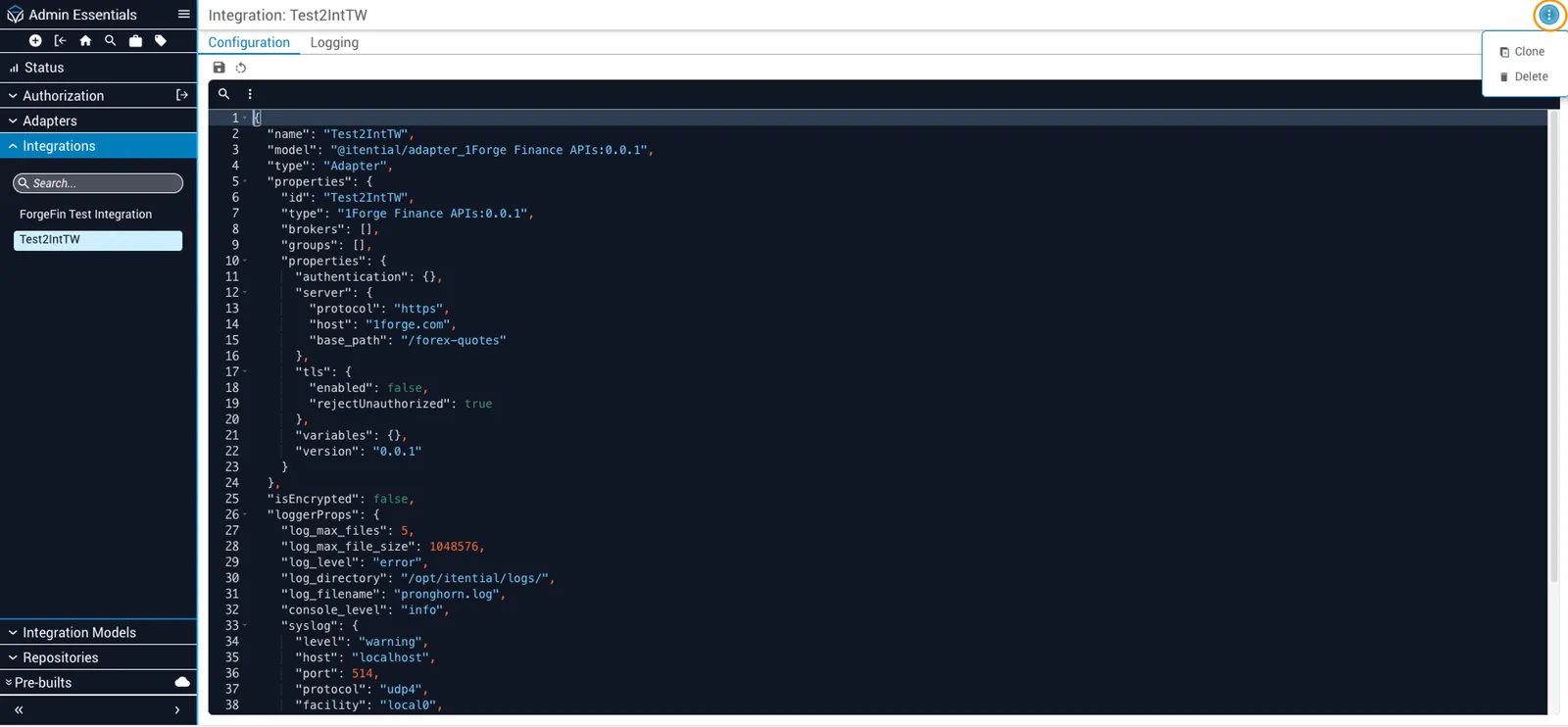
If a setting is not available in the form, toggle Advanced View in the upper-right corner to edit the configuration directly as JSON. From the Advanced View, click the More button (stacked dots icon) to clone or delete the integration:
- Clone: requires the
Integrations - createIntegrationpermission - Delete: requires the
Integrations - deleteIntegrationpermission
Server
The Server settings define how Platform connects to the external system.
Authentication
Authentication fields depend on the security scheme defined in the integration model.
API key
If the integration model enables dynamic retrieval, the Value field is not required. Instead, configure the following fields to retrieve the API key automatically at runtime:
HTTP Basic
HTTP Bearer
Enter the bearer token directly as a string. The entire authentication credential is the token value itself — there are no named sub-fields.
AWS Signature v4
OAuth 2.0 — Client Credentials
Platform retrieves and stores the access token automatically when credentials are provided. You can optionally pre-populate access_token or refresh_token in Advanced View if you already have a valid token.
OAuth 2.0 — Password
Includes all Client Credentials fields above, plus:
OAuth 2.0 — Authorization Code
Includes all Client Credentials fields above, plus:
OpenID Connect
Includes the same fields as OAuth 2.0 Client Credentials, except Token URL, which is discovered automatically from the identity provider. Additional fields are populated dynamically from the provider’s OpenID Connect discovery document.
Mutual TLS
TLS
TLS settings control how Platform handles HTTPS connections to the external system.
Timeout
Gateway cluster override
By default, integrations use the cluster and execution settings defined in Gateway Configuration. Use cluster override to execute integration requests from this cluster. When enabled, these settings take precedence over the Gateway Configuration defaults.
Proxy override
By default, integrations use the proxy settings defined in Gateway Configuration. Use proxy override to set custom proxy behavior for this integration. When enabled, these settings take precedence over the Gateway Configuration defaults.
direct: Bypass the gateway and connect directly to the target system.cluster_no_proxy: Execute requests through the gateway without a proxy.proxy: Execute requests through the gateway with a proxy server.
When Execution mode is set to proxy, configure the proxy server:
Proxy server
Proxy authentication
Assign integration roles
When you create an integration, Itential Platform automatically generates a set of roles for it. There is one admin role for the integration, plus one role for each HTTP verb supported by the integration model. For example, GET, POST, DELETE.
Users must be assigned the appropriate roles before they can invoke the integration’s tasks in a workflow.
To assign roles:
For more information about how to grant permissions, see Roles.
Use an integration in a Studio workflow
Each endpoint in the integration model appears as a workflow task in Studio. For example, if you create an integration called Hello World, that integration will appear as a set of tasks in the canvas task palette. Add these tasks to a make API calls to a coresponding endpoint.
Configure logging
Logging settings are configured individually for each integration. Changes take effect immediately and do not require a restart.
To update the log level for an integration:
To configure logging to an external Syslog system:
For related reading, see Logging in Itential Platform, Log Class, and Integration Models.
Troubleshoot integration errors
When an integration fails to connect to an external system, Platform returns error details to help diagnose the issue.
Understand output errors
A failed integration task returns one of two error types:
- String: The integration did not have the information needed to make the API call. The string explains why.
- Object: The API call reached the target server but returned a failure response. The object contains fields from the server’s response body.
Response body fields
Platform standardizes the integration response body with the following fields:
For some workflows (for example, clientCredentials), Platform automatically requests new access tokens or uses refresh tokens. If the token request fails, the error object may reference a POST to api/v1/token even if the original integration task was a GET. This indicates that the token request failed before the integration could attempt the API call.
Example: success response
Example: error response
If you cannot determine the cause of the error, contact Itential’s Product Support Team.