

Integration models
An integration model defines an API for an integration. A model is loaded into Itential Platform using an OpenAPI specification.
This page walks you through the steps for creating and using integration models for integrations in Admin Essentials, and covers current limitations. Available views, features, and interactions in the Platform interface can be limited based on user permissions.
OpenAPI support
Itential Platform supports OpenAPI 2.0 and 3.0 for creating integration models. When you import an OpenAPI 2.0 document, it’s automatically converted to OpenAPI 3. All OpenAPI 3.0 documents must conform to the OpenAPI v3.0 Specification.
OpenAPI 3.0.4 is not supported.
Importing an integration model
In Itential Platform versions 2022.1 and 2023.1, when you create a new integration instance or install a new integration model in an HA environment, you must restart all otherItential Platform instances in the cluster to propagate the changes.
Once the file is uploaded, the name of the integration model will pre-populate from the specification file, along with a description. You can change the description to provide specific information for your import and to better communicate what this integration is used for within your platform.
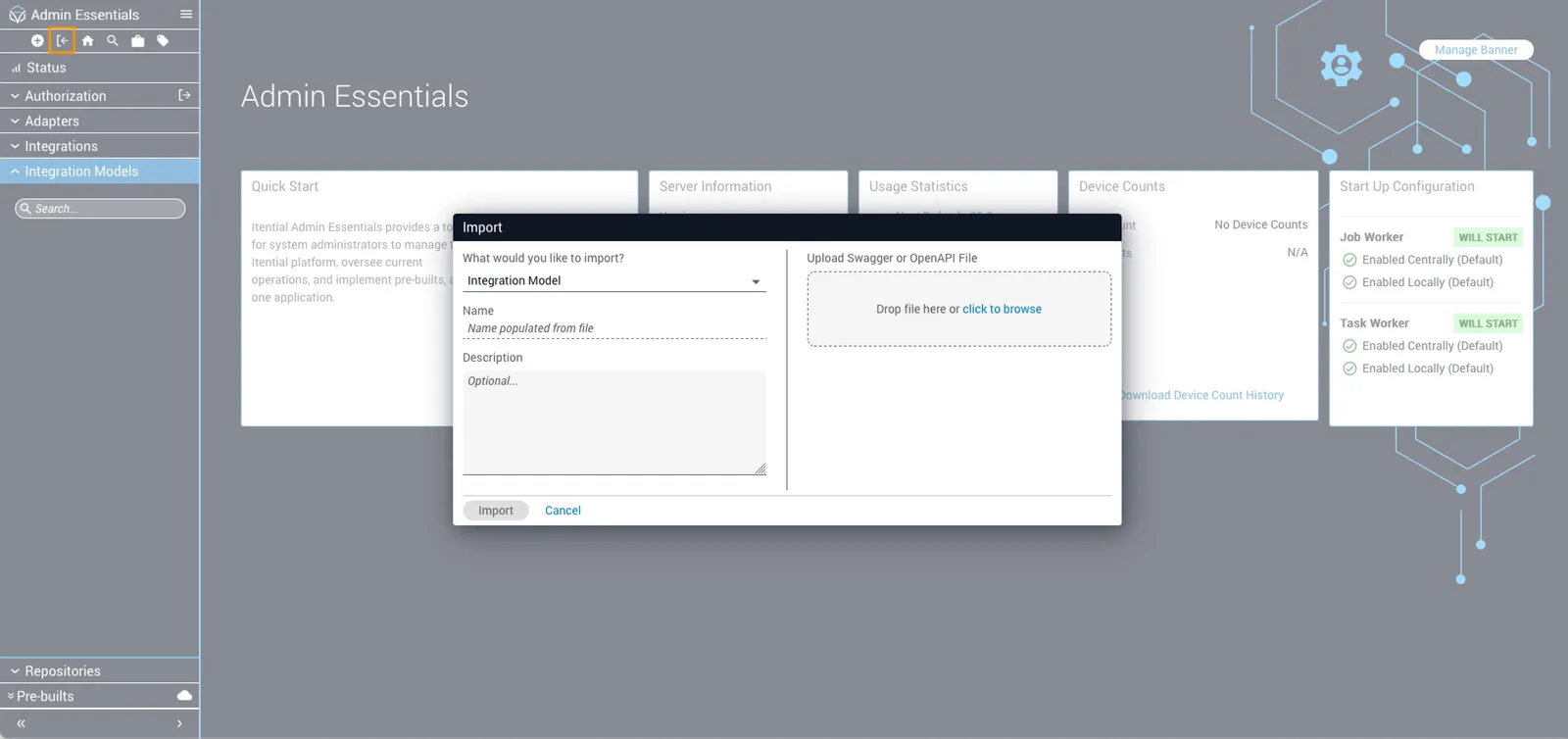
Validating an imported integration model
When you upload a Swagger 2.0 or OpenAPI 3.0 specification file, you can run validation on it using the Validate (✓) button. The OpenAPI specification file must be obtained from the targeted integration. For example, GitLab, Amazon, and Jenkins provide OpenAPI specifications that properly describe their APIs. Admin Essentials can ingest these files and enable integration with these technologies withinItential Platform.
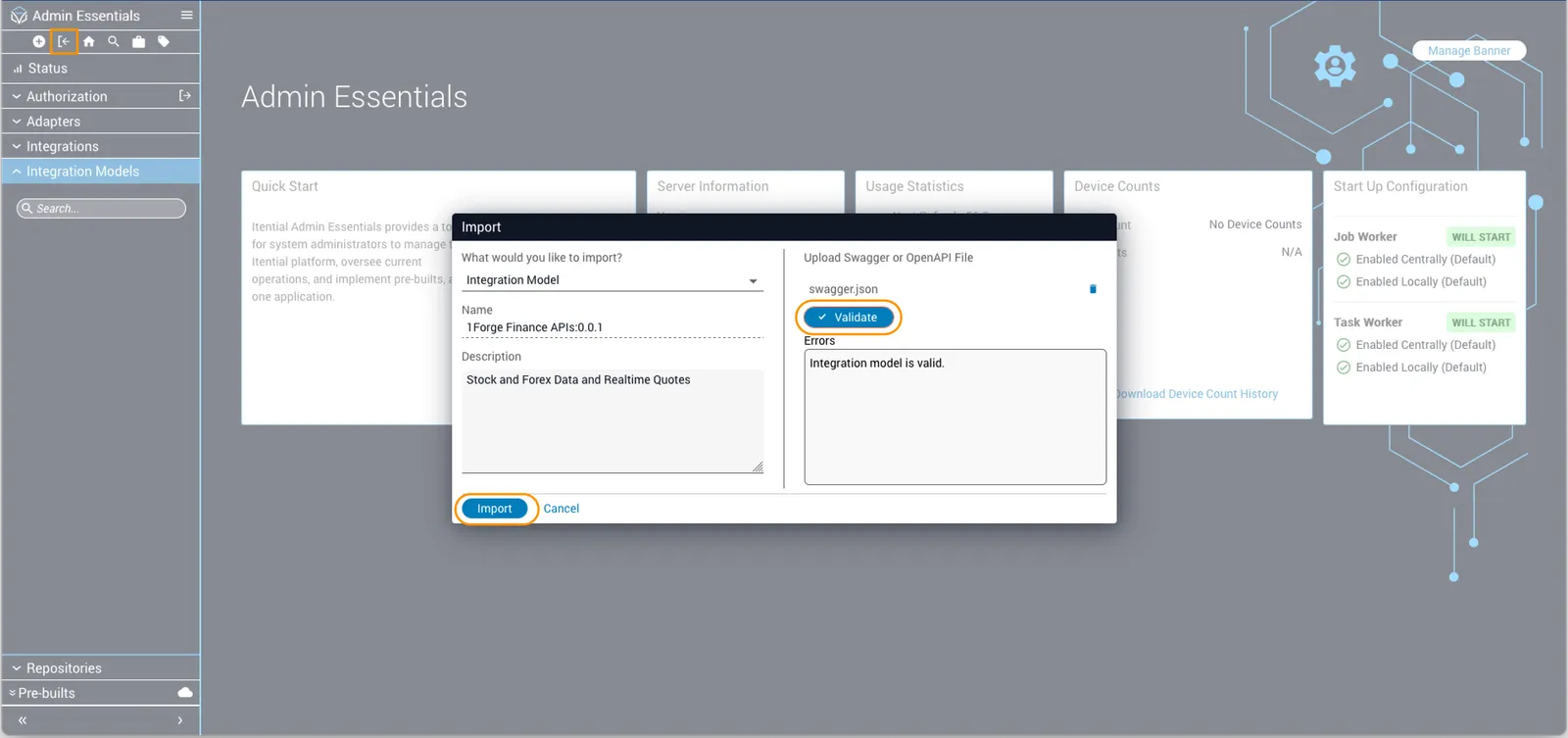
Once you click the Import button, and upon successful import, the integration model will be added to the collection list in the left sidebar.
When you select the integration model from the collection list, you will be redirected to the Integration Model Details page.
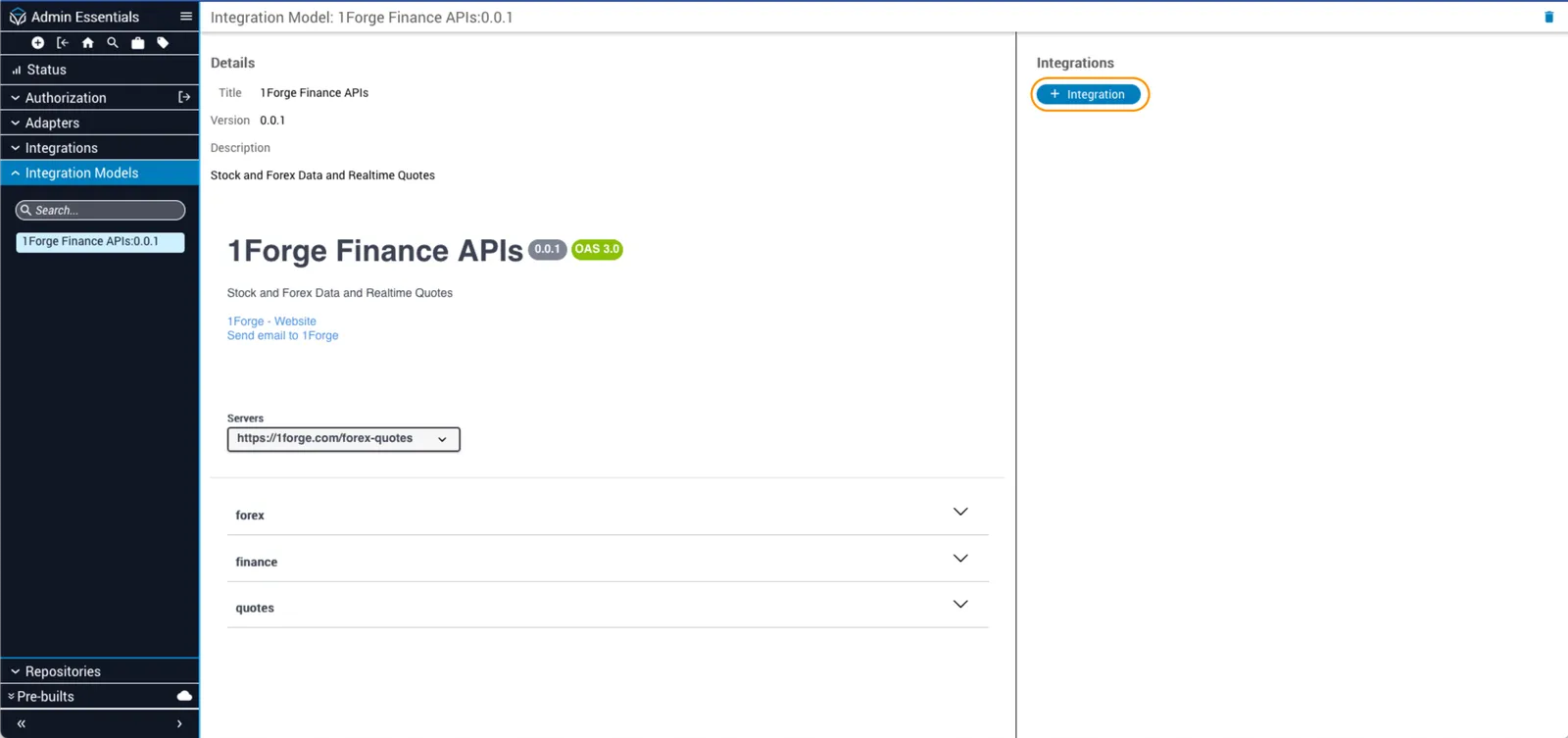
Known limitations
The following are known limitations when creating an integration model, along with steps for editing after the model has been imported.
Servers
Currently a single server endpoint is supported for integrations. If the OpenAPI document has more than one server listed in its servers object, the first server will be selected for use. This endpoint can be updated in the service configuration after the integration is created.
Example template for single server endpoint
Any server URL using OpenAPI path template expressions will have the default value for variables applied. Below is an example of a configuration using multiple servers and URLs with path template expressions.
The resulting URL used in the service configuration will be:
This result is determined by taking the first server listed in the array and applying the default variable values to the template URL. This URL can be edited in the service configuration after the integration is created.
Updating integration models
It is currently not possible to edit an integration model after it has been imported into Itential Platform. Instead, the integration model must be deleted and replaced.
Integration models with dynamic API key retrieval
The OpenAPI specification used by Itential Platform supports specification extensions via x-itential-parameters. Specifically, integration models with an apiKey security schema now support dynamic retrieval via the custom extension x-itential-dynamic-retrieval.
For additional context, see OpenAPI Extensions and Specification Extensions.
An example integration model with the x-itential-dynamic-retrieval extension is shown below. The x-itential-parameters are defined in the securitySchemes object, and the specific request the parameter is used in is defined by "x-itential-use-in": ["key"].
In this example, the x-itential-dynamic-retrieval extension allows an integration instance to obtain an apiKey by issuing an HTTP call, performing a CRUD operation (specified by method) to a url, and then querying the response via JSON Pointer.
The expected response from calling POST to https://some.api.com/api/v2/key yields:
The responsePointer will query /credentials/key and return the actual API key to use for authentication.
With this feature, the integration instance will attempt to retrieve a new API key in these scenarios:
- Before executing a task if the integration has no stored API key value.
- After receiving an HTTP 401 response from an API call. In this scenario, the integration will automatically retry the call one time after retrieving a new API key.
Related resources
See Integrations.