

query

The query task extracts data out of object variables and reshapes that data for an existing task.

Potential use case

If you have data that does not fit a recognized parameter in an existing task, the query task can reshape that data so that it fits. Using an existing task and then extracting data with a query is more efficient than writing a new task to fit the data. You can also use this task to extract data from a variable for evaluation purposes.

There are also unique situations with the pass_on_null option that can occur when you perform a query against an object where the query fails.

Properties

IncomingTypeRequiredDescription
pass_on_nullBooleanYesDetermines the query task results for both its return_data as well as which transition (success or failure) it takes if the query fails. See Using the pass on null variable below for additional detail.
queryStringYesSpecifies the query expression. It is similar to how you may perform lookups in JavaScript. Consult the json-query NPM page for usage instructions or review the examples for this task. The query expression can reference a helper function :get() when accessing the value of a property in which the key includes special characters. The colon ( : ) is a special character; it is used to delineate JSON keys and values. If the JSON property key includes a colon, query the property value with the get() helper function. See Query 9 in the examples below for syntax. The value can come from a job variable, a static value, or an outgoing variable in an earlier task.
objObjectYesIdentifies the data to query. The object can come from a job variable, a static value, or an outgoing variable in an earlier task.
OutgoingDescription
return_dataThe query results are assigned to an immutable outgoing variable return_data. Optionally, you can create a job variable from return_data. The immutable outgoing variable return_data remains, and a new mutable job variable is created. When creating a job variable, provide a new name to avoid name conflicts and provide clarity.

Public API query

In this example, a simple automation was built to obtain data from a remote system using a public API.

On the workflow canvas, a restCall task is set to retrieve numbers information from an available API on the web. The query task represents the data to search, which will be provided by the results of the restCall task.

Double-clicking the restCall task opens the task dialog and shows the configuration variables. Of note, the URI points to the API: http://numbersapi.com/random/trivia.
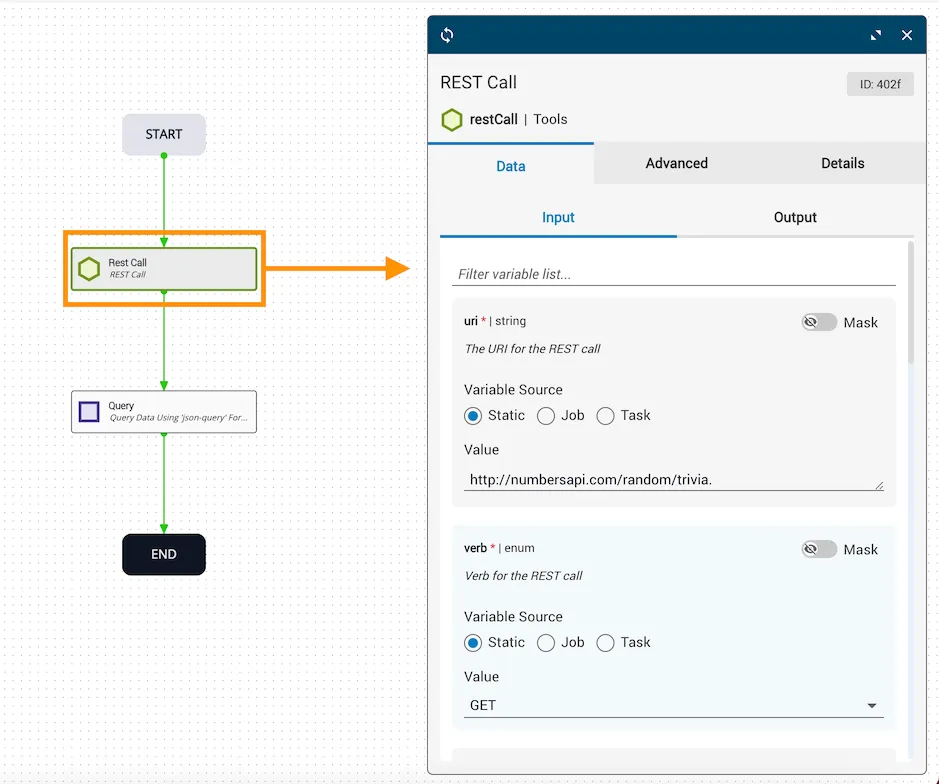
Workflow and Rest Call task setup

Next, double-clicking the Query task opens the task dialog to show the required input variables. The query parameter is set to search the body of the JSON in the available API, and the reference task for the obj variable is the response that returns from the REST Call task.
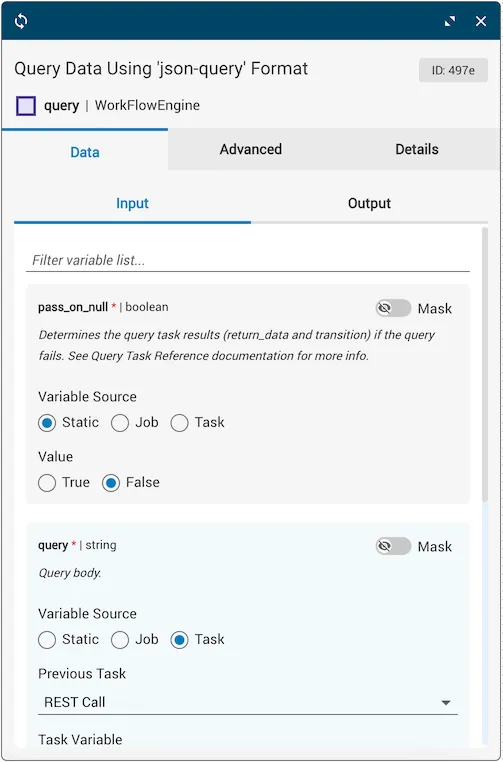
Query task dialog showing input variable configuration

Once the automation is executed, the return_data variable displays a piece of trivia about a randomly generated number by querying the publicly available Numbers API.
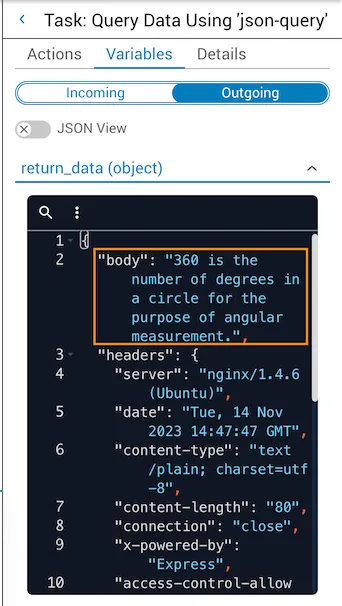
Task output showing return_data from Numbers API query

Query expressions against an object

The following examples illustrate various query expressions against an example object exampleObj on an IOS platform.

Example object

1exampleObj = {
2 "platform": {
3 "ned": "cisco-ios",
4 "description": "Cisco IOS Router or Switch"
5 },
6 "POPs": {
7 "ATL": {
8 "COUNTRY": "US",
9 "ST": "GEORGIA",
10 "LN": "ATLANTA",
11 "cisco-ios-xr": [
12 {
13 "name": "cr1.atl",
14 "type": "router",
15 "make": "Cisco",
16 "model": "ASR9K"
17 }
18 ],
19 "cisco-ios": [
20 {
21 "name": "er1.atl",
22 "type": "router",
23 "make": "Cisco",
24 "model": "3945"
25 },
26 {
27 "name": "sw1",
28 "type": "switch",
29 "make": "Cisco",
30 "model": "Catalyt 2960G"
31 }
32 ]
33 },
34 "ORF": {
35 "COUNTRY": "US",
36 "ST": "VIRGINIA",
37 "LN": "NORFOLK",
38 "cisco-ios": [
39 {
40 "name": "cr1.orf",
41 "type": "router",
42 "make": "Cisco",
43 "model": "7600"
44 }
45 ],
46 "juniper-junos": [
47 {
48 "name": "er1.orf",
49 "type": "router",
50 "make": "Juniper",
51 "model": "MX10"
52 }
53 ]
54 }
55 }
56}

When a query has no matching data and pass_on_null is true, the workflow will complete successfully.

When a query has no matching data and pass_on_null is false, the workflow will return an error in the job history. The query will terminate in a failure.

Query 1

Extract the points of presence with a query that returns the value for the key POPs.

1{
2 pass_on_null: true,
3 query: "POPs",
4 obj: exampleObj
5}

Result:

1{
2 "ATL": {
3 "COUNTRY": "US",
4 "ST": "GEORGIA",
5 "LN": "ATLANTA",
6 "cisco-ios-xr": [
7 {
8 "name": "cr1.atl",
9 "type": "router",
10 "make": "Cisco",
11 "model": "ASR9K"
12 }
13 ],
14 "cisco-ios": [
15 {
16 "name": "er1.atl",
17 "type": "router",
18 "make": "Cisco",
19 "model": "3945"
20 },
21 {
22 "name": "sw1",
23 "type": "switch",
24 "make": "Cisco",
25 "model": "Catalyt 2960G"
26 }
27 ]
28 },
29 "ORF": {
30 "COUNTRY": "US",
31 "ST": "VIRGINIA",
32 "LN": "NORFOLK",
33 "cisco-ios": [
34 {
35 "name": "cr1.orf",
36 "type": "router",
37 "make": "Cisco",
38 "model": "7600"
39 }
40 ],
41 "juniper-junos": [
42 {
43 "name": "er1.orf",
44 "type": "router",
45 "make": "Juniper",
46 "model": "MX10"
47 }
48 ]
49 }
50}

Query 2

Refine the previous example and access an object’s property. Use dot notation to access the key’s value.

1{
2 pass_on_null: true,
3 query: "POPs.ATL.cisco-ios",
4 obj: exampleObj
5}

Result:

1[
2 {
3 "name": "er1.atl",
4 "type": "router",
5 "make": "Cisco",
6 "model": "3945"
7 },
8 {
9 "name": "sw1",
10 "type": "switch",
11 "make": "Cisco",
12 "model": "Catalyt 2960G"
13 }
14]

Query 3

Refine the previous example. Apply a filter using key=value syntax that only matches objects where make is “Cisco”.

1{
2 pass_on_null: true,
3 query: "POPs.ATL.cisco-ios[make=Cisco]",
4 obj: exampleObj
5}

Notice only the first matched element is returned.

Result:

1{
2 "name": "er1.atl",
3 "type": "router",
4 "make": "Cisco",
5 "model": "3945"
6}

Query 4

Refine the previous example. Apply a filter to match all objects where make is “Cisco” with the asterisk operator.

1{
2 pass_on_null: true,
3 query: "POPs.ATL.cisco-ios[*make=Cisco]",
4 obj: exampleObj
5}

Result:

1[
2 {
3 "name": "er1.atl",
4 "type": "router",
5 "make": "Cisco",
6 "model": "3945"
7 },
8 {
9 "name": "sw1",
10 "type": "switch",
11 "make": "Cisco",
12 "model": "Catalyt 2960G"
13 }
14]

Query 5

Refine the previous example to return all IOS routers in ATL.

1{
2 pass_on_null: true,
3 query: "POPs.ATL.cisco-ios[*type=router]",
4 obj: exampleObj
5}

Since the asterisk operator matches all, an array is returned even if one or no elements match.

Result:

1[
2 {
3 "name": "er1.atl",
4 "type": "router",
5 "make": "Cisco",
6 "model": "3945"
7 }
8]

Query 6

Perform a compound boolean query with a regular expression.

In this example, retrieve all IOS devices in ATL with make Cisco and a name that ends in “atl”. The ampersand operator performs a boolean AND evaluation; both conditions must be satisfied. The tilde (~) operator performs a regular expression match.

1{
2 pass_on_null: true,
3 query: "POPs.ATL.cisco-ios[* make=Cisco & name~/atl$/]",
4 obj: exampleObj
5}

Result:

1[
2 {
3 "name": "er1.atl",
4 "type": "router",
5 "make": "Cisco",
6 "model": "3945"
7 }
8]

Query 7

Perform a deep query. Search through multiple levels of objects or arrays with [**]. Search for any ATL router.

1{
2 pass_on_null: true,
3 query: "POPs.ATL[**][*type=router]",
4 obj: exampleObj
5}

Result:

1[
2 {
3 "name": "cr1.atl",
4 "type": "router",
5 "make": "Cisco",
6 "model": "ASR9K"
7 },
8 {
9 "name": "er1.atl",
10 "type": "router",
11 "make": "Cisco",
12 "model": "3945"
13 }
14]

Query 8

Perform an inner query. Braces de-reference the value of data in the queried object to be used for matching an object’s key or an array’s element.

Search for all devices in ATL of the NED value found in platform.ned.

1{
2 pass_on_null: true,
3 query: "POPs.ATL[{platform.ned}]",
4 obj: exampleObj
5}

Result:

1[
2 {
3 "name": "er1.atl",
4 "type": "router",
5 "make": "Cisco",
6 "model": "3945"
7 },
8 {
9 "name": "sw1",
10 "type": "switch",
11 "make": "Cisco",
12 "model": "Catalyt 2960G"
13 }
14]

Query using the GET helper function

This example demonstrates a query against exampleObj2 using the get() helper function.

Example object

1const exampleObj2 = {
2 "platform": {
3 "ned": "cisco-ios",
4 "description": "Cisco IOS Router or Switch"
5 },
6 "POPs": {
7 "ATL:1": {
8 "COUNTRY": "US",
9 "ST": "GEORGIA",
10 "LN": "ATLANTA",
11 "cisco-ios-xr": [
12 {
13 "name": "cr1.atl",
14 "type": "router",
15 "make": "Cisco",
16 "model": "ASR9K"
17 }
18 ],
19 "cisco-ios": [
20 {
21 "name": "er1.atl",
22 "type": "router",
23 "make": "Cisco",
24 "model": "3945"
25 },
26 {
27 "name": "sw1",
28 "type": "switch",
29 "make": "Cisco",
30 "model": "Catalyt 2960G"
31 }
32 ]
33 },
34 "ORF": {
35 "COUNTRY": "US",
36 "ST": "VIRGINIA",
37 "LN": "NORFOLK",
38 "cisco-ios": [
39 {
40 "name": "cr1.orf",
41 "type": "router",
42 "make": "Cisco",
43 "model": "7600"
44 }
45 ],
46 "juniper-junos": [
47 {
48 "name": "er1.orf",
49 "type": "router",
50 "make": "Juniper",
51 "model": "MX10"
52 }
53 ]
54 }
55 }
56};

Query 1

Perform a query for a property key that includes a special character. The get() helper function matches keys with special characters.

1{
2 pass_on_null: true,
3 query: "POPs.:get(ATL:1)[**][*type=router]",
4 obj: exampleObj2
5}

Result:

1[
2 {
3 "name": "cr1.atl",
4 "type": "router",
5 "make": "Cisco",
6 "model": "ASR9K"
7 },
8 {
9 "name": "er1.atl",
10 "type": "router",
11 "make": "Cisco",
12 "model": "3945"
13 }
14]

Query 2

Search for any ATL:1 router in the given example object.

1{
2 pass_on_null: true,
3 query: "POPs.:get(ATL:1)[**][*type=router]",
4 obj: exampleObj2
5}

Result:

1[
2 {
3 "name": "cr1.atl",
4 "type": "router",
5 "make": "Cisco",
6 "model": "ASR9K"
7 },
8 {
9 "name": "er1.atl",
10 "type": "router",
11 "make": "Cisco",
12 "model": "3945"
13 }
14]

Single depth query and nested query

The query task can extract a property out of an object. Sometimes this object may be nested within another property. The following reference object is used in the examples below.

${
> "message": "Successfully retrieved product.",
> "data": {
> "_id": "622118d367d955aa5e22f1ed",
> "name": "Wolf Cola",
> "createdBy": "Frank",
> "lastUpdatedBy": "Glenn",
> "description": "The official drink of Boca Raton, FL."
> }
>}

Single depth query example

The example data is provided by the job variable obj. The object data being queried is the message.
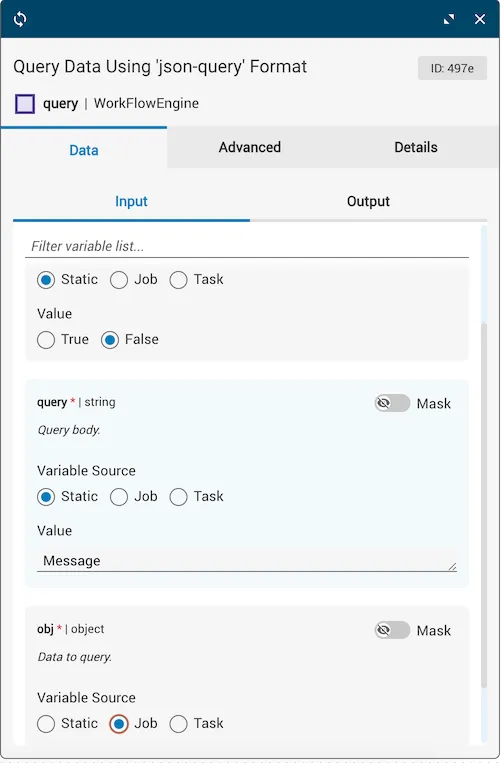
Single depth query configuration

The query task extracted the value for message (“Successfully retrieved product.”). Other tasks can now reference this value in the workflow from the output of the query task (output.return_data).
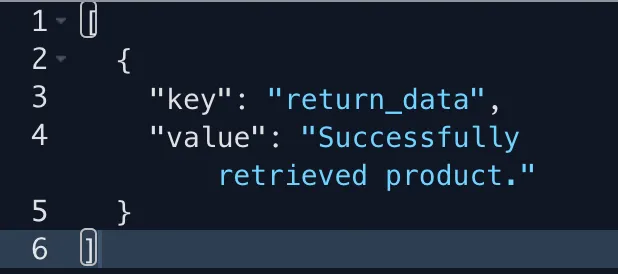
Single depth query result showing extracted message value

Nested depth query example

The example data is provided by the job variable obj. The nested object data being queried is data.createdBy.
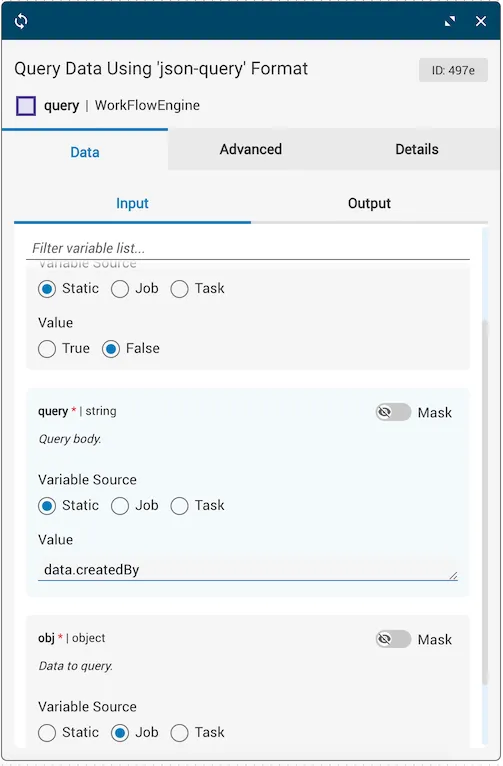
Nested query configuration for data.createdBy

The query task extracted the nested value for createdBy (“Frank”). Other tasks can now reference this value in the workflow from the query task’s output (output.return_data).
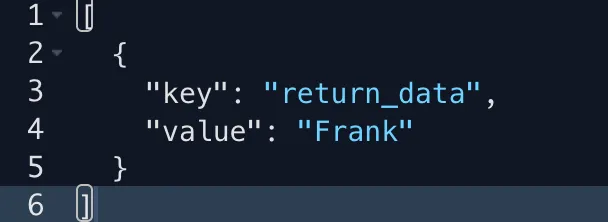
Nested query result showing extracted createdBy value

Using the pass on null variable

The following examples explain the interaction of the returned object and transition result of a query task using the pass_on_null flag.

Invalid property: pass on null true

Using the same object from the examples above, the reference variable is set to true, and an invalid property is queried.
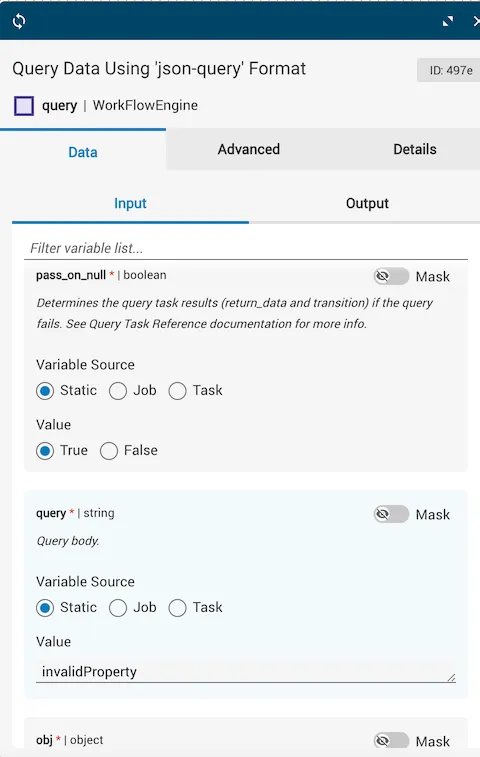
Invalid property query with pass_on_null set to true

Since it is a property that does not exist within the object, the query does not match anything and the entire object is returned as the result (a “pass-thru” of the original object). Additionally, the success transition is taken.
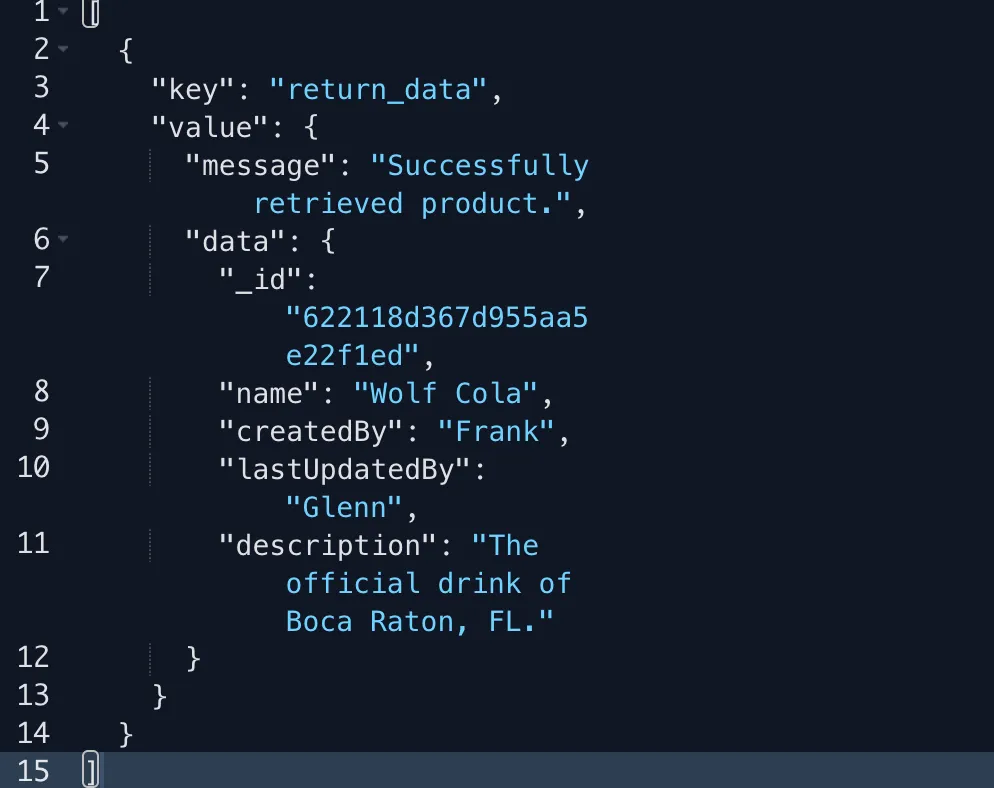
Result of invalid property query with pass_on_null true

Invalid property: pass on null false

In this example, an invalid property is being queried and the reference variable is set to false.
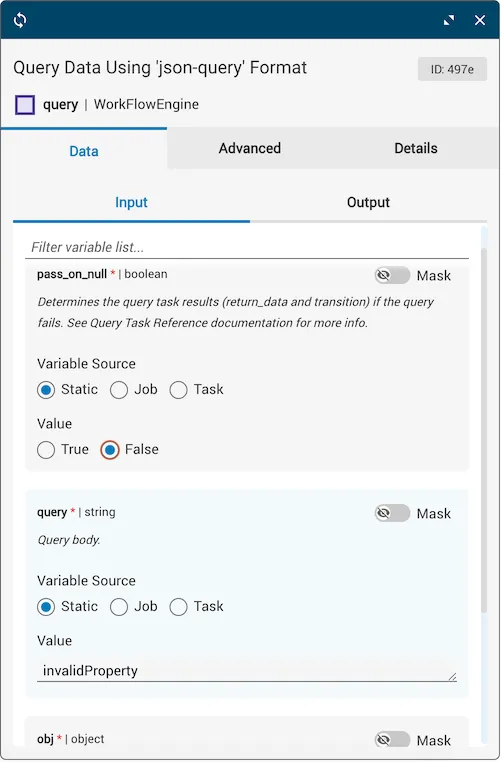
Invalid property query with pass_on_null set to false

The query does not match anything and the value for the returned data is undefined. Because the invalid property is not in the object reference data and the reference variable is set to false, the failure transition is taken.

Multiple nested invalid property: pass on null has no effect

In this example, a property is being queried that is at least two levels deep and neither layer exists in the object. The reference variable setting has no effect on the outcome of the returned object nor the transition.
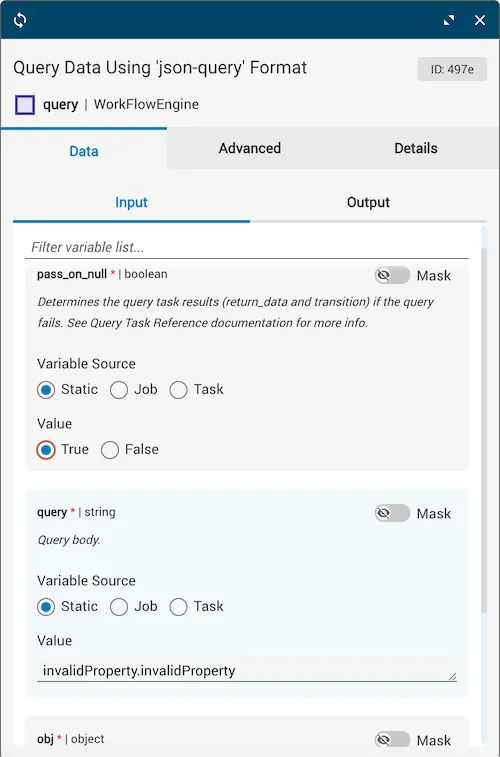
Pass on null is false with multiple nested invalid properties

The result of this query is a unique circumstance because the value for the returned data is null with a success transition.

Take special precaution when using this scenario as it is highly counter-intuitive.