

Workflow best practices
These best practices are suggested approaches for optimal results within Itential Platform and for establishing basic workflow design standards suitable for widespread adoption. There may be instances where adaptive modification is required to support specific production environment needs.
Top-to-bottom design
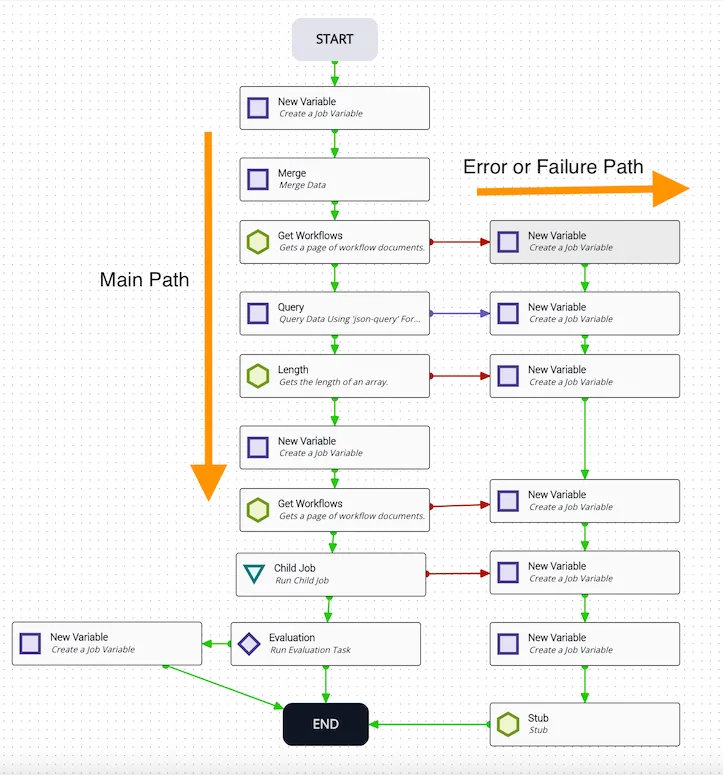
Being able to quickly and accurately read a workflow is critical. The flow should move top-to-bottom, then right-to-left — this is referred to as top-to-bottom design. Even when logic requires divergent paths, keep them flowing from top to bottom.
When diverting the path based on an evaluation or reverting to a previous task, flow should go right-to-left. When handling an error or failure condition, flow should go left-to-right.
Error and failure paths
Use error and failure paths whenever possible. If a workflow encounters a critical error, route all errors the same way.
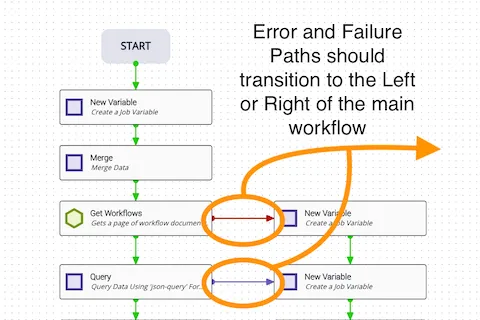
Error pathways should go to the right. Avoid running them through the center of the workflow when possible.
When creating success, failure, and error transitions, avoid crossing them — this keeps workflows clear and easy to read. Avoid having task transitions pass through other tasks; use stub tasks to route around them and keep the workflow clean. When creating these transitions, set a clear summary and description such as “Exit Gracefully”.
Error transitions
Always include error transitions. Allow for failures even when you don’t expect something to fail — system crashes or resets can cause ungraceful failures in workflows that lack failure paths. Focus on having an error transition from every automated task (those with a green hexagon) when possible. Some tasks, such as newVariable, process very quickly and may not need error transitions.
Descriptive summaries
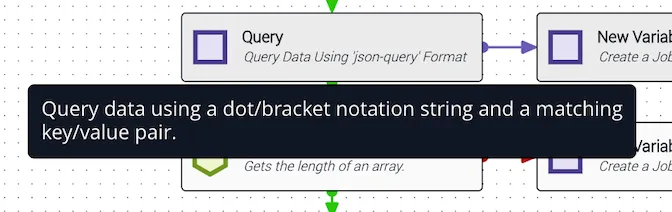
Always use descriptive summaries and descriptions on every task — think of them like comments in code. The default description pre-established for tasks is often unclear. A description like “Query data using a dot/bracket notation string and a matching key/value pair” provides far more context when debugging than simply “Query Workflow Names.” When hovering over a task in Studio, the description is displayed.
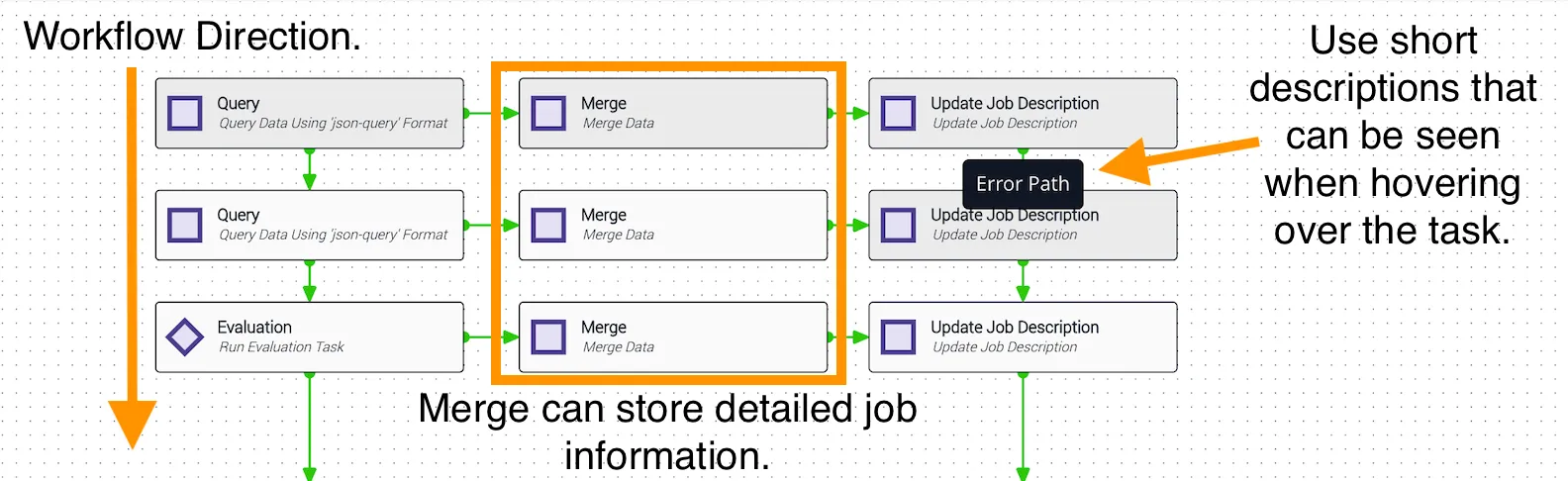
Proper task names are also important. When an operator views job details, task names are listed — these should be clear, concise summaries of what the task does without being overly verbose.
Setting the job description
If a job refers to an external system—such as a trouble ticket system—and you can identify the external record, enhance the job description to include that information using the updateJobDescription task. This makes it easier for operators to find the job associated with a particular ticket number in Jobs (Operations Manager), reducing lookup time compared to searching only by ticket number.
For more information on Jobs in Operations Manager, see Jobs and Job Metrics.
Job descriptions can also mark a job’s status. If the job has an unrecoverable error, use the job description to record exactly what failed, allowing operators to search for how many jobs encountered that error.
When naming a workflow, avoid special characters and use a format that groups related workflows together.
Workflow nomenclature
Name workflows to include a clear description of the associated processes. This allows developers to quickly search for all workflows associated with a process or activity. Creating groups for closely related workflows is another useful way to manage collections.
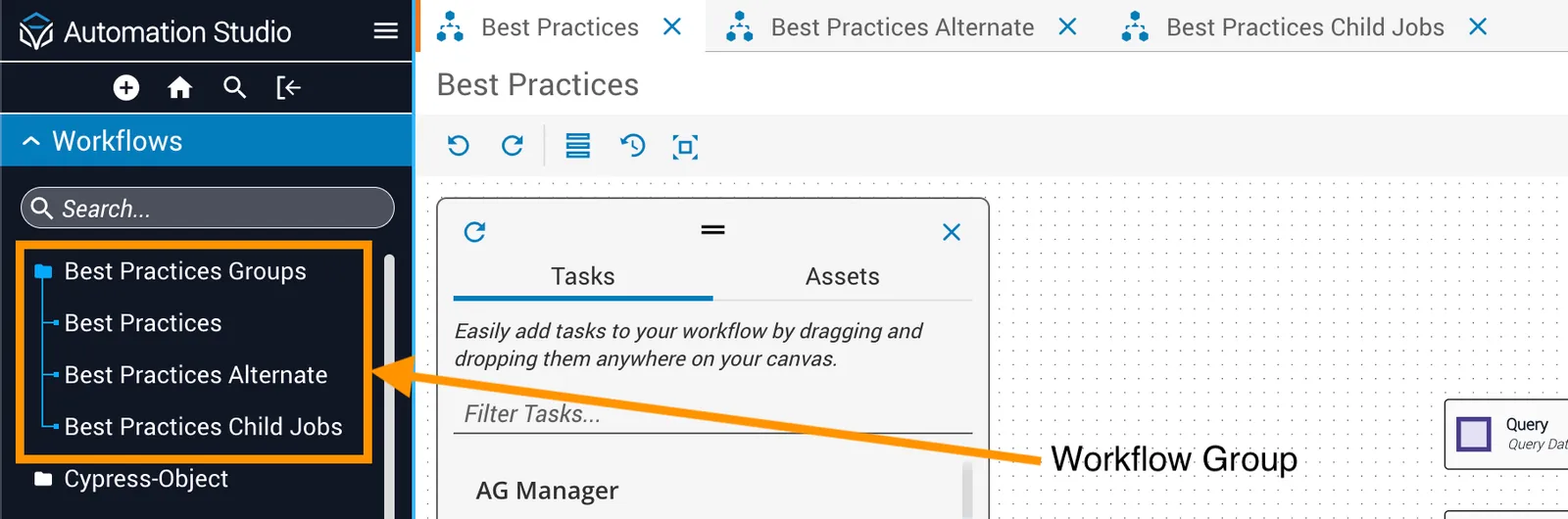
Abbreviate workflow names so they’re visible in search results without truncation. For example, starting with “DNS Mgmt” instead of “DNS Management” lets users distinguish “DNS Mgmt Infoblox Fixed Address Records Modify” without clicking through each workflow.
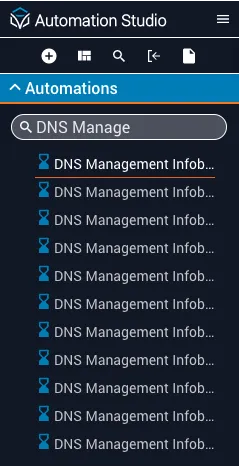
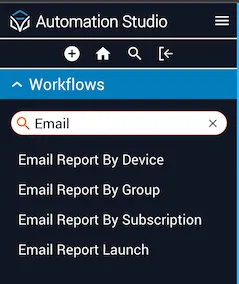
The example below shows proper use of nomenclature — each workflow name is clearly associated with its process and you can easily find related workflows by searching for a keyword.
JSON transformations (JSTs)
Use JSTs when possible. JSON Transformations are powerful tools for reformatting data and provide functionality not built into Workflow Builder, such as incrementing a running tally. Using JSTs can also significantly reduce the canvas size of a workflow.
Child workflows
Use child workflows when possible to increase reusability. Think of a child workflow as a function that processes data and returns a result. Child workflows support running identical steps multiple times or breaking a large workflow into smaller, more manageable ones.
Smaller workflows
Processing of child workflows has improved significantly in Itential Platform and child workflows are now encouraged. Multiple smaller workflows are easier to handle and debug than a single monolithic workflow.
Looping large arrays
Avoid using forEach loops when iterating over long-running or large arrays. If you must process an array with thousands of elements, use a JST or child job looping instead.
Passing large objects
Avoid passing large objects thousands of lines long. If you must pass a large object, consider breaking it into smaller, more manageable components.
Dangling tasks
Avoid dangling tasks when possible. Tasks that do not transition back to the main pathway will fire but will not return data to the main pathway. A better practice is to return an object showing the status of the tasks (success, failure, warning, etc.). Use a child workflow to accomplish the same goal. Note that dangling tasks do not include forEach loops or tasks that revert to previous tasks.
Reuse workflows
When building workflows, design them to be used more than once across multiple workflows. To help facilitate this, keep workflows small and manageable.
Standardize your outputs
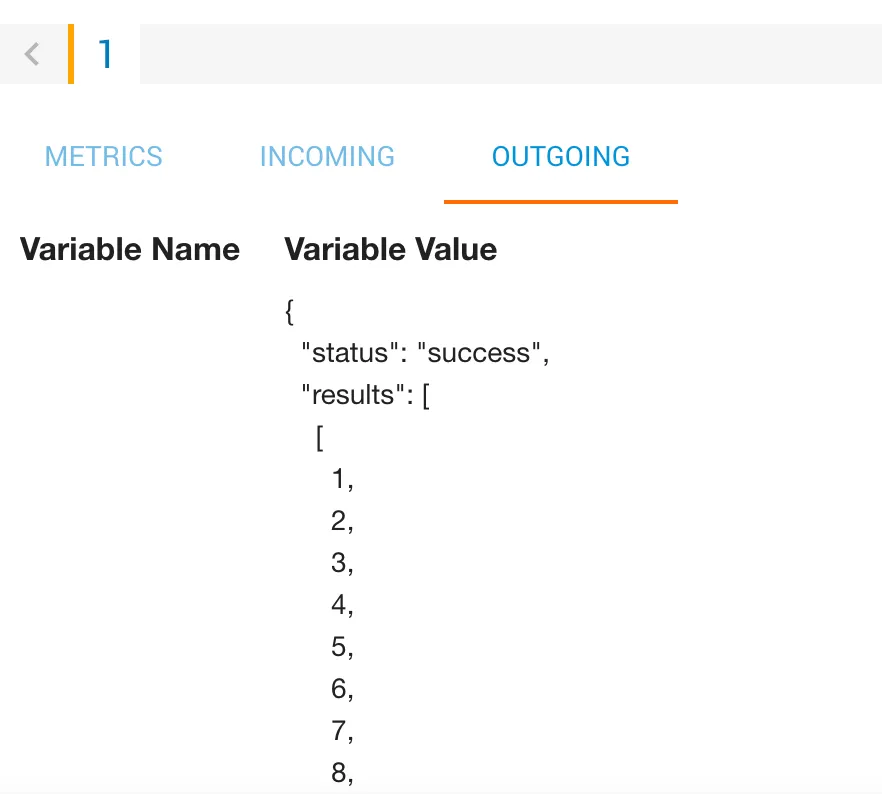
Return the same values from your workflow across your entire solution. Returning consistent values such as status and results from a child workflow allows the parent workflow to quickly check the value of status to determine the child workflow’s outcome. If the values are returned, they can be accessed by querying the results key.
Defining job variables
Define job variables at the start of a workflow to make them easy to locate and update. Changing a value defined at the top of the workflow is far easier than finding a hardcoded value buried in an eval task.
The start of a workflow is the ideal place for workflow constants such as maxNumberOfRetries, number of decimal places, and verbose/silent flags. Multi-thread these variable definitions so they all fire at once, which increases the overall speed of the workflow.
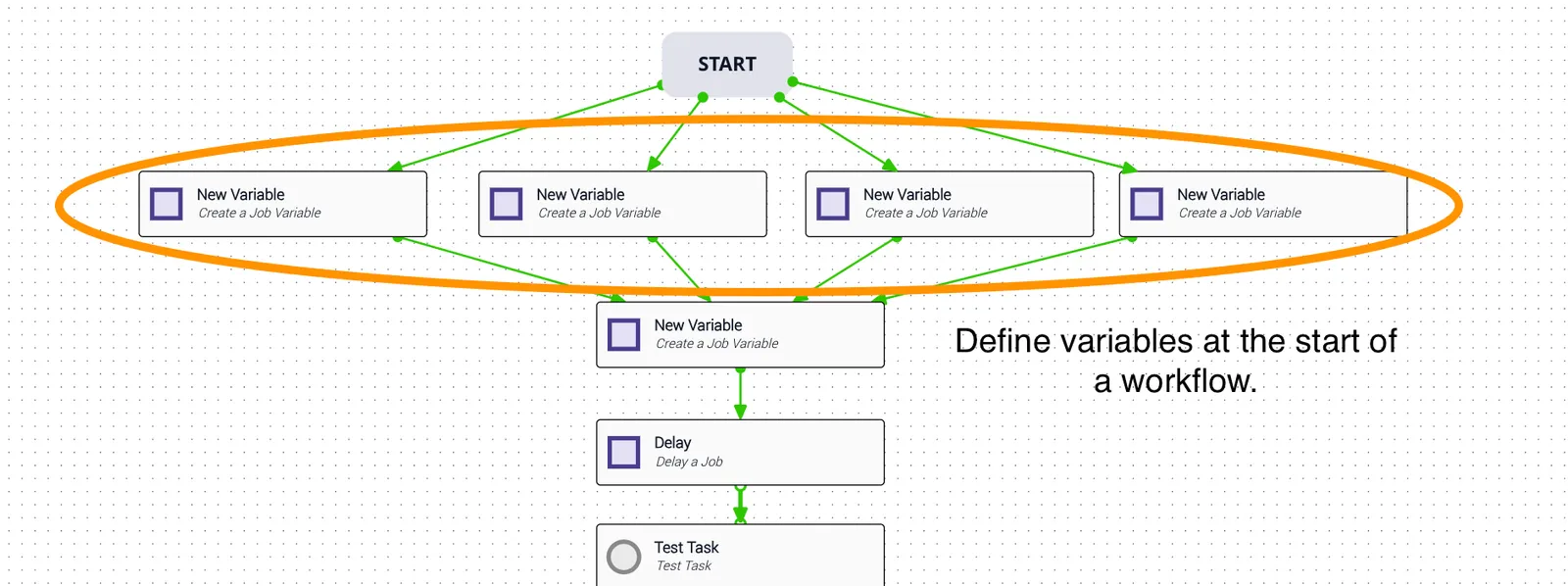
Job variables can be set in newJobVar tasks or in the Output tab of any task. Using newJobVar tasks makes a workflow more readable without requiring you to open individual tasks. The Output tab approach is cleaner on the canvas but can be harder to track down (you’ll need to view a workflow JSON export to find all locations where the job variable is used or set).
Variables to indicate workflow status
Use job variables as key indicators of workflow success. This helps when examining the workflow variables object to understand where a success or failure occurred.
Variable mutation
Avoid job variable mutation when possible. Keep variables clean and consistent, and declare a new name when updating values. This becomes especially important when incrementing a tally or updating workflow status.
Task best practices
Query tasks
Pass on Null behavior:
- If
PassOnNullis set totrueand the query key does not exist, the task returns the entire object that was passed in. - If
PassOnNullis set tofalseand the query key does not exist, use thefailuretransition to handle the missing key.
Failure tasks
Failure transitions are used in specific scenarios — for example, from a human decision task such as View Data, from rejecting a command template, or from automatic decisions such as an eval task. In other cases, error transitions are used.