Use configuration templates
Template designer is deprecated as of Platform 6.6 and will be removed in a future release in 2027.
The Template Designer in Configuration Manager allows you to define a Jinja2 supported configuration set that can be applied to a batch of devices. These templates support full CRUD functionality with the Jinja2 Template Engine integration that supports variable declarations for dynamic config operations.
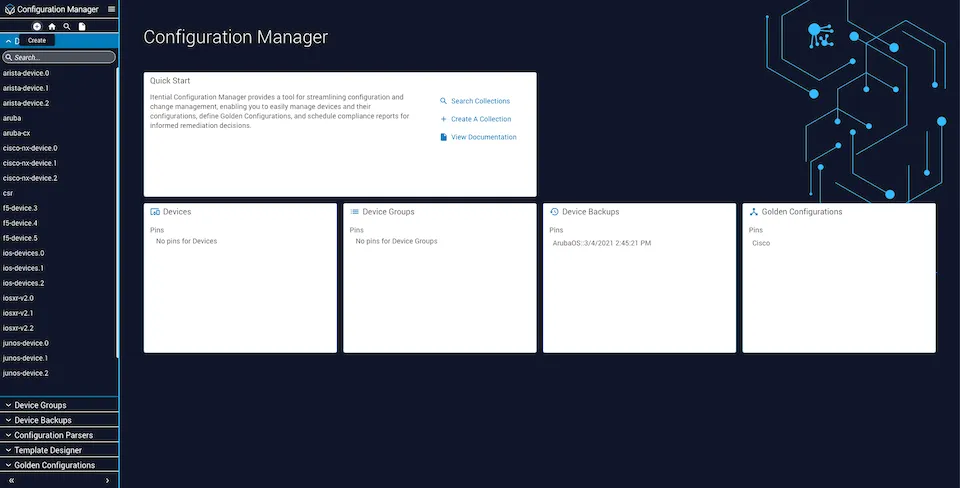
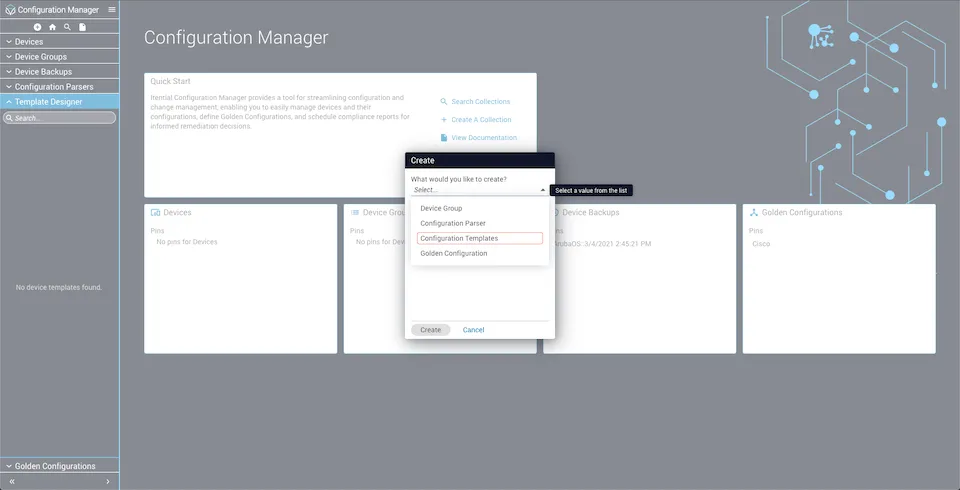
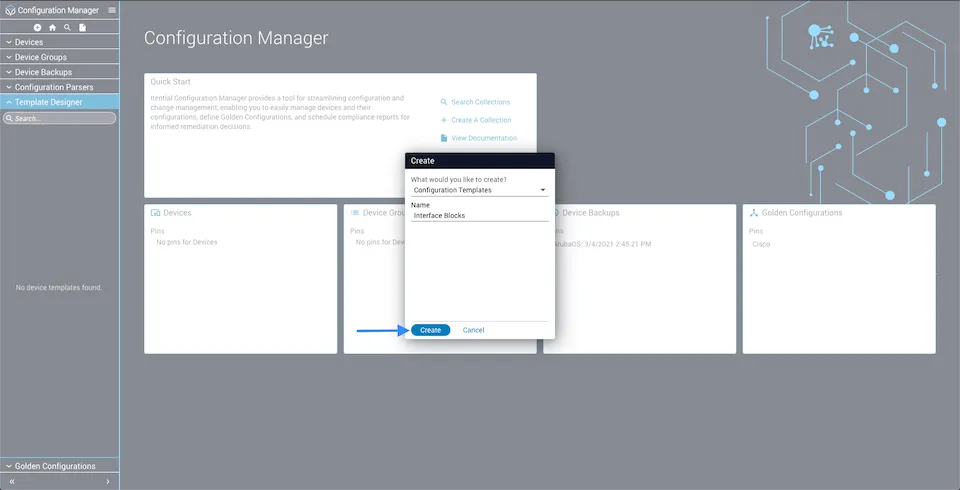
Create a template
Modify a template
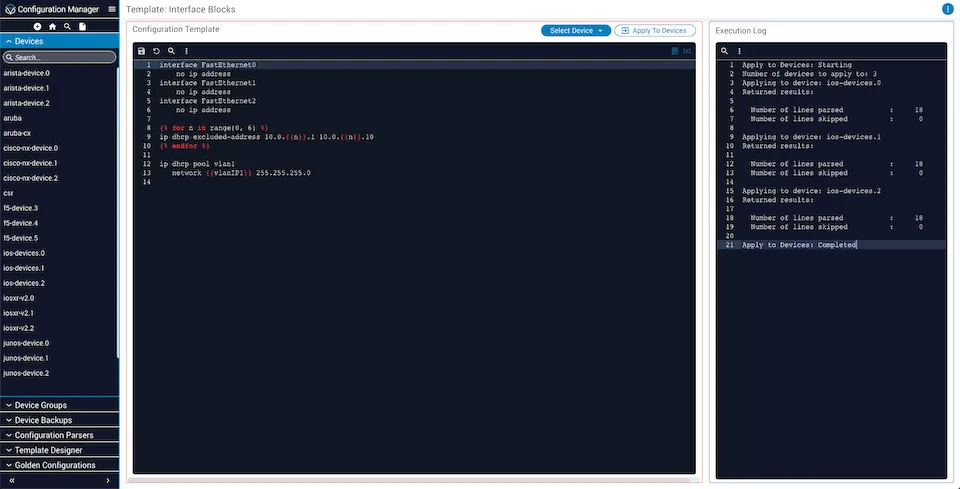
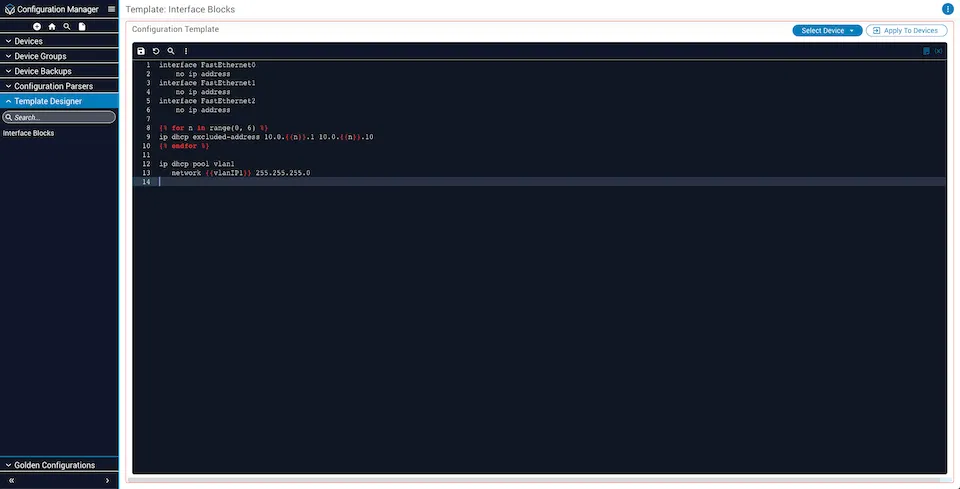
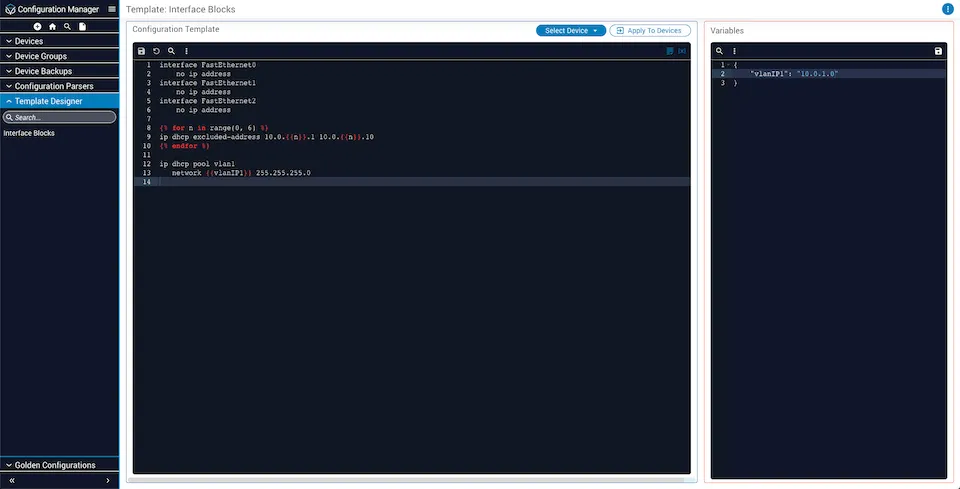
Once the new template is created, you will be redirected to the Template Designer screen. On this screen you will see the primary text editor where you will define your device templates.
Save and revert changes
Once you’ve defined your desired configuration block, click the floppy disk icon at the very top to save. If you would like to revert your configuration to your previously saved state, click the circular back arrow button.
Define variables
You may also define your variables by clicking the variables button (x) at the top right corner of the configuration editor. A variables editor will open.
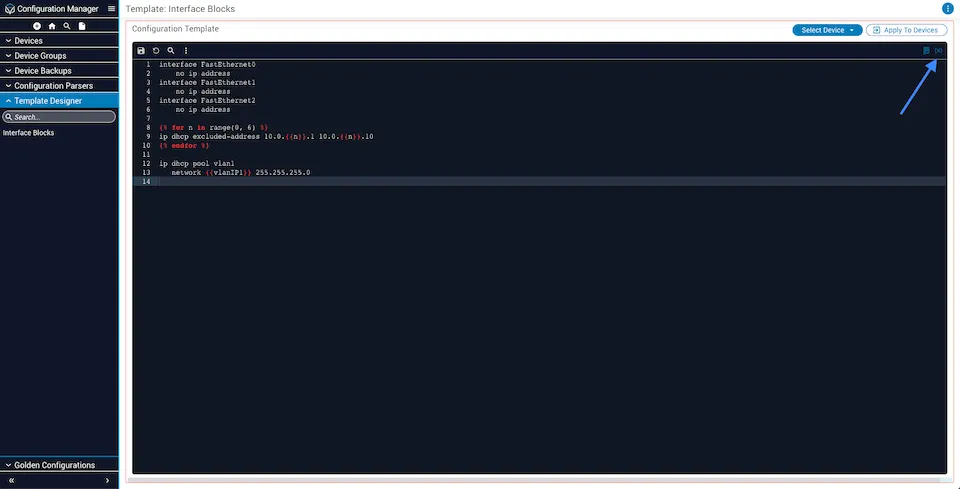
In the variables editor you can define your variables in a valid JSON format. Once all variables are defined, save them by clicking the floppy disk icon at the top right side of the variables editor. These variables will be used by Jinja2 to render the template when you choose to apply the configuration to one or more devices.
Modify template metadata
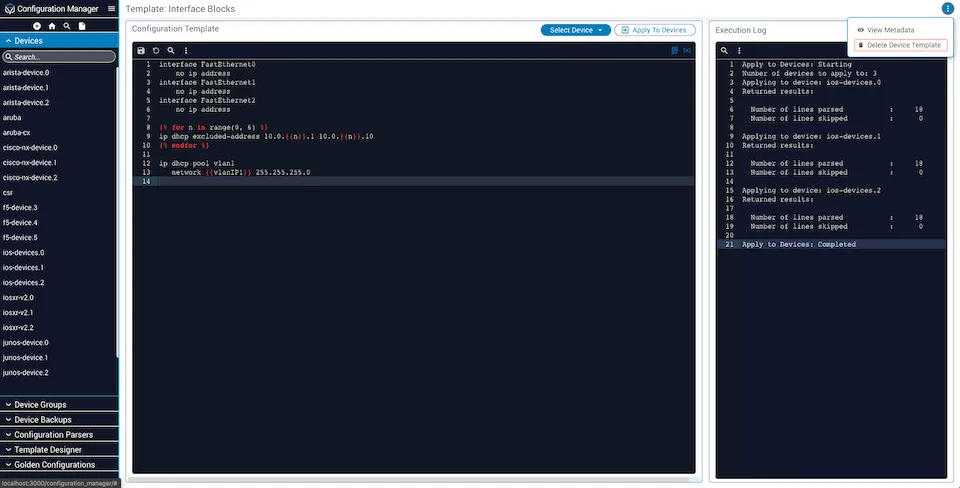
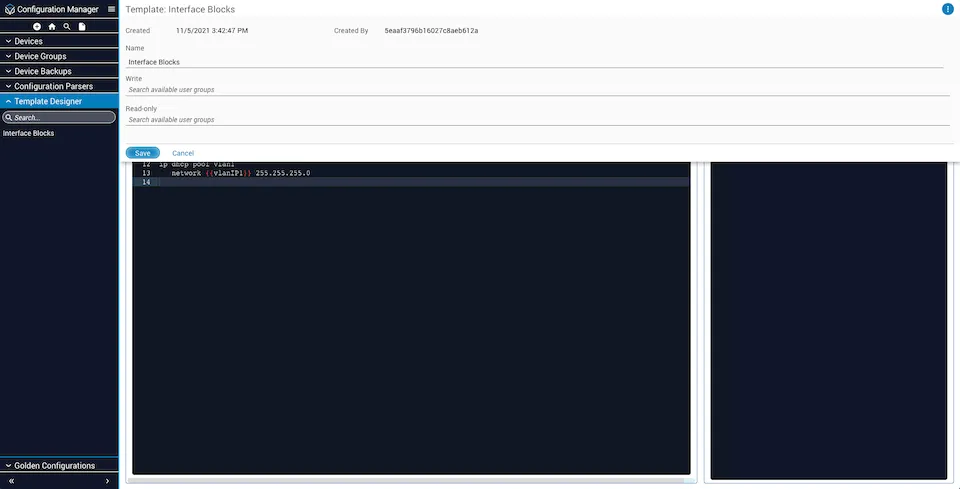
If you would like to modify the template name or template read-write permissions, you can do so by clicking the stacked three-dots button at the top right of your screen and selecting Edit Details.
From this screen you can rename your device template or change template permissions. You can retain your desired changes by clicking the Save button.
Apply a template
After creating a desired configuration, you can apply it to one or more devices.
Select devices
To select the devices you would like to apply the configuration to, hover over the Select Device button.
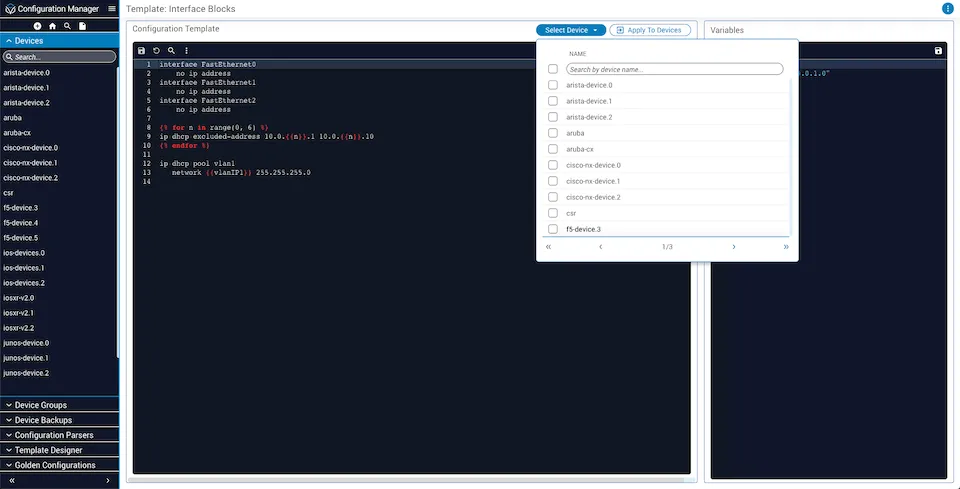
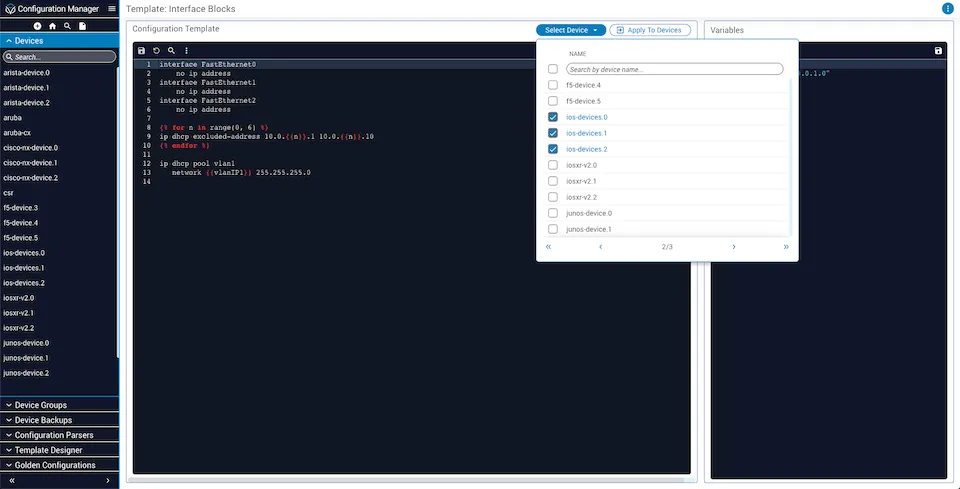
Hovering over the Select Device button will open a dialog with a device list. You can navigate through the list using the pagination controls or search for a specific device by name. Once you’ve found the devices you would like to apply the configuration to, select them by clicking the check boxes.
Apply to devices
Once you’ve made your device selections, click the Apply to Devices button. Clicking this button will open an execution log that will show you the current status of your configuration application request. This execution log will also tell you when the process has been completed.