

Manage users and groups

User and group management controls access and permissions in Itential Cloud. Use these tools to configure security settings and manage identity for your organization.

Users

To view and manage users, select Administration → Users from the sidebar.
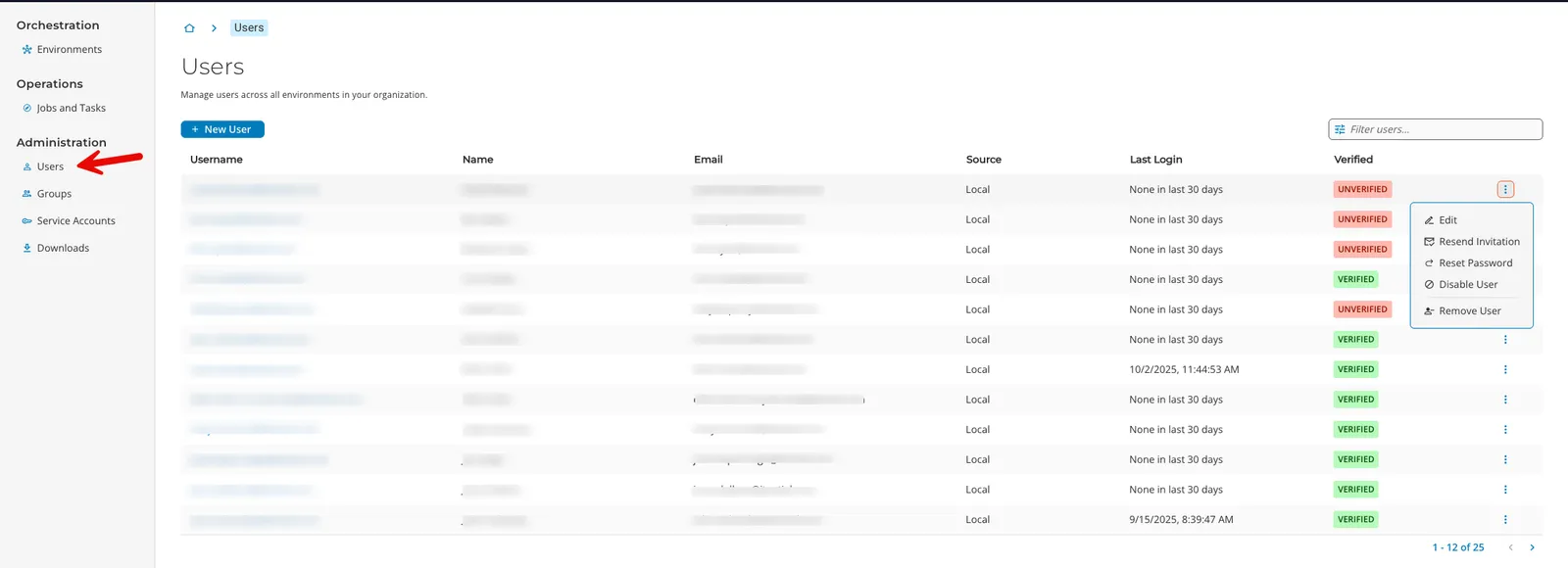
Users table in Cloud Hub

The users table shows all user accounts in your Itential Cloud account. Each user belongs to an identity provider, which handles authentication. All Itential Cloud accounts include a built-in identity provider called Local. If you have SSO configured, additional identity providers appear in the list.

The users table includes the following columns:

  • Source: The identity provider that manages the user. Local indicates the built-in identity provider.
  • Verified: Applies only to Local identity provider users.
    • Unverified: The user received an invitation but hasn’t signed in yet.
    • Verified: The user has signed in at least once and verified their identity.

Add a new user

You can only add new users to a Local source. If you are using SSO, manage users through your identity provider.

1

Open New User

Click + New User.

2

Enter user details

Enter the user’s first name, last name, and email address.

3

Save

Click Add to create the user, or Cancel to back out.

Edit user account settings

1

Locate the user

Find the desired user account in the Users table.

2

Open the user record

Click the user’s row, or select Edit from the More (⋮) menu.

3

Make changes

From the user’s account details page, toggle group memberships or select Edit from the More (⋮) menu to update user details.

4

Save

Click Save.

Reset a user’s password

1

Open the reset option

Select Reset Password from the More (⋮) menu on either the user list page or the user details page.

An email containing a password reset link is sent to the address associated with the account.

Password reset for accounts managed by an SSO identity provider must be done through the identity provider.

Remove a user

The impact of removing a user depends on their identity provider:

  • Local provider: The user is permanently deleted from your Cloud Hub account and cannot log in.
  • SSO provider: The user is removed from your account but still exists in your SSO provider. If you do not configure rules to block them, they can access their account again the next time they log in via SSO.
1

Remove the user

Select Remove User from the More (⋮) menu on either the user list page or the user details page.

Groups

Permissions are granted to user accounts and service accounts via membership in groups. A group contains a collection of roles, where each role corresponds to a permission. A user or service account that belongs to a group inherits all permissions granted by the roles assigned to that group.

To view and manage groups, select Administration → Groups from the sidebar.
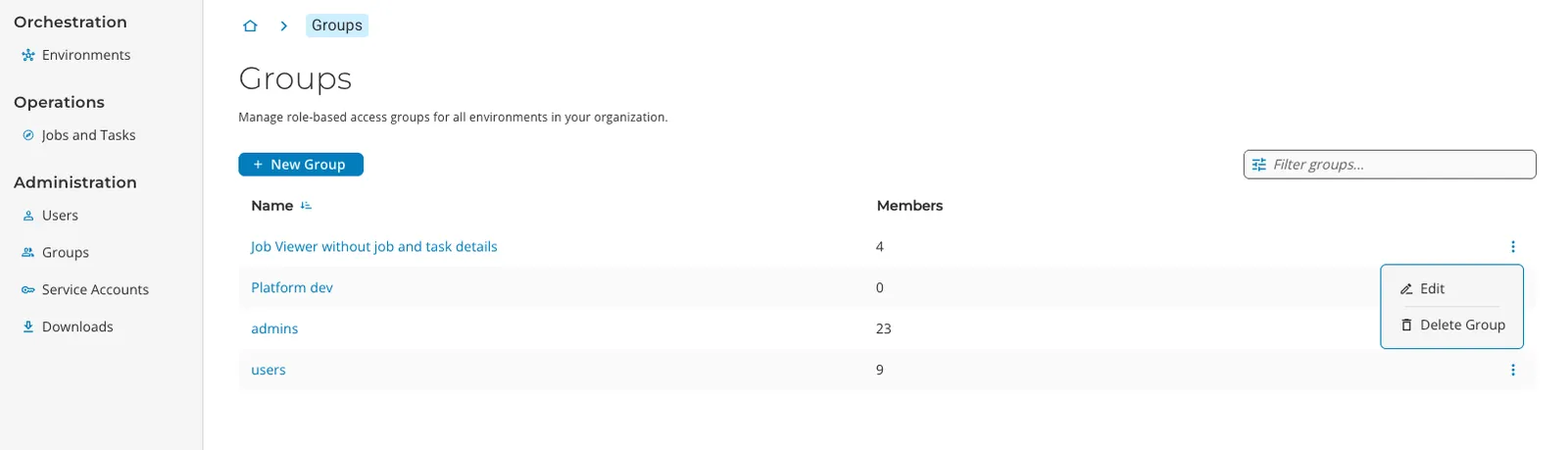
Groups page in Cloud Hub

Default groups

Every Itential Cloud account includes two built-in groups:

GroupDescription
adminsConfigured with all possible roles by default. Assign users to this group carefully, as they will have full permissions.
usersConfigured with read-only roles by default.

You can modify or delete these built-in groups to suit your organization’s security needs.

Create a new group

1

Open New Group

Click + New Group on the Groups page.

2

Name the group

Enter a name and an optional description.

3

Create

Click Create, or Cancel to back out.

Newly created groups have no users, service accounts, or roles assigned.

Assign users to a group

1

Open the group

Locate the desired group and click its row, or select Edit from the More (⋮) menu.

2

Select members

In the Group Settings window, click the Members tab and select the checkboxes of the desired user accounts.

3

Save

Click Save, or click the Groups breadcrumb to back out without saving.

Associating service accounts with groups is done through service account configuration.

Assign roles to a group

1

Open the group

Locate the desired group and click its row, or select Edit from the More (⋮) menu.

2

Select roles

In the Group Settings window, click the Roles tab. By default, all roles available across your Itential Cloud account are displayed. To show only roles for a specific application, select the application from the dropdown. Select the checkboxes of the desired roles.

3

Save

Click Save, or click the Groups breadcrumb to back out without saving.

Delete a group

1

Delete the group

Locate the desired group and click its row, or select Delete Group from the More (⋮) menu.

Deleting a group is permanent and cannot be undone.

Common tasks quick reference

TaskHow
Add a new team memberAdministrationUsersNew User → Enter details → Add
Grant access to a production environmentFind user → Add to production group → Save
Temporarily suspend accessAdministrationUsers → Select user row → More (⋮)Disable User
Remove an inactive userAdministrationUsersMore (⋮)Remove User
Create an access templateAdministrationGroupsNew Group → Enter details → Save → Select group → Assign members and roles → Save
Bulk assign permissionsAdministrationUsers → Select user → Toggle groups → Save