Use Form Builder

Form Builder in Platform versions 2023.2 and earlier allow developers to construct user entry forms that integrate with Itential Platform workflows. In addition to constructing forms with standard inputs, developers can create forms from imported NSO YANG Service Models using the NSO NETCONF API. This native integration with NSO Services reduces the effort of having to duplicate service modeling in both Itential Platform and NSO — changes made in NSO are automatically available for Itential Platform to consume.

Forms UI

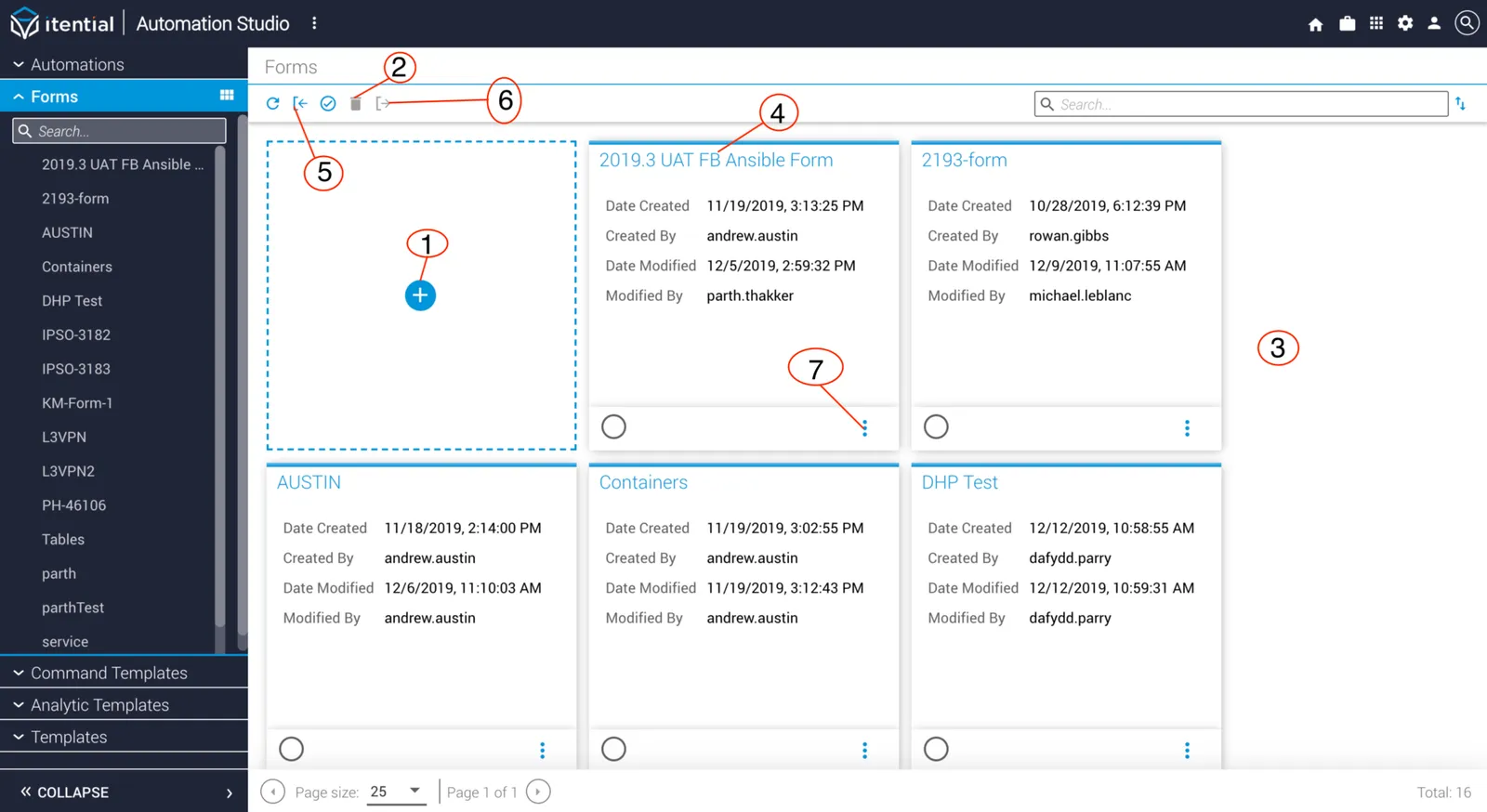
List view

Form Builder list view
LabelUI elementFunction
1New FormCreates a new form.
2DeleteDeletes the selected form.
3Form ListList of forms showing name, creator, creation date, last updater, and last updated date.

4EditOpens the form for editing.
5Import FormImports a form.
6Export FormsExports each checked form in the list.
7Edit FormsEdit, delete, and export a form.

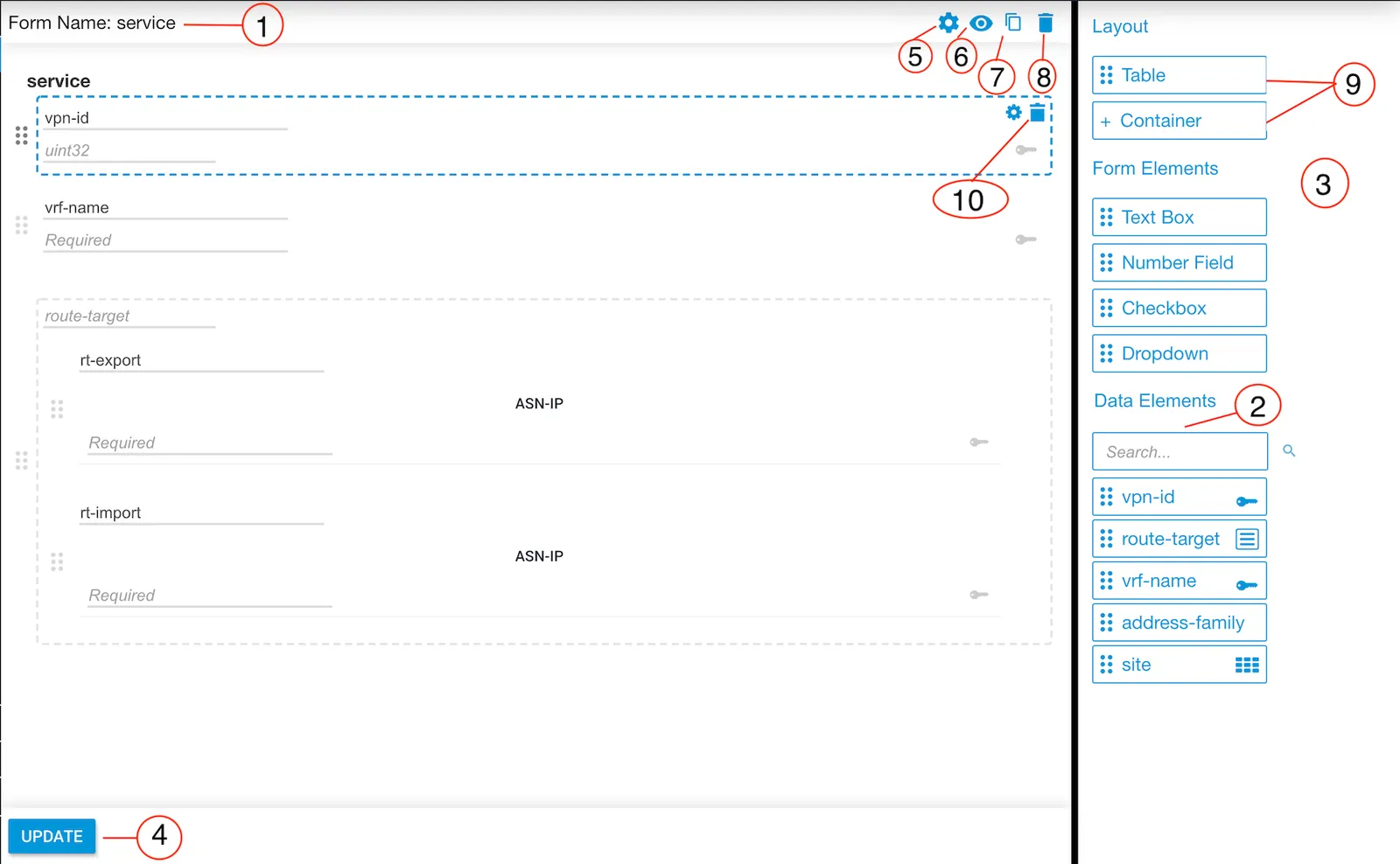
Edit view

Form Builder edit view
LabelUI elementFunction
1Form NameA unique form name must be provided.
2Data ElementsDisplays a list of registered NSO services.
3Meta Data FieldsDefine custom fields in the form.
4UpdateUpdates the form and keeps the Form Editor open.
5SettingsOpens a modal to change the form settings.
6PreviewOpens a modal to preview the form.
7CloneMakes a copy of the current form.
8Delete FormDeletes the current form.
9Add Container/TableAdds a field container or table to the form.
10DeleteDeletes the selected form element.

Create a new form

1

Open Form Builder

Open Form Builder from the Home page or the Applications menu.

2

Create the form

Click New Form in the top-right corner of the title bar.

3

Name and save

Give the form a unique name and click Save.

Export a form

Export a single form

1

Open Form Builder

Open Form Builder from the Home page or the Applications menu.

2

Export

Locate the form in the list and click the export icon at the far right of that row.

Export multiple forms

1

Open Form Builder

Open Form Builder from the Home page or the Applications menu.

2

Select forms

Check the checkbox for each form you want to export.

3

Export

Click Export Forms in the top-right corner of the title bar.

Import a form

1

Open Form Builder

Open Form Builder from the Home page or the Applications menu.

2

Open the import dialog

Click Import Form in the top-right corner of the title bar.

3

Select and open the file

Select the form data file you want to import and click Open in the file dialog.