

Profiles
In Itential Platform 2023.2 and earlier, the Profiles page contains the Applications, Adapters, and Configure tabs, and depending on authorization settings, the Indexing tab.
The iap_profiles collection holds the active profile settings. Most configuration for the active profile happens within Admin Essentials > Profiles, but additional configuration can occur in the various Service Config interfaces and within the properties.json file.
Applications tab
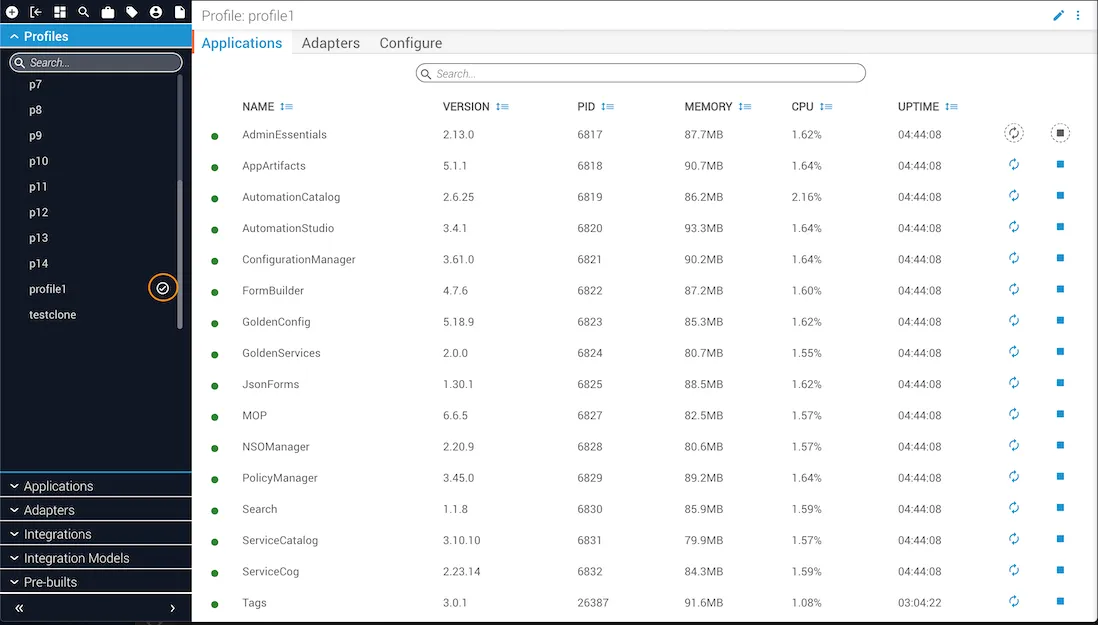
When viewing an active profile, the profile is marked by a circled check mark next to the profile name in the Profiles list. The Applications tab displays a grid with status information for each application and lets you stop, start, or restart each application as needed. This tab updates every 60 seconds while open.
Adapters tab
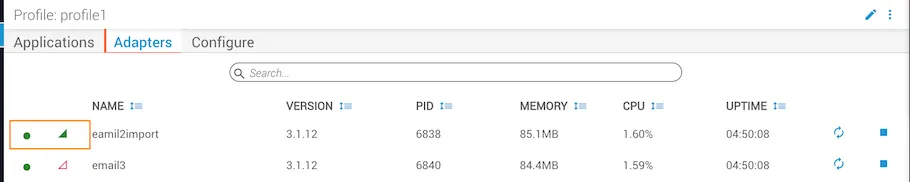
The Adapters tab displays a similar grid, with a status indicator and connection icon for each adapter showing whether it is properly connected. This tab also updates every 60 seconds while open.
Configure tab
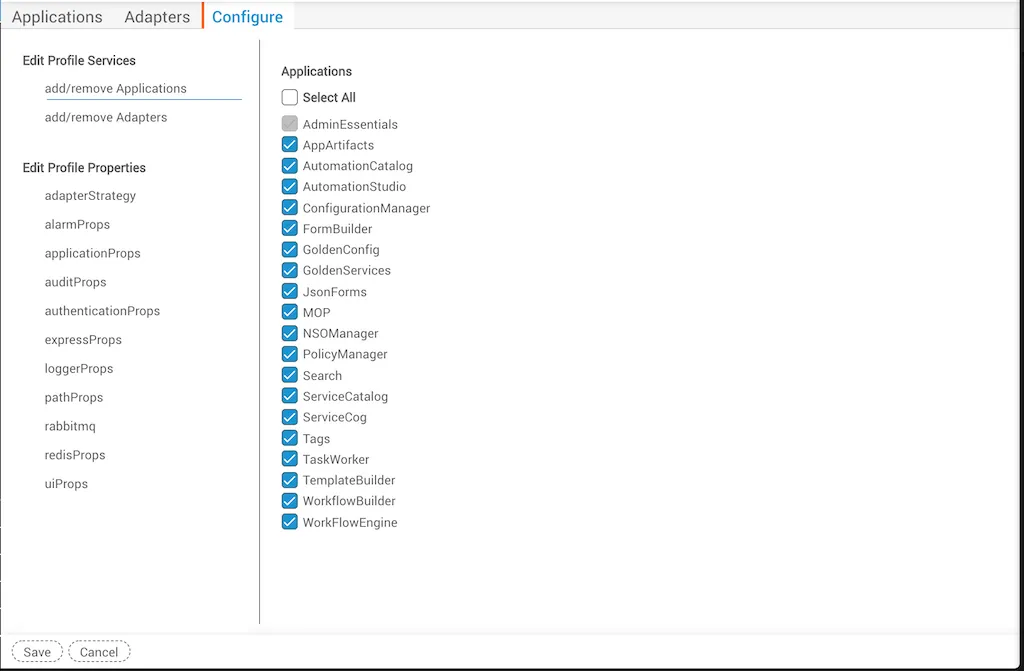
The Configure tab lets you add or remove adapters and applications from the active profile by selecting or deselecting the checkbox next to each item. You can also edit profile properties from this view.
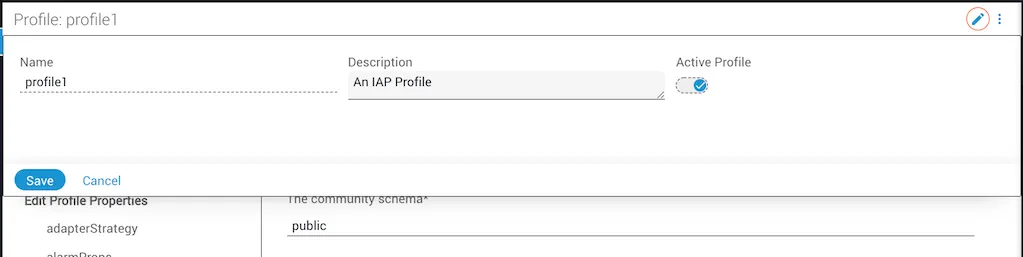
When a profile is selected for editing, its properties are displayed as a form.
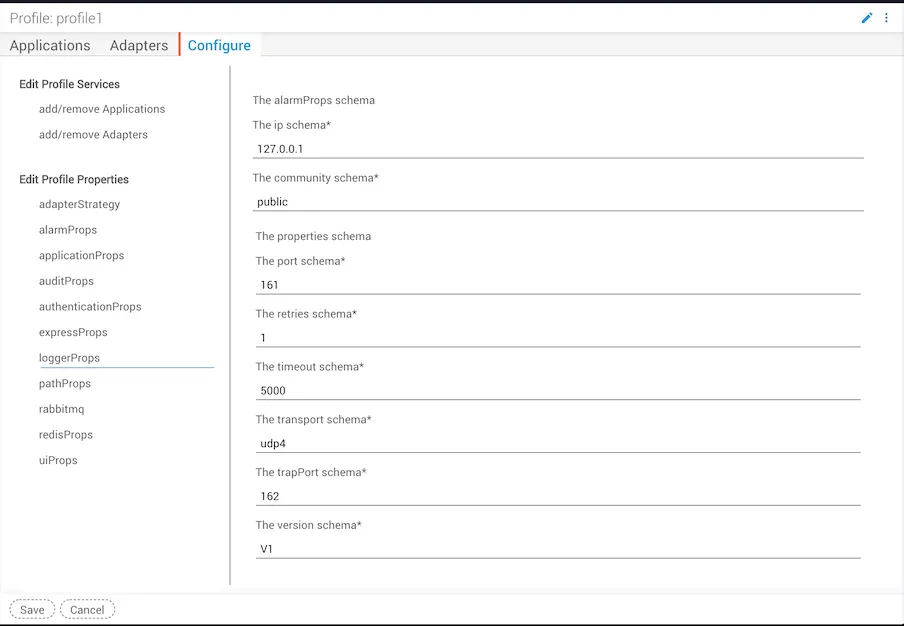
Click the pencil icon in the top-right to edit the profile. If the profile is not already active, use the toggle to set it as active. Click the More button (stacked dots next to the pencil icon) to clone the profile or delete it if it is not the active profile.
Indexing tab
To access the Indexing tab, a user must have access to the getIndexes method. With this permission, the user can perform all actions on the page, including directing Itential Platform to create indexes on the database.
Assign the getIndexes permission with care.
The indexing grid is accessible from the active profile only and displays a list of indexes present on the system along with their validity status.
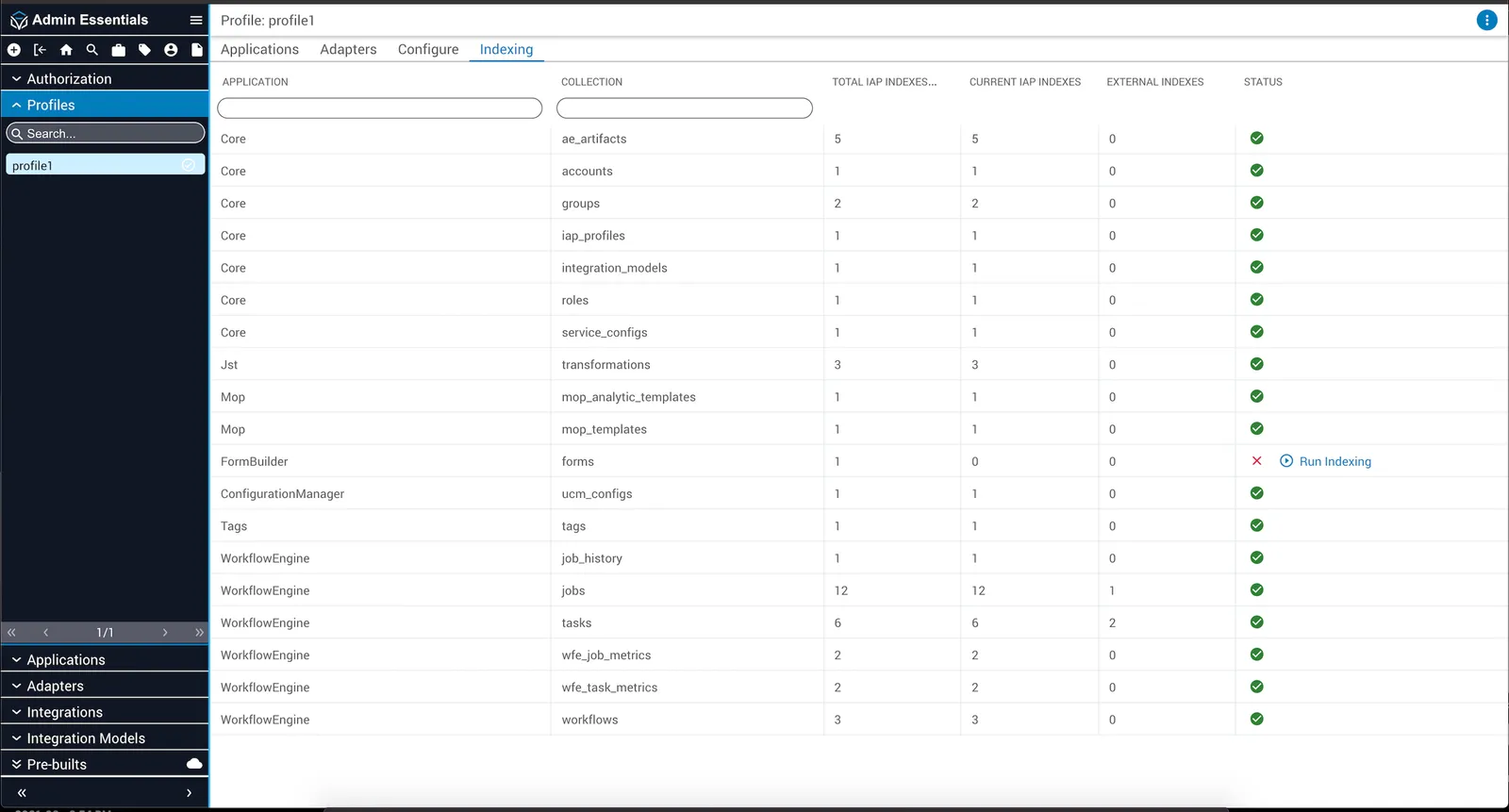
The Run Indexing button is available when an index is missing or misnamed. Running indexing can take anywhere from a few seconds to 30 minutes or more. While the process runs, a loader is displayed and the dialog polls periodically to check for completion. If the dialog is closed, polling stops and resumes when the dialog is reopened.