Navigate Operations Manager

Operations Manager (Ops Manager) provides a single, unified view into all automations inside Itential Platform. The automations feature in Ops Manager allows you to control when, how, and with what data a workflow should run.

Operations Manager UI

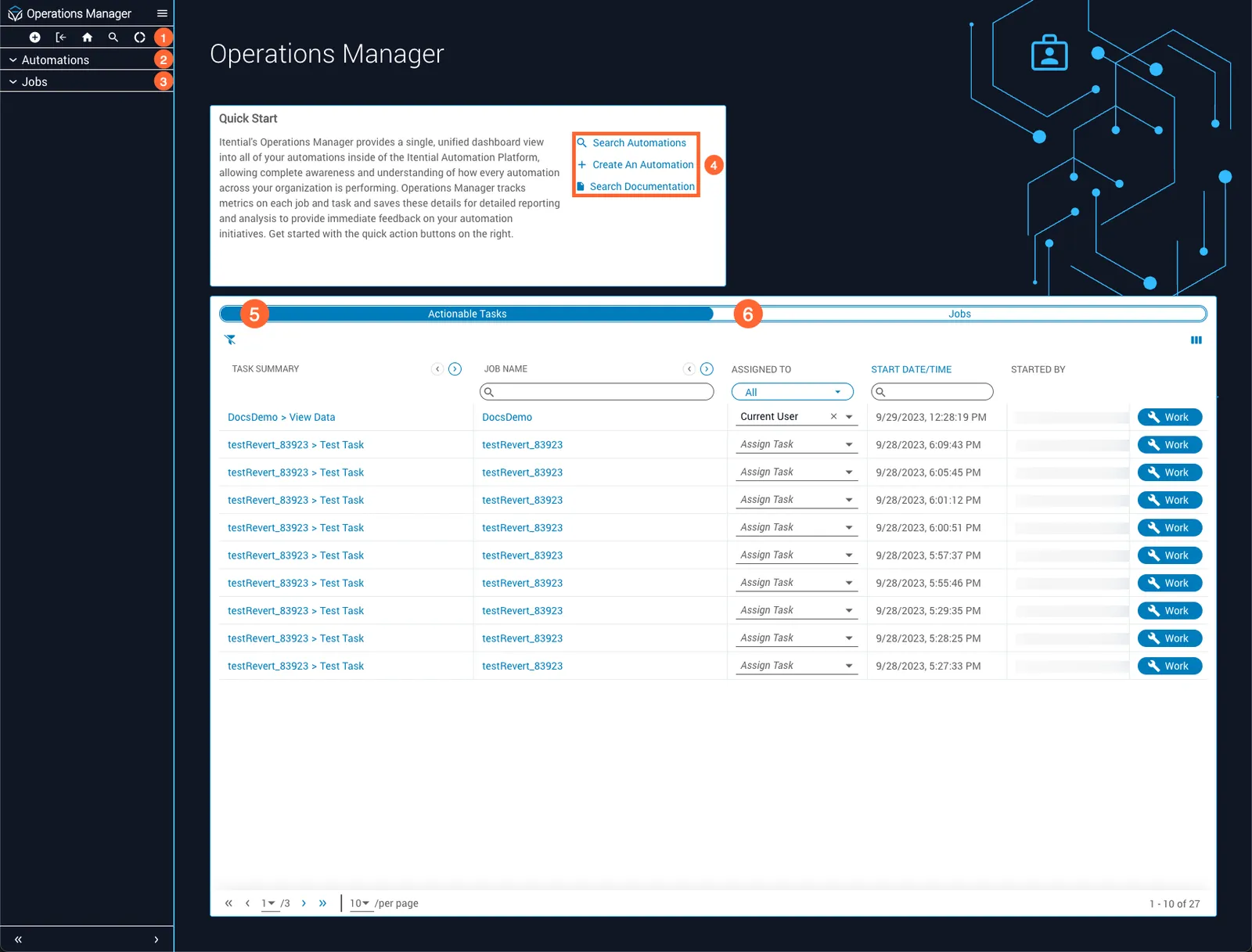
The main icons and features of the Operations Manager home page are described in the table below.

Operations Manager home page
LabelUI elementFunction
1Icon BarShortcuts to commonly used actions and features. These are, from left to right: Create, Import, Home, Search, and Job Metrics. See the Icon Bar section below for more detail.
2Automations MenuLists available automations. See the Automation Details section below for more detail.
3Jobs MenuLists recently opened jobs and job category filters.
4Quick Start CardContains links to finding an automation, creating a new automation, and searching Itential documentation.
5Actionable Tasks tabLists workable tasks and retryable tasks.
6Jobs tabLists jobs and allows several common job management actions to be performed.

Icon bar

The following table describes the features accessible through the Operations Manager icon bar.

FeatureDescription
CreateCreate a new automation.
ImportImport an automation in .json file format.
HomeNavigate to the Operations Manager home page.
SearchDisplays the Automations Collection view.
Job MetricsDisplays the Job Metrics Overview window.

Automations collection view

The Automations Collection view is where you can view all of your automations, perform bulk actions, and run automations that have manual triggers. To access this view, click the search icon (magnifying glass) in the top-left toolbar of the Operations Manager UI.
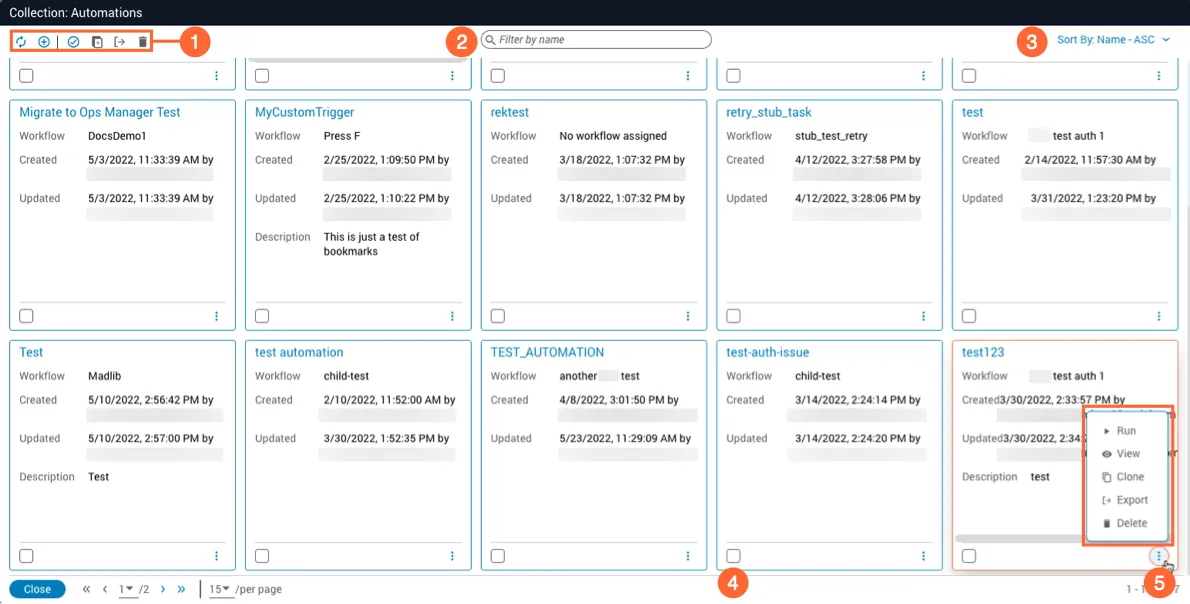
Automations Collection view
LabelUI elementFunction
1Collection ToolbarAction icons within the Automations Collection view. These icons (from left to right) are: Refresh, Create, Select All, Clone, Export, and Delete.
2Search BarSearch and filter automations by name.
3Sort DropdownSort automation names in ascending or descending order.
4Select BoxChecked when an automation is selected.
5Menu ButtonAction icons within the automation card menu button. These options (from top to bottom) are: Run, View, Clone, Export, and Delete.

Action icons in Automations Collection

The action icons available in the Automations Collection view are described in the table below.

IconDescription
RefreshRefreshes the current automations in the grid.
CreateOpens the Create Automation modal.
Select AllSelects or deselects all automations in the collection view.
CloneClones the selected automation.
ExportExports the selected automation. One .json file is downloaded per automation selected.
DeleteDeletes selected automations.

Automation card menu options

The actions available within the menu button (⋮) of the automation card are described in the table below.

Automation card menu options
Menu itemDescription
RunRuns the automation.
ViewOpens the Automation Details view for the automation.
CloneClones the automation.
ExportExports the current automation and assigned triggers to a .json file.
DeleteDeletes the automation.

Automation Details in Ops Manager

The Automation Details view in Operations Manager is the hub for managing your automation and its associated triggers. To access this view, select any available automation listed in the Automations menu on the left.
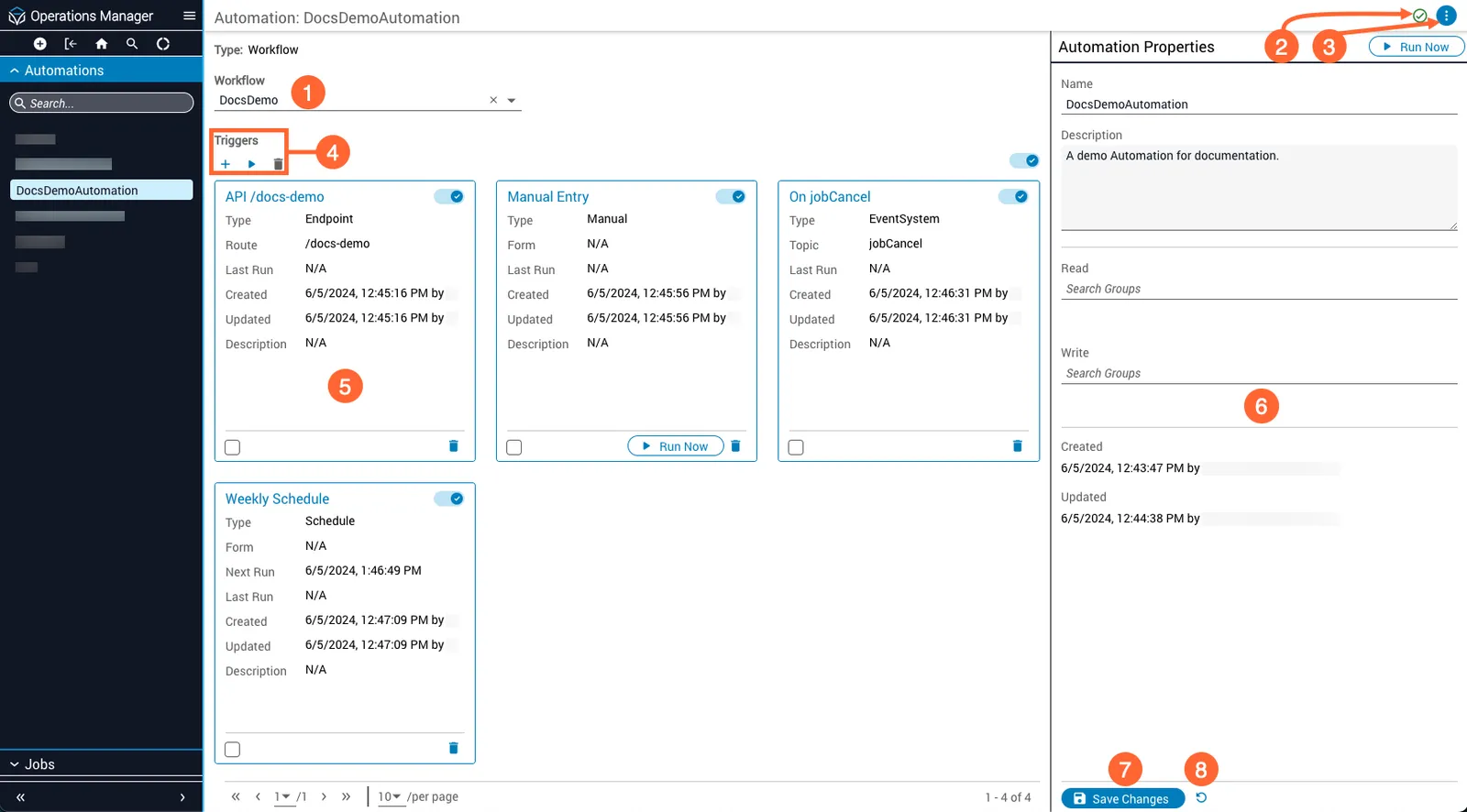
Automation Details view
LabelUI elementFunction
1WorkflowDropdown used to select and assign a workflow to the automation.
2Validation Check/View ErrorsTracks and displays automation errors.
3Menu ButtonDisplays action icons for the current automation: Run Now, Clone, Export, and Delete. See Action icons for Automation Details below.
4Triggers ToolbarDisplays action icons to run automations using triggers: Create Trigger, Run Now, and Delete Selected Triggers.
5Automation PropertiesPanel used to display and edit automation properties.
6Trigger CardsCards used to manage the triggers used to run an automation.
7Save ChangesSaves any changes made to Automation Properties.
8Undo ChangesReverts any unsaved changes made to Automation Properties.

Action icons for Automation Details

The action icons within the Automation Details menu button perform operations on the current automation.

IconDescription
Run NowOpens the Run Automation panel, from which you can select a manual trigger.
CloneClone the current automation, including any assigned triggers.
ExportExport the current automation and assigned triggers to a .json file.
DeleteDelete the current automation.

Automation properties

The Automation Properties panel provides an interface to view and edit detailed information about the automation and update its permission groups.
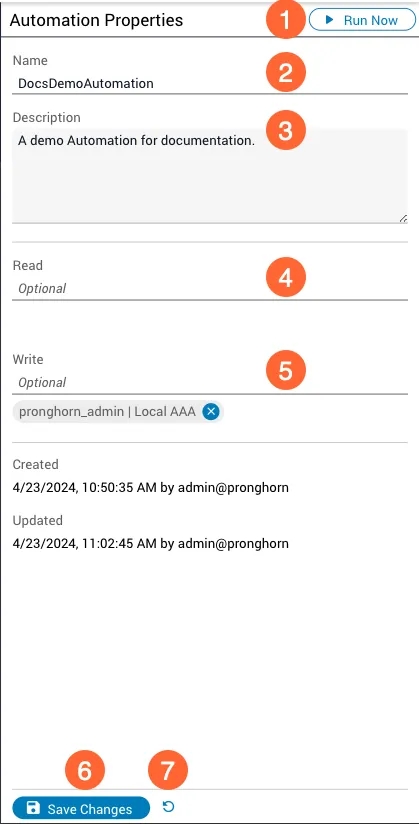
Automation Properties panel
LabelUI elementFunction
1Run NowOpens the Run Automation panel, from which you can select a manual trigger to run the current automation.
2NameInput or edit the name of the automation.
3DescriptionOptional. Add or change a description for the automation.
4Read GroupOptional. Select Read permission groups for the automation. Read-only groups have permission only to view and execute an automation.
5Write GroupOptional. Select Write permission groups for the automation. Groups with write permissions are authorized to change, view, and execute an automation.
6Save ChangesSave any changes made to Automation Properties.
7Undo ChangesRevert any unsaved changes made to Automation Properties.

Clone an automation with API triggers

An important limitation applies when cloning an automation with one or more API triggers: the routeName property of an API trigger must be unique among enabled triggers. For this reason, Operations Manager disables all API triggers when cloning an automation. You must manually choose new route names for the cloned API triggers in the new automation before they can be re-enabled.

Automation error handling

Your automation is continuously evaluated for errors as you work — for example, references to non-existent access groups, misconfigured triggers, or missing documents such as forms, JSON Schema Transformations (JSTs), and workflows. When no errors are detected, the Passed Validation icon is displayed near the top-right corner of your automation.
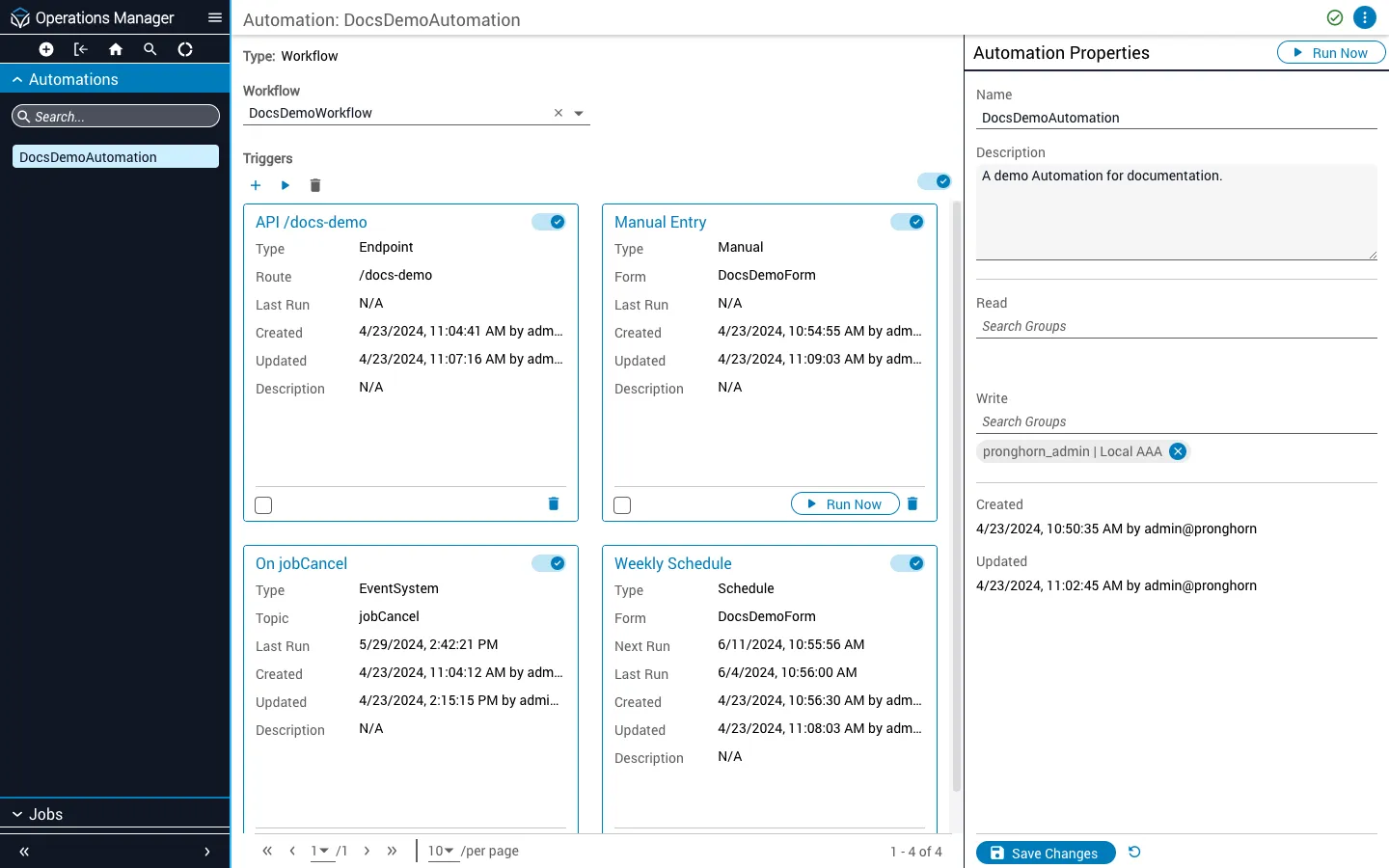
Validated automation

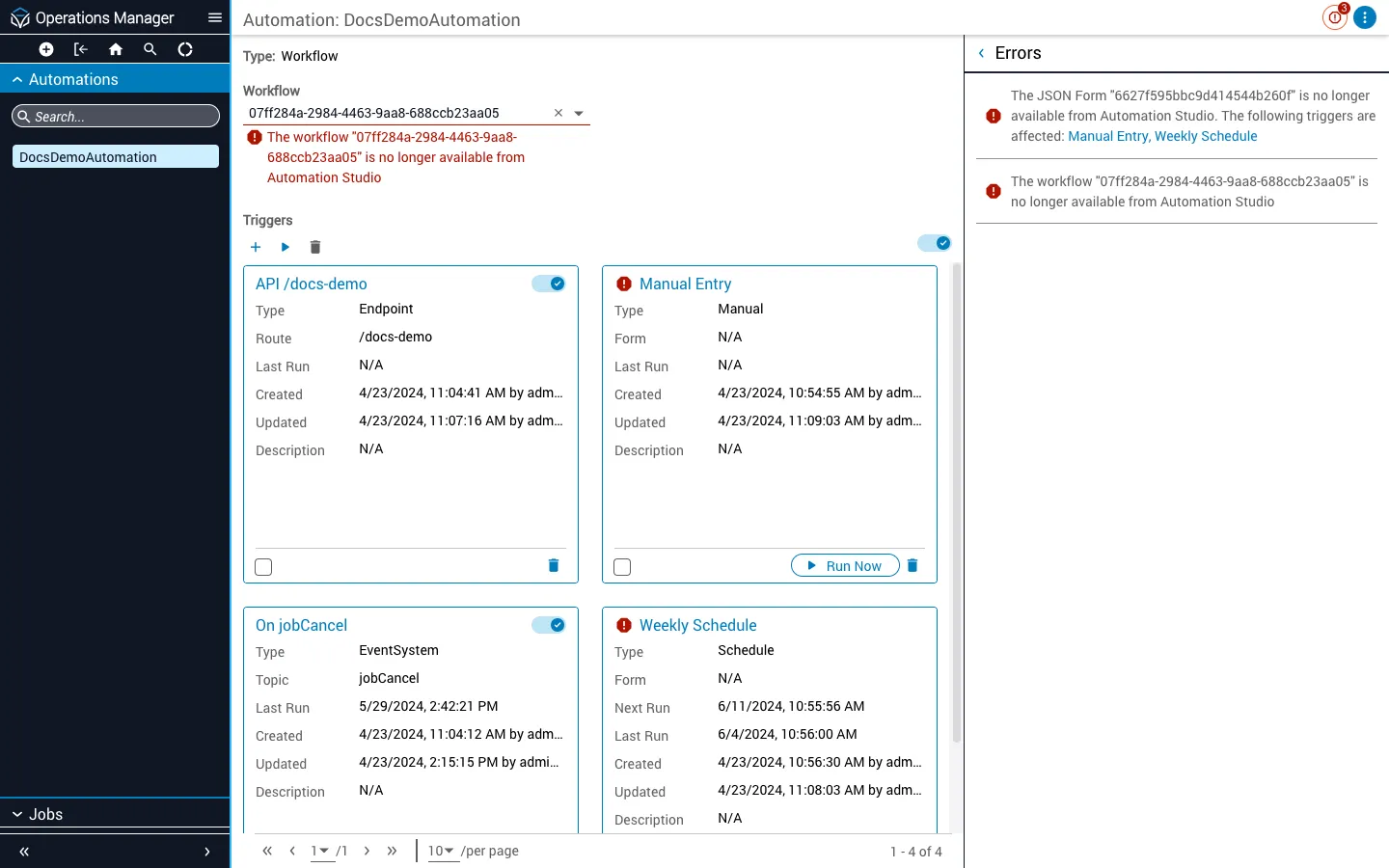
If your automation does not pass validation, the View Errors icon is displayed instead. Clicking it opens the Errors Panel, a full list of the problems affecting your automation. When appropriate, items in this list contain a hyperlink to the affected component, creating a centralized hub for error remediation.

Errors panel

Automation components in an error state are also marked on the UI via the Error icon.

Enable optional features in Ops Manager

Optional features can be enabled or disabled for Operations Manager by setting the appropriate properties via its service configuration. This section demonstrates how to use Admin Essentials to set those properties and provides a reference list of configurable properties.

Configure properties
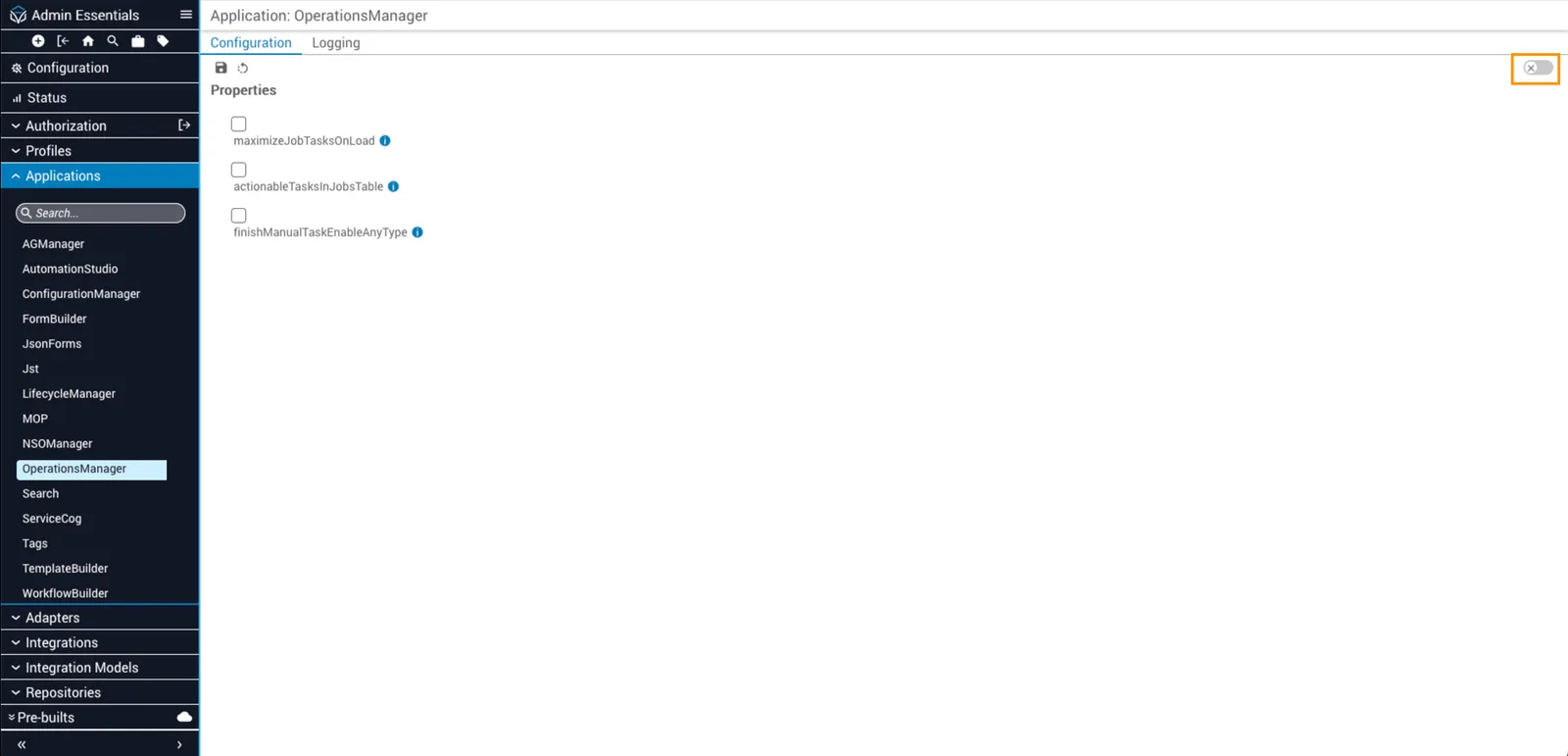
1

Open Admin Essentials

Launch Admin Essentials from the Itential Platform dashboard.

3

Enable or disable properties

Click a property’s checkbox to enable or disable it. If a blank screen displays, toggle the Advanced View switch on the right to open the Service Config editor and add the property manually.

4

Save

Click the Save button above the Properties list to save your changes.

Operations Manager Configuration tab
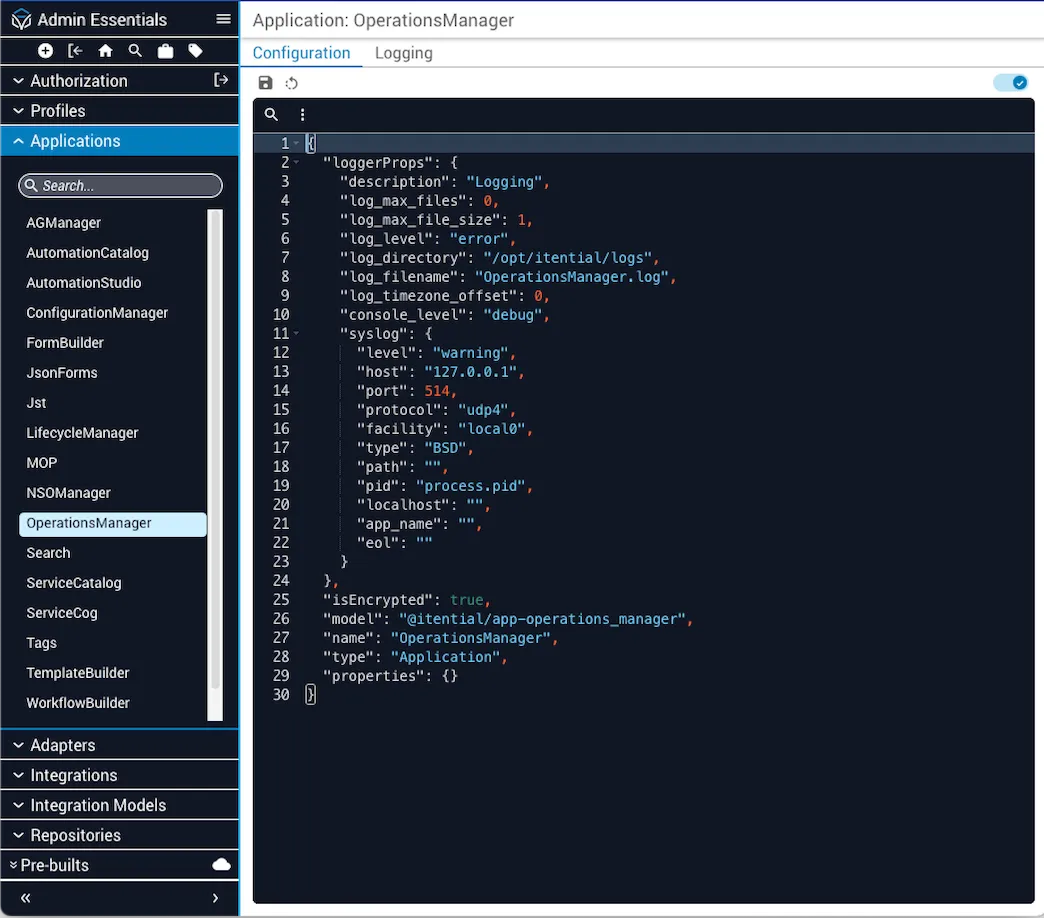
Operations Manager Service Config editor (Advanced View)

Configurable properties

The following properties can be enabled or disabled for Operations Manager.

PropertyDescription
maximizeJobTasksOnLoadMaximizes the Job Details panel by default when opening job visualizations.
actionableTasksInJobsTableAdds an Actionable Tasks column to the Jobs table listing all actionable tasks in each displayed job. You can also claim actionable tasks from this column. For performance reasons, enabling this feature limits the maximum number of rows displayed in the Jobs table to 50.
finishManualTaskEnableAnyTypeEnables the finishManualTask API to finish non-manual tasks.

Service Config editor

Properties can also be enabled or disabled via the Advanced editing view, which displays the current service configuration in JSON format. For example, to enable the maximizeJobTasksOnLoad property, define it under the properties key as follows:

1"properties": {
2 "maximizeJobTasksOnLoad": true
3}

The maximizeJobTasksOnLoad property displays the workflow within the Job Details view, which is useful for users who prefer to see the workflow canvas while jobs are running. When enabled, users can also enlarge the workflow canvas for better visualization.
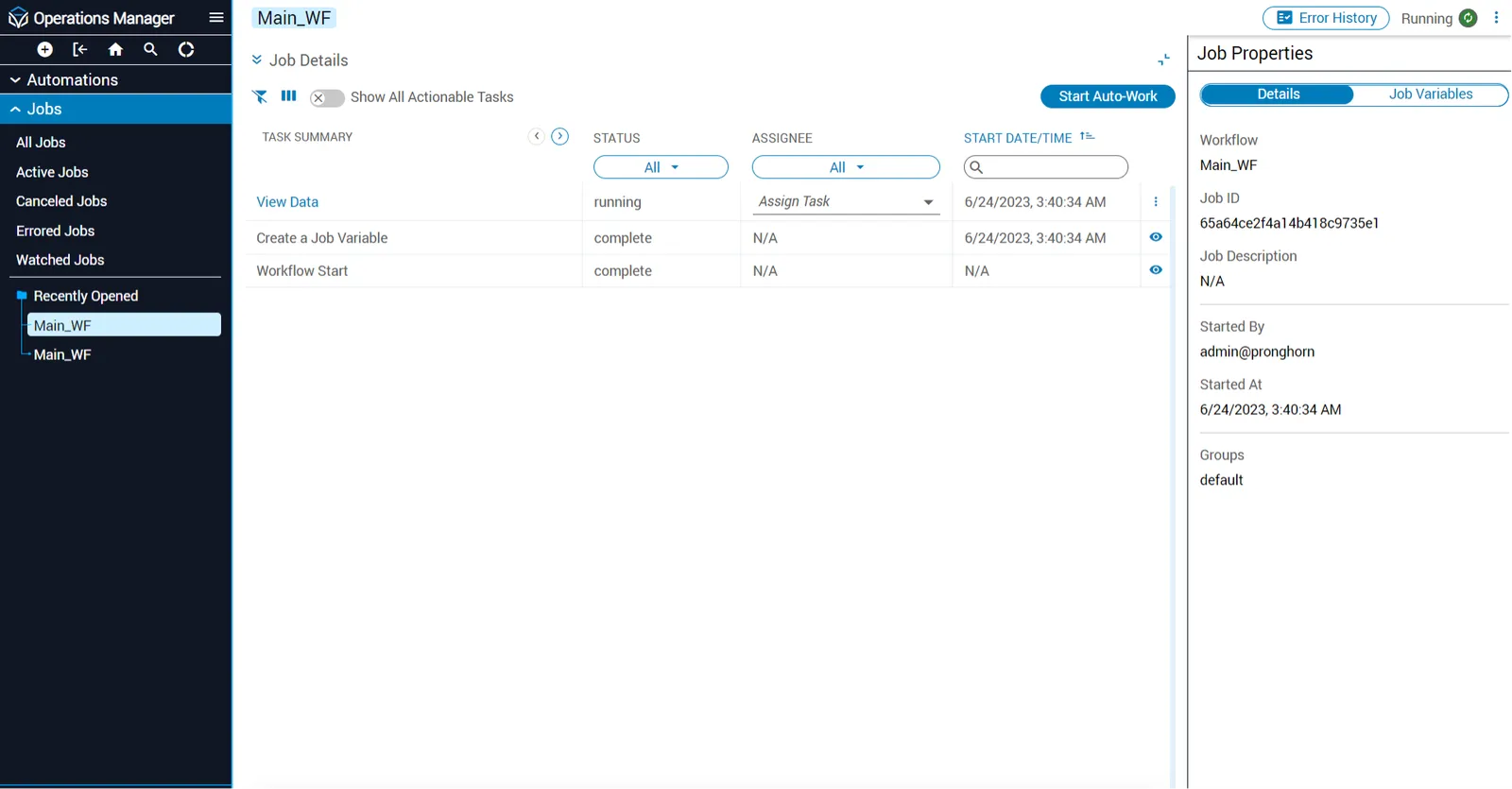
Job Details view with maximized canvas