Service Catalog and Service Catalog Builder

See related notice: Platform 6 Breaking Change

Service Catalog and Service Catalog Builder are separate applications on the Itential Platform welcome page, but they work together. Service Catalog uses forms, NSO service models, and workflows to provision services in Itential Platform — it allows you to pass form data into a workflow used for service instantiation. Service Catalog Builder defines the services that can be provisioned in a workflow. Authorization to provision services through Service Catalog is based on job groups and designated group memberships.
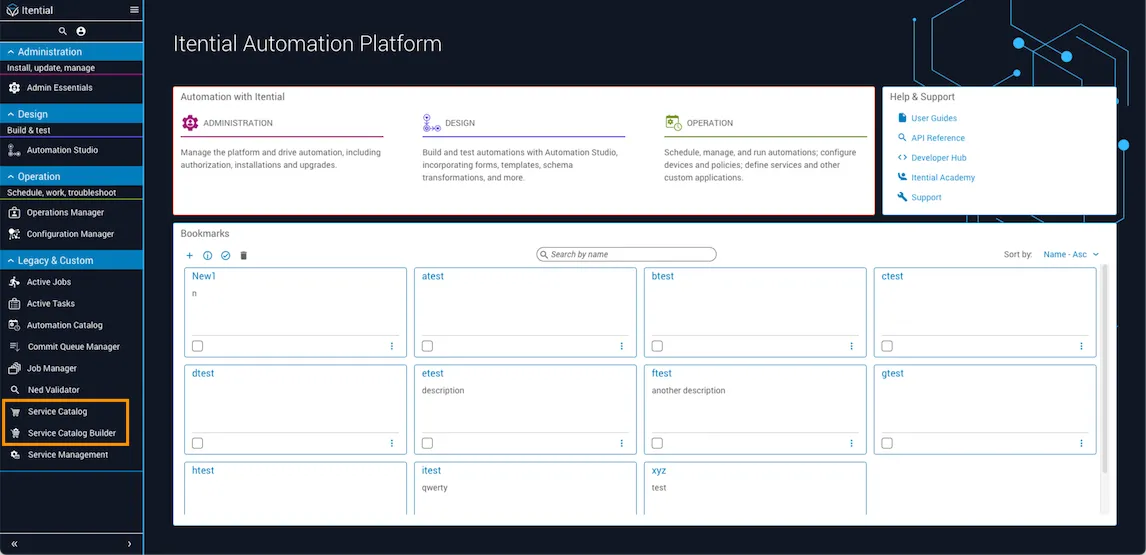
Service Catalog and Service Catalog Builder on the welcome page

When you access Service Catalog for the first time, an empty table list may appear, indicating there are no existing services from which to start a job.

Service Catalog — empty list

Create a service

1

Open Service Catalog Builder

Click the menu icon in the top toolbar and select Service Catalog Builder from the dropdown.
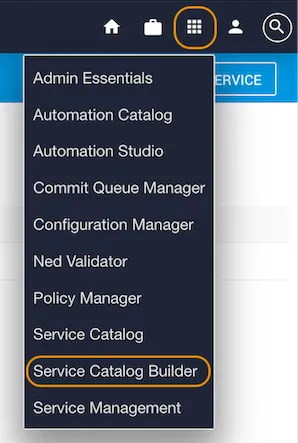
Service Catalog Builder in the menu
2

Add a new service

Click the Add Service button (upper-right). A service form displays.

Add New Service form
3

Fill in all required fields

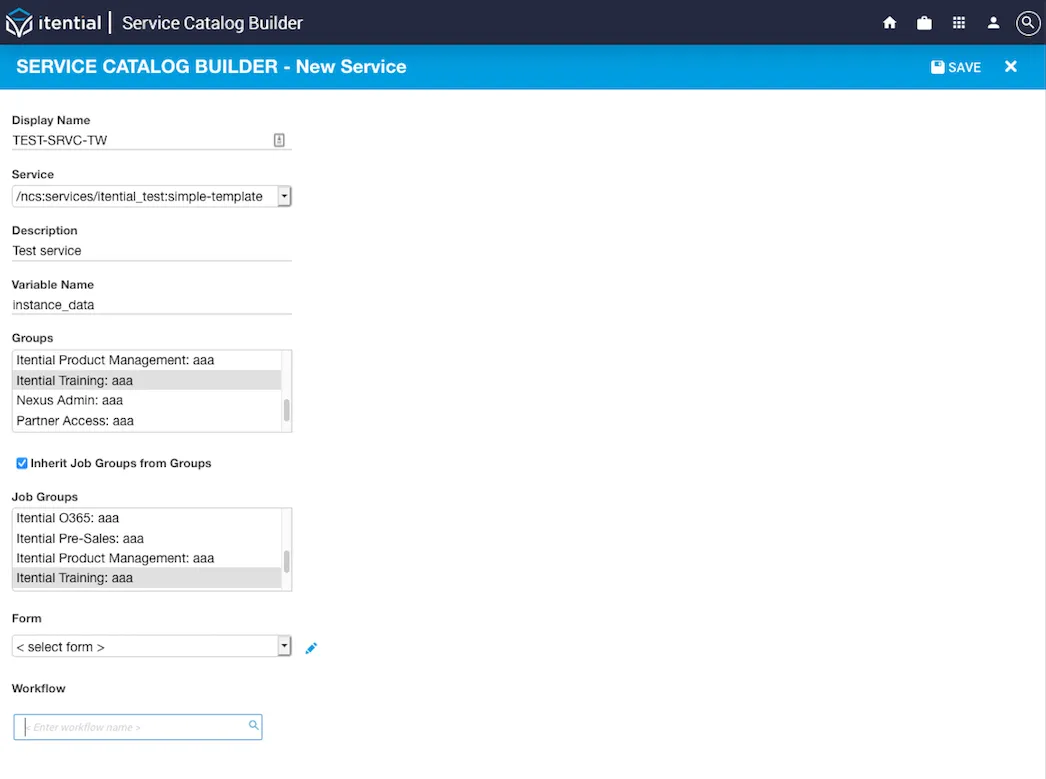
Enter the required information for the service. All fields are mandatory.

Create New Service — all fields
FieldDescription
Display NameThe name that displays in the Service Catalog application list.
ServiceThe service model to create an instance on. A list of all service models is available in the Service Manager application.
DescriptionA brief description of the service to display in the Service Catalog list.
Variable NameThe name to use in the workflow as the variable.
GroupsIndicates who has access to create and run an instance, who can view the results, and who can work the instance after it has run.
Inherit Job Groups from GroupsWhen checked (default), sets the Job Groups field to match the Groups field. Uncheck to select a customized list of groups for run permissions.
Job GroupsDesignates which job groups can create a service instance and initiate a workflow.
FormA form to pass through your workflow.
WorkflowThe workflow to run.
4

Save

Click Save. A success banner displays and the new service appears in the Service Catalog Builder list.

New service added to the list

Delete a service

From Service Catalog Builder, select the checkbox next to a service and click the delete icon (lower-right) to remove the service.
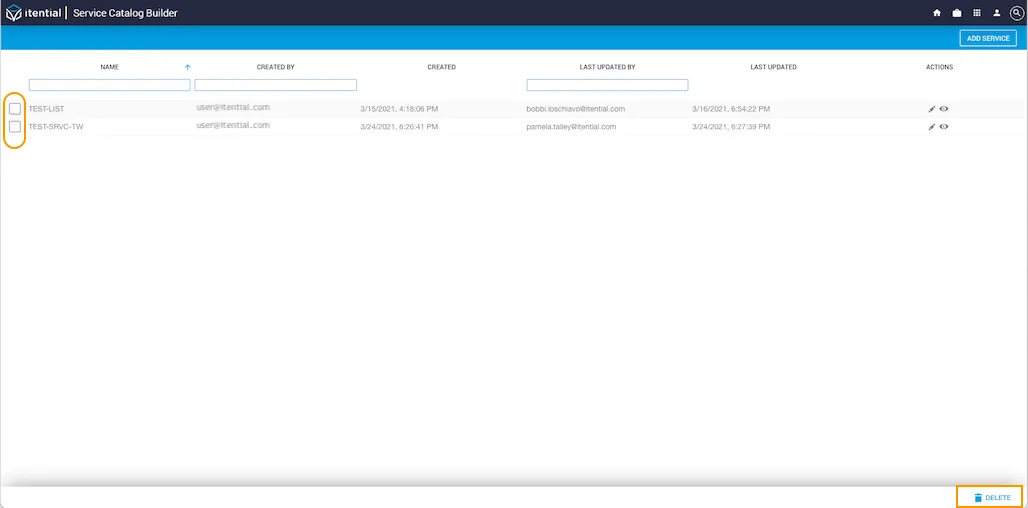
Delete service from the list

Update a service

1

Open the service form

From Service Catalog Builder, click the pencil icon under the Actions column. The service form displays.

Edit service — pencil icon in Actions column
2

Make changes and save

Make the desired changes and click Update.
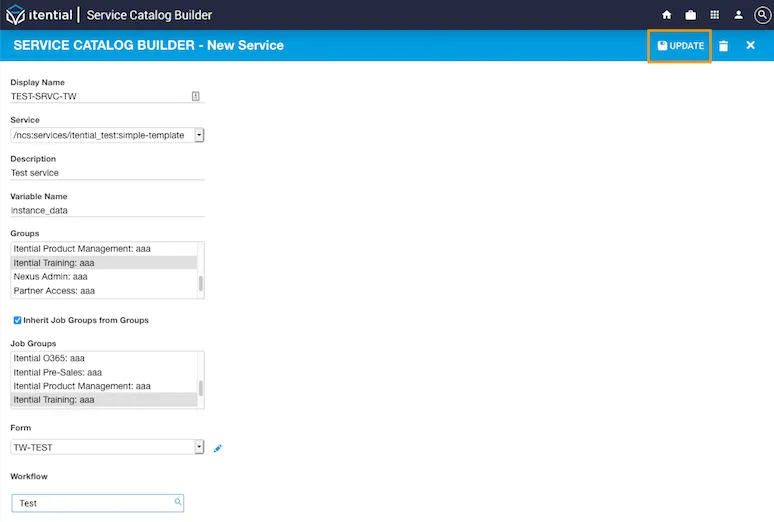
Update service form

Use the Inherit Job Groups from Groups checkbox to set the same group for both permissions, or uncheck it and select a customized list of job groups.

3

Confirm

A confirmation banner displays to verify the updates were saved successfully.

Update confirmed
4

Close

Click the exit button to close the updated service form.

Start a job

1

Open Service Catalog

Click the menu icon (top toolbar) and select Service Catalog. The service list displays.

Service Catalog — service list
2

Open the job form

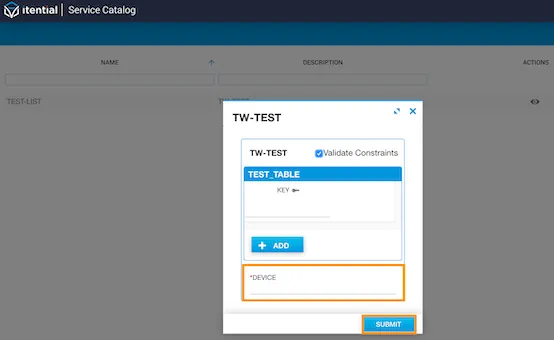
Click the view icon in the Actions column for the desired service. A job form displays.

View service — job form
3

Submit the job

Enter the job name and device, then click Submit.

Run service — submit the job
4

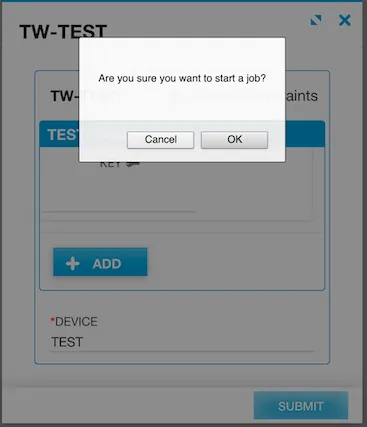
Confirm

A confirmation dialog asks if you want to start the job. Click OK.

Confirm job start
5

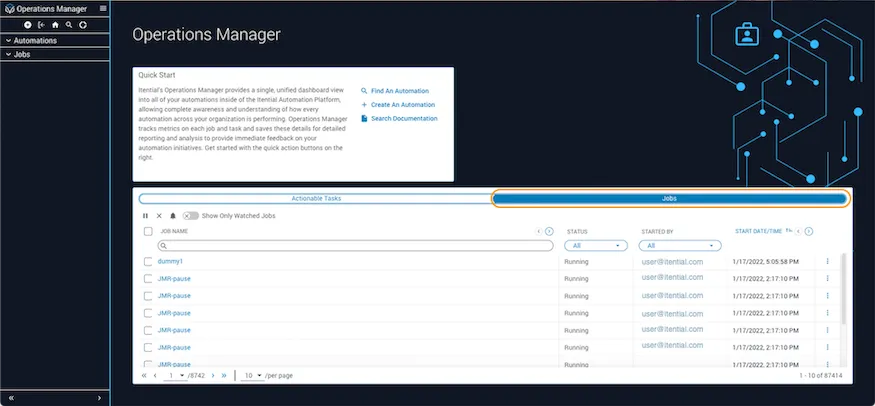
View results in Operations Manager

The job results display in Jobs within Operations Manager.

Job results in Operations Manager