

Manage AAA sources through profiles
Itential Platform supports integration with several Authentication, Authorization and Accounting (AAA) sources. Upon initial installation, the system uses a local AAA service. This is often replaced with an external source such as OpenLDAP or Active Directory Domain Services. Access to the Platform will be denied if the AAA source is unavailable.
Itential Platform supports one active AAA source at a time. To provide redundancy, multiple AAA sources can be configured on the system. For example, if the Platform is integrated with a single LDAP server and that server becomes unavailable, users cannot log in. A secondary AAA source can be configured in advance so that operators can manually switch to it if the primary source becomes unavailable.
AAA sources cannot be federated by enabling multiple sources simultaneously. Doing so may prevent users from logging in to Itential Platform.
Managing AAA sources via profiles
A profile designates the specific services (applications and adapters) that should be enabled on the Itential Platform server. It is loaded on system startup as defined in the properties.json file. When an application or adapter is installed and configured, it can be enabled or disabled per profile. To manage multiple AAA sources via profiles:
- Configure the relevant AAA adapters on the Itential Platform system.
- Add these adapters to separate Itential Platform profiles.
- Change the active profile based on which AAA source is to be used.
Only one Itential Platform profile may be active at any time. After making a new profile active, Itential Platform must be restarted for the changes to take effect.
Configure AAA adapters
All relevant AAA adapters must be configured first. Adapters are the software components that handle sending and receiving data to and from external systems. A broker is responsible for delivering certain types of data to an adapter — AAA adapters (LDAP, AD, RADIUS) must be configured with the aaa broker to receive AAA-specific requests.
Open Admin Essentials
From the dashboard, launch Admin Essentials. This application is only available to administrator-level users.
Select the adapter
Expand Adapters in the Admin Essentials side navigation and select the adapter you want to configure.
Review and update the service config
The adapter’s service config displays. The example below shows the Local AAA adapter configuration with Advanced view enabled (toggle in the upper-right corner to show JSON format). The key configuration is the brokers array — aaa must be present for the adapter to receive authentication requests.
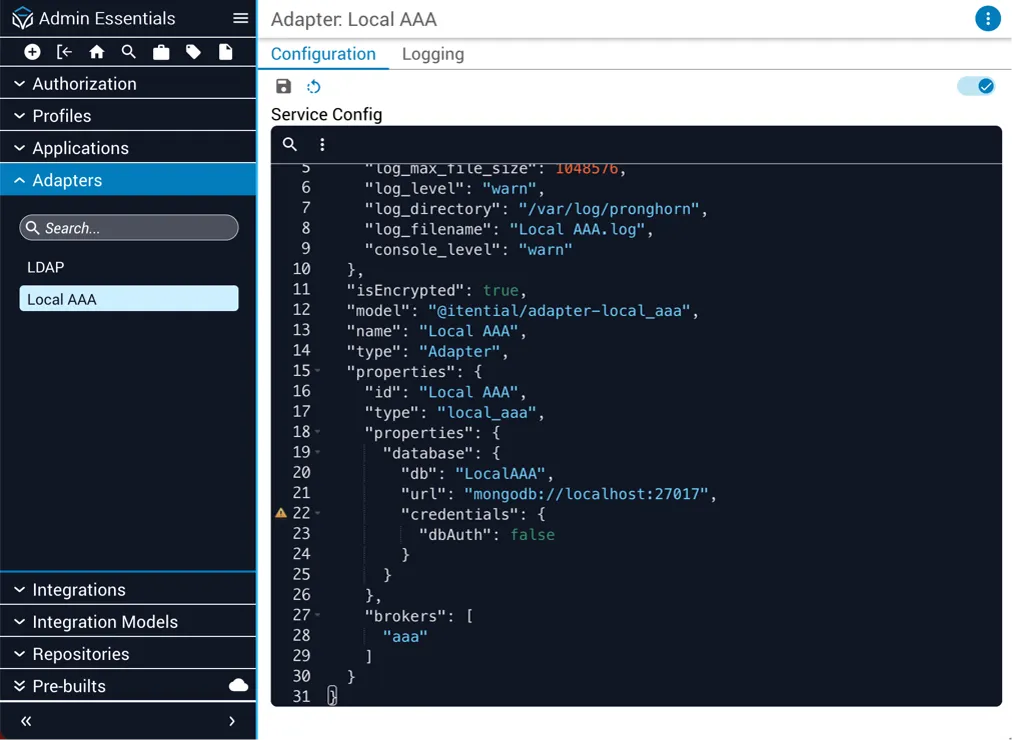
Configure and test all required AAA adapters before proceeding.
Create profiles
After all AAA adapters are configured, create one Itential Platform profile per AAA adapter by cloning the default profile.
Cloning the default profile ensures all required running properties and server configurations are included. In the example below, two profiles were created: LDAP and LocalAAA.
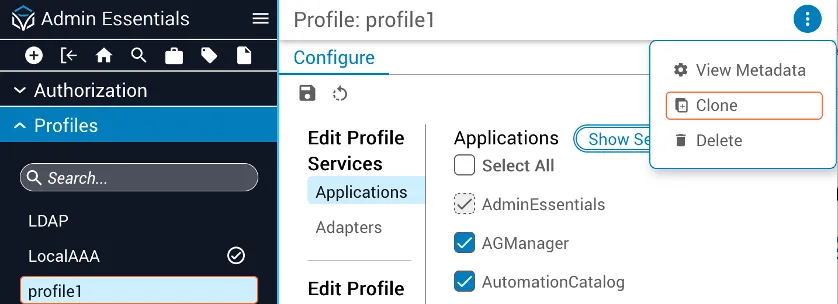
Configure profiles
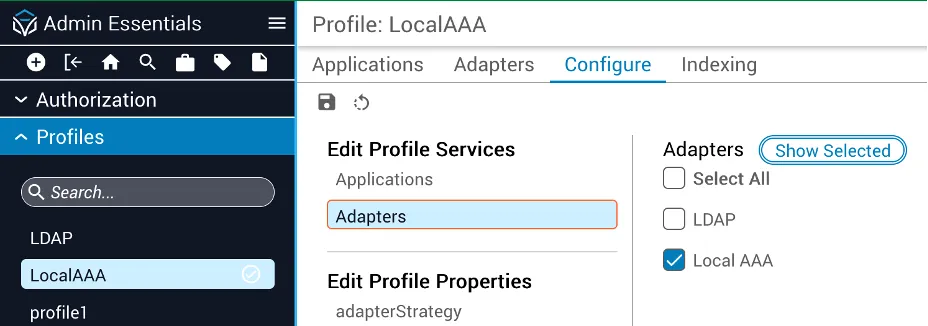
In the example below, the LocalAAA profile has the Local AAA adapter enabled — all other AAA adapters are disabled.
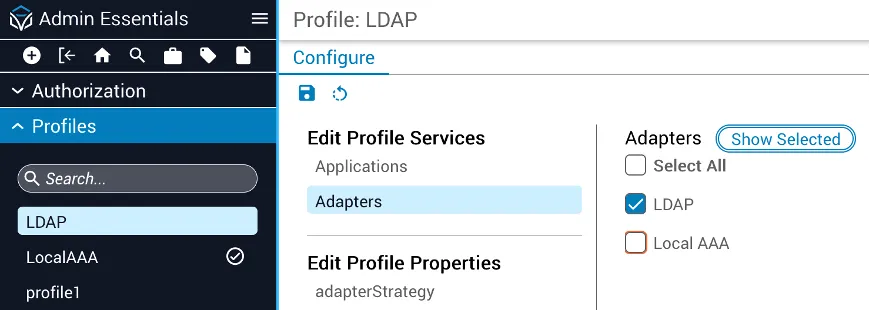
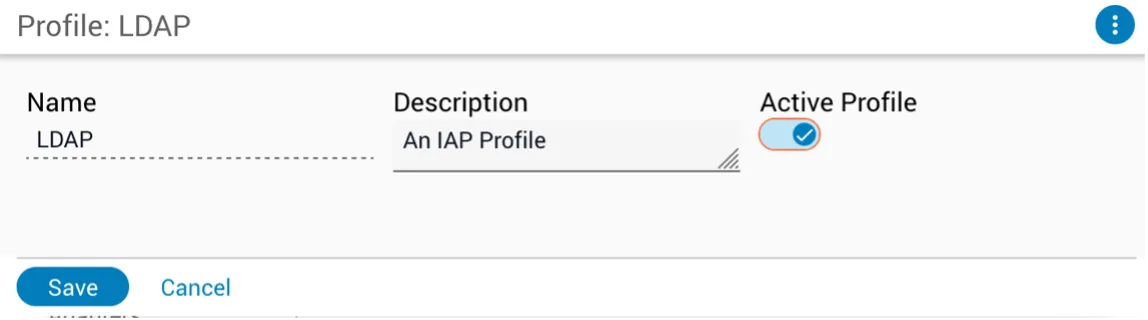
In this example, the LDAP profile has the LDAP adapter enabled.
Switch between profiles
Select the profile to activate
Expand Profiles in the side navigation and select the profile you want to make active.
Open metadata
Click the menu button (stacked dots) in the upper-right corner and select View Metadata.
In some Itential Platform versions, the active AAA adapter may not load properly if any other AAA adapter also has the aaa broker configured. As a precaution, ensure the aaa broker is only present in the configuration of the AAA adapter you intend to use.
Edit the profile directly via properties.json
Itential recommends changing the profile configuration via the UI whenever possible. If an unavailable AAA source has made Itential Platform inaccessible, the active profile can be changed by editing properties.json:
Appendix A: properties.json
Most configuration properties for Itential Platform are stored in named profiles in MongoDB. The properties.json file ($IAP_HOME/current/properties.json) provides the Platform with two key pieces of information:
- The location of the MongoDB database used as a data store.
- The name of the profile within that data store that is active on server start.
Example properties.json loading the Local_AAA profile from a local MongoDB installation: