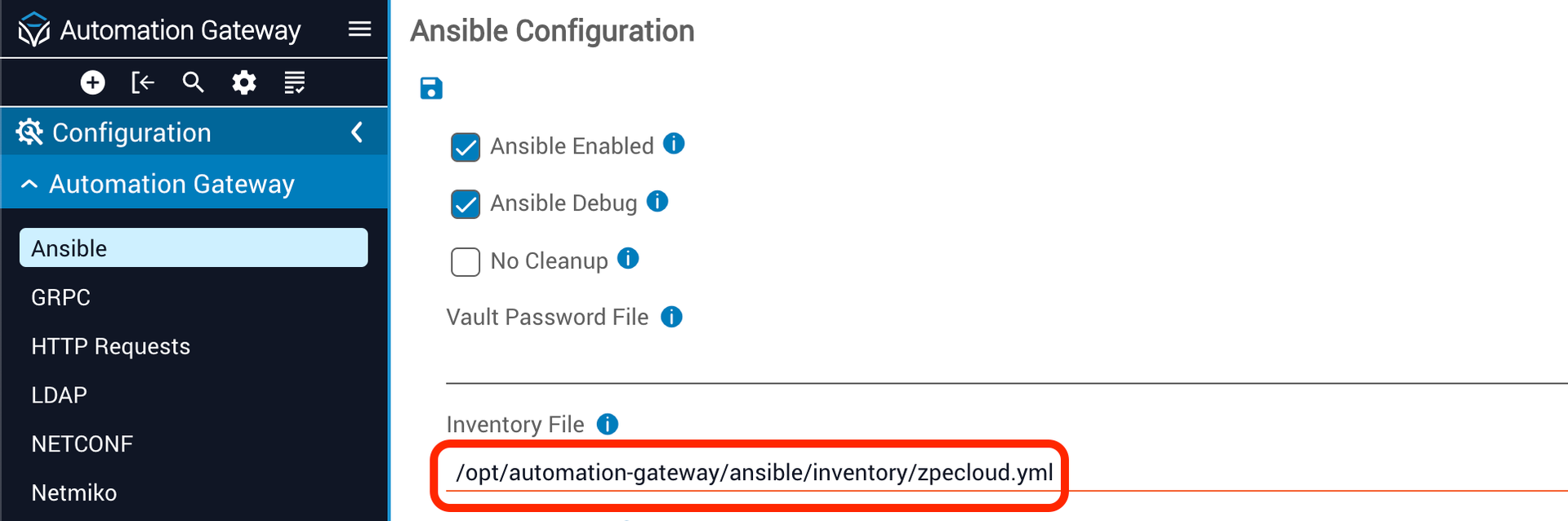
To create and manage device inventory via plugin, several steps are required. This guide covers the Nodegrid and ZPE Cloud plugin.
Related reading: ZPE Cloud automation with Ansible
Verify you are using the correct Ansible and Python binaries. Depending on your setup in Itential Automation Gateway (IAG), it will change how you perform a few of the steps below.
If you are using the default python3 bin location at /usr/local/bin/python3 or /usr/bin/python3, ensure the location of the python3 binary matches your path:
If you are using a Python VENV (virtual environment), source the VENV first:
Then use the binary location of the Python VENV:
Sourcing the VENV first will ensure the Ansible and Python binaries are the correct ones being used by IAG.
Download the repository:
Enter the Ansible directory:
Build the library using the build.py script:
Install the collection with ansible-galaxy:
In the /etc/ansible/ansible.cfg file, define the key interpreter_python with the location of the Python interpreter. This is the minimal recommended ansible.cfg content:
Once the Nodegrid collection is installed in IAG, install the ZPE Cloud collection to access ZPE Cloud features. The installation process involves the following steps:
Before installing, ensure the following prerequisites are met:
On the Ansible controller, install the ZPE Cloud collection:
Set up the zpecloud dynamic inventory plugin by creating a file called zpecloud.yml in the Ansible inventory folder with the following content:
zpecloud.com is set as the default value.organization field is required only if you have more than one organization associated with the account. This field is case-sensitive.Test the inventory connection to display the list of available devices:
Set up the connection plugin by providing the same details used during the inventory setup. This plugin is used to access the ZPE Cloud API. In the Ansible inventory folder, create a group_vars folder and a file called zpecloud_device_enrolled.yml with the following content:
You now have all the required components installed and can start creating and running a playbook.
Create a sample playbook executed against the online Nodegrid devices in the inventory to display the gathered default facts from the specific Nodegrid device.
In your Ansible playbook directory, create a sample playbook file called zpecloud_get_facts.yml with the following content:
Run the playbook: