

You can optionally select which version of Ansible to use to execute a particular Ansible playbook in Itential Automation Gateway (IAG). Virtual environments (VENVs) let you associate any Ansible playbook with an existing virtual environment. Any Ansible playbook not associated with a virtual environment will execute in the default version of Ansible configured for IAG.
Using a terminal, run the lines of code below and choose the version of Ansible needed (in the example, Ansible 2.9.0 is shown).
Place a new virtual environment in the Ansible virtual environment directory:
Activate the environment and install the Ansible version of your choice:
In IAG, navigate to Ansible and then click Playbooks to open the menu and select the appropriate playbook.
From the Parameters tab, open the Select an Ansible Venv dropdown to display the available versions of Ansible.
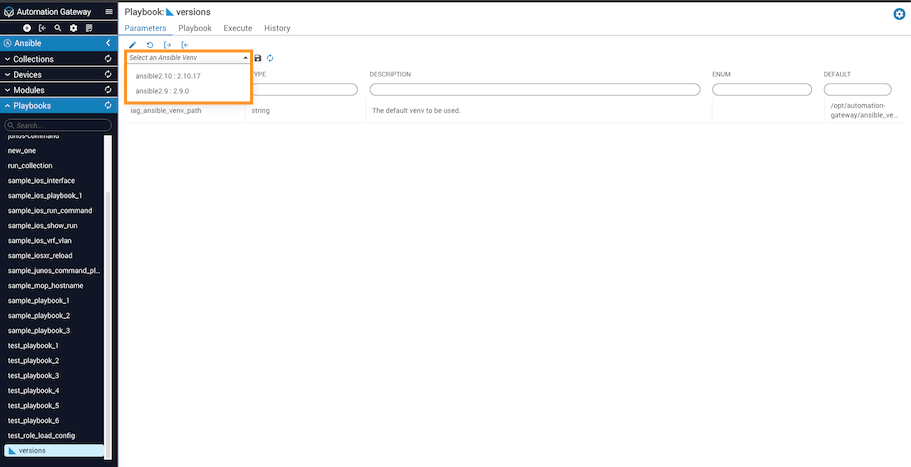
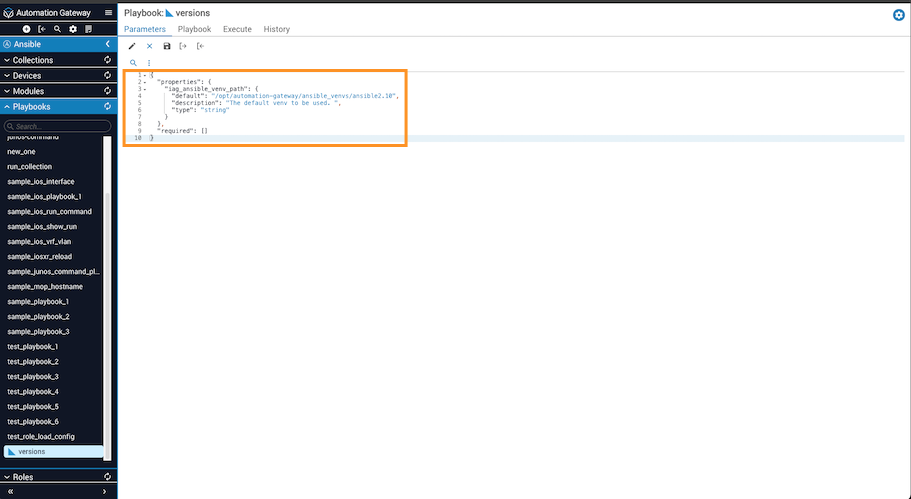
Once you have selected the Ansible version, click the save (disk) icon to automatically set the decorator.
After setting the decorator, navigate to Ansible Configuration in IAG to verify the Ansible Venv checkbox is selected and the Ansible Venv Path is shown.
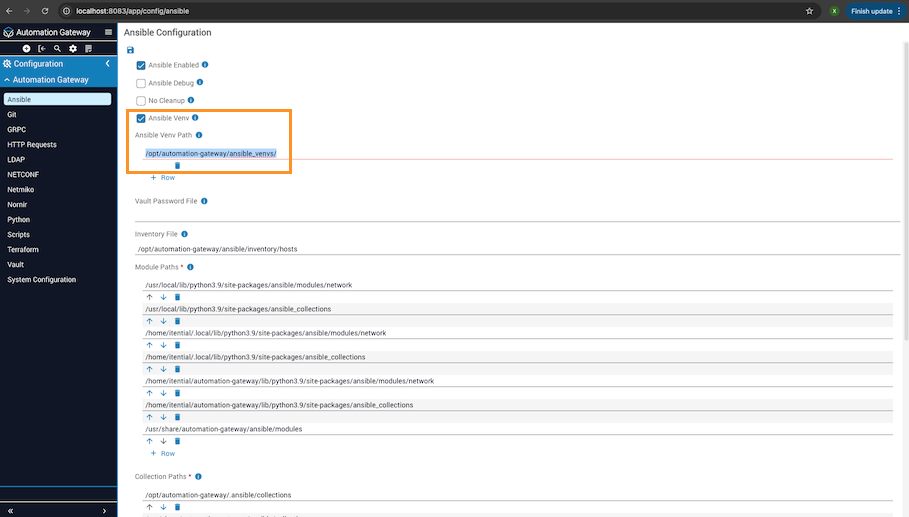
If Ansible Venv is not checked, the Select an Ansible Venv dropdown in the Parameters tab of the playbook will be grayed out and unavailable.