HashiCorp Vault integration
To manage secrets and help protect data, Itential Automation Gateway (IAG) supports HashiCorp Vault, a secrets management tool that secures, stores, and tightly controls access to tokens, passwords, certificates, API keys, and other secrets along with key revocation, key rolling, and auditing. HashiCorp Vault also provides secrets-as-a-service through a unified API. For more information, visit HashiCorp Learn.
IAG contains a Script Execution Engine that interacts with the key-value secrets stored in HashiCorp Vault. The AG server can fetch secrets stored on a Vault server at runtime and pass the values as command line arguments or environment variables when executing a script.
Sample script
Below is a sample Python script that takes one command line argument.
User schema decoration
To use a Vault secret, you first need to add a user schema to the script. Assuming the script is named python_secret_demo.py, you can add the schema below to this script. See Manage decorations for more information on how a user schema works.
Here we define a parameter named foo with type secret. This parameter also needs to be part of script_argument_order.
Sample script payload
Assume the Vault secret you want to fetch is saved in path hello with key name foo. To execute the script with a secret, run POST /api/v2.0/scripts/python_secret_demo.py/execute with the following payload.
Sample response object
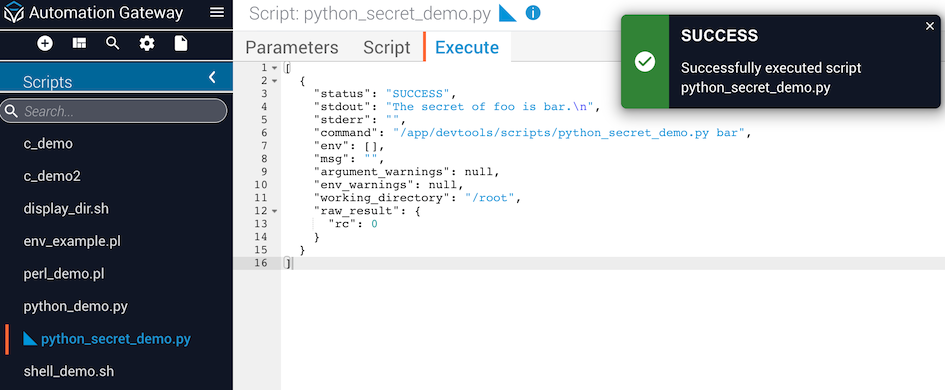
Below is the response object you get from the above example. The secret of foo is bar in this case.
This feature may have different behavior between releases.
Execute script from IAG UI
If you are executing the script from the IAG web interface, after you add the user schema to the script, a blue triangle will appear on the left of python_secret_demo.py.
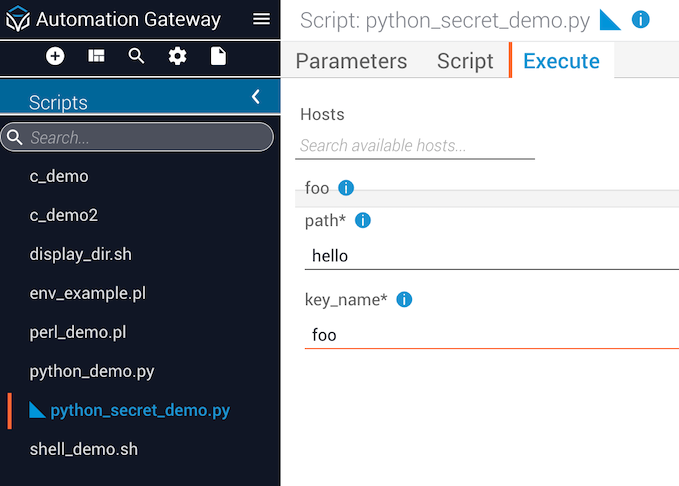
When the Scripts list is too long for the navigation menu, a scrollbar is displayed. Also, if the script name is very long, an ellipsis is used to reflect there is overflow text.
On the Execute tab, you can run the script by filling the path and key_name without a quote. The response object is the same as executing from the API.
Configure Vault AppRole authentication
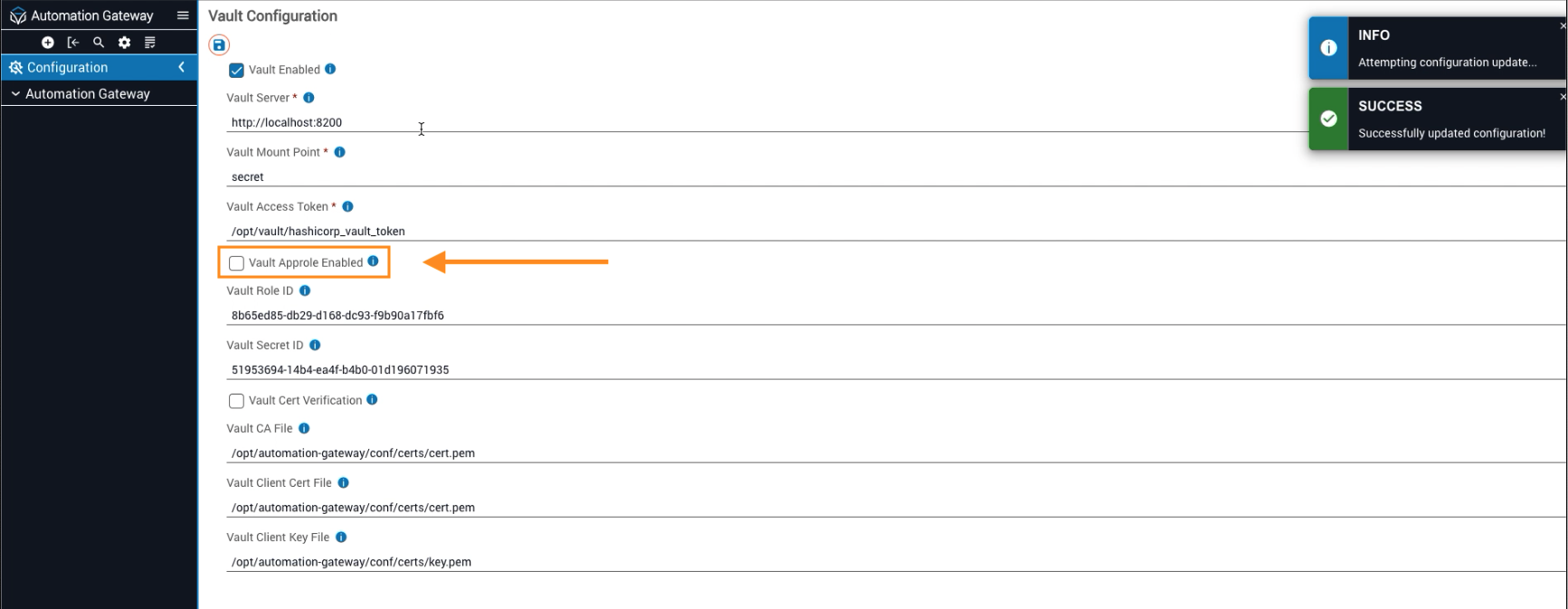
Beginning with the 4.3.0 release, Itential Automation Gateway (IAG) includes support for HashiCorp Vault AppRole authentication for retrieving secrets to validate requests from clients. This involves enabling approle and providing the role_id and secret_id. The role_id is analogous to a username while the secret_id is like a password.
Create a Vault policy
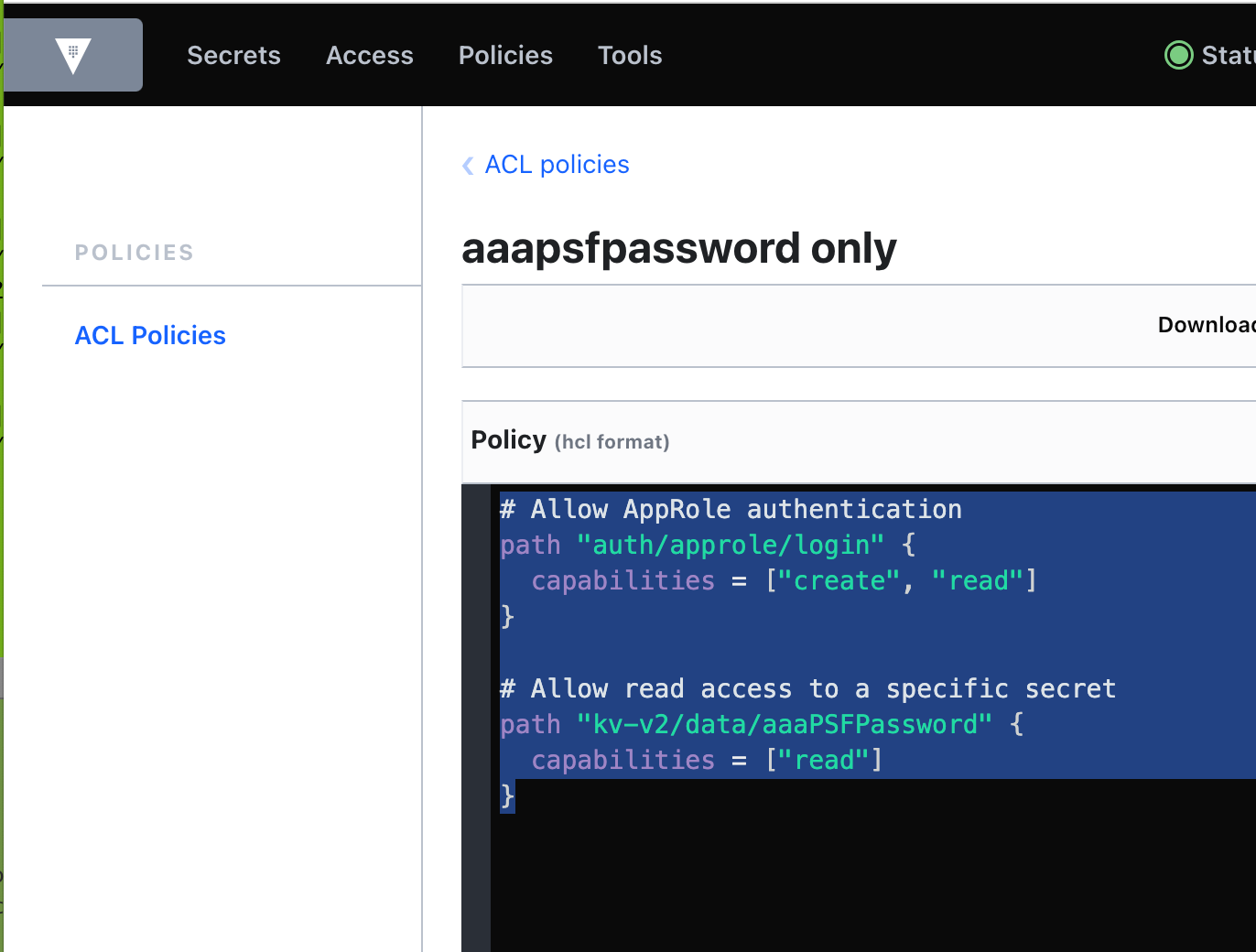
Create a Vault policy in HashiCorp for the role you are going to create. The example below creates a policy called "aaapasfpassword only". The policy allows login to HashiCorp Vault, and also allows read access to a kv-v2 engine secret called "aaaPSFPassword".
Enable the HashiCorp AppRole authentication method
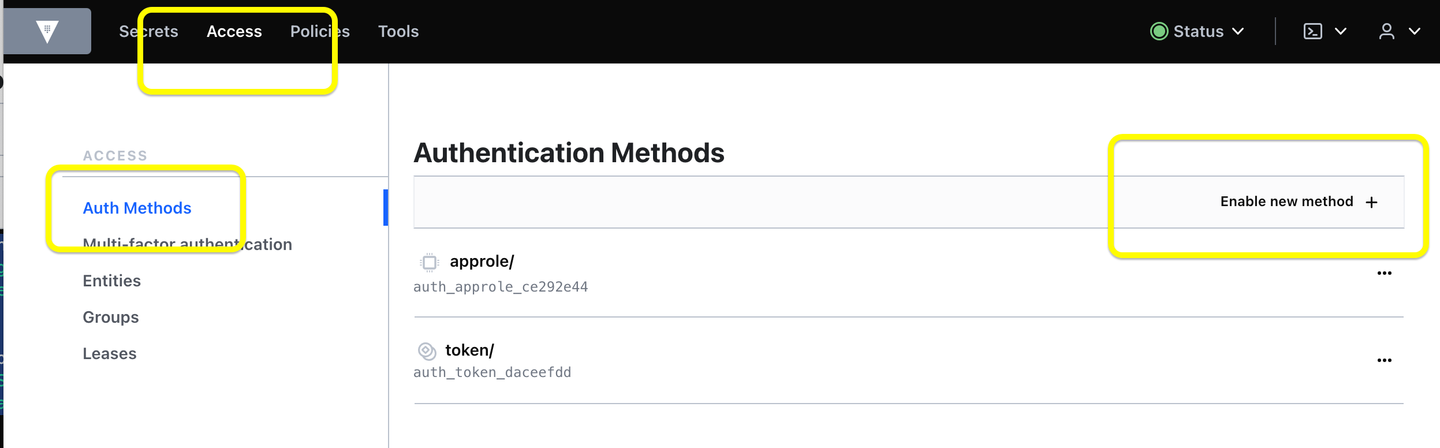
Enable the HashiCorp AppRole access control authentication method.
Get the role_id for the new AppRole role
Get the role_id for the new AppRole role. Copy and paste the role_id into the Vault Role ID field on the IAG Vault Configuration form.
Get the secret_id for the AppRole
Get the secret_id for the AppRole. Copy and paste into the Vault Secret ID field on the IAG Vault configuration form.
Select the Vault AppRole Auth checkbox
Select the Vault AppRole Auth checkbox on the IAG Vault configuration form.
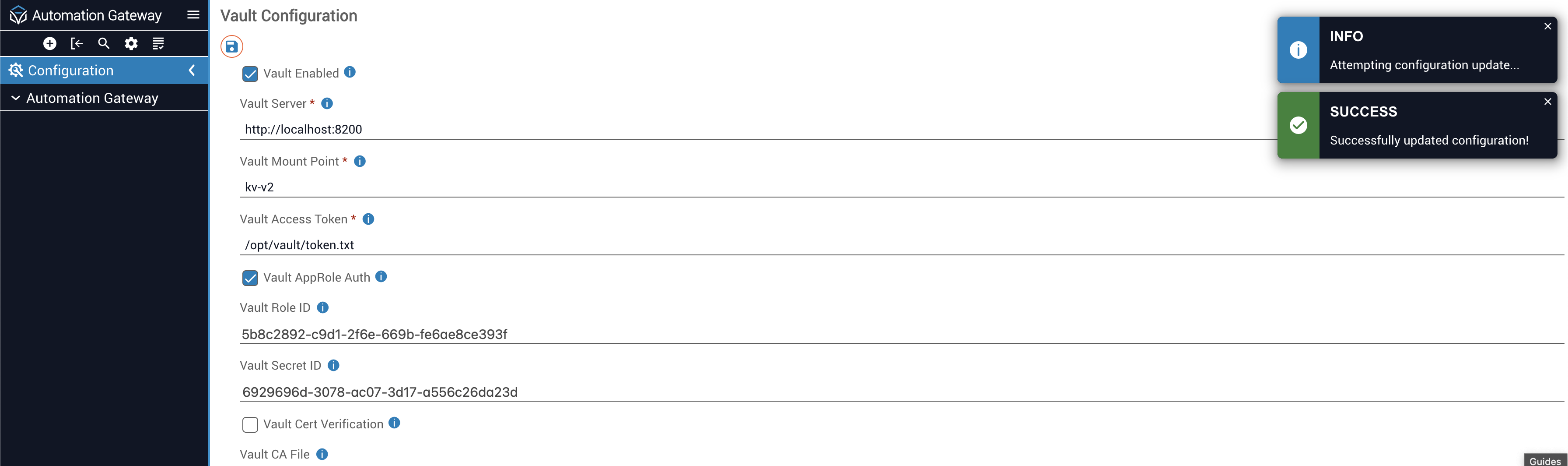
You can return to terminal to observe Authenticating using Vault AppRole credentials.

AppRole credentials take precedence over tokens; when AppRole is enabled, the system uses these credentials to connect to the Vault server. If AppRole is not enabled, the system falls back to using token-based authentication.