

Optimize Gateway performance
This article guides you through configuring your Gateway instance for optimal performance based on performance testing results.
Configure server threads
Gateway lets you customize the number of server threads available on your instance. You can view your current thread configuration in the System Configuration UI under the HTTP Server Threads setting.
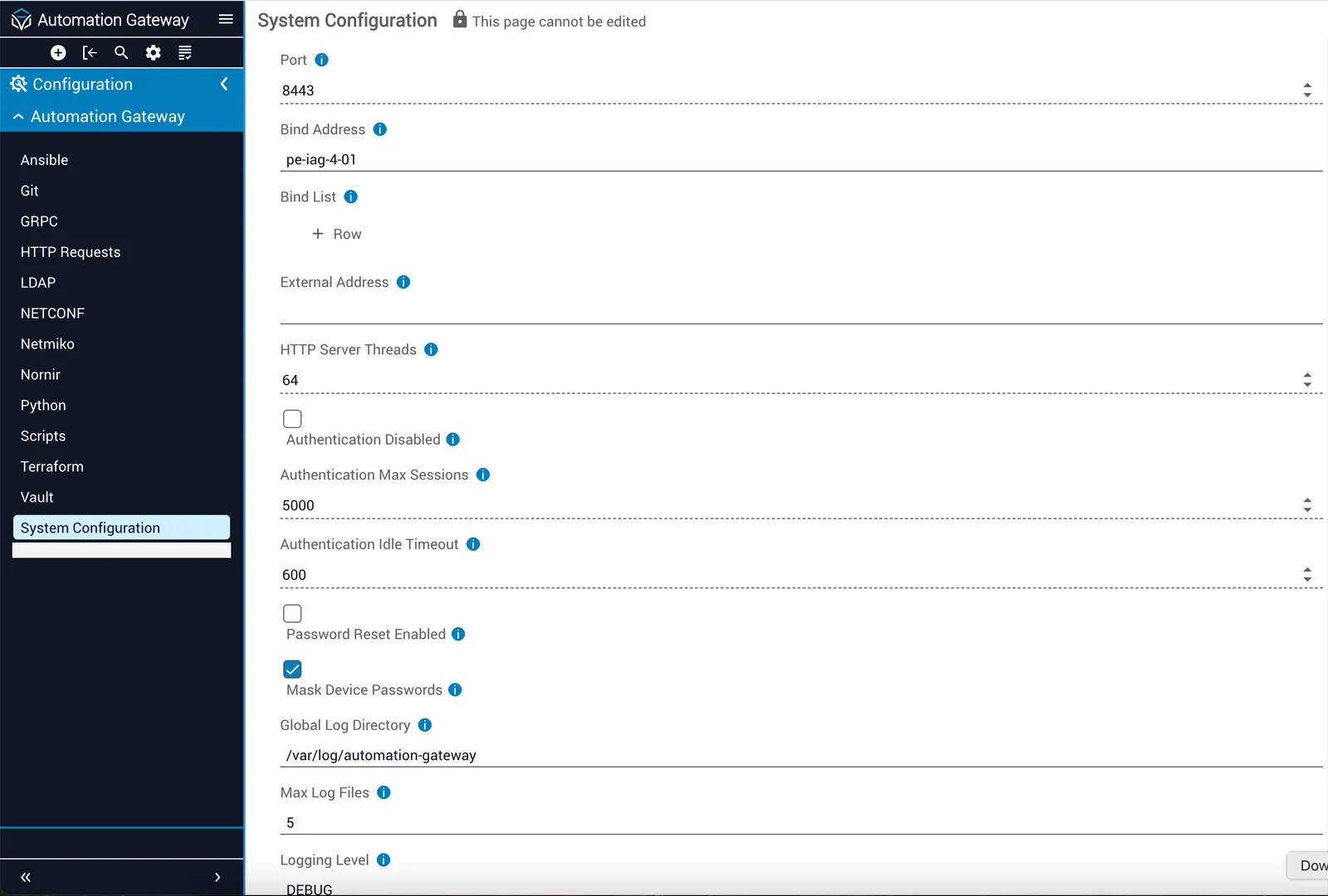
You cannot edit System Configuration settings in the UI. To update this value, modify Gateway’s properties.yml configuration file.
In the properties.yml file, locate the http_server_threads value. Performance testing shows the optimal value is 4x the number of cores on your server. For example, if your Gateway server has 16 cores, set http_server_threads to 64.
Configure adapters
You can optimize performance when you configure your Gateway adapter by adjusting the following settings.
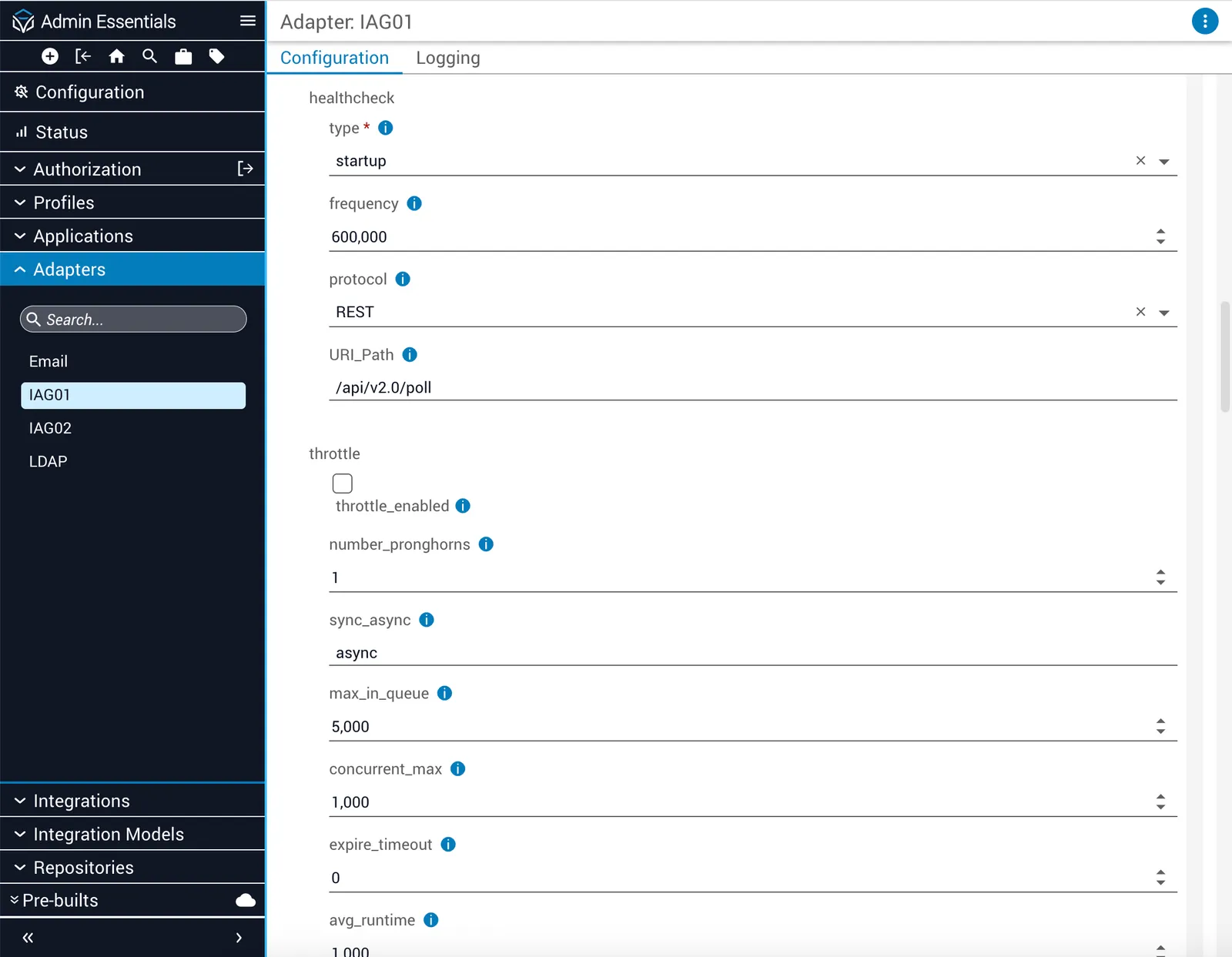
Set healthcheck type to startup
We recommend setting the healthcheck type to startup. Healthchecks don’t affect response time or execution performance of Gateway calls. However, intermittent healthchecks can cause unnecessary errors if the healthcheck fails.
Disable throttling
Performance testing shows adapter throttling provides no performance benefits. Disable throttling to reduce complexity when making Gateway calls.