

Nornir integration
Nornir is an automation framework written in Python for use in the development of applications that manage network devices. Nornir has its own inventory system for dealing with host information. It also handles the dispatching of tasks to your devices and provides a common framework to write plugins.
Itential Gateway contains a Nornir Module Execution Engine that supports the discovery, decoration, and execution of Nornir modules. Gateway also provides support for managing Nornir device inventory files and plugins.
A complete set of REST APIs are available for clients to manage Nornir inventory, module decoration, and execution. See the API Documentation section of the Gateway UI for more information.
Prerequisites
Before proceeding, ensure that the following prerequisites are met:
- Familiarity with Nornir is recommended. For more information, refer to the Nornir documentation.
- Nornir should be installed and configured on the Gateway server that it will be connected to.
Example Nornir components
In the examples presented throughout this guide, Nornir functionality is extended by integrating it with Gateway. To do this, Gateway interacts with two Nornir components:
- The Nornir inventory (via its configuration file)
- Nornir modules
Nornir is installed and configured on the relevant Gateway server. The following files are present:
- Nornir Configuration
- Nornir Hosts
- Nornir Groups
- Nornir Netmiko Module
Some values in the following code blocks, such as username and password, have been abstracted for security reasons. These values are denoted by brackets (curly braces).
Nornir configuration file (config.yml)
Nornir hosts file (hosts.yml)
Nornir groups file (groups.yml)
Nornir Netmiko module (send_command.py)
Configure Gateway to use Nornir
To use Nornir with Gateway, several properties must first be configured in the Gateway properties.yml file.
Some values in the following table may vary depending on your environment. These values are denoted by brackets (curly braces).
The Gateway service must be restarted for changes to the properties.yml file to take effect.
Edit the Gateway configuration file
In the previous example, you confirmed that the required Nornir components are present on the Gateway server. Now, you can configure Gateway to use these components:
Open the Gateway properties.yml file
Open the Gateway properties.yml file in a text editor. For example, if using VIM, issue the following command.
Locate the Nornir section
Locate the Nornir section of the configuration file. This is denoted by the # Nornir # header.
Example Nornir configuration in the Gateway properties file (properties.yml)
Module decoration
After Gateway has been configured to use Nornir, it will automatically discover any modules present in the designated directory. Discovered modules can be decorated in Gateway.
The decoration of Nornir modules within Gateway is similar to that of Ansible playbooks. However, instead of decorating the variables within a playbook, you decorate the command line arguments and environment variables used to execute a Nornir module. The decorated parameters are then passed as arguments to the APIs that execute the module. A permanent copy of each module’s decoration is stored in a local database that is maintained by Gateway.
The same features and functionality provided by Gateway for decorating proprietary scripts are available for decorating Nornir modules. See the Script execution engine section of the Gateway guide for complete instructions on module decoration.
Decorate the discovered Nornir module
Now that you have integrated Nornir with Gateway, you can use Gateway to decorate Nornir modules. In this example, you will decorate the send_command.py module detailed earlier. This module allows you to send commands to inventory devices for execution.
Starting from the Gateway dashboard:
Select the module
Select send_command.py from the accordion menu to open the module for decoration.
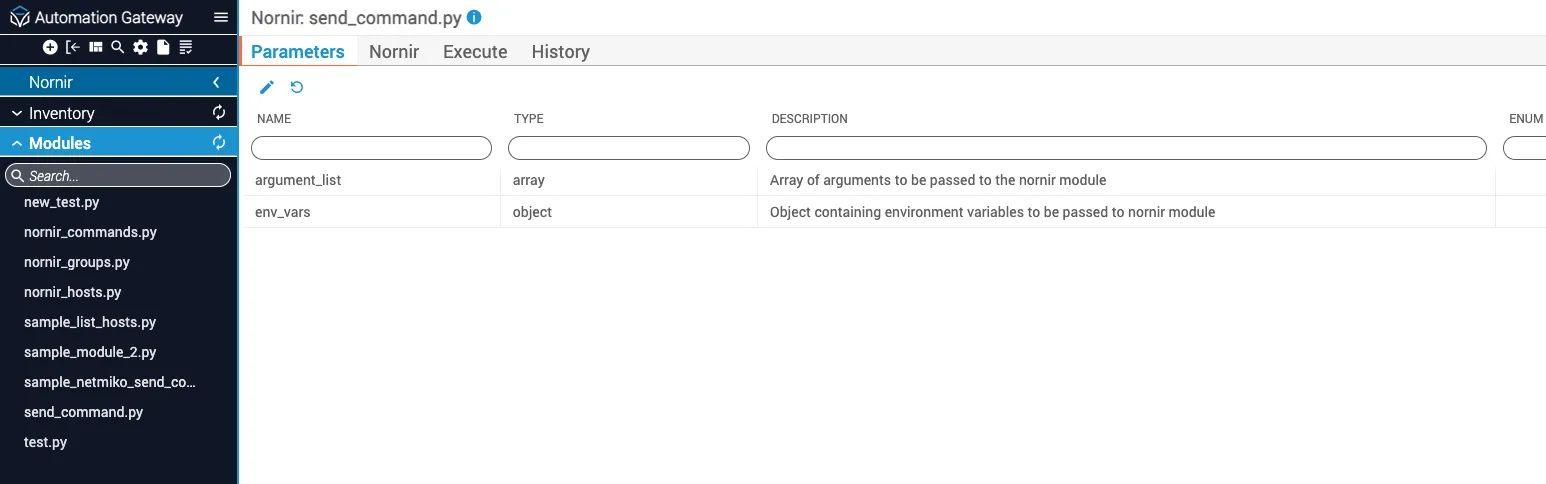
Open the parameter editor
On the Parameters tab, click the Edit (pencil) icon. A text editor opens that displays a JSON representation of the available module parameters.
Execution
Nornir modules are executed by issuing a POST <hostname:port>/nornir/<module_name>/execute call to Gateway. Executing a module can be done using the Gateway UI or by a separate application. Modules are executed on the node on which the Gateway server is running.
The desired arguments and environment variables that match the Nornir module’s schema are included as execution parameters. The execution parameters are passed to the module as if they were being entered by the user on the command line. Part of the module’s execution logic is to parse the contents of the command line accordingly.
By default, modules are executed from the home directory of the user that owns the Gateway server process. To change the default execution directory, add the working_dir key to the module’s schema outside the properties object. The value of working_dir can be an absolute or a relative directory path.
Hosts and groups support
The Nornir module execution API contains support for the hosts and groups parameters. The hosts parameter is an array of Nornir device names that are members of the Gateway inventory. Similarly, the groups parameter is an array of Nornir group names that are present in the Gateway inventory.
The hosts and groups parameters are not required when executing a Nornir module.
When the hosts or groups parameters are present and their contents are validated, the Nornir Module Execution Engine will pass the contents to the Nornir module as a comma-separated list using the command line arguments --hosts and --groups. The Nornir module itself is responsible for parsing the contents of the --hosts and --groups arguments.
Results
The following fields are contained within the results object returned after execution of the module.
Execute the discovered Nornir module
After decorating the send_command.py module, you are ready to execute it against the Cisco IOS device present in the Nornir inventory, ios_host.
Starting from the Execute tab of the send_command.py module:
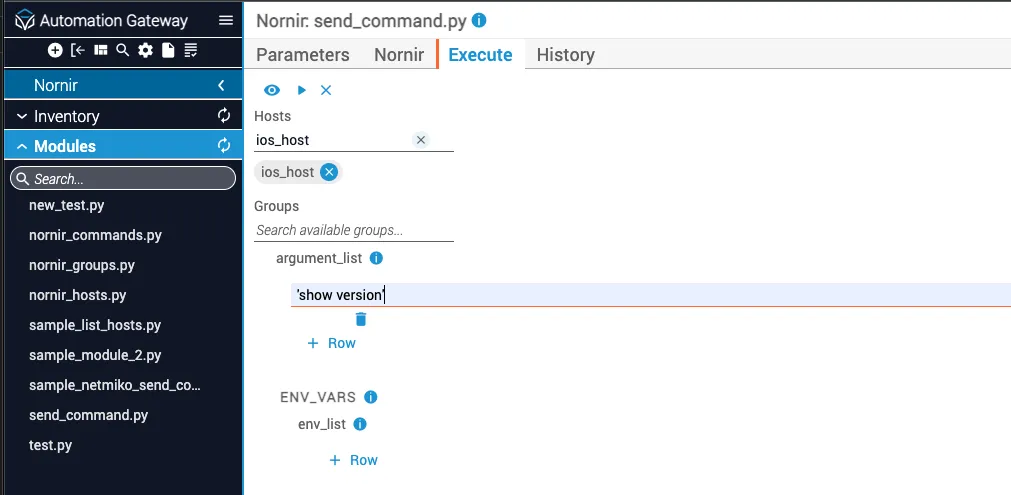
If you are attempting to run a command that contains a space, you must enclose the command in single quotation marks (”).