

Install and configure LDAP authentication
Itential Automation Gateway (IAG) out-of-box authentication is configured for local authentication. Using local authentication, IAG administrators can configure basic username and password authentication for IAG users. IAG administrators can further associate users with IAG groups and roles, adding a level of authorization to the local authentication process to limit the types of operations users can perform.
For customers who want to make use of their existing user authentication systems, IAG now offers the ability to disable local authentication and replace it with LDAP user authentication. This supports customer efforts to centralize their identity management system, and puts in place a framework for future support of Multi-Factor Authentication (MFA).
LDAP authentication
The process for performing LDAP authentication to IAG is depicted in the high-level procedure below.
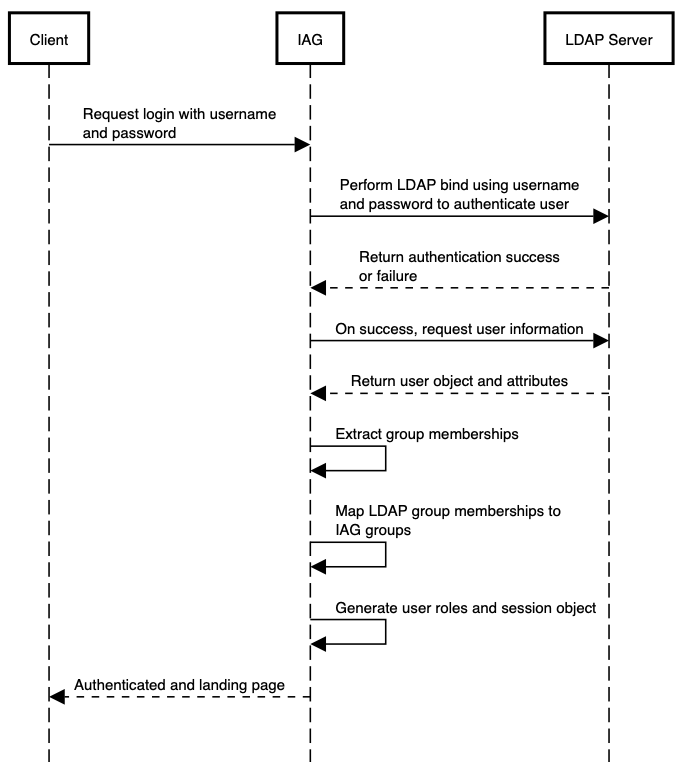
To support this approach, make sure the following steps are taken:
Add LDAP users to appropriate groups
Add LDAP users who will access IAG to appropriate group memberships in LDAP.
Create anItential Platform service account in LDAP
If using Itential Automation Platform (IAP) to authenticate to IAG, create anItential Platform service account/user in LDAP and assign it to an appropriate group.
Itential recommends selecting a group membership for anItential Platform user that is unique, and theItential Platform user has no other group memberships or permissions in your environment.
Configure IAG for LDAP authentication
Set the LDAP configuration options in the Itential Automation Gateway GUI under Configuration > LDAP.
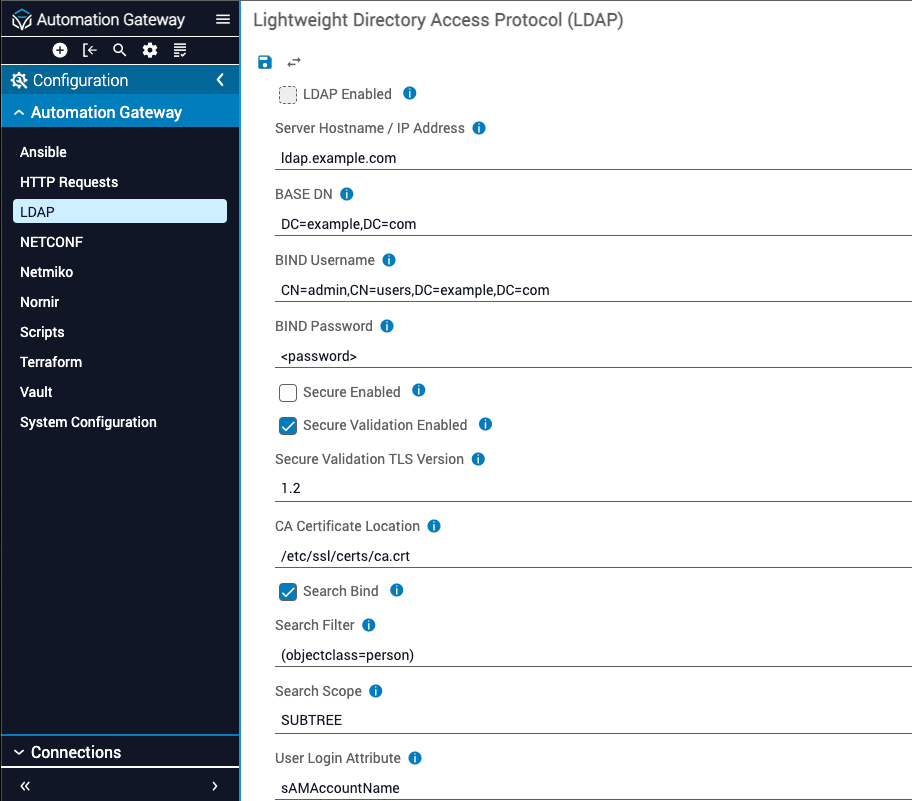
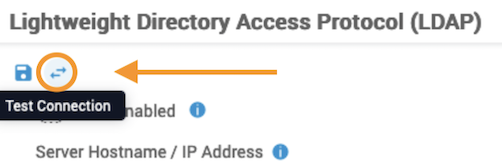
After saving the LDAP configuration, test that the BIND Username and BIND Password work as expected by using the Test Connection button next to the Save button. Set LDAP to ldap_auth_enabled: True in the properties.yml file, and then restart IAG.
Configure authorization groups and roles
In this step, configure the authorization characteristics that determine what capabilities logged-in users have. To configure a group in IAG, a name must be provided, and all the roles that will be associated with any user that is part of that group must be assigned. The name that is selected is important, because of how IAG LDAP authentication maps LDAP users to IAG groups and roles.
Each user coming from an LDAP is typically associated with one or more groups through an LDAP attribute, such as the memberOf attribute. When configuring the IAG LDAP properties, specify which LDAP user attribute holds the user group membership information.
When a user authenticates to IAG, IAG will request the user’s LDAP attributes and apply a mapping to map the LDAP group member names to IAG group names.
For example, the following groups are defined in IAG: iag-admin, iag-operator, iag-user. If IAG has been configured to look at the memberOf LDAP attribute for group memberships, then users may have the following group memberships:
Configure IAG to recognize the format of the information provided in the memberOf attribute so that IAG can extract the relevant information. In the example above, IAG will determine that this user belongs to both the iag-operator and iag-user groups. IAG will combine the roles defined for both IAG groups and provide that authorization to the user.
Review the LDAP groups, IAG groups, and the associated IAG group roles to ensure that users are being given only those role permissions that are required to fulfill their responsibilities in IAG.
At least one IAG group must be created that will allow roles to act as the administrator role, otherwise IAG cannot be managed once LDAP authentication has been enabled. There is no special group designated as an administrator group. The group must be configured to ensure the name of the group is mapped uniquely from your LDAP user group memberships.
Configure direct bind
By default, the backend of LDAP authentication uses a Search Bind to connect to LDAP, find the user DN, and then authenticate with the correctly found DN and provided password combination. To utilize direct binds to make login times faster, the User DN and Base DN must point directly to the LDAP user location.
In addition, the User Login RDN and User Login Attribute must be the same and set to use a direct bind. If you would prefer to log in users via their email address, you would not be able to do a direct bind, but could instead set the User Login Attribute to mail.
Direct bind configuration example
Restart IAG
Once IAG LDAP authentication has been configured or changed, IAG must be restarted for IAG to switch to the LDAP authentication provider.
Changing IAG group or role assignments does not require a restart.
When IAG LDAP is enabled and IAG is restarted, users andItential Platform can authenticate to IAG using their LDAP credentials. Enabling IAG LDAP disables IAG local authentication.
Disable IAG LDAP and enable local authentication
In situations that require a return to using IAG local authentication, such as not being able to authenticate any IAG admins to IAG, log into the host machine where IAG is installed and edit the IAG properties file to disable LDAP authentication, then restart IAG.
Troubleshoot LDAP configuration
If you encounter a problem in LDAP configuration: