

Use flows in the ServiceNow application
The Itential ServiceNow Application includes Itential-built Flows. They define the data that is needed by the Itential Actions and are triggered by Itential Automations within ServiceNow processes.
Prebuilt Flows
Itential-built Flows contain predefined business logic on when they are expected to run and what ServiceNow processes they should integrate with. As such, the Flows provided by Itential should be considered as examples. Our expectation is that the example Flows built into the Itential ServiceNow Application can be used to help you create new Flows that include your business logic and define when you want to trigger Itential Automations in your process.
The example Itential Flows also determine whether a MID Server has been defined for connectivity to Itential. If a MID Server has been provided, the Flow will use the Actions for using a MID Server. If a MID Server has not been provided, the Flow will utilize the Action without the MID Server.
Flow Designer
To use Itential Flows, login to the ServiceNow platform and navigate to Flow Designer.
Open Flow Designer
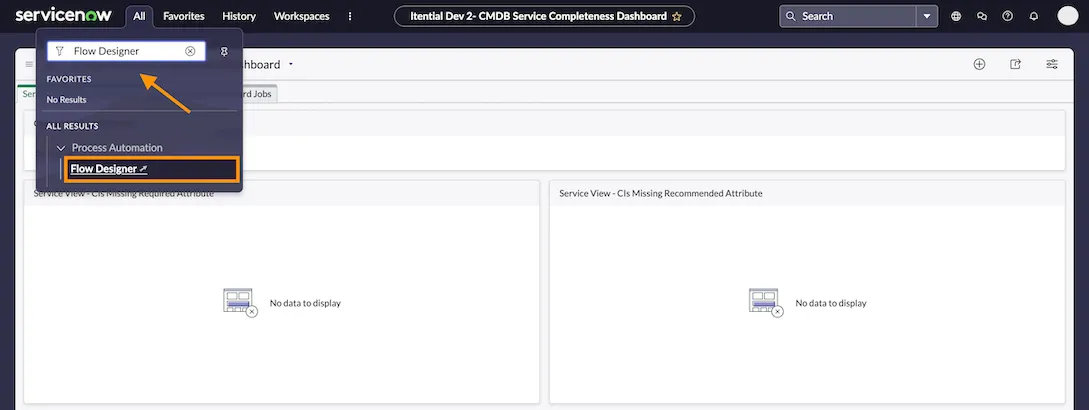
Click the All tab (top-left corner), search for Flow Designer, and then select the Flow Designer option in the results.
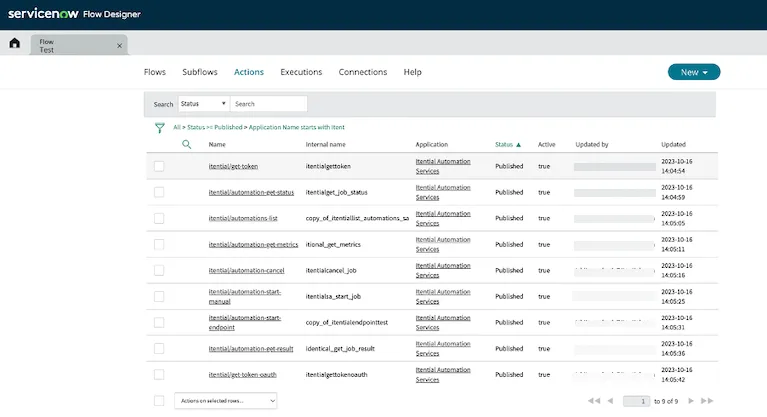
Create New Flow
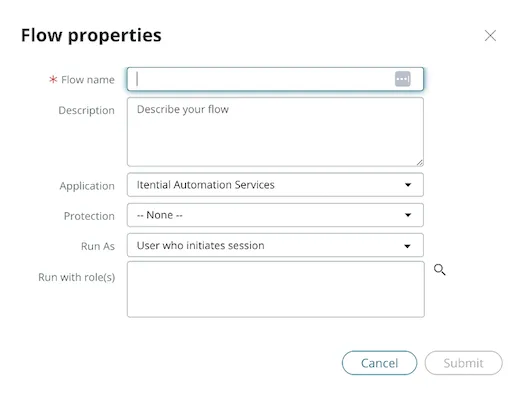
To create a new Flow that includes your business logic and can pull the necessary data from records within your process:
Add Triggers
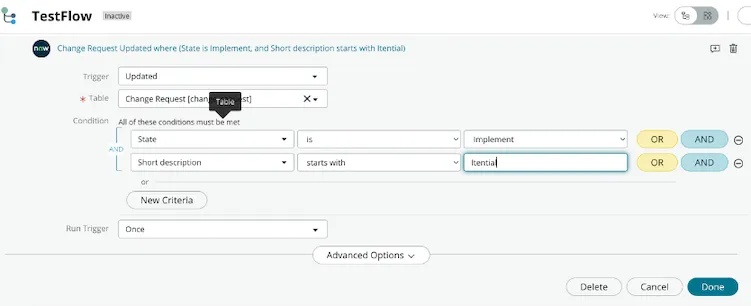
To define when your Flow will run, add a trigger. There are many ways to run a Flow within ServiceNow. The example depicted in Figure 3 shows a trigger that is set up to run when a Change Request Record is “Updated” and the State is “Implement”, and the Short Description field starts with “Itential”.
Add Flow Variables
Itential Actions require certain input values from Flows. These are defined and set as Flow Variables.
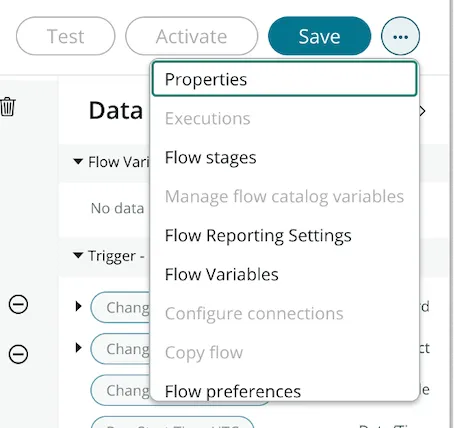
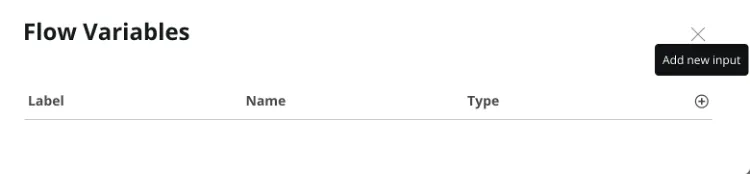
Flow Variables need to be added to the flow before you can set them. Click the menu icon (top-right) and select Flow Variables. Add your Flow Variables using the ”+” button. Provide the label, name, and type. Click Submit.
Set Flow Variables
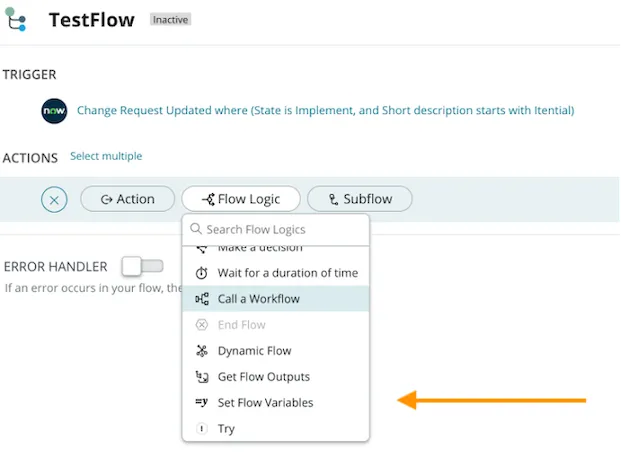
To set the added Flow Variables, go to the Actions section of the Trigger, click the ”+” button, click Flow Logic and then select Set Flow Variables.
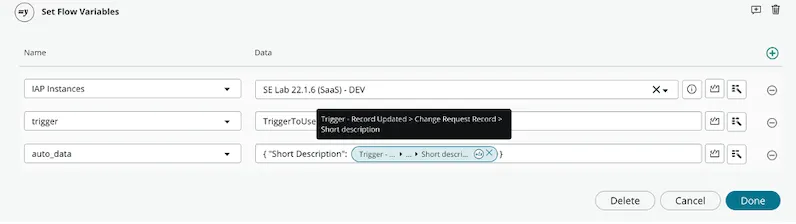
Add the Flow Variables that you want to set. You can set some statically to values, and you can also set them to data from the Record that is running the Flow. Click Done to set the variables.
In this new Flow, you also have the ability to add ServiceNow Actions, which are explained in this section → Using Actions