

CLI Golden Configurations evaluate whether the running configuration for a device matches its node’s baseline configuration. In this guide, you will learn how to:
Every node in a CLI Golden Configuration has an associated baseline configuration, which consists of:
Once a device has been added to a node, you can run compliance checks against it. The device’s running configuration is compared against the node’s baseline configuration, and any discrepancies are noted in the resultant compliance report.
Before devices can be managed on the current node, a baseline configuration for them to be compared against must be defined via the Configuration tab. Here, you can:
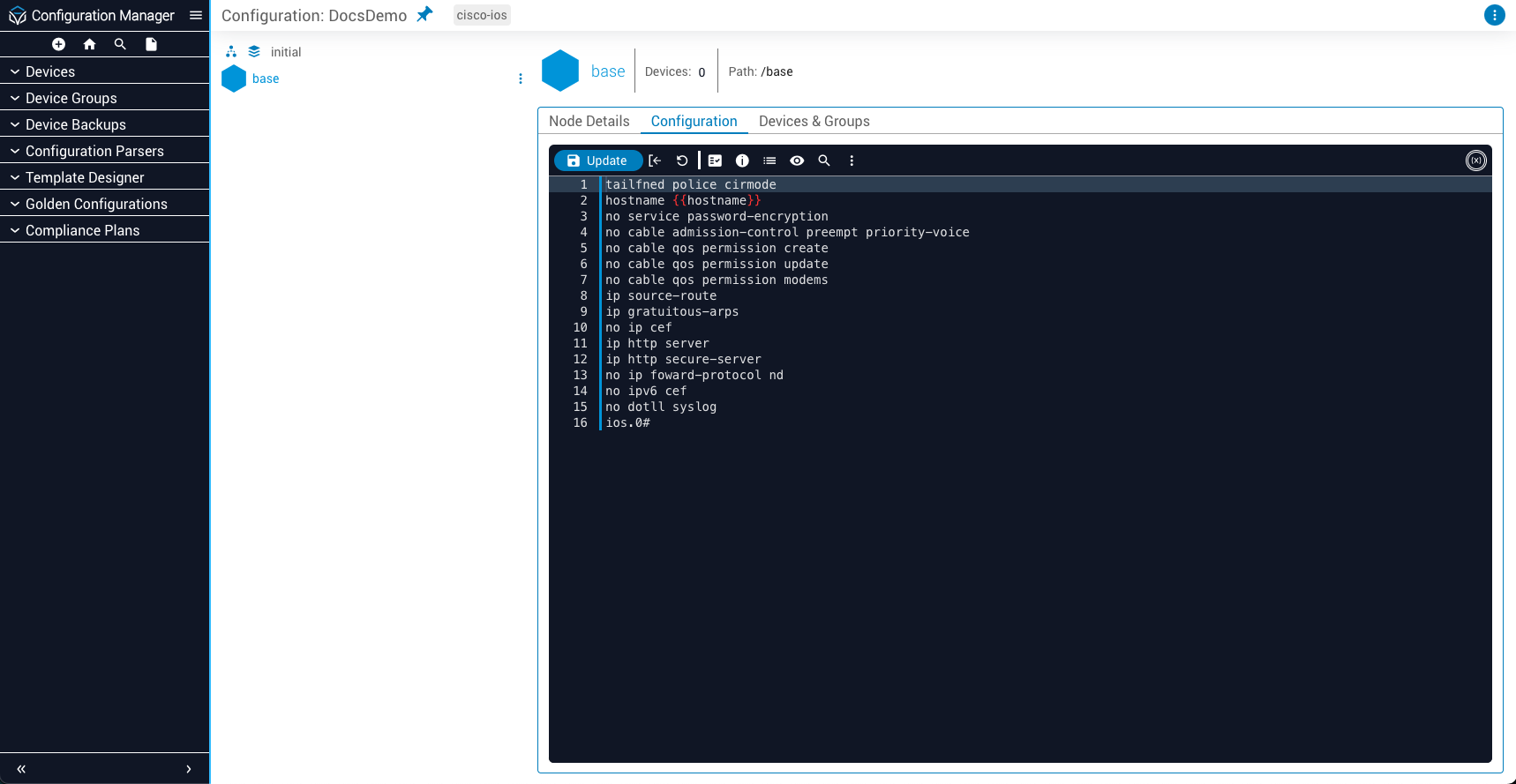
To begin writing a configuration, start typing in the text editor as if you were issuing commands on a device’s native command-line interface (CLI). Alternatively, you can paste an existing configuration into the text editor from another source, or import it from an available device.
To import a configuration from an available device into your Golden Configuration:
Configuration line behavior is determined by two rules, both assigned on a line-by-line basis:
Evaluation mode determines how the presence or absence of a line from a device’s running configuration is interpreted by compliance checks.
To change a line’s evaluation mode, prepend the relevant delimiter to the line, or:
Each line violation is assigned a severity type that reflects a weight value used when calculating a device’s configuration grade. In descending order of severity:
<e/>)<i/>)These values are useful for approximating the potential impact a line may have on a device’s performance if it deviates from the baseline configuration. A line that defines the description field for an interface may be assigned Info, while a line that sets that interface’s management IP address may be assigned Warning.
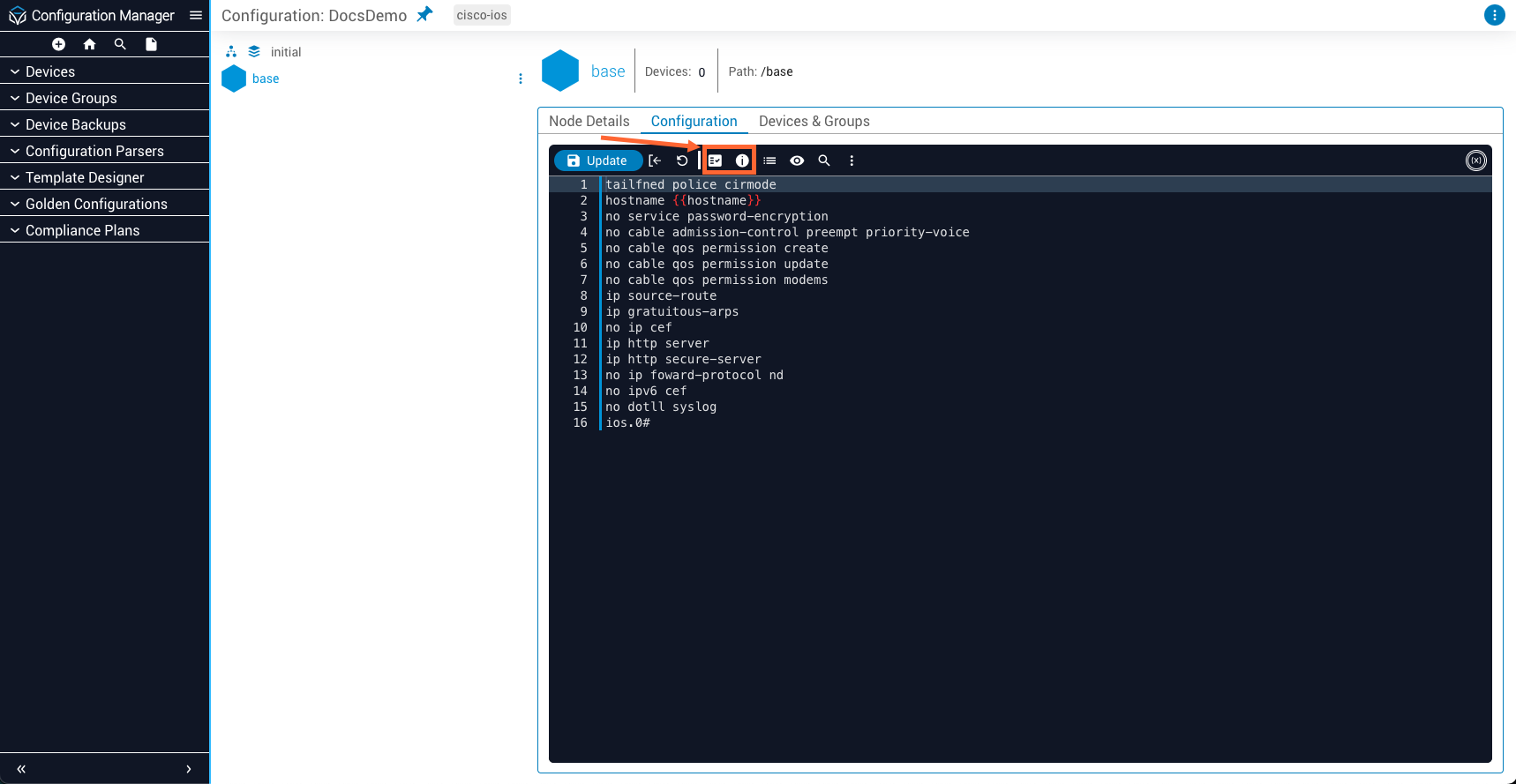
The steps to change a line’s severity type are similar to those used to change its evaluation mode—hover over the Severity (ℹ) icon on the toolbar.
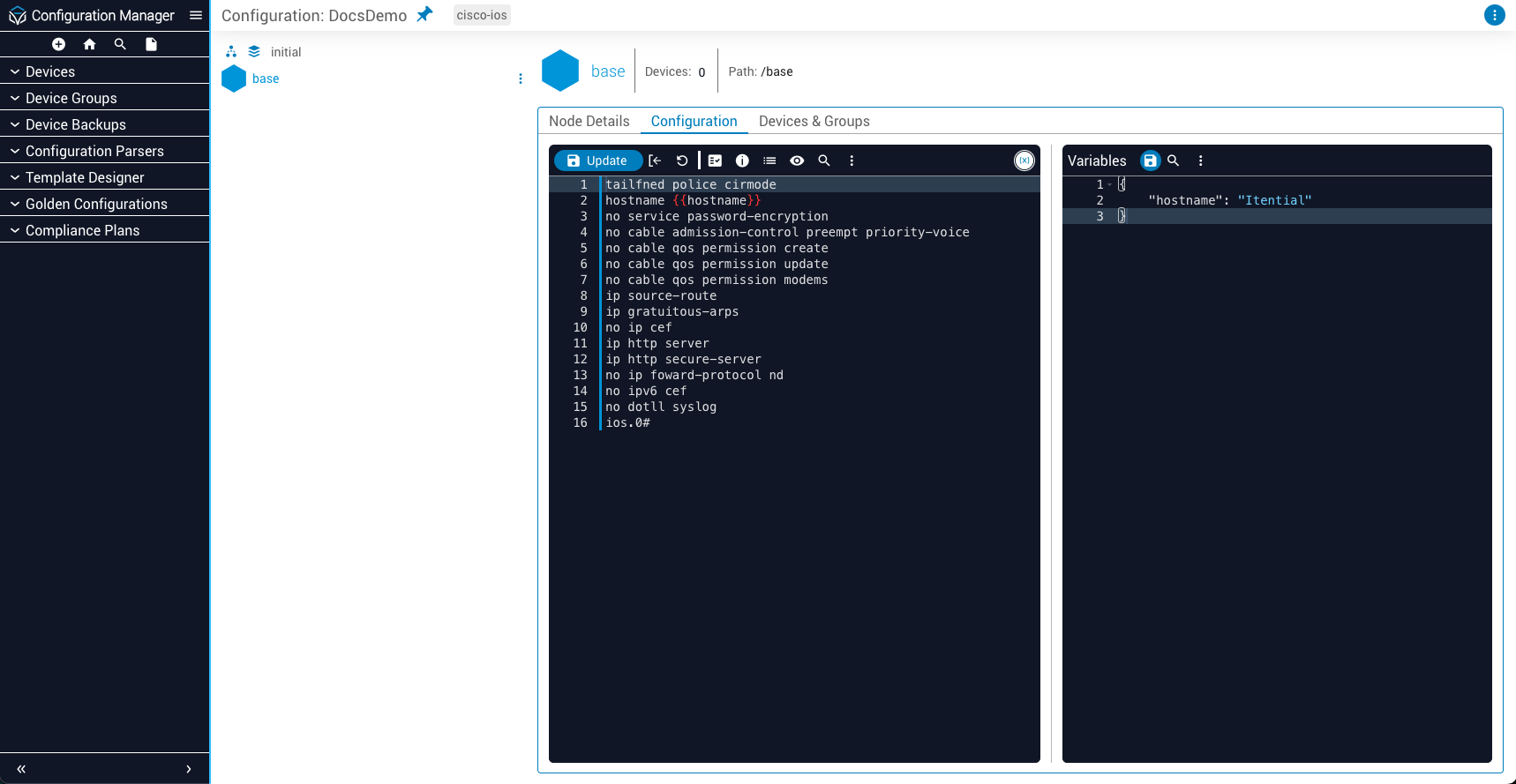
You can add more flexibility to your configuration by defining variables for values that may be dynamic (hostnames, interface numbers, etc). For example, you may wish to allow your configuration to be updated by other sources, such as workflows. Or you might want to define an IP address used throughout the configuration as a variable so that only one update needs to be made if that address changes in the future.
Click the Show Variables (X) button located at the upper-right corner of the text editor. The text editor will split vertically, with the variable editor being displayed on the right.
To call a variable in your configuration, enclose its name in the {{ }} delimiters:
Configurations also support regular expressions. To use one, enclose it in the {/ /} delimiters:
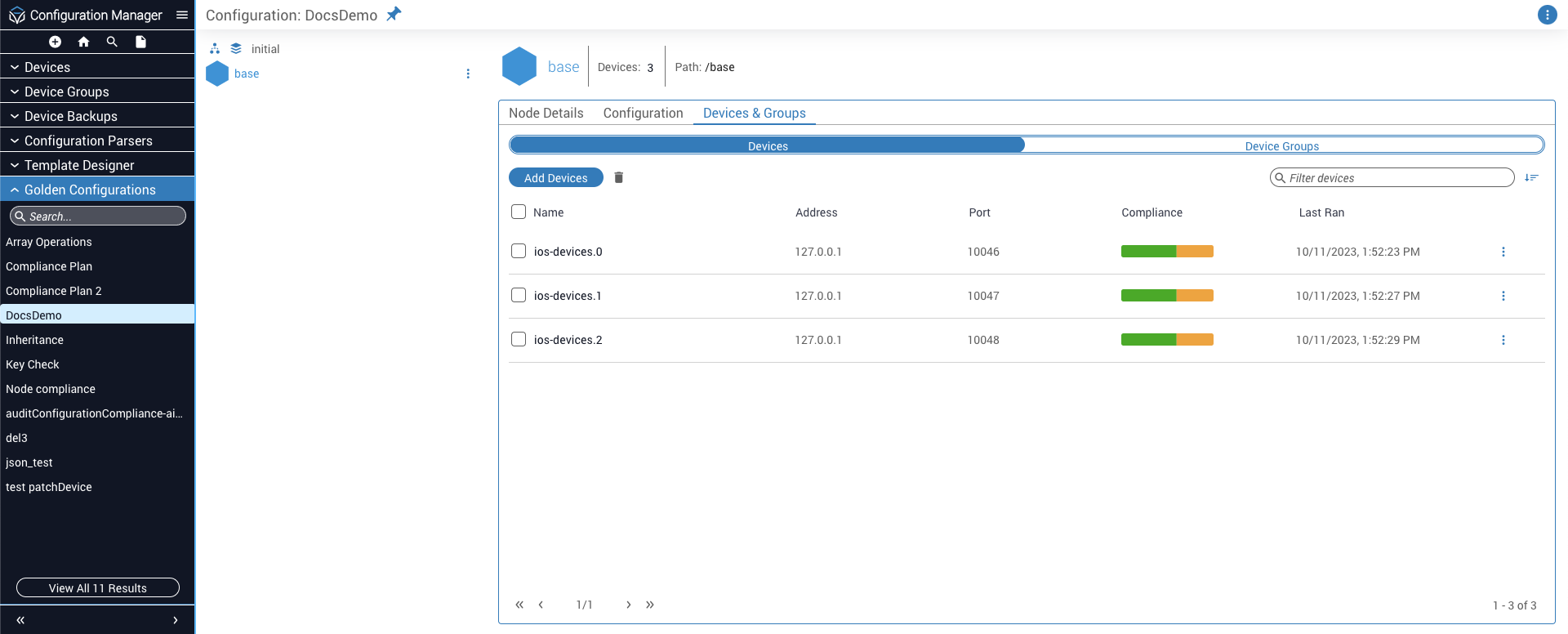
The Devices & Groups tab contains all actions related to managing devices and device groups associated with the current node. From this tab, you can:
Devices and groups are each managed under their own respective subtab. Click the subtabs to switch between them.
Prior to Itential Platform version 2023.1, the Devices & Groups tab was known simply as the Devices tab. It did not operate on device groups.
To evaluate whether a device is compliant with your baseline configuration, you must first add it to the node:
All devices and groups associated with the node are displayed in a table view on their respective subtab.
If your Golden Configuration uses a custom parser (OS Type) that employs operating system (OS) restrictions, you will only be able to add devices supported by that parser to the Golden Configuration.
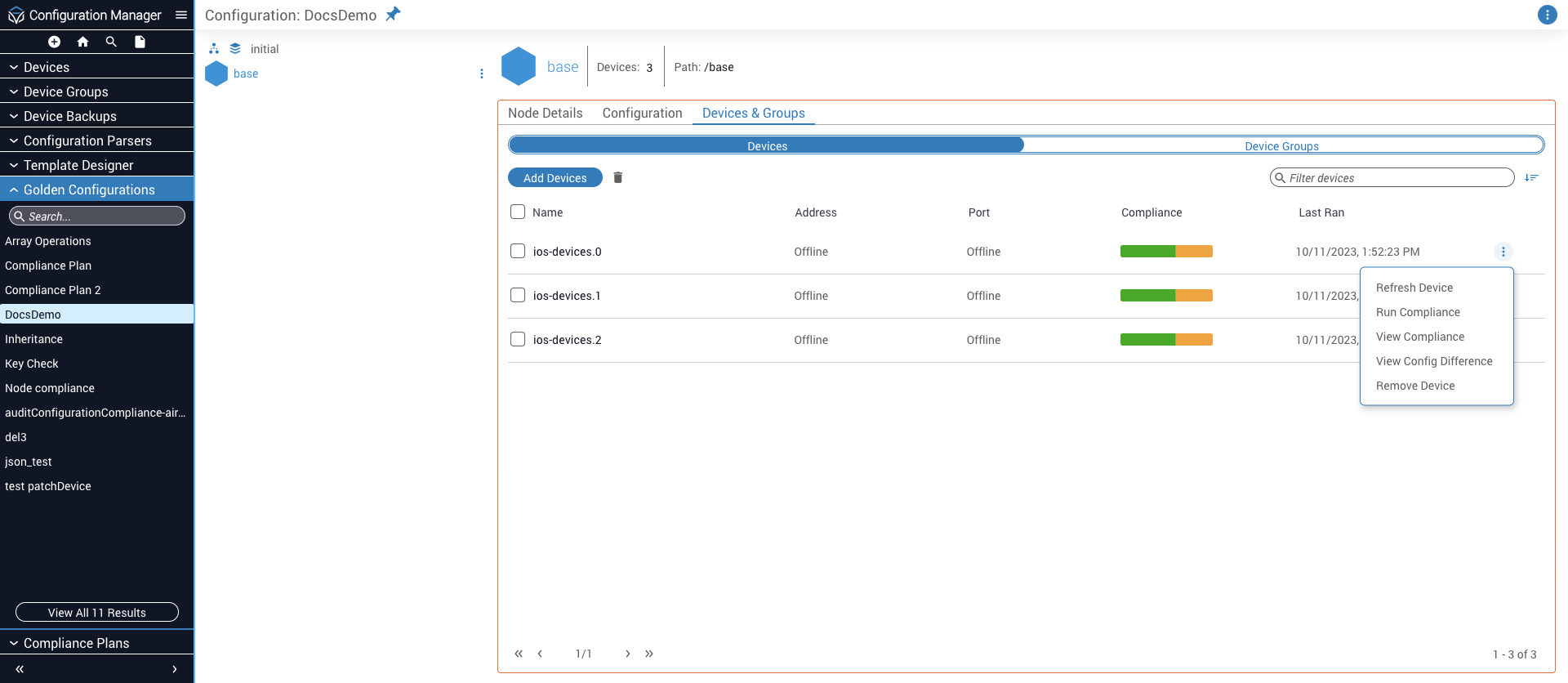
Once you have added a device or group to the node, you can run compliance checks against it:
After the check is complete, you can view a report that details any detected compliance violations. The steps taken to view the report are similar between devices and groups, but there are slight differences.
To view a compliance report associated with a device group, click the menu (⋮) button of the group and select the Review Group option. A list of devices will be displayed—from here, follow the instructions given above for viewing device compliance reports.
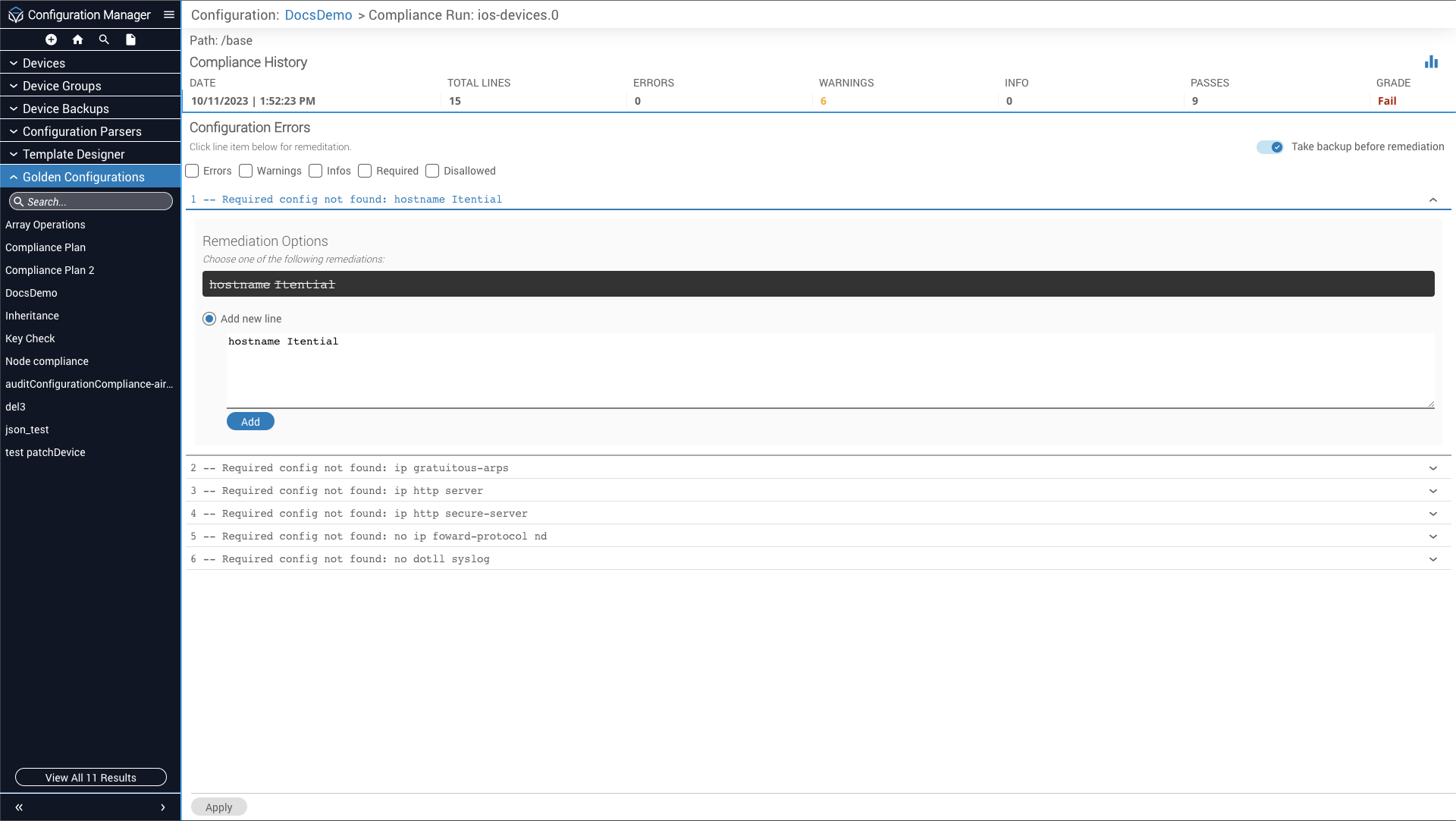
Compliance reports list any violations detected in a device’s running configuration beneath the Configuration Errors header. To view more details about any item on the list, including potential remediation options, click its dropdown arrow.
To apply one of the suggested remediation options to the device:
Select the option via its radio button. An additional, context-sensitive button will appear to confirm the suggested remediation.
You can mark multiple violations for remediation before applying your changes.
By default, a backup of the device’s running configuration will be made before any changes are applied. This behavior can be toggled via the Take backup before remediation switch.
The grade a device’s running configuration receives (Pass, Review, or Fail) in a compliance report can be influenced by changing:
When a compliance report is run against a running configuration, the following formula is used:
The following severity type weight values are used in this formula by default:
The score returned by this formula is compared to the following grade benchmark values by default to assign a grade to the running configuration:
Example: If a configuration that is 10 lines long has one non-compliant line assigned the error severity type, it would be scored 81.82:
As such, the configuration would be given a grade of Review.
You can use a workflow to run a compliance report with custom severity type weight and grade benchmark values:
Example: To halve the default severity type weight and grade benchmark values (excluding the Fail grade), provide the following to the options variable: