Use CyberArk secrets

Reference and use secrets from CyberArk CCP in Itential Platform configuration values and in Application, Adapter, and Integration properties.

Itential Platform has read-only access to CyberArk CCP. You cannot write secrets to CyberArk Digital Vault from Itential Platform.

Secret reference format

Use this format to reference CyberArk secrets:

$SAFE_<SafeName> $NAME_<SecretName>

The format includes:

  • $SAFE_ followed by the CyberArk Safe name
  • A space character
  • $NAME_ followed by the secret name

Example: $SAFE_My-Safe $NAME_mongodb retrieves the “mongodb” secret from the “My-Safe” safe.

Configure Itential Platform

You cannot use CyberArk secret references to configure the Itential Platform connection to CyberArk CCP.

Properties files

Add CyberArk references to system properties through platform properties or environment variables. See Platform Properties and Environment Variables for details.

1mongo_auth_enabled=true
2mongo_user=$SAFE_DavyJonesLocker $NAME_mongodb-user
3mongo_password=$SAFE_DavyJonesLocker $NAME_mongodb-password
4mongo_db_name=itential-platform-6
5mongo_url=$SAFE_DavyJonesLocker $NAME_mongouri

Environment variables

Platform 6 only. Set environment-specific secrets using CyberArk references:

$export ITENTIAL_MONGO_AUTH_ENABLED="true"
$export ITENTIAL_MONGO_USER="$SAFE_DavyJonesLocker $NAME_mongodb-user"
$export ITENTIAL_MONGO_PASSWORD="$SAFE_DavyJonesLocker $NAME_mongodb-password"
$export ITENTIAL_MONGO_DB_NAME="itential-platform"
$export ITENTIAL_MONGO_URL="$SAFE_DavyJonesLocker $NAME_mongouri"

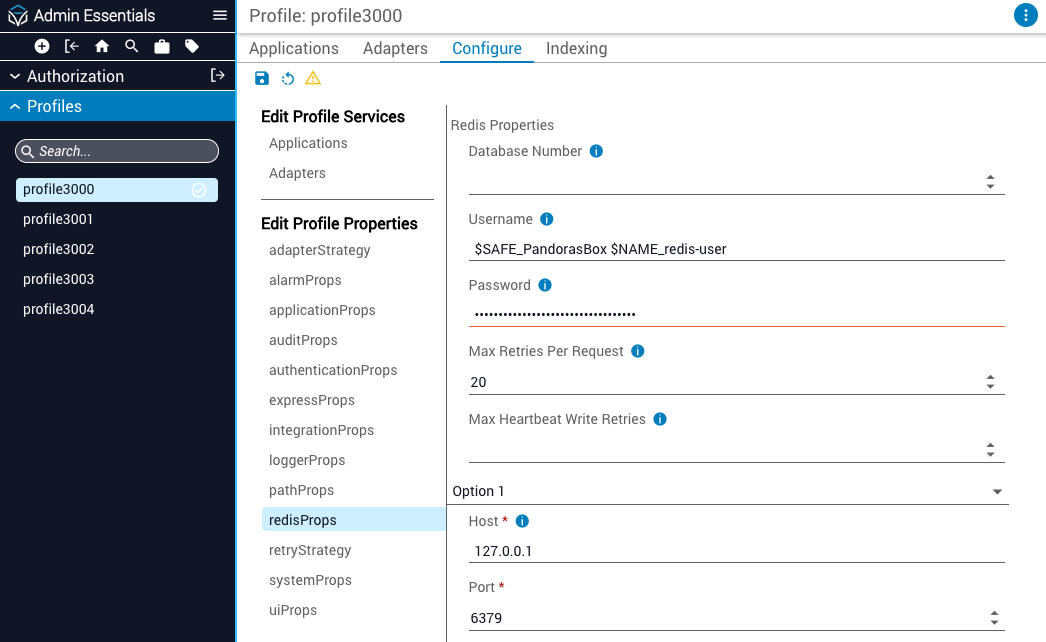
System profiles

1

Open Admin Essentials

Navigate to Admin Essentials and select Profiles.

2

Select the active profile

Select the active profile from the list.

3

Open configuration

Click the Configure tab.

4

Select property

Select a profile property to encrypt.

Edit Profile properties

5

Add CyberArk reference

Replace the value with a CyberArk reference.

6

Save and restart

Save the configuration and restart Itential Platform.

Configure applications, adapters, and integrations

The following example uses an Adapter instance. The same steps apply to Applications and Integrations.


Using configuration form

1

Open Admin Essentials

Navigate to Admin Essentials and select Adapters.

2

Select adapter

Select your adapter from the list.

3

Replace sensitive values

Replace sensitive values in the property configuration form with CyberArk references.

4

Save configuration

Click Save. The adapter restarts automatically and retrieves the secret.

Adapter connection status

Using advanced view

1

Open Admin Essentials

Navigate to Admin Essentials and select Adapters.

2

Select adapter

Select your adapter from the list.

3

Enable advanced view

Click the Advanced View toggle in the upper-right to access the JSON configuration.

4

Replace sensitive values

Replace sensitive values with CyberArk references.

5

Save configuration

Click Save. The adapter restarts automatically and retrieves the secret.

Next steps