Status
This information applies to Platform 6.0.0 and higher.
Prior to Platform 6, the Profiles page in Admin Essentials contained Applications, Adapters, Configure, and Indexing tabs. Now that Itential Platform can run without a profile, the Applications, Adapters, and Indexing tabs were moved for accessibility to a new Status page. These tabs still provide the same information and controls as before:
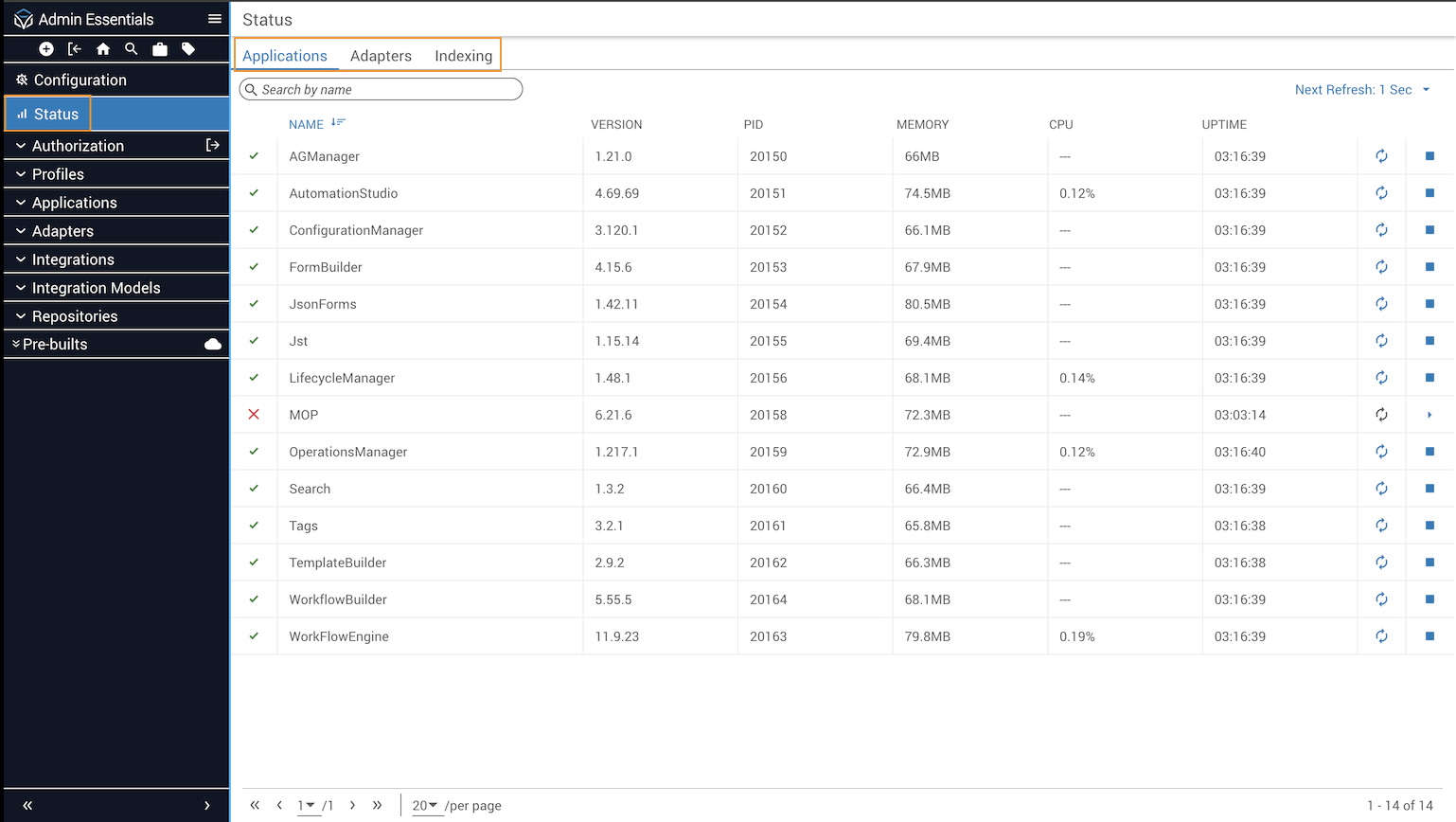
- Applications gives status information of all configured Platform services.
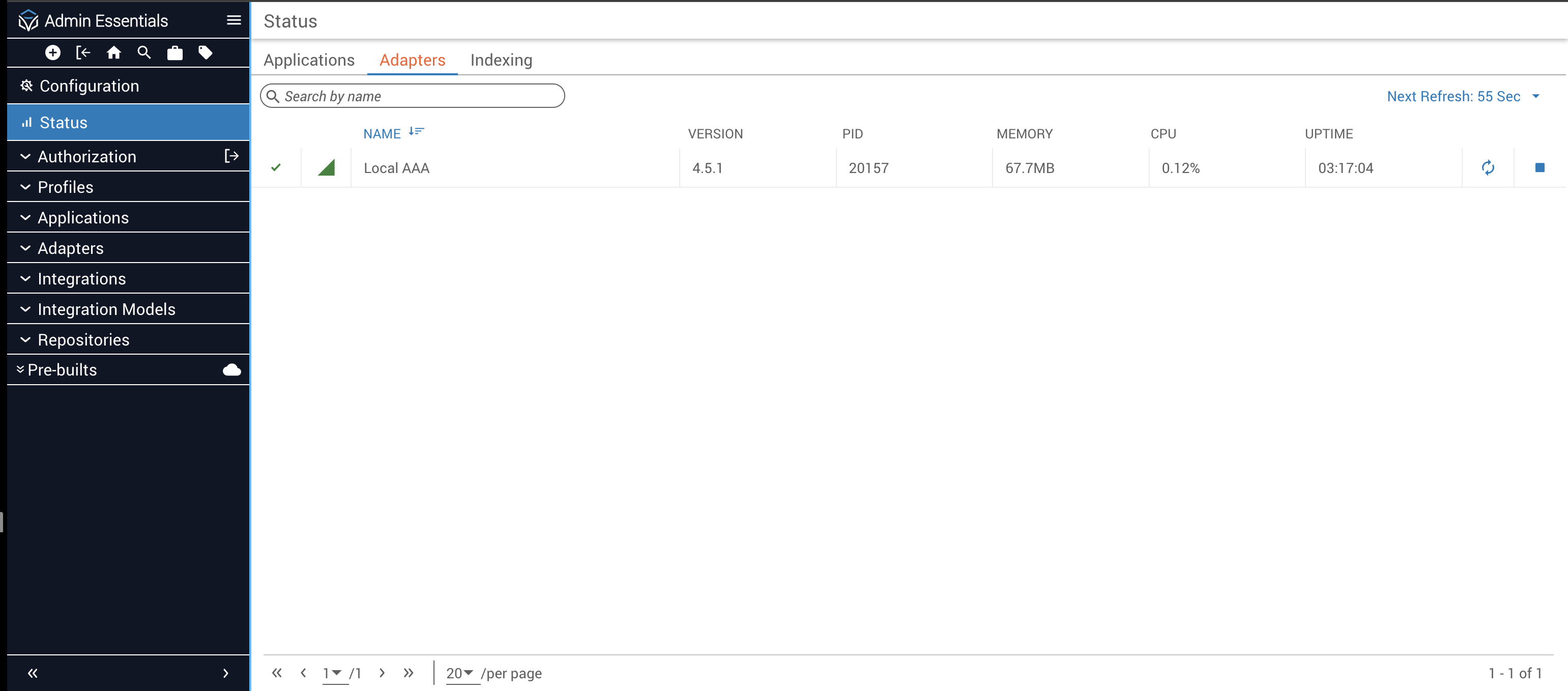
- Adapters gives information about configured adapters.
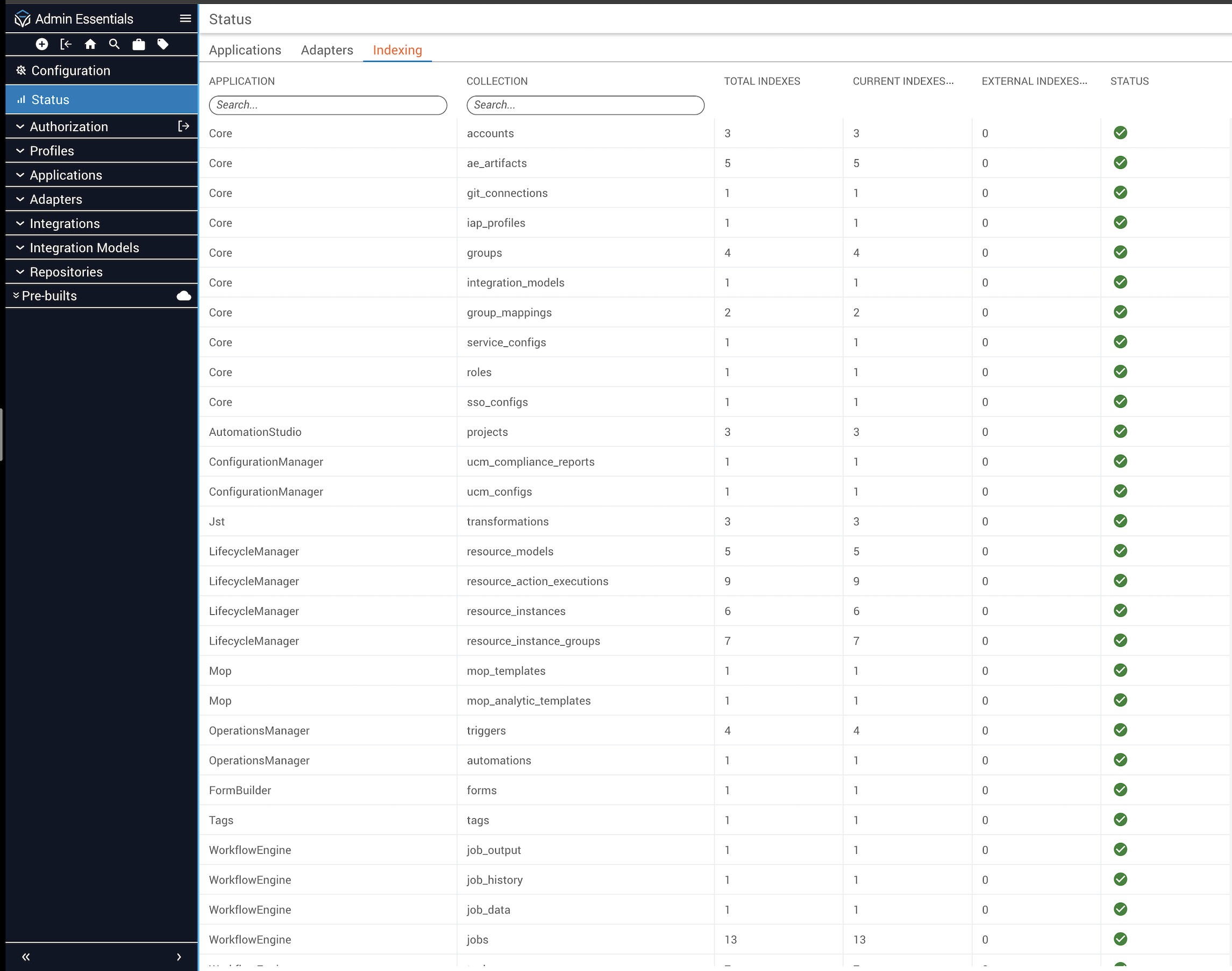
- Indexing gives the status of the MongoDB indexing.
Applications
From the Applications tab, a grid displays status information for each application; you also have the ability to stop/start/restart each application, as necessary. This tab updates every 60 seconds when open.
Adapters
From the Adapters tab, a similar application grid is displayed, along with a status indicator (check mark) and connection icon (right triangle) to indicate if the adapter is properly connected. This tab also updates every 60 seconds when open.
Indexing
From the Indexing tab, the grid displays a list of indexes present on the system and shows whether those indexes are valid or not. Indexing can only be accessed for the active profile. In this way, the Itential Platform admin can quickly see if the necessary indexes are properly installed on the database.
To perform admin actions on the Indexing tab, a user must have access to the getIndexes method. This includes the ability to direct Itential Platform to create indexes on the database.
Security-minded care should be observed when assigning this permission to a user or group of users.
The Run Indexing button becomes available only if an index is either missing or misnamed. Running indexing may take anywhere from a couple of seconds to 30 minutes or more. When the button is pressed, a loader will show until the process is done, with the dialog polling occasionally to determine if the process is complete. If the dialog is closed, polling stops; if it is reopened, polling resumes.


