Add gateway services to workflows
With Gateway configured and your gateway services registered, you can now use the Itential Platform to orchestrate these services through intuitive workflows that simplify complex network operations.
Build a workflow with gateway services
The following procedures provide a high-level overview for adding a service to a new workflow. For additional guidance, see the following topics:
- For more information on variable sources, see Variable types.
- For more information on workflows, see Create and run workflows.
- For more information on tasks, see Configure and manage tasks.
Step 1: Add the Run Service task to your canvas
Step 2: Configure the Run Service task
Double-click the Run Service task to open the task panel.
From the Run Service task panel, you can specify the gateway cluster and gateway service on that cluster that you want to include in your workflow.
When you select a service with decorators attached, the task extracts the expected input variables from the decorator and lists them as input parameters. For more information on decorators, see Using Decorators.
Set input parameters
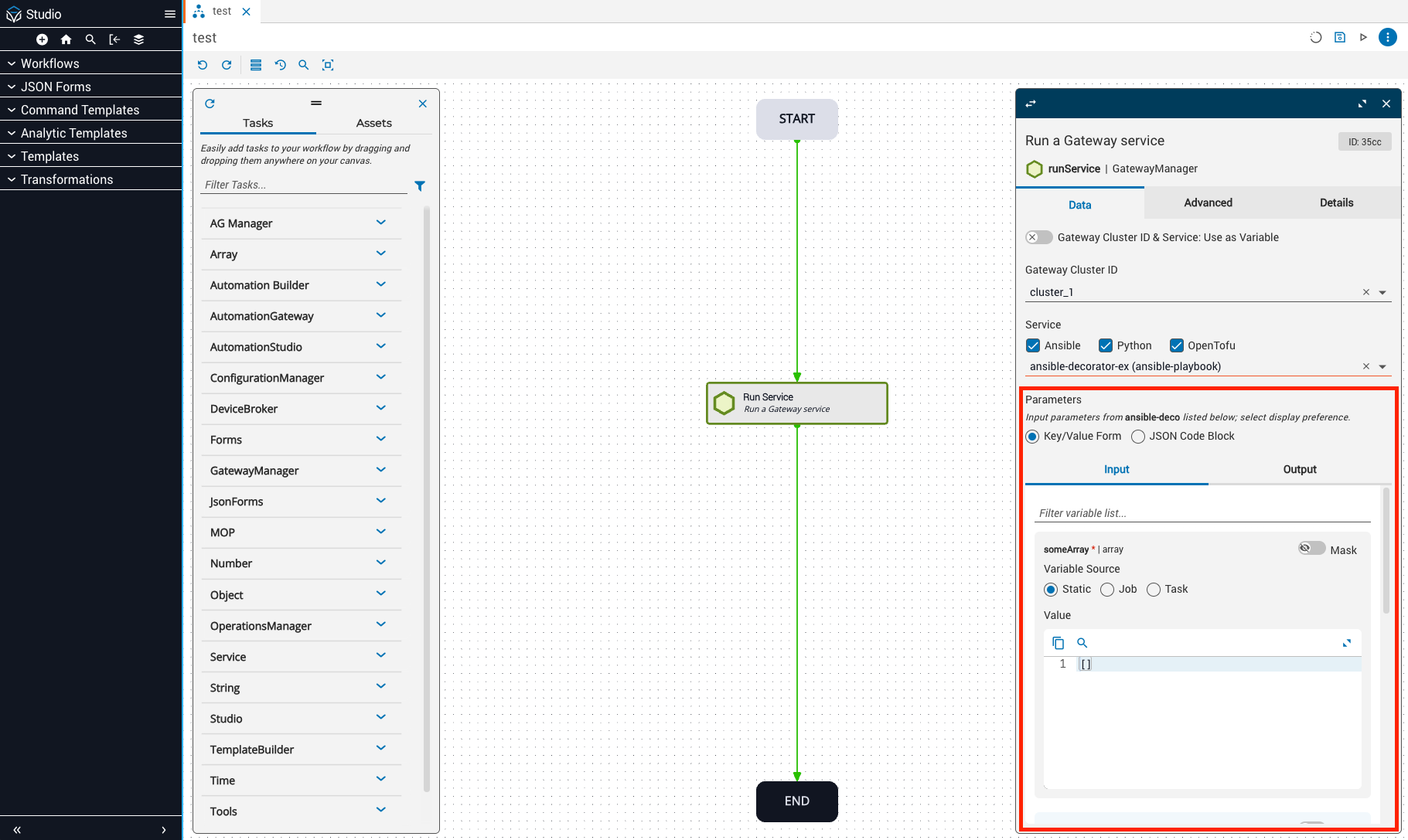
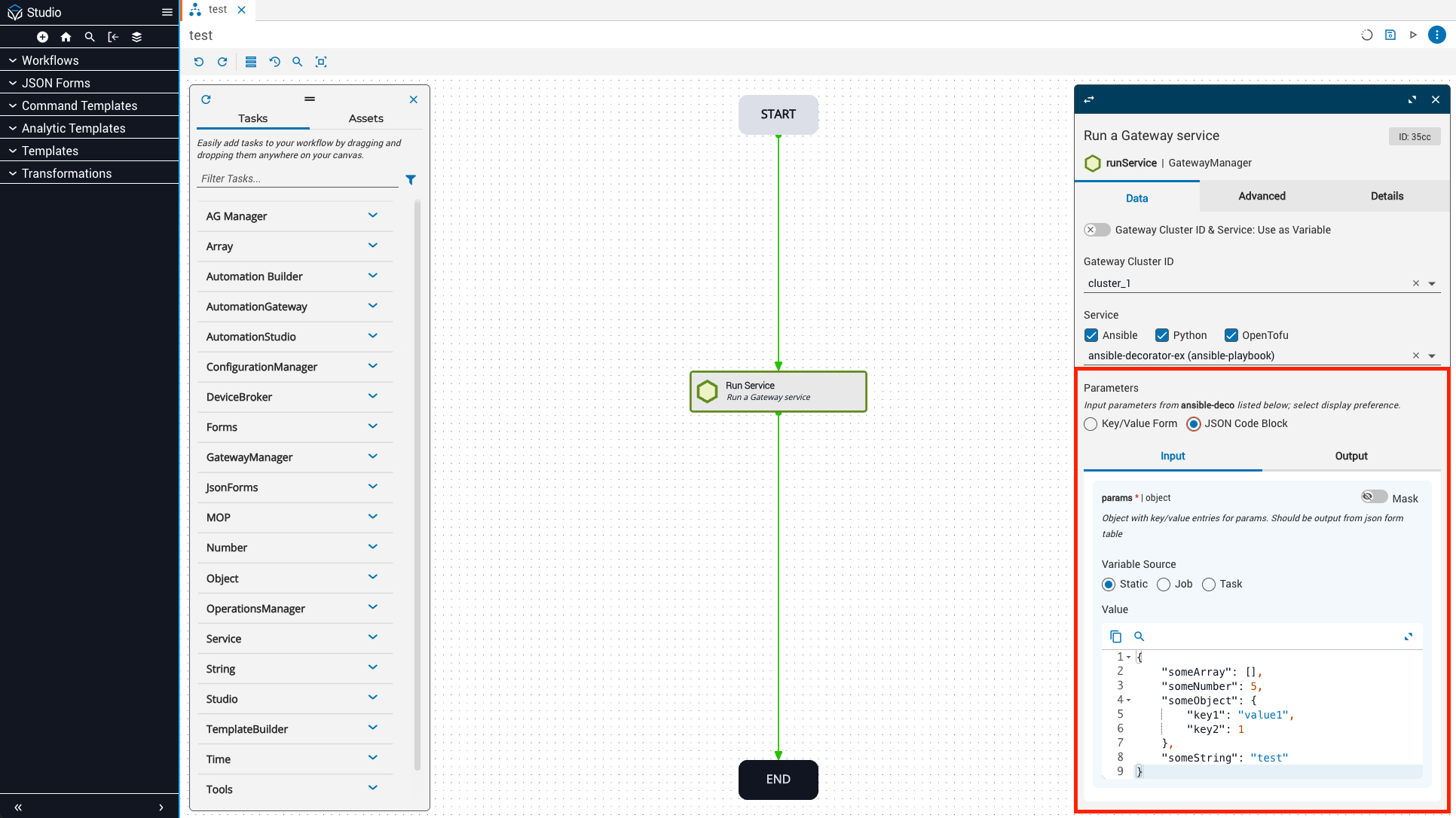
You can supply input parameters through a key-value form or as a JSON code block.
Key-value form (default): The task panel displays input parameters in a key-value form where you configure each variable defined in your decorator individually. You can configure the variable source (static, job, or task) and specify static key-value pairs.
JSON code block: To define input parameters as a single JSON code block, select JSON Code Block under Parameters in the task panel.
Define gateway cluster and service variables
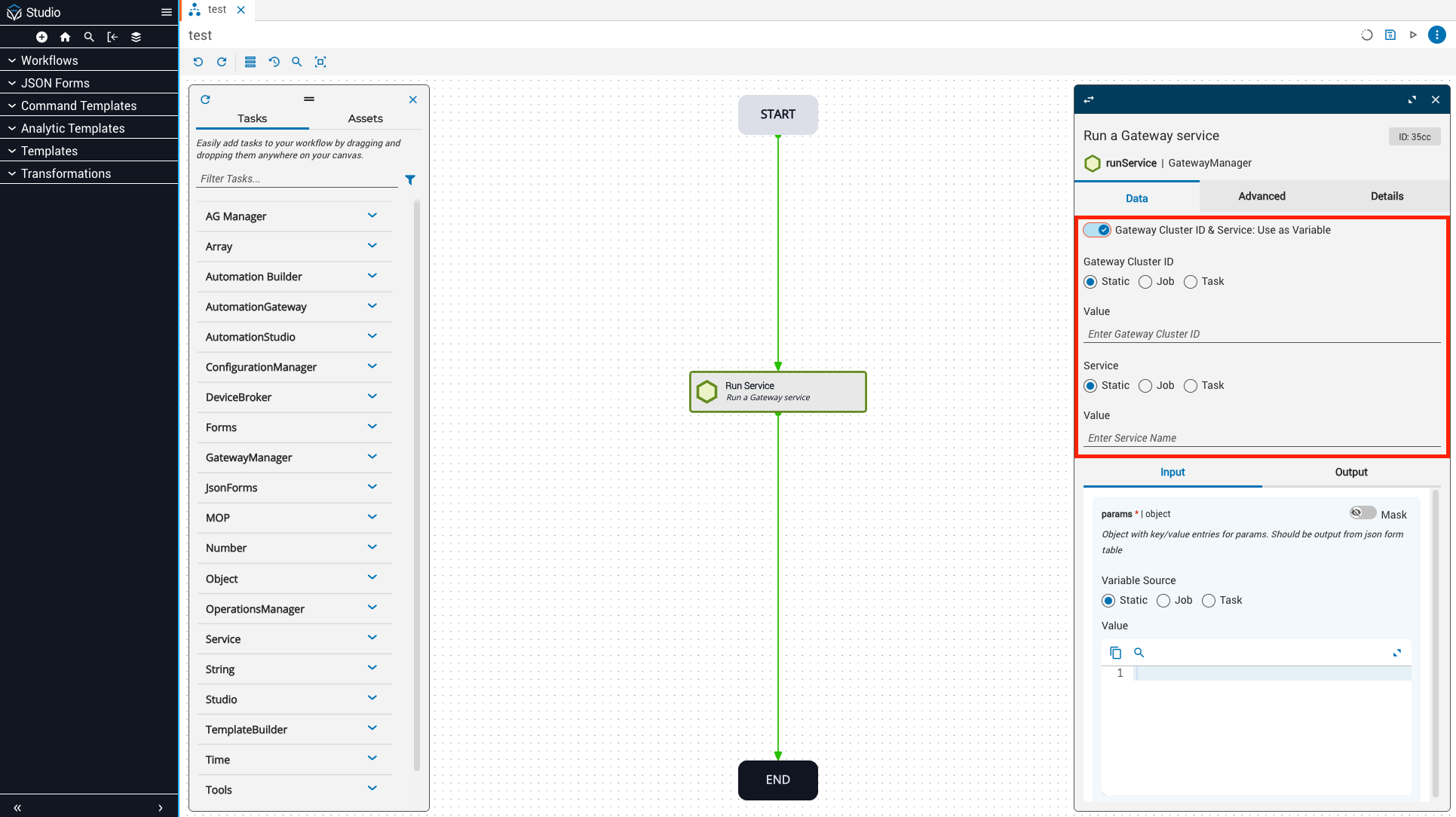
You can use the Gateway Cluster ID and Service Name fields to specify which gateway cluster and service you want to run, or you can define the Gateway Cluster ID and service as input variables that receive data from elsewhere in the workflow.
To use as variables:
- Enable the Gateway Cluster ID & Service: Use as Variable toggle at the top of the task panel.
- Define the source for the gateway cluster ID and service variables as static, job, or task to determine how these values will be passed to the Run Service task.