Rotate AAA passwords
Periodically updating passwords for Itential Platform integrations and adapters should be part of routine maintenance. For example, the SANS Institute recommends administrators update passwords at least every 90 days. While updating adapter and integration passwords in Itential Platform is relatively straightforward, doing so for the adapter responsible for AAA (LDAP, RADIUS, Azure) can lead to a downtime incident if not performed in the correct order. Review the following steps before conducting a password rotation procedure — especially for the AAA adapter.
AAA password rotation procedure
Log in to Itential Platform before the rotation window
Log in to Itential Platform at least one hour (the default token expiration) prior to your password rotation schedule. This ensures you have an active session token during the password update process. If no active session is present, administrators will have to fall back to direct MongoDB and Itential Platform shell access instead of using Admin Essentials views.
Rotate the password on the AAA system
Perform the password rotation procedure on the AAA system (Active Directory, Azure, RADIUS, etc.). Starting at this point, new users will not be able to request new login sessions (tokens).
Update the password in your password manager and/or adapter service config
Depending on your system configuration, update the new password in your password manager (HashiCorp Vault or CyberArk CCP) and/or the Itential Platform adapter service config via the Admin Essentials view. Perform these updates in exact order.
Restart the adapter to load the new password
If no adapter service config change was needed (or in HA/DR environments), navigate to the active profile within Admin Essentials and issue a manual adapter restart request to load the new password from your password manager. At this point, users should be able to establish new login sessions.
Itential Platform is now using the rotated password for its AAA adapter and users can successfully create new login sessions.
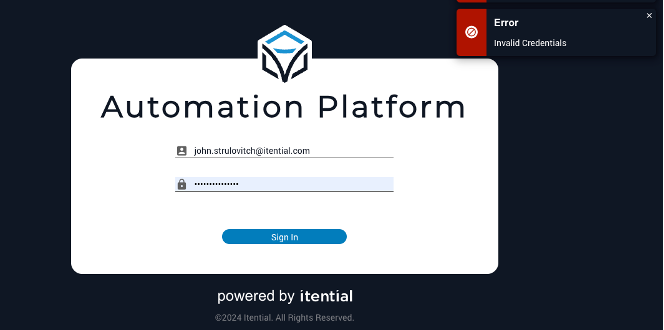
Unable to log in to Itential Platform
If for any reason you are unable to log in to Itential Platform, or no longer have an active Itential Platform session, direct MongoDB and Itential Platform server shell access are required.
Update the adapter configuration in MongoDB
Refer to the official MongoDB documentation to perform a manual document update via the mongosh command.
Restart the AAA adapter on each cluster node
Once changes have been implemented in MongoDB, restart the AAA adapter on each Itential Platform node in the cluster using either method:
- Issue the
systemctl restart automation-platformcommand to restart the entire platform. This method is disruptive and should be performed on each node of the cluster. - Or, identify the PID for the running AAA adapter and use
killto restart the adapter process.



