> For clean Markdown of any page, append .md to the page URL.
> For a complete documentation index, see https://docs.itential.com/itential-platform/6/admin-essentials/integrations/manage/llms.txt.
> For AI client integration (Claude Code, Cursor, etc.), connect to the MCP server at https://docs.itential.com/_mcp/server.
# Manage integrations
> How to create, configure, and troubleshoot integrations in Admin Essentials using integration models.
Integrations connect Itential Platform to external systems using the settings defined in an integration model. This page explains how to create, configure, and troubleshoot integrations in Admin Essentials.
Available actions depend on your user permissions.
## Create an integration
#### Open the Create dialog
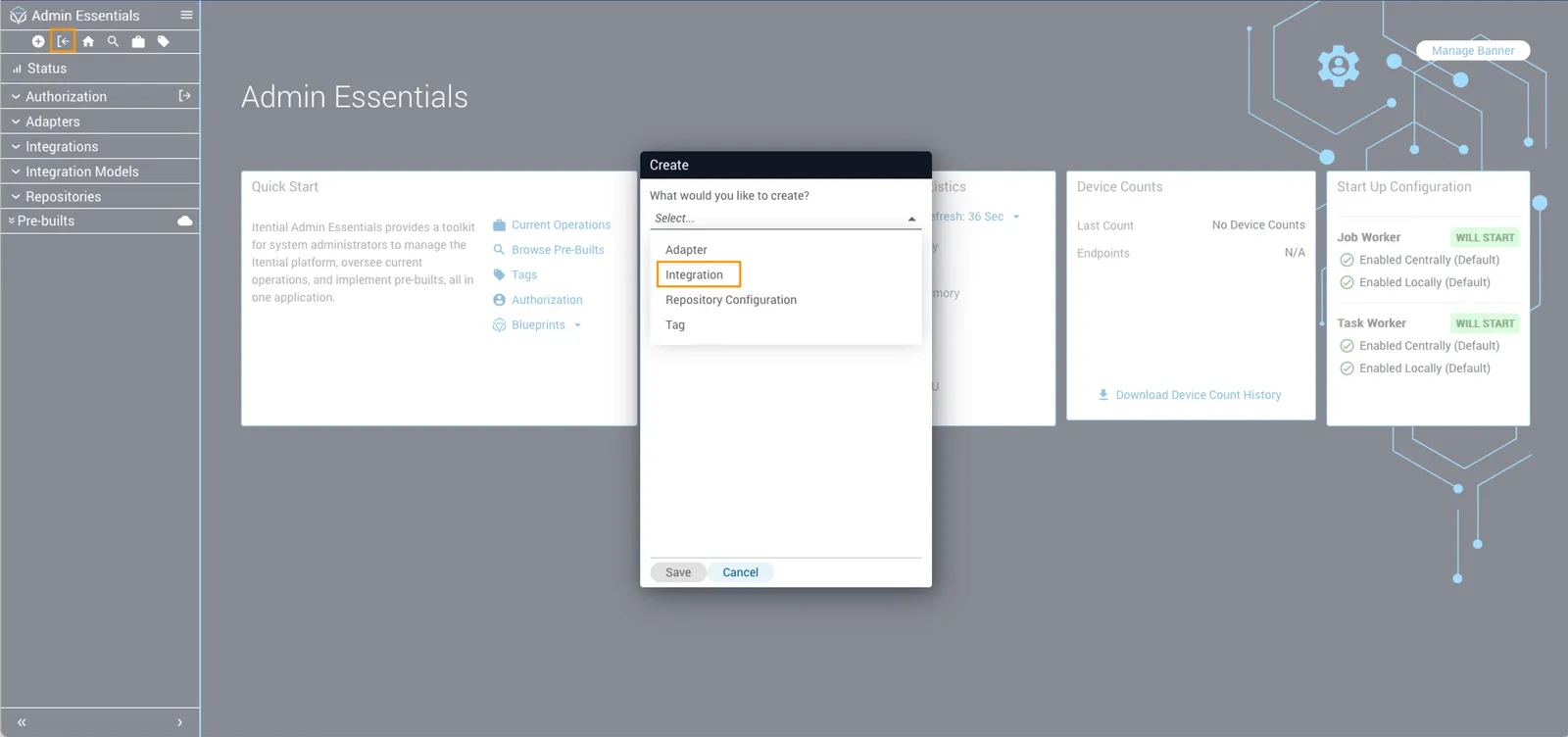
In Admin Essentials, click the plus (+) icon in the top-left toolbar.
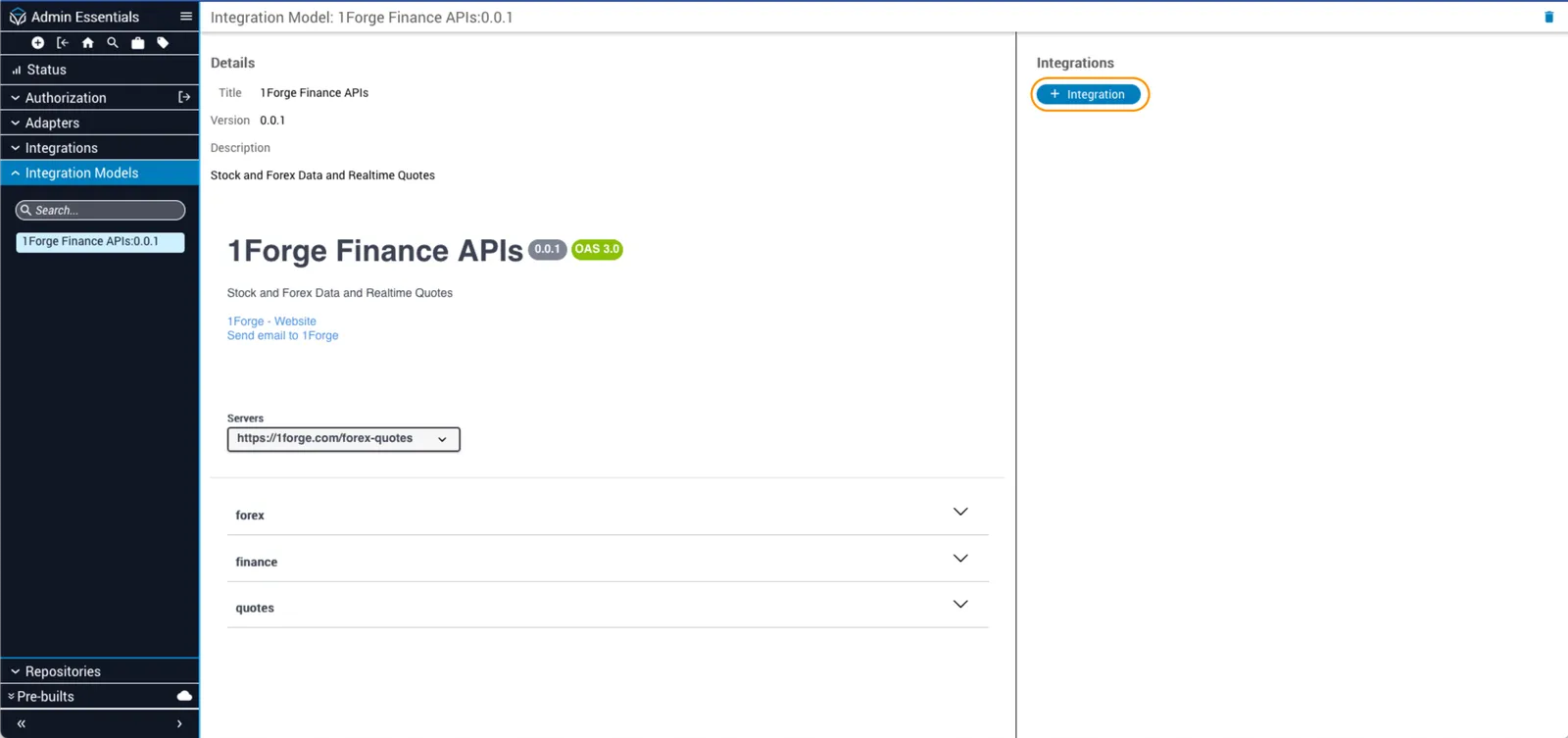
Alternatively, open an integration model's details view and click **+ Integration**.
#### Select a model and save
Select an integration model and click **Save**.
## Configure an integration
Open an integration to view its details. The **Configuration** tab displays the integration's settings as a form.
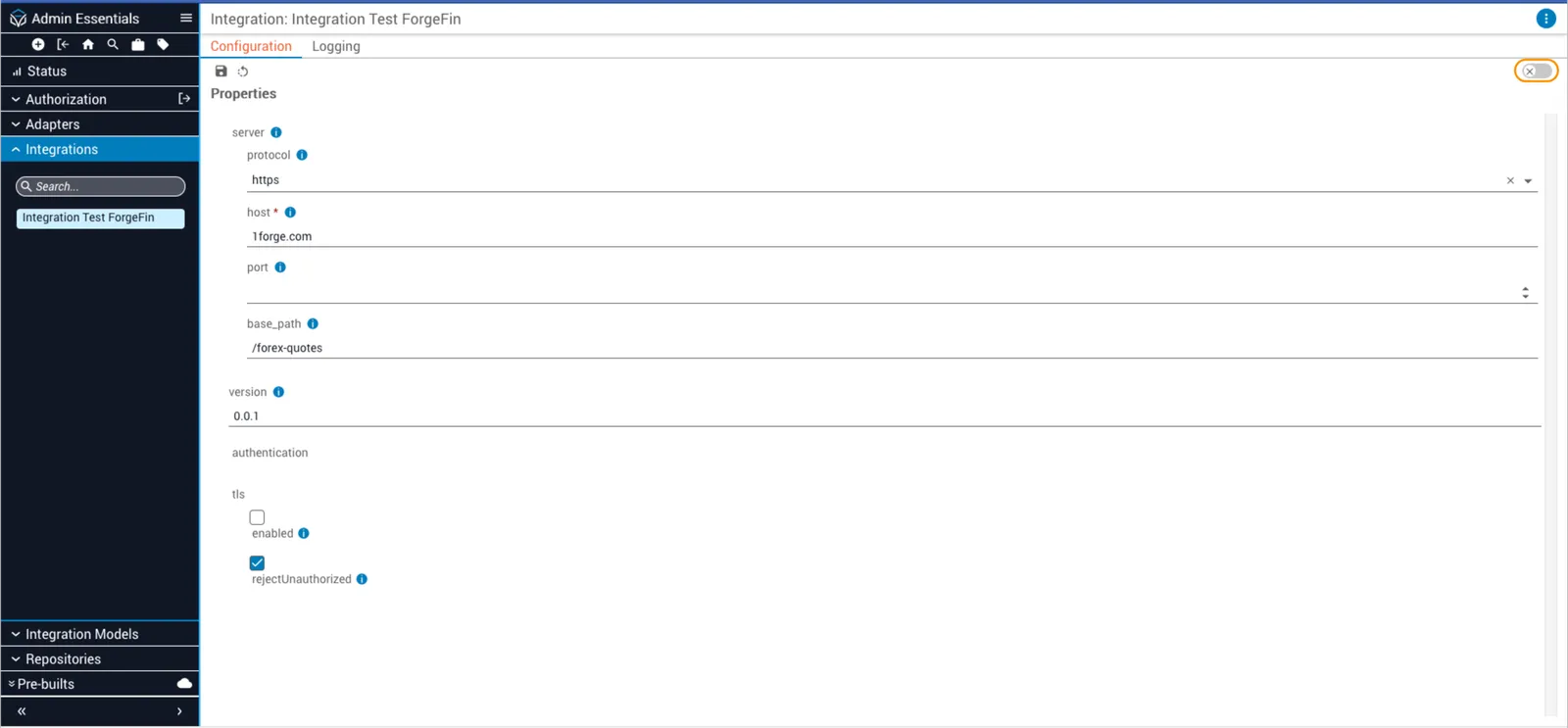
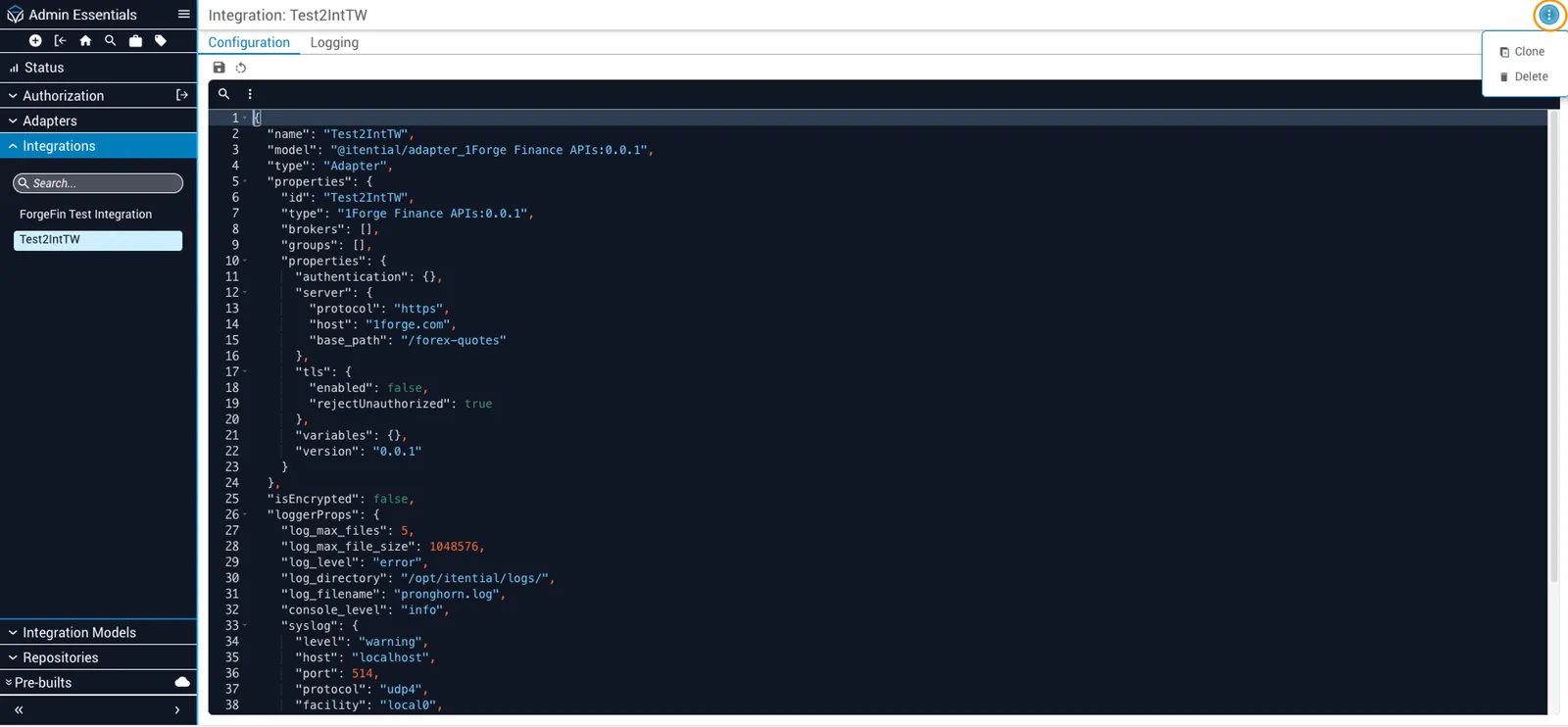
If a setting is not available in the form, toggle **Advanced View** in the upper-right corner to edit the configuration directly as JSON. From the Advanced View, click the **More** button (stacked dots icon) to clone or delete the integration:
* **Clone**: requires the `Integrations - createIntegration` permission
* **Delete**: requires the `Integrations - deleteIntegration` permission
### Server
The **Server** settings define how Platform connects to the external system.
| Field | Type | Required | Description |
| --------- | ------- | -------- | ---------------------------------------------------------------------------------- |
| Protocol | String | No | Protocol used to connect to the server. Options: `http`, `https`. Default: `http`. |
| Host | String | Yes | The server's hostname or IP address. |
| Port | Integer | No | Port used to connect to the server. Valid range: 1–65535. |
| Base path | String | No | A base path prepended to all API requests. Example: `/system/api`. |
| Version | String | No | The API version this integration supports. Example: `v1`, `v2.6`. |
### Authentication
Authentication fields depend on the security scheme defined in the integration model.
**API key**
| Field | Type | Required | Description |
| ----- | ------ | -------- | ------------------------------------------------------ |
| Value | String | Yes | The API token or cookie value used for authentication. |
If the integration model enables dynamic retrieval, the **Value** field is not required. Instead, configure the following fields to retrieve the API key automatically at runtime:
| Field | Type | Required | Description |
| ---------------- | ------ | -------- | -------------------------------------------------------------------------------------------------------- |
| Method | String | Yes | HTTP method used to retrieve the API key. Options: `GET`, `POST`, `HEAD`, `PUT`, `PATCH`. |
| URL | String | Yes | Target URL to fetch the API key from. |
| Response pointer | String | No | JSON Pointer to extract the API key from the response body. Leave blank to use the entire response body. |
**HTTP Basic**
| Field | Type | Required | Description |
| -------- | ------ | -------- | ---------------------------- |
| Username | String | Yes | Username for authentication. |
| Password | String | Yes | Password for authentication. |
**HTTP Bearer**
Enter the bearer token directly as a string. The entire authentication credential is the token value itself — there are no named sub-fields.
**AWS Signature v4**
| Field | Type | Required | Description |
| ----------------- | ------ | -------- | ---------------------- |
| Access Key ID | String | Yes | AWS access key ID. |
| Secret Access Key | String | Yes | AWS secret access key. |
| Session Token | String | No | AWS session token. |
**OAuth 2.0 — Client Credentials**
| Field | Type | Description |
| ------------- | ------ | ---------------------------------------------------------------------------------------------------------------------------------------------------------------------------------- |
| Client ID | String | Client ID of the application. |
| Client Secret | String | Client secret of the application. |
| Token URL | String | Token endpoint URL. |
| Refresh URL | String | Refresh token endpoint URL. |
| Scope | String | Scope(s) for the application. Separate multiple scopes with a space. |
| Auth method | String | How client credentials are transmitted. Options: `client_secret_basic` (in the Authorization header) or `client_secret_post` (in the request body). Default: `client_secret_post`. |
Platform retrieves and stores the access token automatically when credentials are provided. You can optionally pre-populate `access_token` or `refresh_token` in Advanced View if you already have a valid token.
**OAuth 2.0 — Password**
Includes all Client Credentials fields above, plus:
| Field | Type | Description |
| -------- | ------ | ------------------------- |
| Username | String | Username for the service. |
| Password | String | Password for the service. |
**OAuth 2.0 — Authorization Code**
Includes all Client Credentials fields above, plus:
| Field | Type | Description |
| ----------------- | ------ | --------------------------------------------------------------------------------- |
| Authorization URL | String | URL to redirect to for granting permissions and retrieving an authorization code. |
**OpenID Connect**
Includes the same fields as OAuth 2.0 Client Credentials, except **Token URL**, which is discovered automatically from the identity provider. Additional fields are populated dynamically from the provider's OpenID Connect discovery document.
**Mutual TLS**
| Field | Format | Description |
| ----------- | -------------- | ---------------------- |
| Certificate | PEM (data URL) | Client certificate. |
| Key | PEM (data URL) | Private key. |
| CA | PEM (data URL) | Certificate authority. |
### TLS
TLS settings control how Platform handles HTTPS connections to the external system.
| Field | Type | Default | Description |
| ------------------- | ------- | ------- | --------------------------------------------------------------------------------------------------------------------------- |
| Enabled | Boolean | `false` | When enabled, Platform requests and verifies TLS certificates from the endpoint. |
| Reject unauthorized | Boolean | `true` | When enabled, rejects connections that do not have a valid certificate authority (CA). Applies only when **Enabled** is on. |
### Timeout
| Field | Type | Description |
| ------- | ------- | -------------------------------------------------------------------------------- |
| Timeout | Integer | Time in milliseconds to wait for a server response before the request times out. |
### Gateway cluster override
Platform 6.4.0+
By default, integrations use the cluster and execution settings defined in [Gateway Configuration](/itential-platform/admin-essentials/gateway-configuration). Use cluster override to execute integration requests from this cluster. When enabled, these settings take precedence over the Gateway Configuration defaults.
| Field | Type | Default | Description |
| ---------------- | ------- | ------- | -------------------------------------------------------------------------------------------- |
| Override cluster | Boolean | `false` | When enabled, this integration uses the cluster specified in **Cluster ID**. |
| Cluster ID | String | — | The gateway cluster to execute requests from. Required when **Override cluster** is enabled. |
### Proxy override
Platform 6.4.0+
By default, integrations use the proxy settings defined in [Gateway Configuration](/itential-platform/admin-essentials/gateway-configuration). Use proxy override to set custom proxy behavior for this integration. When enabled, these settings take precedence over the Gateway Configuration defaults.
| Field | Type | Default | Description |
| ----------------------- | ------- | -------- | ------------------------------------------------------------------------------------------------------------------ |
| Override proxy behavior | Boolean | `false` | When enabled, this integration uses the proxy settings defined here instead of the Gateway Configuration defaults. |
| Execution mode | String | `direct` | How to execute requests. Options: `direct`, `cluster_no_proxy`, or `proxy`. |
* `direct`: Bypass the gateway and connect directly to the target system.
* `cluster_no_proxy`: Execute requests through the gateway without a proxy.
* `proxy`: Execute requests through the gateway with a proxy server.
When **Execution mode** is set to `proxy`, configure the proxy server:
**Proxy server**
| Field | Type | Description |
| ----- | ------- | --------------------------------------------------------------- |
| Host | String | The proxy server's hostname or IP address. |
| Port | Integer | Port used to connect to the proxy server. Valid range: 1–65535. |
**Proxy authentication**
| Field | Type | Default | Description |
| --------- | ------ | ------- | -------------------------------------------------------------------------------------- |
| Auth mode | String | `none` | Authentication mode for the proxy server. Options: `none`, `basic`, `secrets_manager`. |
| Username | String | — | Username for `basic` auth, or the lookup key when using `secrets_manager`. |
| Password | String | — | Password for `basic` auth, or the lookup key when using `secrets_manager`. |
## Assign integration roles
When you create an integration, Itential Platform automatically generates a set of roles for it. There is one `admin` role for the integration, plus one role for each HTTP verb supported by the integration model. For example, `GET`, `POST`, `DELETE`.
Users must be assigned the appropriate roles before they can invoke the integration's tasks in a workflow.
To assign roles:
#### Go to Roles
In Admin Essentials, go to **Authorization** > **Roles**.
#### Filter by integration
Filter the **Source** column by the name and version of the integration model associated with your integration. For example, `Hello World:2.0.0`.
#### Assign roles
Assign the appropriate roles to the relevant users or groups.
For more information about how to grant permissions, see [Roles](/itential-platform/admin-essentials/authorization#roles).
## Use an integration in a Studio workflow
Each endpoint in the integration model appears as a workflow task in Studio. For example, if you create an integration called `Hello World`, that integration will appear as a set of tasks in the canvas task palette. Add these tasks to a make API calls to a coresponding endpoint.
## Configure logging
Logging settings are configured individually for each integration. Changes take effect immediately and do not require a restart.
To update the log level for an integration:
#### Open the integration
Open the integration's details in Admin Essentials.
#### Go to the Logging tab
Select the **Logging** tab.
#### Set the log level
Adjust the log level.
To configure logging to an external Syslog system:
#### Enable Advanced View
In the **Configuration** tab, enable **Advanced View**.
#### Add Syslog connection properties
Add the Syslog connection properties to the JSON configuration.
#### Set the Syslog log level
In the **Logging** tab, set the Syslog log level.
For related reading, see [Logging in Itential Platform](/itential-platform/monitor/log/overview), [Log Class](/itential-platform/developer-guide/log-class), and [Integration Models](/itential-platform/admin-essentials/integration-models).
## Troubleshoot integration errors
When an integration fails to connect to an external system, Platform returns error details to help diagnose the issue.
### Understand output errors
A failed integration task returns one of two error types:
* **String**: The integration did not have the information needed to make the API call. The string explains why.
* **Object**: The API call reached the target server but returned a failure response. The object contains fields from the server's response body.
### Response body fields
Platform standardizes the integration response body with the following fields:
| Field | Description |
| ------------ | ---------------------------------------------------------------------------- |
| `ok` | `true` if the response was successful; `false` if it failed. |
| `method` | HTTP verb of the call: `GET`, `POST`, `PUT`, `PATCH`, or `DELETE`. |
| `url` | URL of the call. |
| `status` | HTTP status code returned by the server. |
| `statusText` | Description of the HTTP status code. |
| `headers` | Array of response headers. |
| `body` | Parsed response body. Populated when Platform can parse the response. |
| `text` | Raw response text. Returned when the response body cannot be parsed as JSON. |
| `parseError` | Parsing error details, when a parsing error occurred. |
For some workflows (for example, `clientCredentials`), Platform automatically requests new access tokens or uses refresh tokens. If the token request fails, the error object may reference a `POST` to `api/v1/token` even if the original integration task was a `GET`. This indicates that the token request failed before the integration could attempt the API call.
#### Example: success response
```json
{
"ok": true,
"method": "GET",
"url": "http://localhost:8088/pet/7119",
"status": 200,
"statusText": "OK",
"headers": {
"connection": "close",
"content-type": "application/json",
"date": ["Fri", "05 May 2023 17:48:43 GMT"],
"transfer-encoding": "chunked",
"x-powered-by": "Express"
},
"body": {
"id": 7119,
"tags": [],
"status": "available",
"name": "Lotus",
"photoUrls": [
"https://patchpuppy.com/wp-content/uploads/2022/06/WhatIsanAmericanBlackLab.jpg.webp"
]
}
}
```
#### Example: error response
```json
{
"ok": false,
"method": "GET",
"url": "https://petstore.swagger.io/api/v3/store/invenxxxtory",
"status": 404,
"statusText": "Not Found",
"headers": {
"access-control-allow-headers": ["Content-Type", "api_key", "Authorization"],
"access-control-allow-methods": ["GET", "POST", "DELETE", "PUT"],
"access-control-allow-origin": "*",
"cache-control": "must-revalidate,no-cache,no-store",
"connection": "keep-alive",
"content-length": "309",
"content-type": "text/html; charset=ISO-8859-1",
"date": ["Wed", "26 Feb 2025 14:02:35 GMT"],
"server": "Jetty(9.2.9.v20150224)"
},
"text": "\n\n\nError 404 Not Found\n\nHTTP ERROR 404
\nProblem accessing /api/v3/store/invenxxxtory. Reason:\n
Not Found
Powered by Jetty://
\n\n\n\n",
"parseError": {
"name": "YAMLException",
"reason": "end of the stream or a document separator is expected",
"mark": {
"name": null,
"buffer": "...",
"position": 211,
"line": 6,
"column": 55
},
"message": "end of the stream or a document separator is expected (7:56)"
}
}
```
If you cannot determine the cause of the error, contact Itential's [Product Support Team](https://itential.atlassian.net/servicedesk/customer/portals).
> How to create, configure, and troubleshoot integrations in Admin Essentials using integration models.